Summary of the Article
An application blocker is a tool that stops you from opening specific apps or websites, usually during hours you choose. Blocking happens at different layers: the phone's operating system, the desktop, the browser, or your network. The main types are hard blockers, friction-based blockers, schedule-based blockers, and gamified approaches, and each has real tradeoffs.
- Phone OS tools: built into iOS Screen Time and Android Digital Wellbeing; free and reliable, but easy to disable yourself.
- Desktop tools and policies: lock apps at the computer level, like Windows AppLocker or a dedicated blocker app.
- Browser extensions: block sites in one browser only, so they leave gaps if you switch apps or devices.
- Network/DNS filters: cover every device on your Wi-Fi, but cannot block apps that run only on your phone's data connection.
No blocker makes distraction impossible. The right question is which one adds enough delay at the moment you're tempted, without blocking the things you actually need.
What Is an Application Blocker and How Does It Work?
An application blocker is a tool that prevents specific apps or websites from opening, either completely or during times you set. You list the apps that pull your attention, and the blocker stops them from launching, hides them, or makes them harder to reach. People use them mainly for study focus, screen-time control, and parental or workplace limits.
If you've ever opened your phone to check one notification and looked up 20 minutes later, that's the problem blockers try to solve. They put a small wall between the impulse and the app.
One Word, Two Meanings
Before going further, a quick clarification. In enterprise IT, "application blocking" or "application control" means something different: security software that stops employees from running unauthorized or malicious programs. Microsoft's AppLocker and App Control for Business documentation covers that world, where the goal is protecting a company network.
This article is about the consumer meaning: tools that help you focus by blocking distracting apps and sites. Same phrase, different problem. The rest of this page covers the focus-tool meaning.
What People Use Application Blockers For
The use cases fall into a few broad groups:
- Study focus. Students block Instagram, YouTube, or games during study sessions so a moment of boredom doesn't turn into an hour of scrolling.
- Screen-time control. People set daily limits on social media or entertainment apps to reduce overall phone use.
- Parental controls. Parents restrict which apps children can open and when.
- Workplace rules. Companies (and remote workers) limit apps during working hours.
All four use the same underlying mechanism. What differs is how strict the blocking is and who controls it.
Where Blocking Actually Happens
A useful way to understand application blocking is to think in layers. Each layer works differently, and each one leaves gaps the others fill.
1. Your phone's operating system
Phones have the deepest access. On iPhone, Screen Time can set time limits for apps, block apps and websites, and schedule downtime. Third-party blocker apps work on top of this: some use the Screen Time API to enforce limits, others use a local VPN or content filter to intercept web traffic, and a few use accessibility permissions to detect when a blocked app opens.
These device-level methods are the most reliable because the operating system itself enforces them. The tradeoff is that on your own phone, you are usually also the administrator. Disabling a blocker is a few taps away.
2. Your computer
On a PC, blocking can work at the operating-system level or through a dedicated app. Windows offers policy-based control through AppLocker, which can prevent defined users from running specific applications. Consumer tools typically watch for a blocked app launching and close it, or require a password to open it. If you're on a Mac or Windows machine and want the specifics, the guides on blocking apps on Mac and comparing Windows app blockers walk through the practical options.
Desktop blocking matters because a phone-only blocker does nothing when you're tempted by YouTube on your laptop.
3. Your browser
Browser extensions block sites inside one browser, such as Chrome or Safari. They're the easiest kind to set up and great for blocking specific sites like a news feed or video platform.
The limitation is obvious: an extension only covers that browser. If you block YouTube in Chrome, you can still open the YouTube app, Safari, or another browser. Browser-only blocking is partial by design, which is why most serious setups combine it with device-level blocking.
4. Your network
A router-level or DNS filter blocks domains for every device on your Wi-Fi. This is how families block content house-wide, and it's hard for a child to bypass without leaving the network.
The gap: it works on domains, not apps. It also doesn't follow you when your phone switches to mobile data.
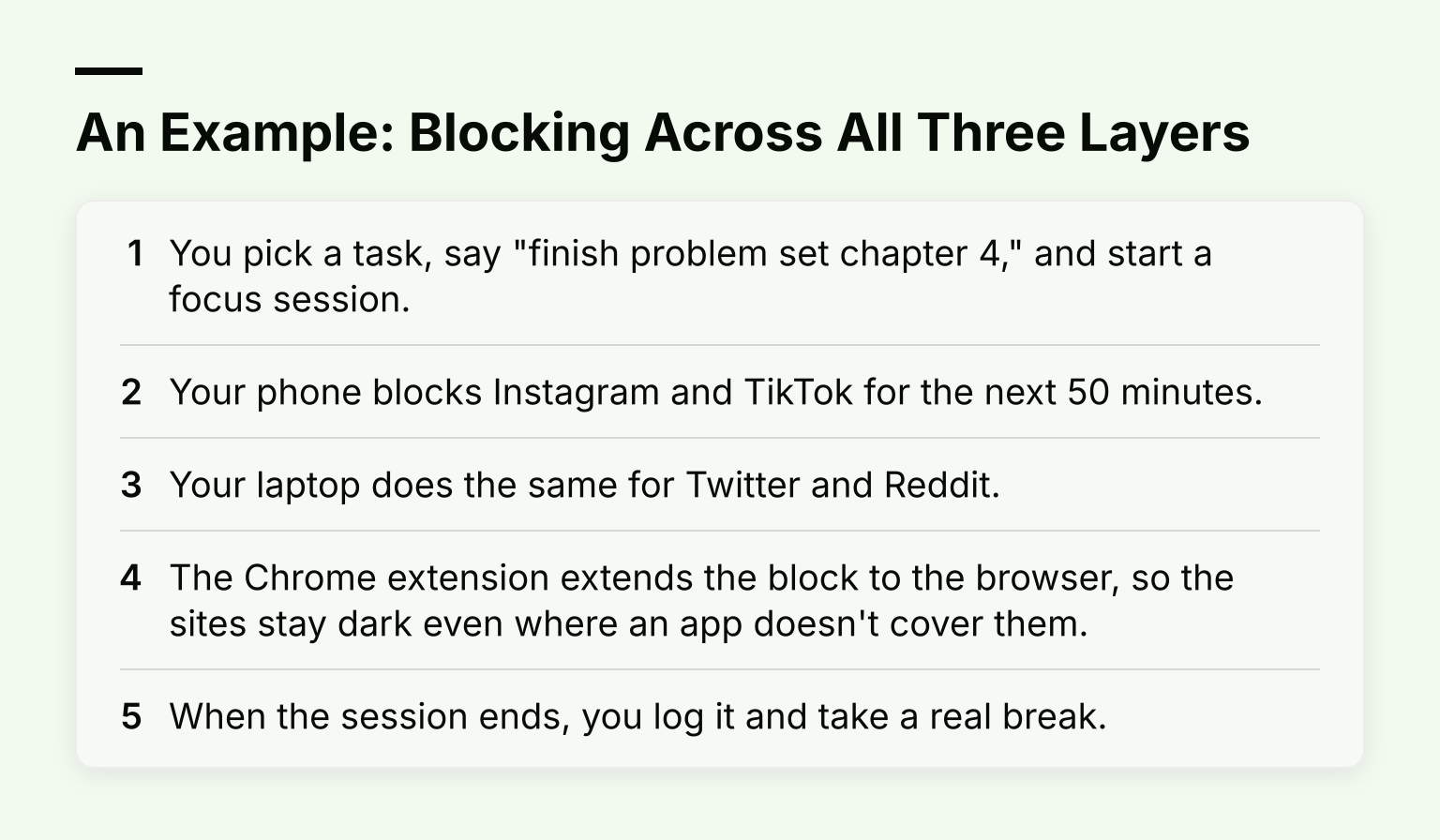
A complete setup usually stacks two or three of these layers. If you want step-by-step instructions for each one, How to Block Apps Across All Devices covers the setup side in detail.