7 Best Screen Time Control Apps for Focus in 2026

Compare the best screen time control apps for 2026 by enforcement mechanic, platforms, free tier and strictness, with honest picks for students and young professionals.

11 min read

Summary of the Article

The best screen time control app depends on how strictly you need to be blocked and on which devices you work. Apps split into three groups: friction apps that make you pause before opening a distraction, hard blockers that wall apps off on a schedule, and study apps that wrap blocking around your tasks.

  • Kohru: blocks apps and websites across your phone, laptop and Chrome during study sessions, with task lists and habit tracking built in.
  • Opal: a polished hard blocker for iOS, Android and Mac, with stronger paid blocking tiers.
  • ScreenZen: a completely free, donation-supported friction app with a lock mode against loopholes.
  • AppBlock: strict condition-based blocking by time, location or Wi-Fi, with a Strict Mode that resists bypassing.
  • Freedom: scheduled block sessions synced across Mac, Windows, iOS, Android and Chromebook.
  • one sec: a breathing pause before distracting apps open, tested in studies with the Max Planck Institute and Heidelberg University.
  • Apple Screen Time: a free built-in baseline on iPhone, iPad and Mac, easy to bypass.

If you want one pick to start with: students who need blocking tied to actual study sessions should try Kohru, and iPhone users who want a hard wall should compare it against Opal.

What a Screen Time Control App Actually Does

A screen time control app restricts your own phone and computer use. It is not the same as parental monitoring software. You install it yourself, you choose the apps and sites to block, and you set the rules. The goal is focus: fewer mindless opens of Instagram, TikTok or YouTube while you study or work.

The catch is that you are also the person holding the off switch. So the real question is not just what an app blocks, but how hard it makes bypassing the block. That is what separates the tools below.

Three Ways These Apps Control Your Time

Almost every screen time management app uses one of three mechanics:

  1. Friction apps add a pause before a distraction opens. You tap Instagram, and instead of the feed you get a breathing exercise or a message like "Is this important?" one sec and ScreenZen work this way. The block is soft, but the pause breaks the automatic habit.
  2. Hard wall apps block apps and websites outright on a schedule or during a session. Opal, Freedom and AppBlock are in this group. They are stricter, and the best ones add settings that make bypassing deliberately painful.
  3. Study and replacement apps put blocking inside a bigger workflow. Kohru is an example: you turn a task into a focus session, and distractions on your phone, laptop and Chrome browser get blocked while you work.

Friction suits impulse openers who mostly need to interrupt a habit. Hard walls suit deadline situations where willpower is low. Study apps suit students who want the block tied to a plan, not just a timer.

How We Chose the Apps Below

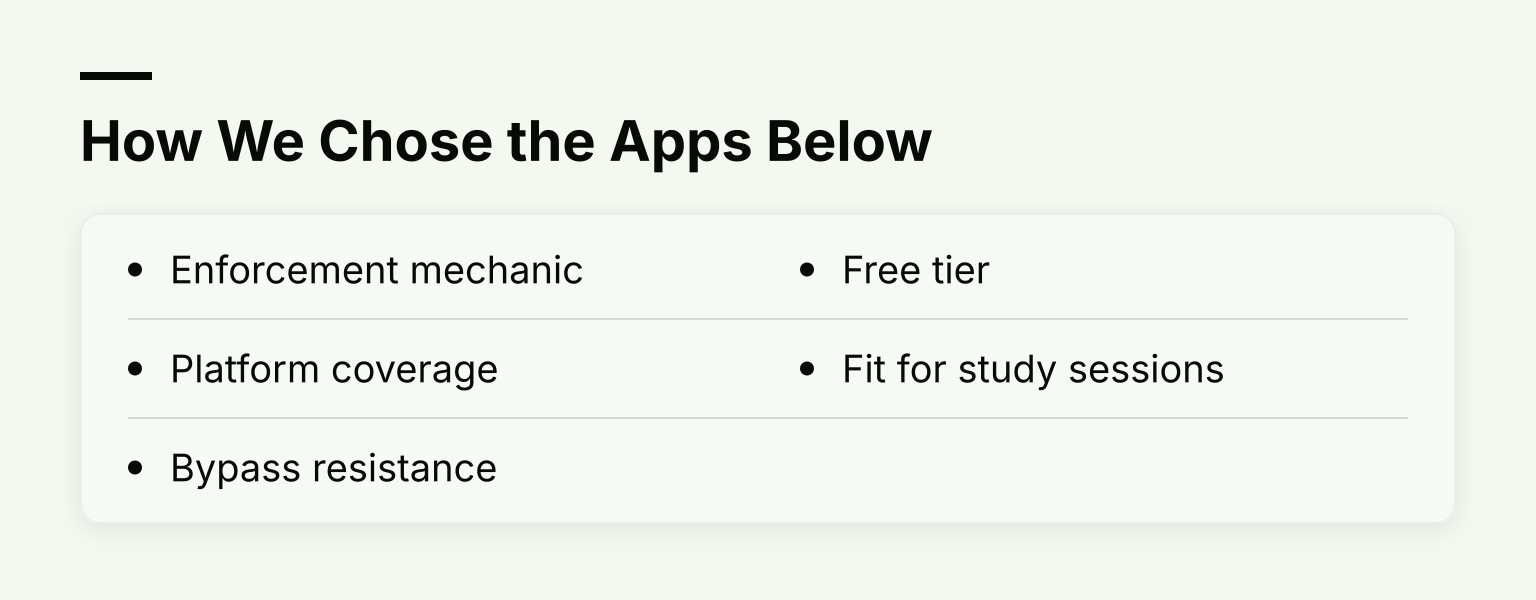
We compared each option on five points:
How We Chose the Apps Below: Enforcement mechanic; Platform coverage; Bypass resistance; Free tier; Fit for study sessions

  • Enforcement mechanic: friction, hard block, or blocking inside a study workflow.
  • Platform coverage: phone, laptop and browser, and whether blocks follow you across devices.
  • Bypass resistance: how strictly you can lock your own settings.
  • Free tier: what you can genuinely use without paying.
  • Fit for study sessions: schedules, session lengths, and whether it supports a student routine.

A note on evidence: published research on these tools is thin. one sec is the clearest exception, with peer-reviewed studies run with the Max Planck Institute and Heidelberg University reporting about 57% fewer app openings on average, as described on its own site. Treat "science-backed" claims from other apps with more caution.

Kohru: Blocking Built Into Study Sessions

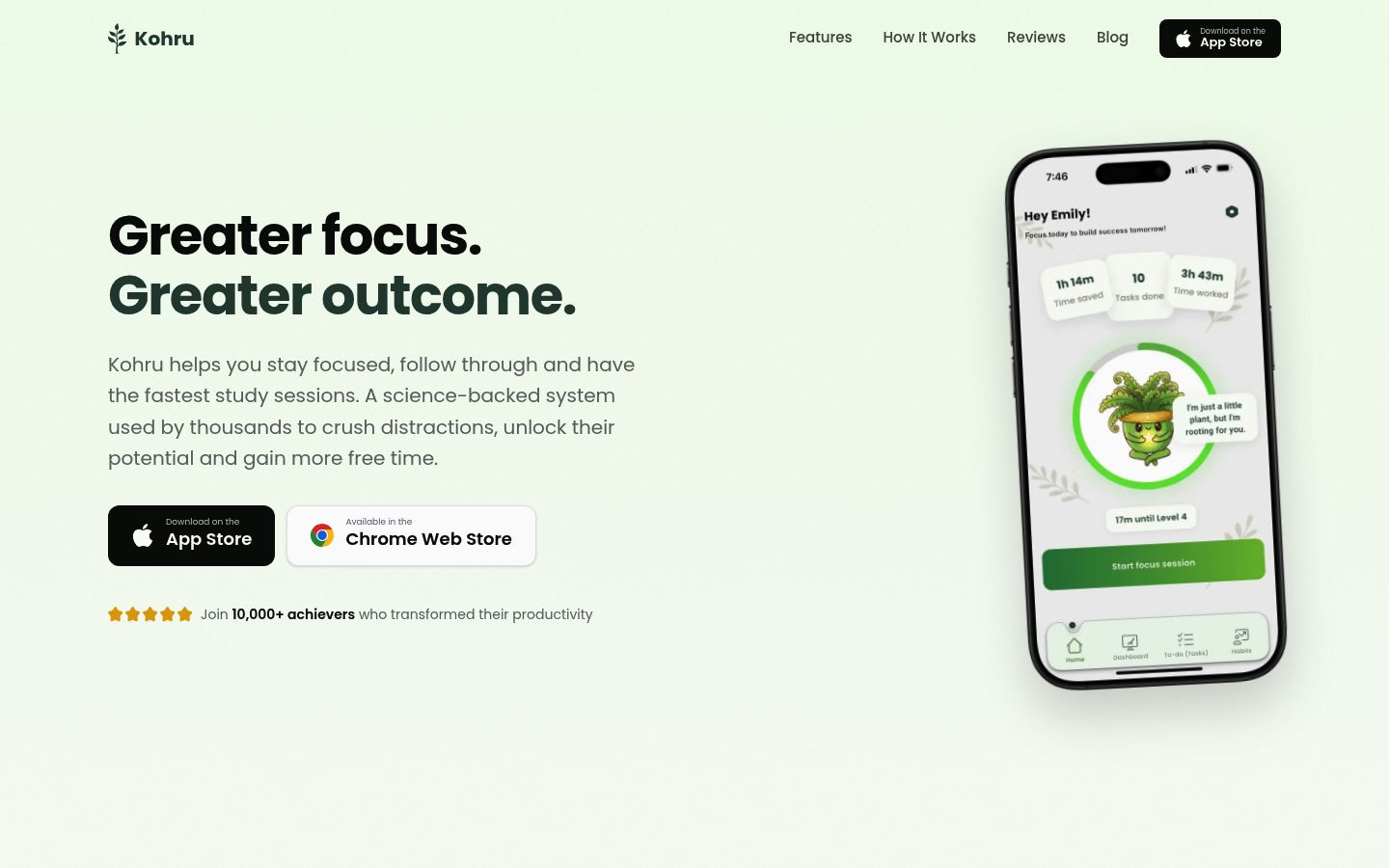
Kohru is a study and productivity app that blocks phone and laptop distractions, then extends those focus sessions to your Chrome browser through an extension. Instead of running a separate blocker alongside your to-do app, you turn a task into a focus session and the blocking follows the work.
Screenshot of the homepage of Kohru

Beyond blocking, Kohru organizes tasks from Work and Personal lists, plans them with smart to-do lists, and tracks habits, focus time and completed progress. It is designed with students in mind, including people who need extra support starting tasks, such as those with ADHD.

Best for: students and working students who want cross-device blocking tied to actual study sessions, not a standalone blocklist.

Honest tradeoffs: Kohru bundles blocking with tasks and habit tracking, so it is less of a pure blocking tool than AppBlock or Opal. If you only want a wall around your apps and nothing else, a dedicated blocker may fit better.

Opal: Polished Hard Blocking for iPhone, Android and Mac Users

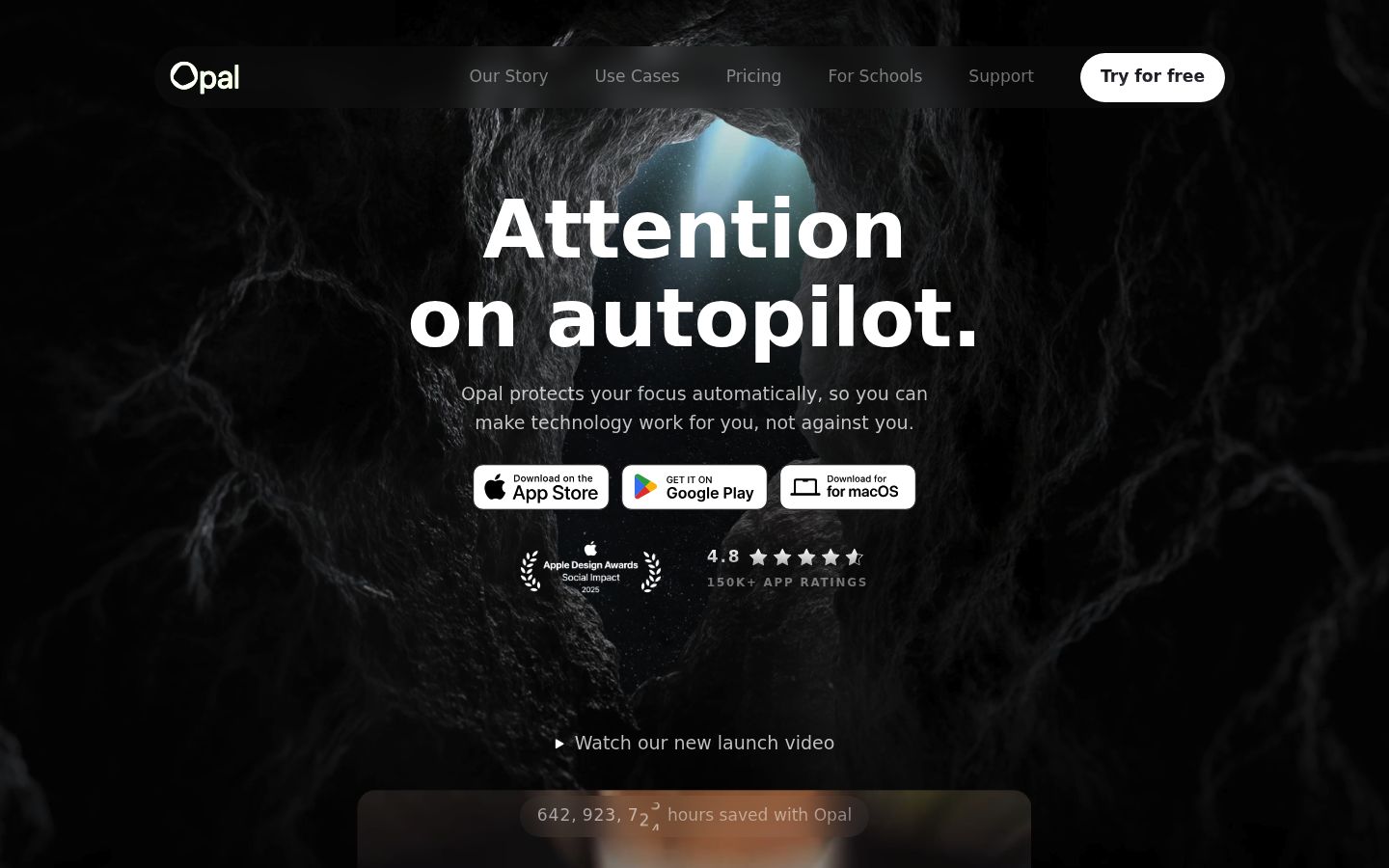
Opal is a hard blocker built around rules, sessions and app limits. The free plan covers one rule on iOS, Android and Mac, with schedules, time limits and open limits. Opal Pro adds unlimited rules, harder blocking difficulty, a no-unblocks option and an "allow only" mode that blocks everything except the apps you name, from $8.29 per month billed annually. Students can get up to 50% off Pro.
Screenshot of the homepage of Opal

Best for: iPhone and Mac users who want a refined hard blocker with strong paid enforcement.

Honest tradeoffs: the useful enforcement, including harder blocking difficulty and unlimited rules, sits behind the paid tiers. The free single rule is enough to test it, not to run your whole routine.

ScreenZen: The Strong Free Friction Option

ScreenZen adds a delay, a prompt or a breathing activity before a distracting app opens, and it can interrupt scrolling with short check-in windows. You can set daily goals, per-app schedules for different days, and strict blocks for specific time ranges.
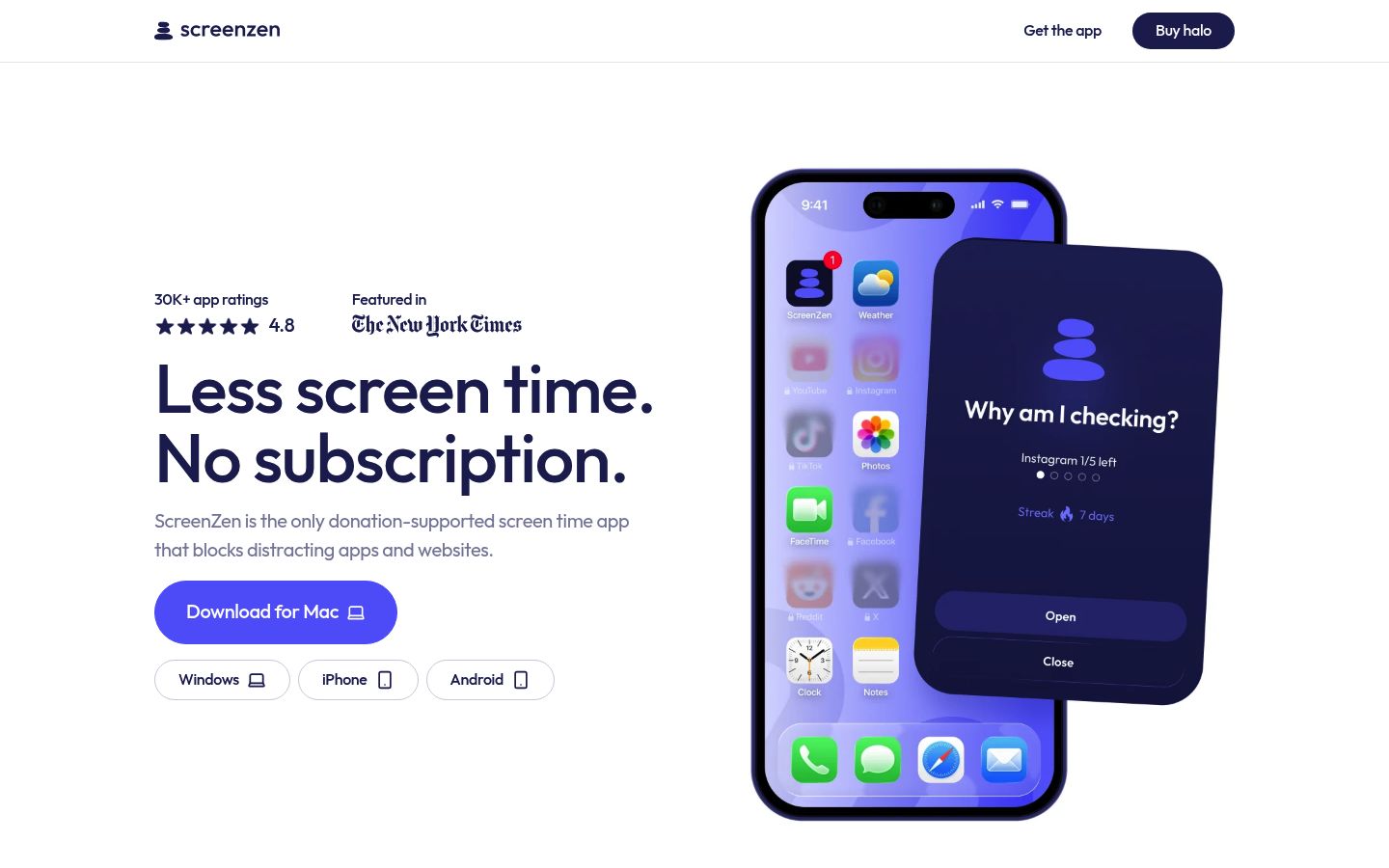
Screenshot of the homepage of ScreenZen

The site states the app is completely free and supported by donations, with no subscription, on iOS, macOS, Windows and Android. A lock mode prevents uninstalling and closes common loopholes, and you can add an accountability partner who must approve setting changes.

Best for: anyone on a budget, especially students, who wants configurable friction with real bypass resistance at zero cost.

Honest tradeoffs: friction is softer than a hard wall. If you are the kind of person who closes the app, opens it again and repeats, the delay helps but may not stop you the way AppBlock's Strict Mode would.

AppBlock: Strict, Condition-Based Blocking

AppBlock blocks apps, websites, specific URLs and keywords based on conditions you set: a time of day, a location, or a connected Wi-Fi network. Walk into the library, join the campus network, and your block profiles for Work or Study switch on automatically.

Its Strict Mode is built for moments when willpower runs out, making blocks much harder to bypass, with cooldowns and third-party approval to slow impulsive changes. It runs on Android, iOS and browser extensions for Chrome, Edge and Brave, and per its screen time tracking page you can start free and try Premium free for 7 days.
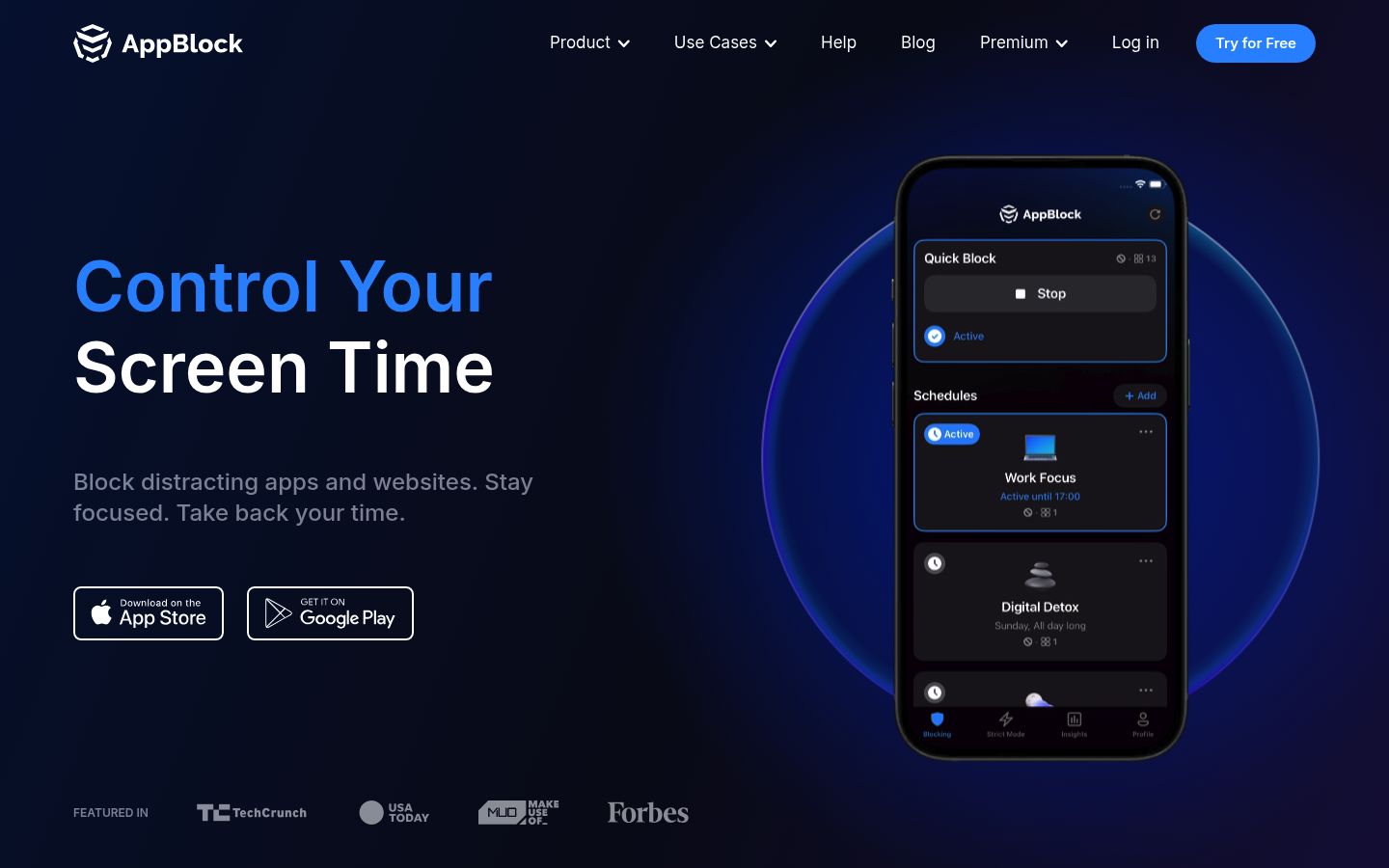
Screenshot of the homepage of AppBlock

Best for: people who want strict blocking triggered automatically by context, not just by a manual timer.

Honest tradeoffs: strict blocking means strict for you too. If you set a rule wrong, getting back in is deliberately difficult, and the most useful controls require Premium after the trial.
Freedom: Scheduled Blocking on Every Platform

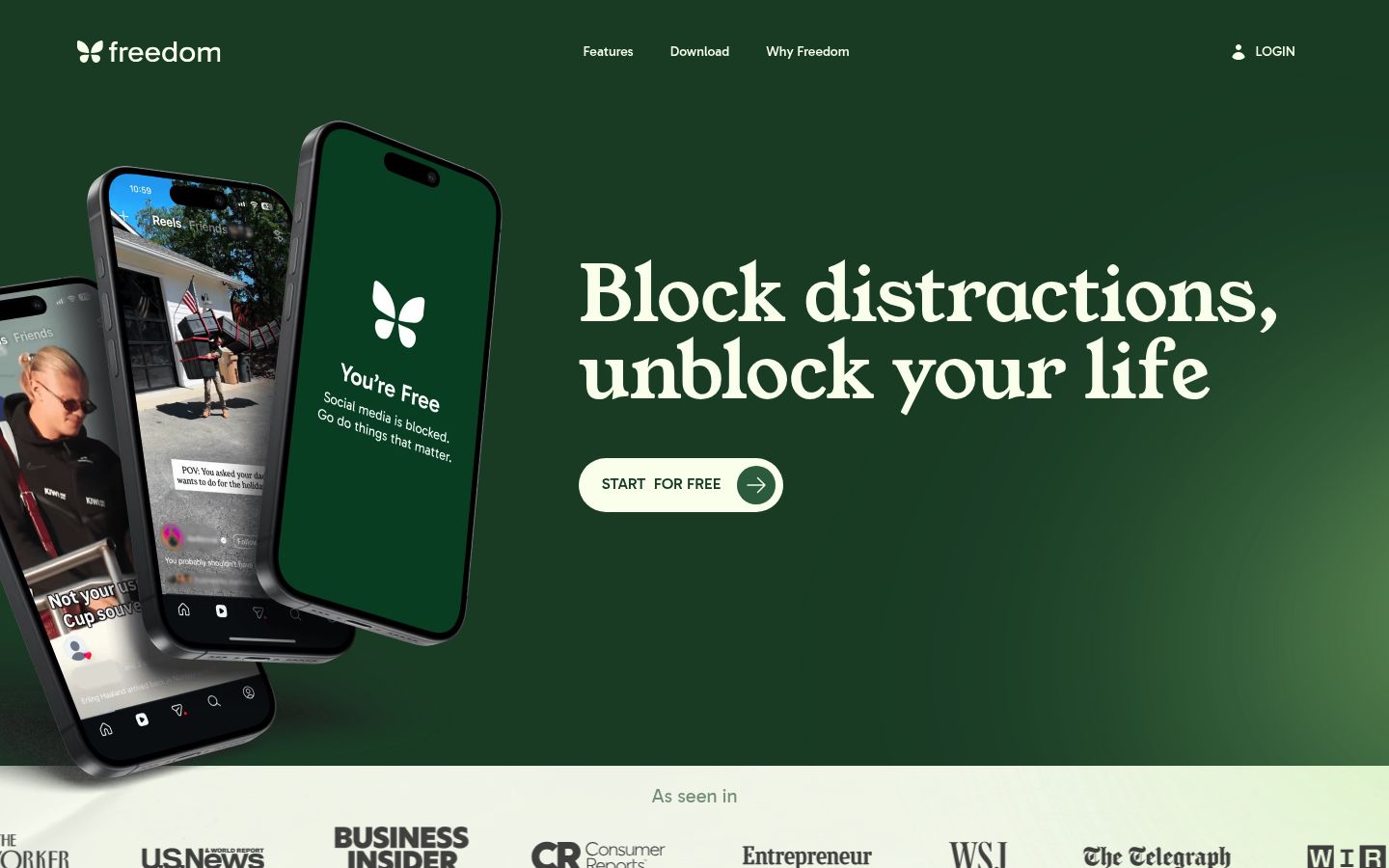
Freedom blocks apps, websites or the entire internet in sessions that sync across Mac, Windows, iOS, Android and Chromebook, so a block on your laptop also applies on your phone.

The free plan lets you run block sessions and create custom blocklists, but sessions are capped at two hours and there is no scheduling. Premium adds recurring scheduled sessions, sessions longer than two hours and Locked Mode, which prevents quitting a session once it starts. On Freedom's pricing page, Premium is listed at $3.33 per month billed yearly, $8.99 month to month, or a one-time $99.50 lifetime option at the time of writing, with a 7-day free trial on yearly plans.

Screenshot of the homepage of Freedom

Best for: anyone on mixed devices, including Windows or Chromebook, who wants scheduled, synced blocking.

Honest tradeoffs: the free tier's two-hour session cap limits real study sessions, and the features that make Freedom genuinely strict, scheduling and Locked Mode, require Premium.

one sec: A Breathing Pause Before You Scroll

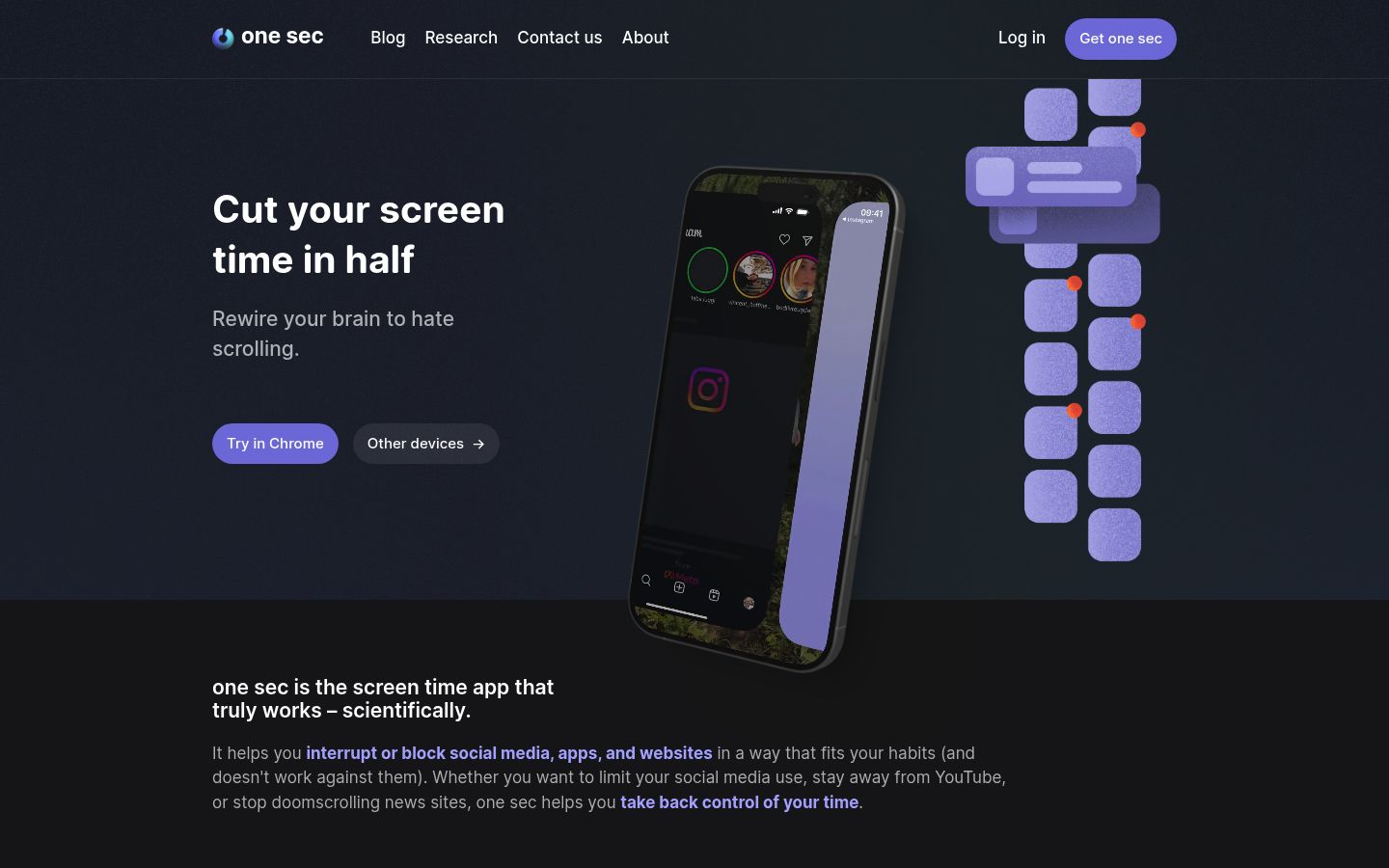
one sec inserts a short intervention, usually a breathing exercise, between you and a distracting app or website. That single pause is the whole idea: it interrupts the automatic open before a feed can pull you in. Its research page reports peer-reviewed studies with the Max Planck Institute and Heidelberg University finding about 57% fewer app openings on average, and it can also fully block apps on a schedule when you need a harder line.

Screenshot of the homepage of one sec

The app works on iOS and Android, with a free browser extension for Chrome, Firefox, Safari and Edge and a native Mac app. Per its FAQ, the free version covers a breathing interruption for one app, while Pro, with unlimited apps and blocking features, is listed at 3.99 euros monthly, 14.99 euros yearly or a 99.99 euro lifetime price, with regional price differences.

Best for: impulse openers who want an evidence-backed interruption rather than a wall.

Honest tradeoffs: the free tier covers only one app, and friction alone may not hold during exam week when you genuinely need a hard block.

Apple Screen Time: The Free Built-In Baseline

iPhone, iPad and Mac users already own a basic screen time control app. Apple's built-in Screen Time shows where your hours go, sets app limits and schedules Downtime, and with Share Across Devices switched on it applies those limits across your iPhone, iPad and Mac.

It costs nothing and requires no extra download, which makes it the right first step: check your summary for a week, set two or three app limits, and see what happens.

Best for: a zero-cost baseline before you commit to any third-party app.

Honest tradeoffs: you know the passcode, and so does future you. Screen Time is easy to override, and it offers nothing like Strict Mode or an accountability partner. If it is not holding, you have outgrown it, not failed.

Comparison at a Glance

App Mechanic Platforms Free tier Strictness Best for
Kohru Blocking inside study sessions Phone, laptop, Chrome Check the site for current plans Moderate, tied to sessions Students who want blocking plus tasks and habit tracking
Opal Hard block with rules and sessions iOS, Android, Mac One rule High on paid tiers iPhone and Mac users who want polished hard blocking
ScreenZen Friction: delays, prompts, limits iOS, macOS, Windows, Android Fully free Configurable, with lock mode Budget users who want friction plus some teeth
AppBlock Hard block by time, location, Wi-Fi Android, iOS, Chrome/Edge/Brave extensions Free to start, 7-day Premium trial High with Strict Mode Condition-based strict blocking
Freedom Scheduled synced sessions Mac, Windows, iOS, Android, Chromebook Blocks and sessions up to 2 hours High with Locked Mode Mixed-device, scheduled blocking
one sec Friction: breathing pause iOS, Android, major browsers, macOS One app free Moderate, with optional blocking Impulse openers
Apple Screen Time Built-in limits and Downtime iPhone, iPad, Mac Free Low A free baseline

Picks by Reader Type

Student on a budget: start with ScreenZen, which is free and donation-supported, and layer in Apple Screen Time limits. If friction is not enough, ScreenZen's lock mode adds bypass resistance without a subscription.

iPhone and Mac user: compare Opal with Kohru. Opal gives you a standalone hard wall with paid enforcement tiers; Kohru gives you cross-device blocking that follows your tasks and Chrome sessions, plus habit tracking.

Android user: AppBlock and Freedom both cover Android well. AppBlock wins on condition-based strictness with Strict Mode; Freedom wins if you also use a Windows laptop and want one synced blocklist. one sec on Android is the lightest option if you mainly want to interrupt the habit.

ADHD-friendly setup: strict blockers can backfire when you need to reach a tool quickly, so prefer session-based blocking tied to a task. Kohru's focus sessions and task lists are built for task initiation, and our ADHD focus app guide covers what to look for in more depth.

How to Choose in Ten Minutes

How to Choose in Ten Minutes: Check your free built-in stats for a week to find your two or three worst offenders; Decide honestly whether you need a pause or a wall and 2 more

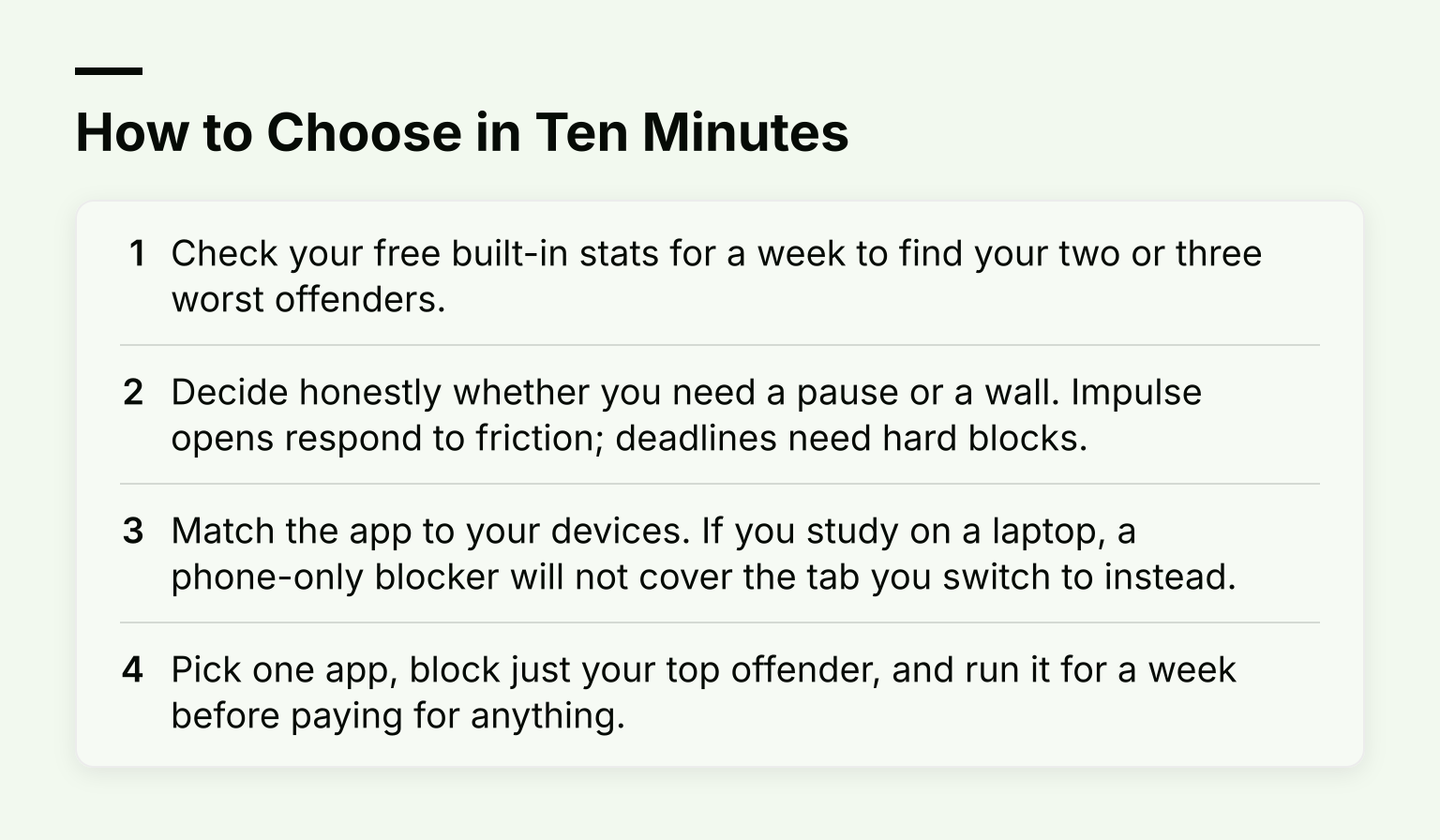
  1. Check your free built-in stats for a week to find your two or three worst offenders.
  2. Decide honestly whether you need a pause or a wall. Impulse opens respond to friction; deadlines need hard blocks.
  3. Match the app to your devices. If you study on a laptop, a phone-only blocker will not cover the tab you switch to instead.
  4. Pick one app, block just your top offender, and run it for a week before paying for anything.

For a wider set of reduction tools beyond self-restriction, see our 10 Best Apps to Reduce Screen Time in 2026, and our Best Screen Time App 2026 guide compares more options for focus and balance. If blocking alone is not enough, our time management tools and methods guide covers the systems around the tools, and our guide to blocking apps across all devices walks through the setup once you have picked one.

If Kohru sounds like the fit, you can download Kohru and start a distraction-free study session today, with the Chrome extension available if you study in the browser.

Frequently Asked Questions

What is the best free screen time control app? ScreenZen stands out because its site states the app is completely free and donation-supported, with lock mode and accountability settings included. Apple Screen Time is the best built-in free option if you are all-in on iPhone, iPad and Mac.

Can these apps stop me from bypassing my own blocks? The strict ones can make it much harder but not impossible. AppBlock's Strict Mode, Freedom's Locked Mode, Opal's no-unblocks option and ScreenZen's lock mode all add friction to changing your own settings.

Do screen time control apps work on laptops too? Yes, if you pick one with desktop coverage. Freedom covers Mac, Windows and Chromebook, Kohru extends to Chrome with a browser extension, and one sec offers a free extension for Chrome, Firefox, Safari and Edge.