You sit down at 9 PM to study, open your PDF, and tell yourself you'll check one message before getting started. A few short videos and group-chat replies later, forty minutes have disappeared, and your notes are still untouched. An iOS app blocker can stop selected apps, categories, or websites from opening during a window you choose, turning a good intention into a practical barrier.
Think of the difference as a nightclub door. A reminder is a sign asking people to come back later, and it's easy to ignore. A blocker is the bouncer checking the guest list. Kohru is a study and productivity app built for students that blocks distractions on your phone and laptop at the same time, with one-click Focus Sessions.
The right setup depends less on how many apps you block than on how hard it is to override the block, and whether essential tools remain available. If distractions live on both your phone and laptop, a cross-device blocker closes a gap that phone-only controls leave open.
Table of Contents
What an iOS App Blocker Does and Where Kohru Fits
A useful blocker does more than put a timer next to an app. It limits access during the period you've chosen, so opening a distracting app leads to a block rather than another easy entry point. That distinction matters when your attention slips on autopilot: a warning can remind you of your plan, but it still leaves the decision to stop in your hands.
For a student, the practical question is not merely “Can I block short videos?” It's “Can I stay out of them while I study, without locking myself out of a course portal, an authenticator, or a message that matters?” A workable setup needs both enforcement and deliberate exceptions. Make the distracting apps difficult to reopen, but decide in advance which essentials should stay accessible.
Kohru is one option for students who work across devices. It blocks digital distractions on a phone and laptop at the same time and offers one-click Focus Sessions, so the focus period can cover more than the device sitting beside your textbook. Its role is practical: help you begin a defined session and keep selected distractions out of reach while you work.
Built-in Screen Time is a sensible starting point if your main problem is on the iPhone. A dedicated blocker becomes relevant when you need a session workflow, planned breaks, or restrictions that also cover your laptop. The decision that matters most is how much friction will help you follow through without blocking legitimate work.
Built-In Screen Time or a Dedicated Blocker
Screen Time is a practical starting point for setting iPhone limits. Kohru adds Focus Sessions, flexible breaks, and phone-and-laptop blocking. The right choice depends on the controls you need and how much friction you want before an impulsive override.
| Criterion |
Built-in Screen Time |
Kohru |
| Cost to start |
Included with iOS |
Check the current app listing for pricing |
| Where you set it up |
Settings, then Screen Time |
Kohru app on iOS |
| Scheduled blocks |
Downtime schedules |
One-click Focus Sessions and scheduled work |
| Usage limits |
Daily App Limits by app or category, reset at midnight and customizable by day |
Custom session durations |
| Phone and laptop together |
iPhone and iPad controls |
Blocks distractions on phone and laptop at the same time |
| Break system |
No focus-session break system |
Built-in break system |
| Difficulty modes |
Limits can be ignored by default |
Difficulty modes |
| Progress reports |
Screen Time usage reports |
Dashboard showing focus time saved, tasks completed, and streaks |
| Privacy model |
Apple mediates app-usage controls |
Review Kohru's privacy policy to understand its data practices |
Apple introduced Screen Time as an iPhone and iPad feature with iOS 12 in September 2018. It tracks app and category use, pickups, and notifications, and provides App Limits, Downtime, usage reports, and controls for a child's device through Family Sharing. App Limits reset at midnight and can be customized by day. These controls suit straightforward phone limits, but do not provide a shared phone-and-laptop session. See Apple's Screen Time overview.
Compare the gaps that affect your setup
Check the current Kohru listing for its price, and review its privacy policy before choosing. Screen Time is included with iOS; its limits can be ignored by default, so it may offer too little resistance if an easy override is the problem. Kohru offers difficulty modes and sessions across phone and laptop, but its app listing and privacy policy are the places to check for current pricing and data practices. Keep exam, banking, and messaging apps reachable when choosing which distractions to block.
A generic third-party blocker cannot be compared accurately on price, device support, breaks, or enforcement without knowing the specific app. Compare those details in the provider's listing, then check whether its controls make an override harder without blocking the apps you need. For planning beyond blocking, student productivity tools for 2026 can help you compare tools for the rest of a study routine. A task planner organizes assignments; a blocker controls access to distractions.
How iOS Blockers Enforce a Block Behind the Scenes
A timed sprinkler starts at 6 AM even when nobody is in the garden. A stopwatch needs someone there to keep it going. A blocker that depends on a timer running in the foreground has the same weakness: iOS can close the app and stop the timer. Dependable scheduled blocking relies on system-managed enforcement instead.
Apple's Screen Time frameworks split that work across three components. FamilyControls lets the user authorize the apps, categories, and web domains a blocker can manage. ManagedSettings applies shields to those selections. DeviceActivity monitors schedules and usage thresholds, then triggers callbacks in a Device Activity extension even when the main app is closed, as Apple's framework documentation explains.
The sequence is event-driven:
- Authorize selections. Choose the apps, categories, or domains the blocker may manage.
- Register enforcement. Set a schedule or usage threshold.
- Wait for the event. DeviceActivity monitors for the scheduled time or threshold.
- Apply the shield. ManagedSettings updates restrictions when the event fires.
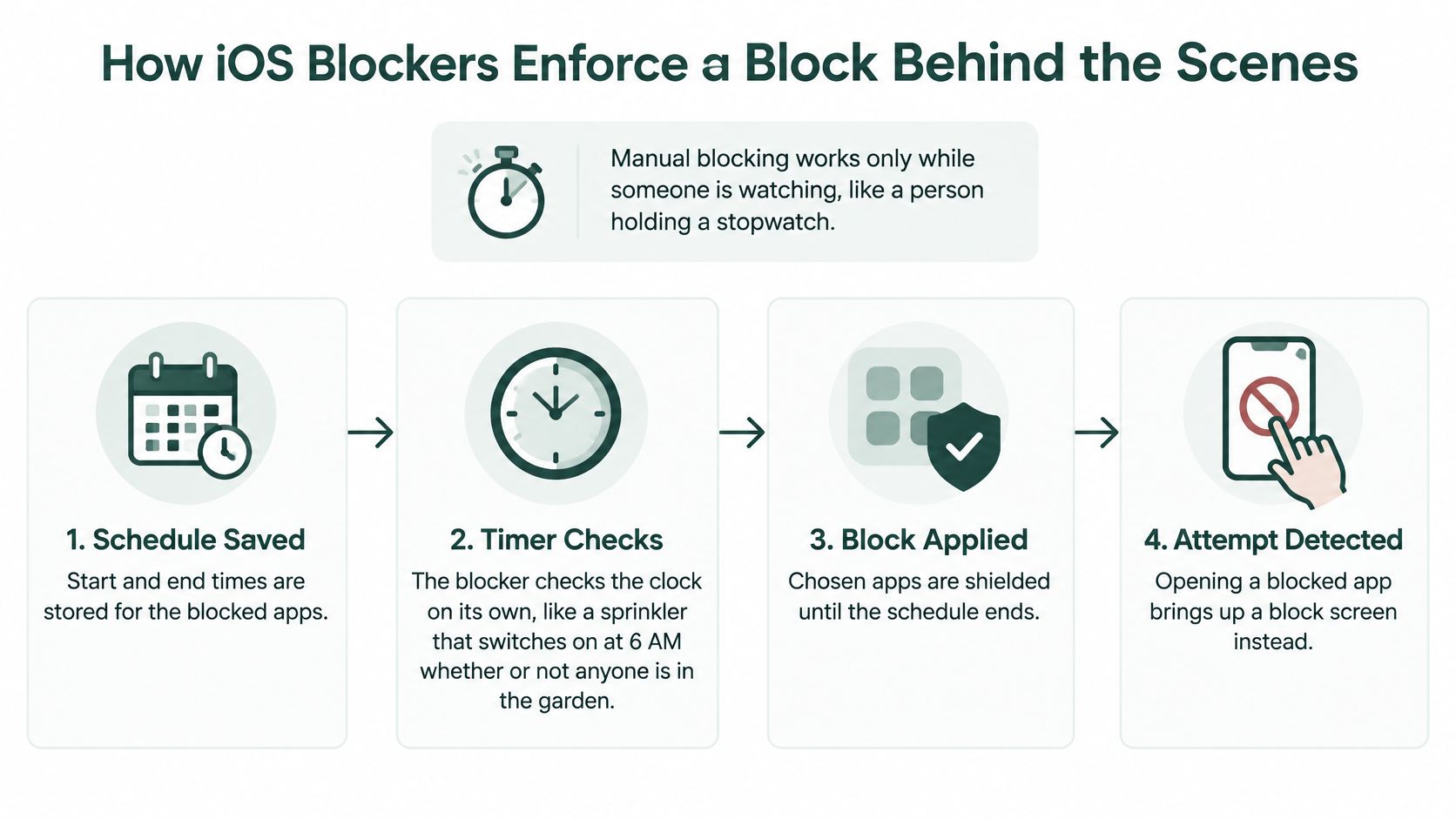
A saved schedule can keep working while the main app is closed. The extension that handles enforcement does not run continuously, so the blocker must save enough session information to act when a monitored event arrives. A countdown visible in an open app, by itself, does not show whether scheduled blocking will hold.
Check permissions and state
iOS mediates these controls; a blocker does not receive unrestricted access to app-usage data. FamilyControls also requires authorization for the apps, categories, and domains the blocker will manage. Before granting access, check what permissions the app requests and read its privacy policy to understand what it stores about your sessions. To end the blocker's control, remove its authorization in Screen Time settings.
If a scheduled block fails to start, first check that authorization is active and the schedule is saved correctly. Leaving the app open will not fix a missing permission or an incorrect schedule.
Choosing How Hard a Block Should Be
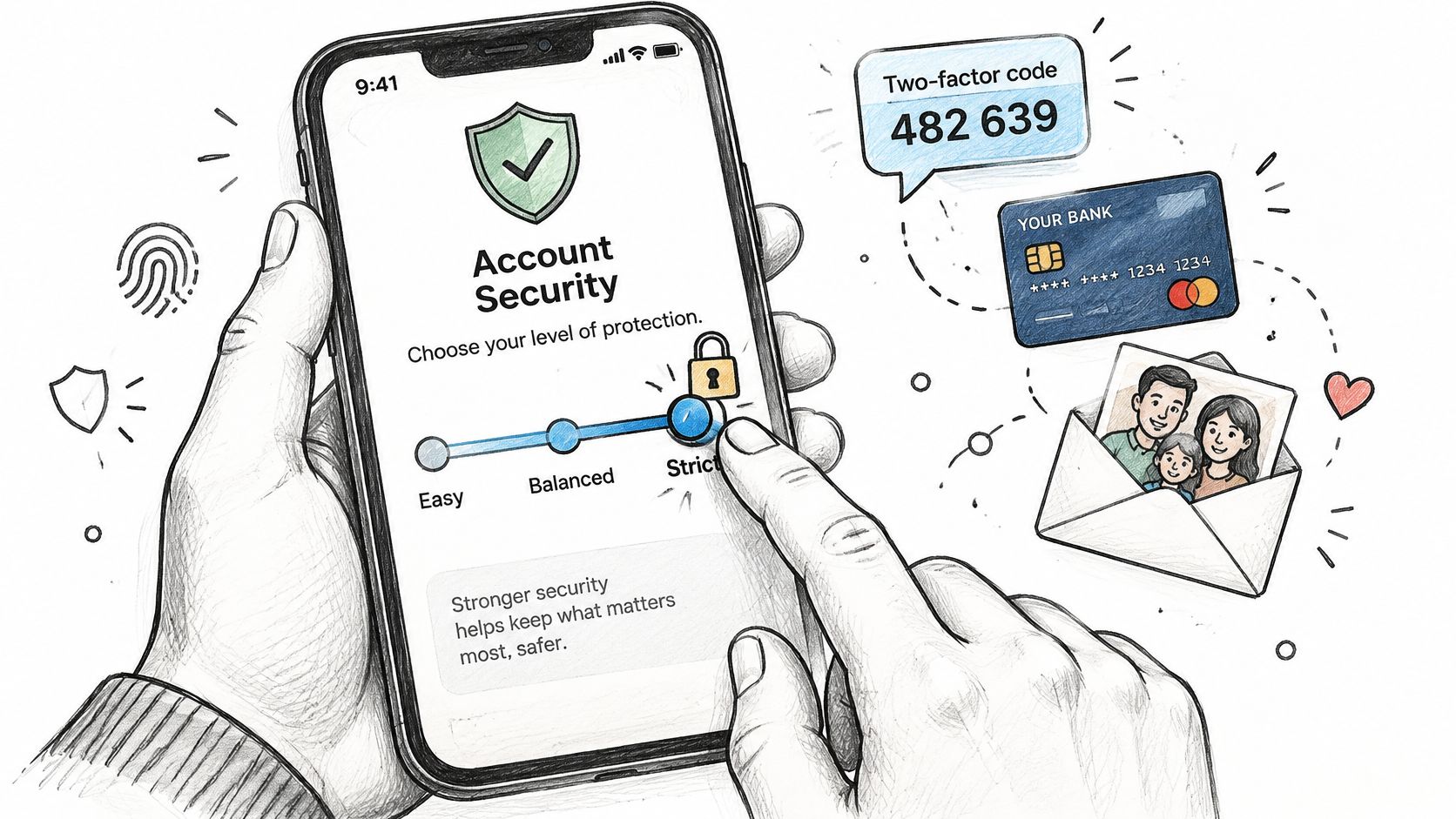
A block that's easy to undo gets undone; a block that can't be undone can shut you out of something legitimate, such as an authenticator, banking app, or message from family. The right strength is enough friction to resist an impulsive override, with an intentional route to what you genuinely need.
Apple's App Limits can be ignored once reached by default. Downtime fully blocks restricted apps only when Block at Downtime is enabled; without it, users can continue after a reminder. The iPhone guide to Screen Time schedules documents that difference. Choose an enforcement level based on the moment you usually cave, not on how strict the setting sounds.
| Enforcement level |
How it behaves |
Best fit |
Main failure mode |
| Soft limit (Screen Time App Limits) |
A reminder appears when the allowance is reached; you can continue |
Testing limits in the first week |
Easy to override |
| Scheduled hard block (Downtime with Block at Downtime) |
Restricted apps are unavailable during the window |
Fixed study hours and bedtime |
May block an app needed for an urgent task if you've set no exception |
| Focus session block (Kohru Focus Session) |
Phone and laptop distractions are blocked for the chosen session length |
Exam preparation and deep work |
Can feel restrictive without a planned break |
| Difficulty-mode block (Kohru difficulty modes) |
You set the strength for each session |
Building tolerance for students and neurodivergent users |
A mode that's too easy can invite impulsive exits |
| Emergency allowlist |
Essential apps stay open during the block |
Banking, two-factor codes, and family messages |
Too many allowed apps weaken the restriction |
Match the setting to the person
A university student in exam week could schedule a hard block for the study window, then use a 25-minute focus session followed by a 5-minute break. Keep the course portal and authenticator reachable, and use the break for a planned check rather than leaving social apps available throughout the work period. That makes the break part of the study plan, not an open invitation to drift.
A remote freelancer working across a laptop and phone should block distracting apps on both during client hours. A phone-only restriction leaves the laptop as an easy detour; a session that covers both devices reduces that obvious escape route.
A neurodivergent adult who needs extra support can choose a higher difficulty mode, while keeping a clear exit path for a real need. Make the exit deliberate, not frictionless: the point is to interrupt an impulse, not remove agency. A parent setting limits for a high-school student can use Downtime with Block at Downtime enabled and a short allowlist for school messages.
Start one level stricter than feels comfortable for a week. Then loosen only the exceptions that caused real problems.
How to Set Up Your First Focus Block
Start with a small set of distracting apps and a clear exception list. If you're looking for other ways to manage distractions during focused work, use that guidance to support the routine around the block, not as a substitute for choosing what the block should enforce.
Check Screen Time. Open Settings, tap Screen Time, and confirm it's turned on. If the phone belongs to a child, review the Family Sharing controls first so you're setting restrictions in the right place.
Choose what to restrict. Select the apps or categories that regularly pull you away, such as Social Networking or Games, and leave the communication apps you need out of the set. A common mistake is blocking too broadly and then abandoning the setup when an essential app stops working.
Install and sign in. Install Kohru from the App Store on your iPhone and create your account. Keep your login details handy so you can use the same account when setting up the laptop.
Set your first session. Start with a 25-minute Focus Session and a 5-minute break. A short initial block is easier to test than a long session that mixes several study tasks and exceptions.
Choose a difficulty. Pick a mode one step stricter than you expect to need. If the setting is too easy to override, you'll learn less about whether a firmer block helps.
Build a short emergency allowlist. Keep the authenticator, banking app, school portal, and one family messaging app reachable if you need them. Don't add every app you might conceivably want; a long list weakens the boundary.
Enable the laptop. Install Kohru on the laptop, sign in with the same account you used on the iPhone, and confirm the laptop shows the session as active before you start. Forgetting this step leaves the laptop open, which is a common reason a block feels incomplete.
Start and review. Begin the session with one click, then review the dashboard at the close of each day for focus time saved and tasks completed. Treat those figures as a record of your setup, not proof on their own that you studied better.
Before relying on the setup for an exam, run a 10-minute test session. Try opening one blocked app on each device, check that your essential apps remain available, and confirm the break works as expected.
Troubleshooting Blocks That Do Not Hold
The common frustration is simple: the block is set, but the app still opens. Start by checking what's really selected and whether the schedule and permissions were saved. Fixing the specific failure is usually faster than rebuilding every setting.
| Symptom |
Likely cause |
Fix |
| Scheduled block doesn't start |
Schedule wasn't saved or Screen Time wasn't authorized |
Recheck authorization and the schedule, then restart the phone |
| Blocked app still opens |
App is outside the selected apps or categories |
Add the app directly to the selection |
| Essential app is blocked, such as codes or banking |
Block is too broad |
Add it to the emergency allowlist before the session |
| Laptop still shows distractions |
Laptop blocking isn't enabled for the session |
Turn on laptop blocking on the same account |
| Limit is ignored after the reminder |
App Limits are soft by default |
Use a scheduled hard block for that window |
| Sessions are broken several times a day |
Difficulty mode is too low |
Raise the difficulty mode for the next week |
When a scheduled block starts late or fails to start, check authorization and the saved schedule before anything else. If an app outside the selection remains available, add it directly rather than blocking a wider category that could catch useful tools.
Count dismissed reminders and early session exits during the week. That simple log helps separate a setup problem, such as a missing app selection, from a habit problem, such as choosing a mode that's too easy to override.
Notifications are a weaker lever than restricting access to the distracting apps themselves. A quieter phone doesn't guarantee you'll check less, so silence alerts if they interrupt you, but don't mistake that for a block.
If you break a session more than once a day, raise the difficulty mode rather than shortening the session.
Pick Your Blocker and Test It for One Week
If distractions are limited to the iPhone and a simple schedule is enough, built-in Screen Time is a sound place to start without installing anything. If distractions follow you to the laptop, or you need focus sessions, breaks, and difficulty modes, choose Kohru, which is built for students.
Test the setup for a week instead of judging it by whether it feels reassuring. Record session completion, blocked-launch attempts, unplanned session exits, and post-session app use each day. Those measures show whether the restriction changed access and whether you stuck with the session.
Notifications can interrupt attention, but turning them off alone doesn't guarantee a change in checking habits. A preregistered randomized trial with 205 participants found that disabling notifications for one week did not significantly change objectively logged checking frequency or screen time, nor did it substantially improve subjective smartphone experiences, according to the study indexed by ERIC. Compare your blocking week with two days without a block as a baseline, and don't claim a productivity gain from a single week.
If part of your routine is learning a language, learn Irish with an app can help you turn a protected study window into a specific learning task rather than an open-ended session. Pick the work before you block distractions, so the focus period has somewhere useful to go.
Start today by downloading Kohru from the App Store, completing the setup, and running your first 25-minute session. Use the week to see whether the phone-and-laptop block holds up in your real routine, then adjust the exceptions or difficulty based on what failed.
Kohru offers one-click Focus Sessions that block selected distractions on your phone and laptop, with custom durations, difficulty modes, and planned breaks. If your study time keeps leaking across devices, visit Kohru and set up a short session you can test today.