do not disturb mode·focus mode·notification settings·deep work·study focus
Do Not Disturb Mode for Students: Setup and Limits
Do Not Disturb mode explained for iPhone and Android, with study settings, smart exceptions and when to add Kohru's app blocking for focus.
13 min read
Do Not Disturb mode holds back calls, texts and app alerts on a schedule while letting chosen people through, but it does not close apps or stop you from opening your phone.
If your phone is silent but you still check it halfway through every page, what problem have you solved? You've reduced incoming interruptions, but you haven't changed what you can open when studying gets difficult. Choosing the right focus setup starts with separating those problems.
Say you're reading lecture notes with your phone beside your laptop. You switch on Do Not Disturb, and the group-chat alerts stop. Then you reach for the phone to check a message anyway. The setting hasn't failed. You've asked an interruption filter to do the job of an access blocker.
Think of Do Not Disturb as a receptionist who holds every call except those from a short list of names. You decide who gets through and when the filter operates. The receptionist doesn't lock your office door or stop you from walking out.
Kohru is an app built for students that blocks digital distractions on your phone and laptop at the same time through one-click Focus Sessions. It's an option for the access-control side of studying, while native notification settings handle which calls and alerts can interrupt you.
Practical rule: Ask whether the distraction came to you or whether you went looking for it.
Why that distinction matters in class
In an exploratory University of Padova study of 46 students in a five-year degree program, more than 75% reported frequent smartphone use during class; among those respondents, 61% cited viewing or answering social-media messages, 41% cited boredom linked to teaching strategies, and 35% cited needing a break from concentrating. Those reasons describe different problems. A notification filter won't make a difficult lecture easier to follow or give you a planned break.
Availability also doesn't guarantee habitual use: 27% of surveyed U.S. drivers reported frequently using Do Not Disturb While Driving in 2024, up from 20% in the prior survey, according to Cambridge Mobile Telematics. That driving survey isn't evidence about student learning, but it illustrates the difference between having a setting and consistently activating it.
For study, make the decision concrete: choose a platform setting, configure essential exceptions, attach it to a recognizable session, and add access restrictions when silencing alone doesn't address your behavior.
How Do Not Disturb Compares on iPhone and Android
Feature
iOS (Focus)
Android (Do Not Disturb)
Modes
Presets such as Do Not Disturb, Work, Personal, Sleep, and custom modes
Total silence, Alarms only, and Priority only on versions using those labels
Automatic schedules
Time, location, or app-based triggers
Time-based schedules; check manufacturer settings for location and calendar triggers
Exceptions
Allowed people and apps, plus a Time Sensitive Notifications toggle
Priority senders, repeat callers, and allowed notification categories
Locked-screen only option
Available for some Focus modes
Check display and notification settings; don't assume a locked-screen-only switch exists
Pauses access to apps
Not by default; Screen Time provides separate app limits
Not in standard Do Not Disturb; Digital Wellbeing Focus mode can pause chosen apps
Shares focus status with contacts
Yes, in supported contexts
Check the messaging app and device for status-sharing support
On iPhone, choose a policy rather than just a mute switch
On iPhone, Do Not Disturb sits within Focus, where you can create a policy for people, apps, and activation conditions. Apple's Focus setup guide describes controls for allowing or silencing individual people and apps, scheduling activation, and configuring some other Focus modes to silence notifications only while the iPhone is locked.
That last distinction matters if you read course material on your phone. A configuration that silences alerts only when locked may behave differently once the screen is active. Test it while using the device, not just while it sits on the desk.
Choose between an allowlist and a silence list deliberately. An allowlist starts from quiet and admits selected sources. A silence list starts from ordinary availability and removes particular sources, which can be useful when you only need to suppress a troublesome group chat.
On Android, distinguish Do Not Disturb from Focus mode
Android menu names differ across operating-system versions and manufacturers. Older interfaces may offer Total silence, Alarms only, and Priority only; newer interfaces may organize similar controls under Modes or notification filters.
Digital Wellbeing's Focus mode is a separate idea: it can pause selected apps rather than merely adjust their alerts. Samsung's Do Not Disturb guidance emphasizes scheduled silencing and configurable exceptions, so check the actual control you've enabled rather than relying on the word focus.
For example, silencing a social app's notifications doesn't necessarily stop its icon from opening the app. Pausing that app changes access, which is a different intervention.
If the setting doesn't pause or restrict apps, treat it as notification management, not an app blocker.
Search your own Settings for Do Not Disturb, Focus, Modes, and Digital Wellbeing. Use the descriptions on your device to confirm what happens to calls, alarms, screen notifications, and app access before relying on a preset.
Notification Rules and Exceptions That Hold Up
Exceptions determine whether Do Not Disturb mode gives you useful quiet or a smaller stream of interruptions. Start with the communication you need during the session, rather than approving every person or app you normally use.
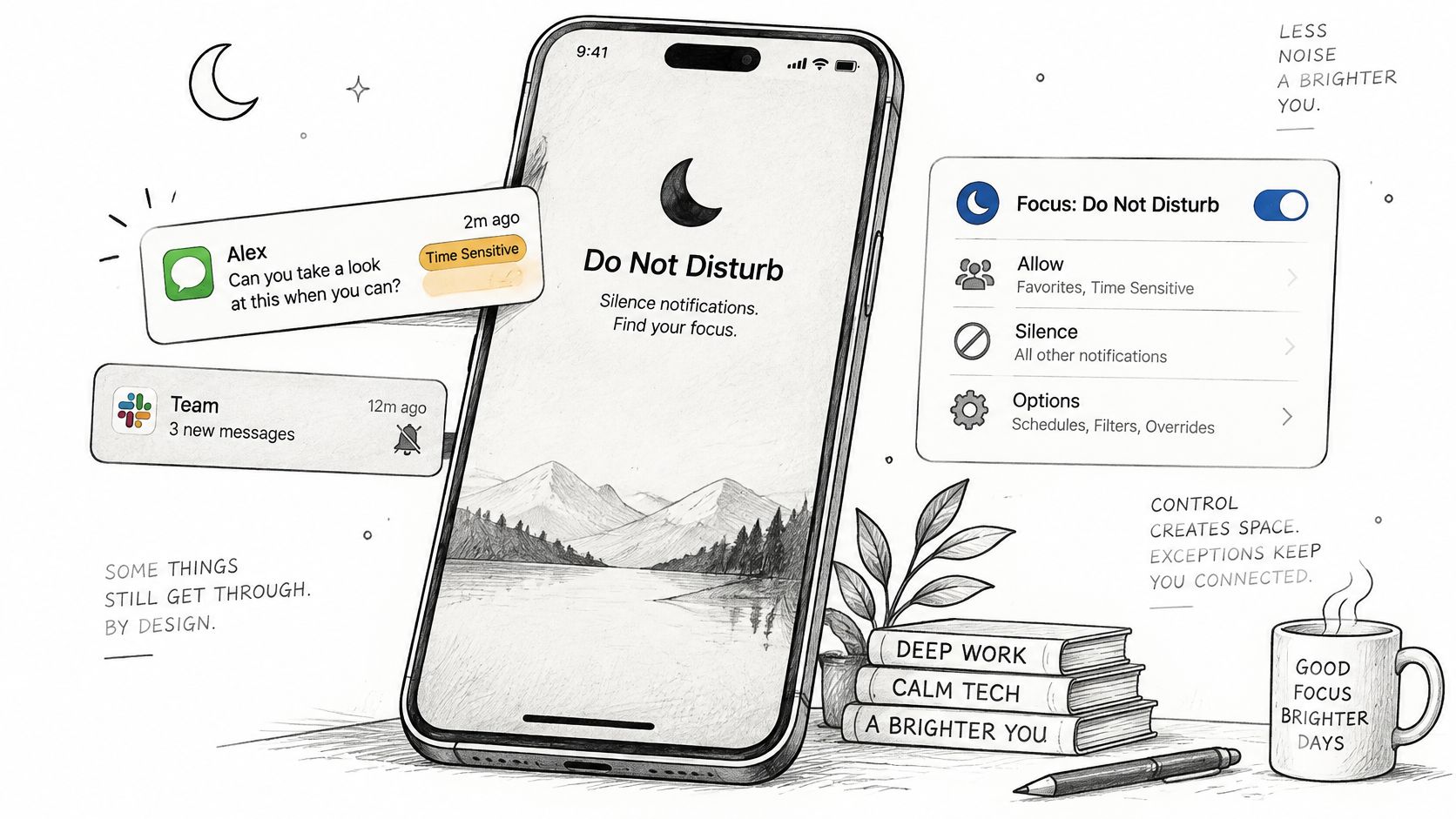
Apple's current Focus notification controls combine selected people and apps with Time Sensitive Notifications and, on supported systems, Intelligent Breakthrough & Silencing. The latter uses on-device notification-content analysis to judge importance, while manually allowed or silenced sources take priority over the automated decision.
Use this settings view as a reminder to inspect exceptions individually.
Build a narrow route for important interruptions
Family or emergency contacts: Select the people whose calls you would stop studying to answer. Avoid allowing an entire social group.
Calendar and class reminders: Keep reminders that help you arrive somewhere or join a required session. Remove optional event notifications.
Alarms: Check the alarm setting explicitly, especially if you use a timer for breaks or need a wake-up alarm.
Repeat callers: Enable this only when repeated calls are a useful urgency signal. On many phones, another call within a short window can break through, so inspect your device's rule.
A required work channel: If your role requires availability, preserve that route without allowing every workplace conversation.
Allowing every app, every notification category, or all time-sensitive alerts can recreate the frequent switching you wanted to avoid. A time-sensitive label isn't a personal guarantee that a notification deserves your attention during revision.
Focus-status sharing can help contacts understand that your reply may be delayed. It doesn't replace an explicit agreement about how to reach you urgently.
Test before you depend on it
Activate your study configuration, then ask a trusted contact to call and send a message using the route you intend to allow.
Check that the urgent route works and that an ordinary, nonallowed notification stays quiet. Test with the phone both locked and in use.
Review unused exceptions after your trial sessions. Remove those that never served a necessary purpose, but retain genuine emergency routes even when they haven't been needed.
How to Set Up Do Not Disturb for Study and Deep Work
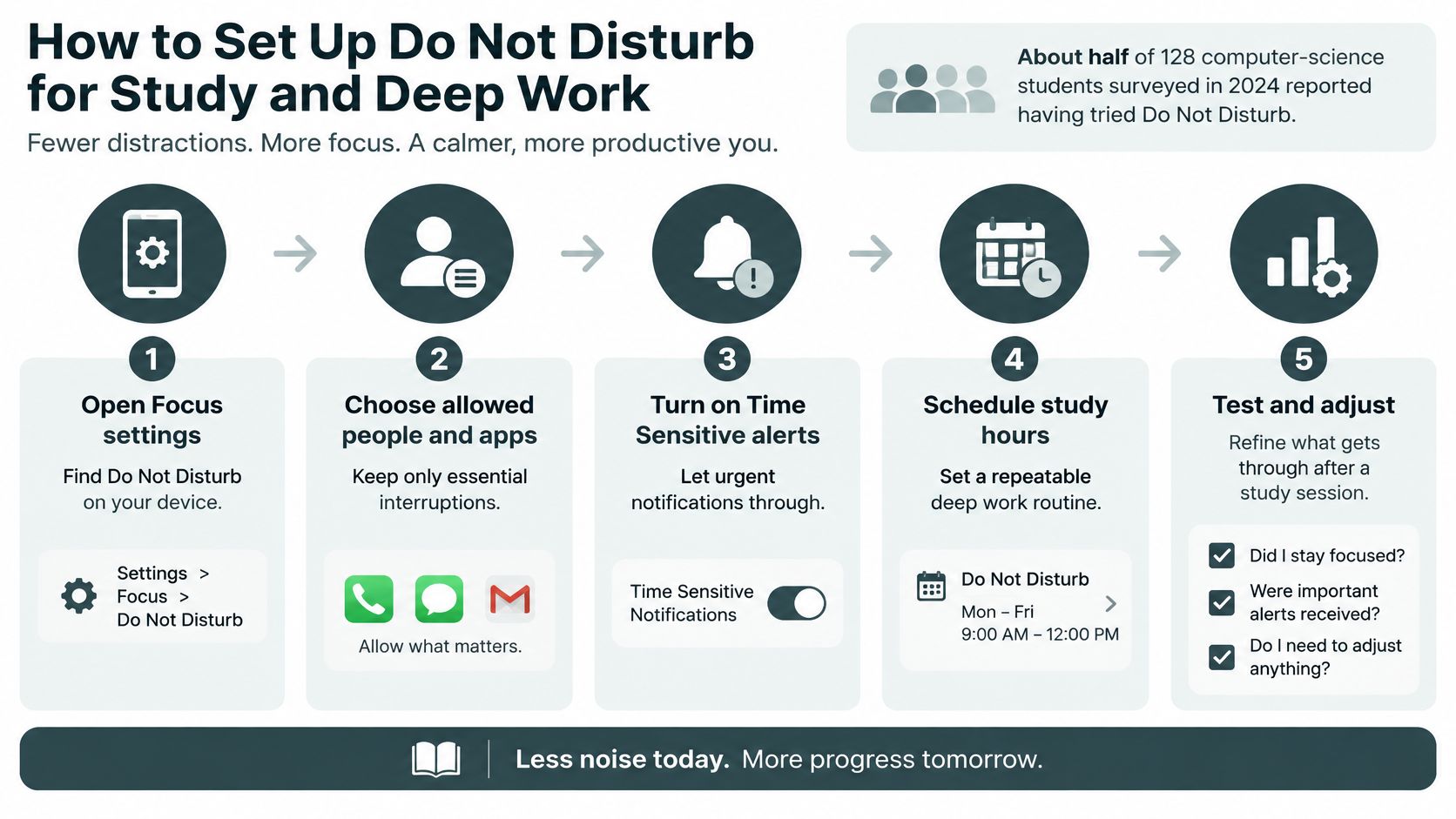
Many learners have already experimented with this feature: about half of 128 computer-science students surveyed in 2024 reported having tried Do Not Disturb, according to an Educational Data Mining conference study. Trying it is a useful start. The next step is making the configuration match a particular task.
The visual guide outlines the settings workflow. Treat its time-sensitive-alert step as an option to evaluate, not permission to admit every app's urgent label.
Set up a trial session
Name the job. Write a specific finish line, such as reading a chapter and summarizing its argument or completing the assigned problem set. A visible task makes it easier to notice when you've drifted.
Choose the appropriate mode. Create a named Focus where supported, or configure Android's priority exceptions for that job. Use a recognizable label such as Revision rather than an ambiguous preset name.
Keep exceptions small. As a starting exercise, choose two to four essential people or apps, not a target you must fill. Fewer is reasonable when you don't need availability.
Turn off distracting badges. Open the notification settings for silenced apps and disable badge counts where available. A silent icon can still invite a check.
Attach activation to your timetable. Schedule the mode around a recurring study period or work-calendar block. Leave room for sessions that move rather than assuming every day follows the same timetable.
Try a 25-minute block. Use this as a manageable test, not a scientifically optimal duration. Keep the task open and note any interruption that gets through.
Review after one week. Remove unnecessary exceptions and adjust activation times. Keep emergency access for its purpose, not because you expect to use it frequently.
Match the configuration to the work
These configurations are starting points. On devices where Total silence suppresses alarms or can't preserve an emergency contact, use a custom restrictive configuration instead.
Session
Phone setting
Allowed exceptions
Reading or lecture notes
Priority only, badges off
Calendar alerts and one family contact
Problem sets or coding
Restrictive silence with alarms enabled; messaging apps paused on laptop
Alarm only
Exam revision
Restrictive custom mode plus laptop blocker
Alarm and one emergency contact
Essay or research writing
Work Focus with work chat allowed
Work chat and calendar
Remote work between meetings
Scheduled Work Focus
Team lead and calendar
For essay writing, only allow work chat if you need it during that task. Someone writing an independent literature review may need a quieter configuration than someone collaborating on a live document.
Adjust break timing to your concentration and workload. A difficult proof, an accessible reading task, and a collaborative project don't need identical rhythms.
Use the video walkthrough alongside your own device's settings, since labels may differ.
Why Silencing Alerts Isn't Enough and When to Add a Blocker
Silencing a doorbell makes the house quieter, but it won't stop you from glancing at the door when you're expecting someone. A phone can create the same problem: nothing sounds, yet you keep wondering whether a message has arrived.
That's the answer to Why am I still distracted when Do Not Disturb is on? You may be responding to anticipation, a visible badge, an open browser tab, or an easy escape from difficult work rather than an incoming alert.
A 2026 college-classroom study published in Instructional Science distinguished external smartphone stimuli from internal smartphone vigilance: heightened vigilance was associated with more frequent checking in the notification-receiving group, and mental effort had a significant negative relationship with learning performance (β = −0.337, p = .009). That relationship doesn't establish that any particular blocking product improves grades. It does make the effort spent monitoring and checking a relevant part of the problem.
Identify the trigger before choosing a tool
Sounds, vibrations, and incoming banners: Configure Do Not Disturb and narrow the permitted sources.
Badges and visual cues: Disable badge counts and remove distracting app shortcuts from your main screen.
Habitual checking and easy app access: Use an app or website blocker during a defined work period.
The phone within reach: Put it in a drawer, bag, or another room when your task doesn't require it.
Physical separation is especially useful when picking up the device has become automatic. If your reading is on the laptop and authentication isn't needed, you don't have to keep the phone beside the keyboard.
A useful diagnostic: Notice the moment before you check. Did something alert you, or did you reach for an escape from the task?
Include the laptop in the decision
In a naturalistic study of 187 university students attending a cognitive-psychology tutorial, off-task multimedia and nonmultimedia multitasking were frequent and particularly pronounced among laptop users, who also recorded lower memory scores, with multitasking partly explaining the negative effect. This was a study of classroom behavior, not a trial of a specific blocker.
The practical issue is straightforward: your laptop can remain an open route to messaging, social media, and unrelated browsing even after you've quieted the phone. Keep course documents, reference material, and required software accessible while restricting the destinations you repeatedly leave the task to visit.
Situation
Use Do Not Disturb
Use an app blocker
Why
Expecting an urgent family call
Yes, with that contact allowed
No, not for the call itself
Keeps the urgent route open
Lecture with laptop notes
Phone on Priority only
Block social and messaging sites on laptop
Laptop use was a prominent multitasking concern in the tutorial study
Late-night social scrolling
Scheduled sleep or evening mode
Yes, with a selected app list
You may continue checking after alerts stop
Two-hour writing block
Yes
Yes, on both devices
Both incoming interruptions and voluntary browsing need attention
Remote worker with chat and browser
Yes, for the phone
Restrict distracting browser destinations during deep work
Open work tools can provide routes to unrelated activity
Sleep
Yes
Not needed when alerts are the only problem
Silencing addresses the identified trigger
A blocker also needs sensible boundaries. Blocking the browser you need for journal articles may create friction without helping, while leaving every social site available defeats the purpose. Choose the smallest restriction that prevents your predictable detour.
Use Do Not Disturb for interruptions, a blocker for access, and both when your phone and laptop create both problems during the same session.
Choose the Focus Setup That Fits Your Day
Structure matters more than declaring phones good or bad. In a randomized study conducted in China, the first experiment found that unguided smartphone access reduced performance gains by an average of 32% of a standard deviation compared with banning phones, while teacher-guided smartphone use increased gains by an average of 26% of a standard deviation, as reported in From Smartphones to Smart Students. These are standardized differences, not percentage changes in exam marks.
The lesson isn't that a phone must always be absent. Decide what role it serves before the work begins, then make unrelated uses harder to slip into.
Students
Use a study configuration during class, independent reading, and revision, with academic tools available only where the task needs them. If a lecturer asks you to answer a poll or consult a course resource, use the phone for that purpose rather than treating all device use as a failure.
Plan a phone-checking window after the session. That gives messages a place in your day without making every difficult paragraph a reason to check them.
Remote workers
Schedule Work Focus around actual concentration blocks rather than the entire working day. Share your availability with teammates and agree on an urgent route before restricting routine chat.
On the laptop, distinguish required collaboration from optional browsing. A project document may need to stay open while social feeds and unrelated news sites remain unavailable.
Neurodivergent users
If you're easily pulled off task or worried about missing something, start with a short, clearly bounded session. Switch off badges, decide exceptions in advance, and keep the next action visible, such as drafting the opening paragraph rather than just writing.
Treat these as adjustable supports, not a medical intervention or a test of discipline. Use the suggested trial block, then lengthen sessions only after reviewing what felt workable across the week.
Make the next session concrete
Pick a session type from the configuration table and name the task you'll finish.
Set Do Not Disturb to match the communication you genuinely need.
Start a cross-device Focus Session covering distracting phone apps and laptop destinations while preserving your study tools.
Review the week's results before adding exceptions. Change the setting that caused a problem rather than abandoning the whole routine.
For students who need that structured, cross-device study state, a dedicated session-based blocker answers the part of the focus problem that a notification filter can't handle. Judge the setup by whether you can begin the task, stay with it, and return from a break without rebuilding your environment.
Kohru offers one-click Focus Sessions that block digital distractions on your phone and laptop at the same time. Pair that access control with carefully chosen Do Not Disturb exceptions, then visit Kohru to set up a focused session for your next reading assignment, problem set, or writing task.