TL;DR
Brick is a $59 NFC puck that blocks apps on your phone until you physically tap it. The best alternatives to Brick are software apps that trade some of that strictness for zero hardware cost.
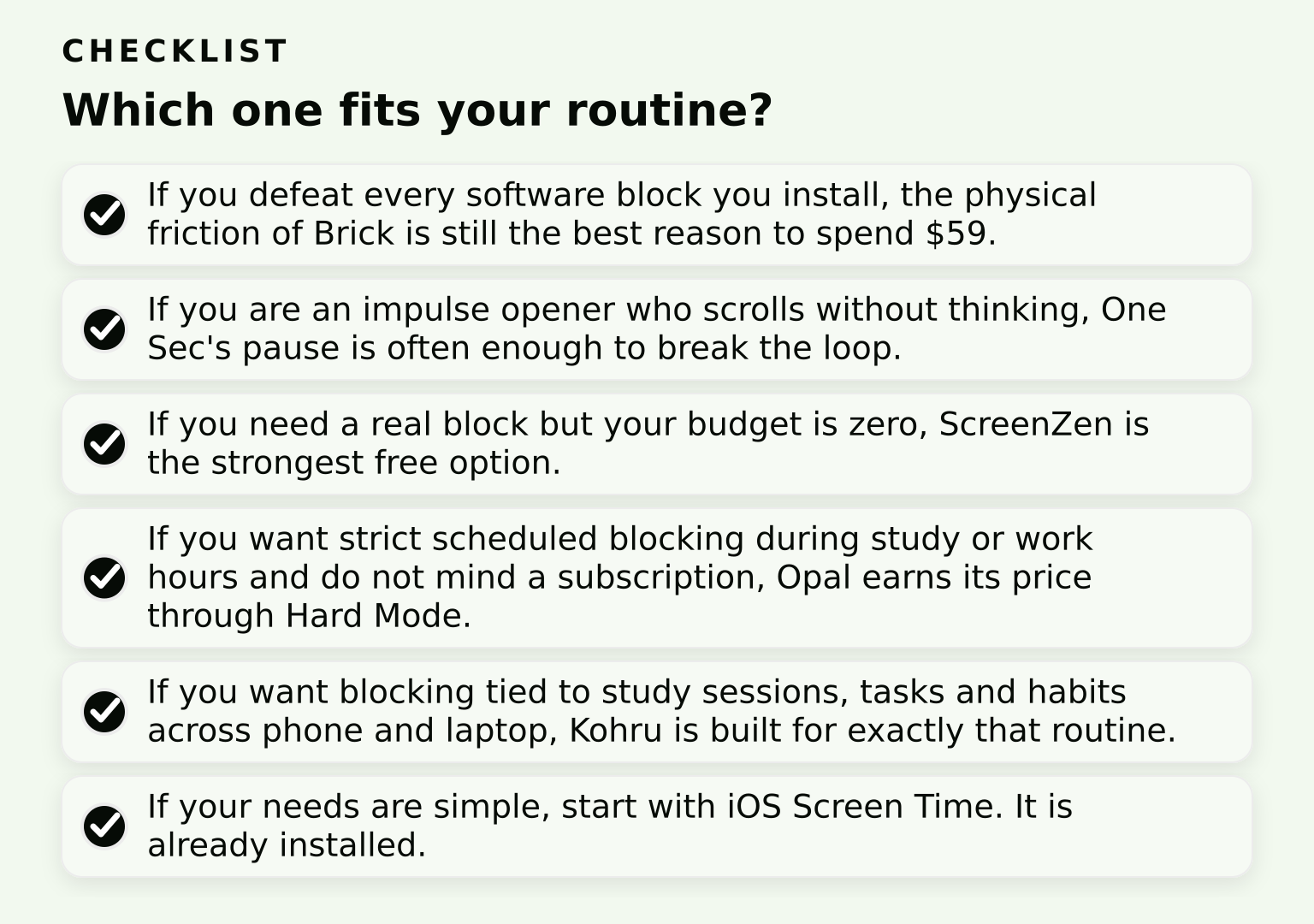
- Brick: the strictest option, because unblocking requires walking to the puck; costs $59 once.
- Opal: scheduled blocks with a paid Hard Mode; free tier covers three recurring rules, Pro runs $99.99 per year.
- One Sec: adds a breathing pause before distracting apps open; gentlest option, free for one app.
- ScreenZen: delays, limits and a strict block mode, completely free and donation-supported.
- iOS Screen Time: free and already on your iPhone, but easy to bypass by design.
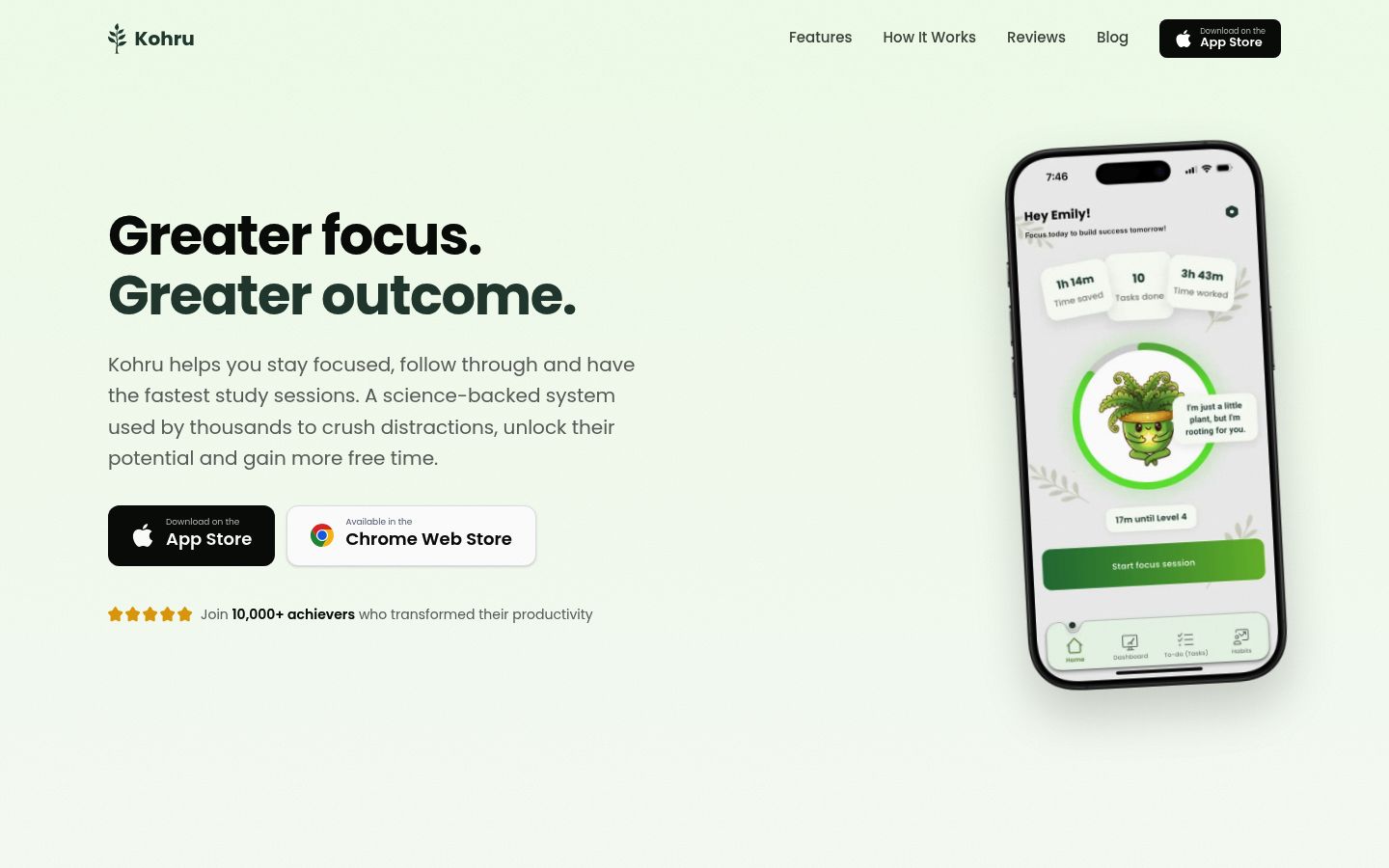
- Kohru: blocks apps and websites across your phone, laptop and Chrome, and ties blocking to focus sessions and habits.
If you want the hardest possible block, Brick itself is still worth the $59. If you want most of that discipline without buying hardware, the software options below each fit a different kind of reader.
Why people look for Brick alternatives
Brick is a small NFC puck you stick somewhere out of reach, like a drawer or a shelf across the room. You tap your phone to it, and Brick blocks the apps and websites you chose. To unblock, you have to tap the puck again. That physical step is the whole point: you cannot talk yourself out of the block while sitting on the couch.
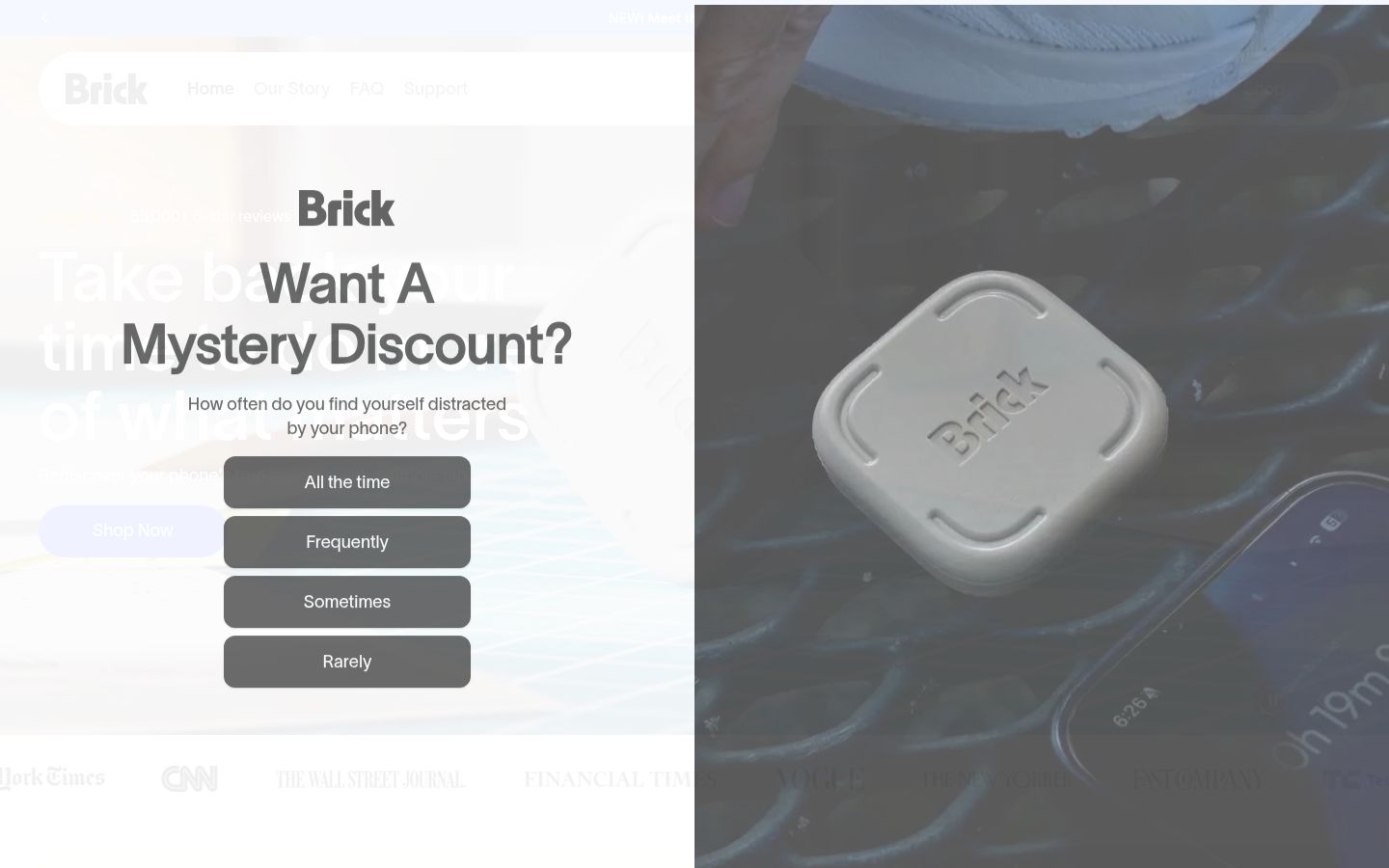
The puck costs $59 one time. Brick's own pages describe a Strict Mode and a limited number of emergency unbricks, so even the escape hatches are capped. It works with a recent iPhone or Android phone.
So why look elsewhere? The honest reasons are cost, availability, and fit. Some readers do not want to spend $59 or wait for shipping. Others find Brick too strict for their routine, or want blocking that also covers their laptop and browser. That is where software comes in.
The core tradeoff: physical friction versus software friction
Every app like Brick works by adding friction, but the friction differs in one key way. Brick's friction is physical. You have to get up and tap a puck, and you cannot fake that from your desk.
Software blockers add friction too, but it is all digital: a delay, a breathing exercise, a typing challenge, or a waiting period. That is easier to live with, and easier to defeat. If you can unlock your phone, you can usually fight the software eventually.
That does not make software worse. It means you should pick a blocker whose friction matches your honesty level. Impulse scrollers do fine with a pause. People who have already learned to defeat Screen Time need something stricter, either Brick or a software tool with a genuinely hard block mode.
One more note: this guide leans iPhone-first, because that is where most Brick-style blocking lives. Each alternative notes where it also covers Android, Mac or Windows.
Opal: scheduled blocks with a paid hard mode
Opal is one of the best-known screen time apps, and it works on iPhone, Mac and Android. You set rules that block chosen apps and websites on a schedule, during a focus timer, or after a usage limit. Opal uses Apple's Screen Time API on iPhone, so blocking happens at the system level rather than inside the app.
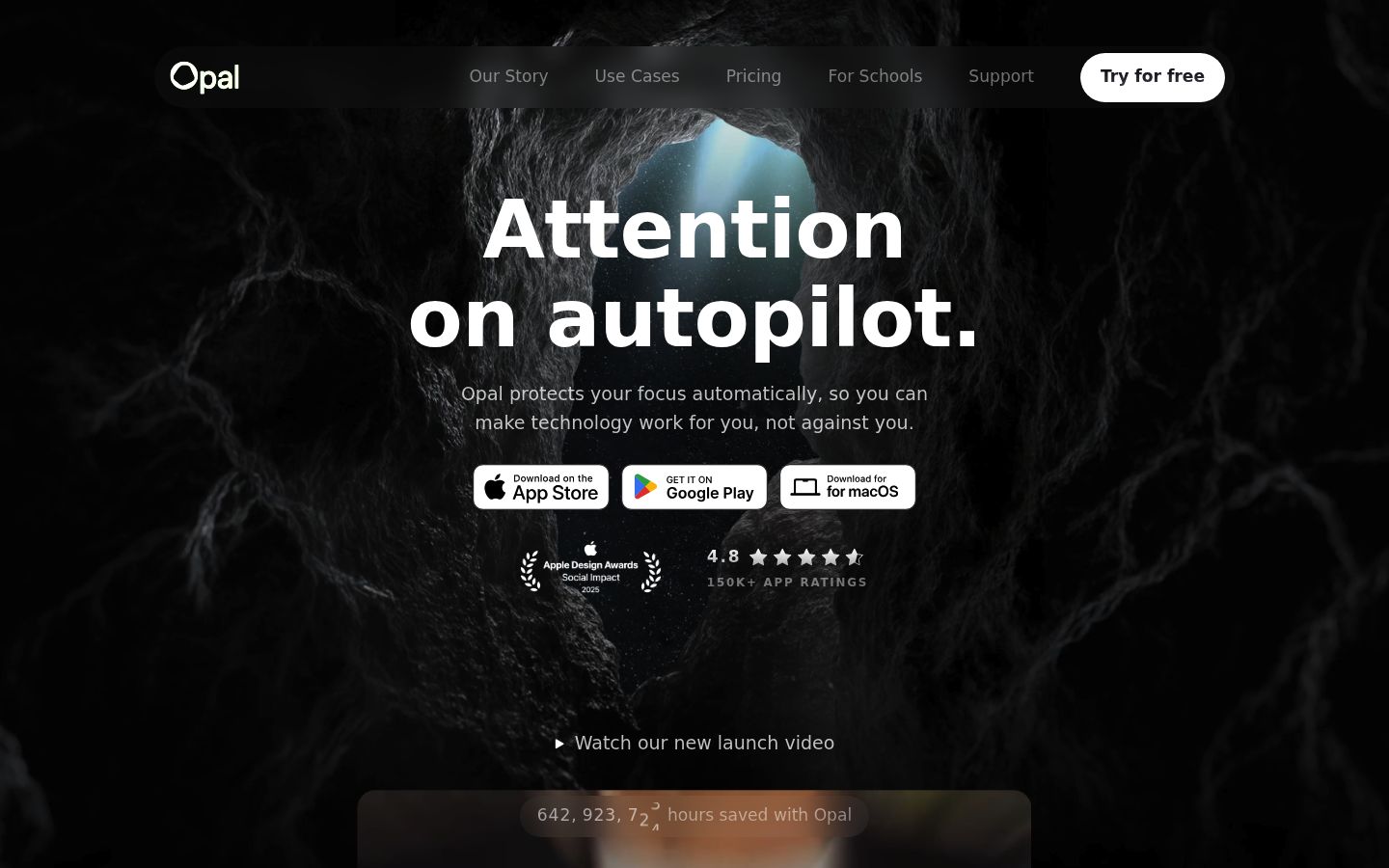
The free tier is genuinely usable: Opal's help center says it includes three recurring rules (schedules, time limits, and open limits), unlimited immediate timers, weekly focus reports, and your daily score. Opal Pro, listed at $99.99 per year on its pricing page, unlocks more rules and the strict settings that matter most here: Hard Mode, which blocks cancellation and resets so you cannot talk your way out of a running block.
Best fit: readers who want Brick-like firmness during scheduled study or work hours, and who will actually use a subscription. Worst fit: anyone who wants a free long-term solution.
One Sec: a pause instead of a wall
One Sec takes the opposite approach. Instead of blocking apps, it inserts an interruption, like a deep breath prompt, before the app opens. The idea is to break the automatic open-and-scroll loop so you decide on purpose. Its own pages cite research with the Max Planck Institute and Heidelberg University reporting roughly 57% fewer app openings on average.
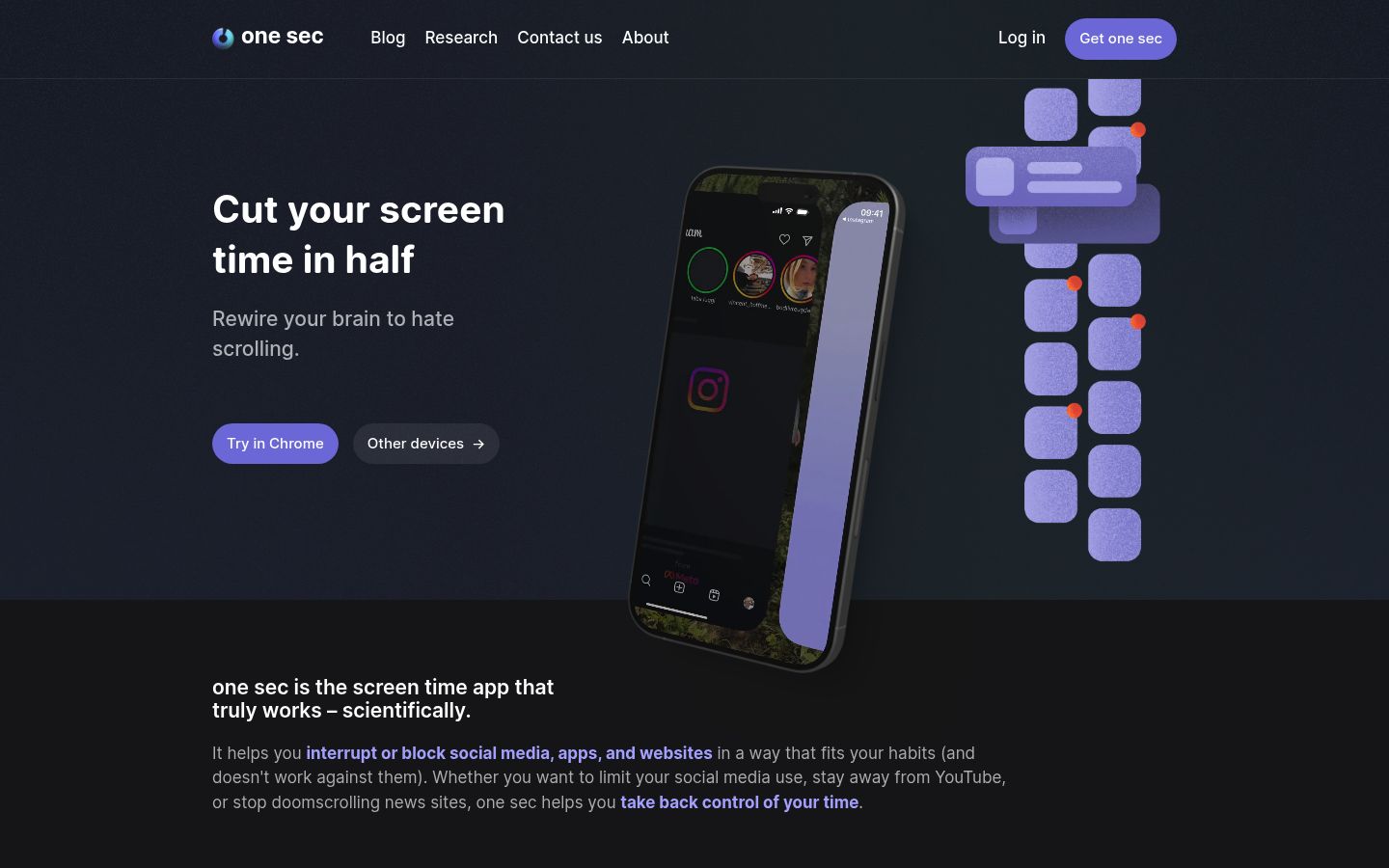
The free version lets you set the interruption for one app. One Sec's FAQ lists Pro at about €14.99 per year in Europe, and the US App Store shows about $19.99 per year, so expect the price to vary by region. One Sec also has a browser extension and a Mac app, so the pause follows you across devices.
Understand the limitation: One Sec is the weakest strictness in this list. It interrupts you; it does not really stop you. Best fit: impulse openers who want to reduce scrolling gradually, or readers who found hard blockers too aggressive and gave up on them.
ScreenZen: delay, limits, and a strict mode, all free
ScreenZen is a donation-supported app that is completely free with no subscription. Its toolkit is closer to Brick's than One Sec's: it delays app opens, caps daily usage, schedules blocks, and offers a strict block mode for time ranges. Its developers also describe a lock mode that prevents uninstalling and closes common loopholes.
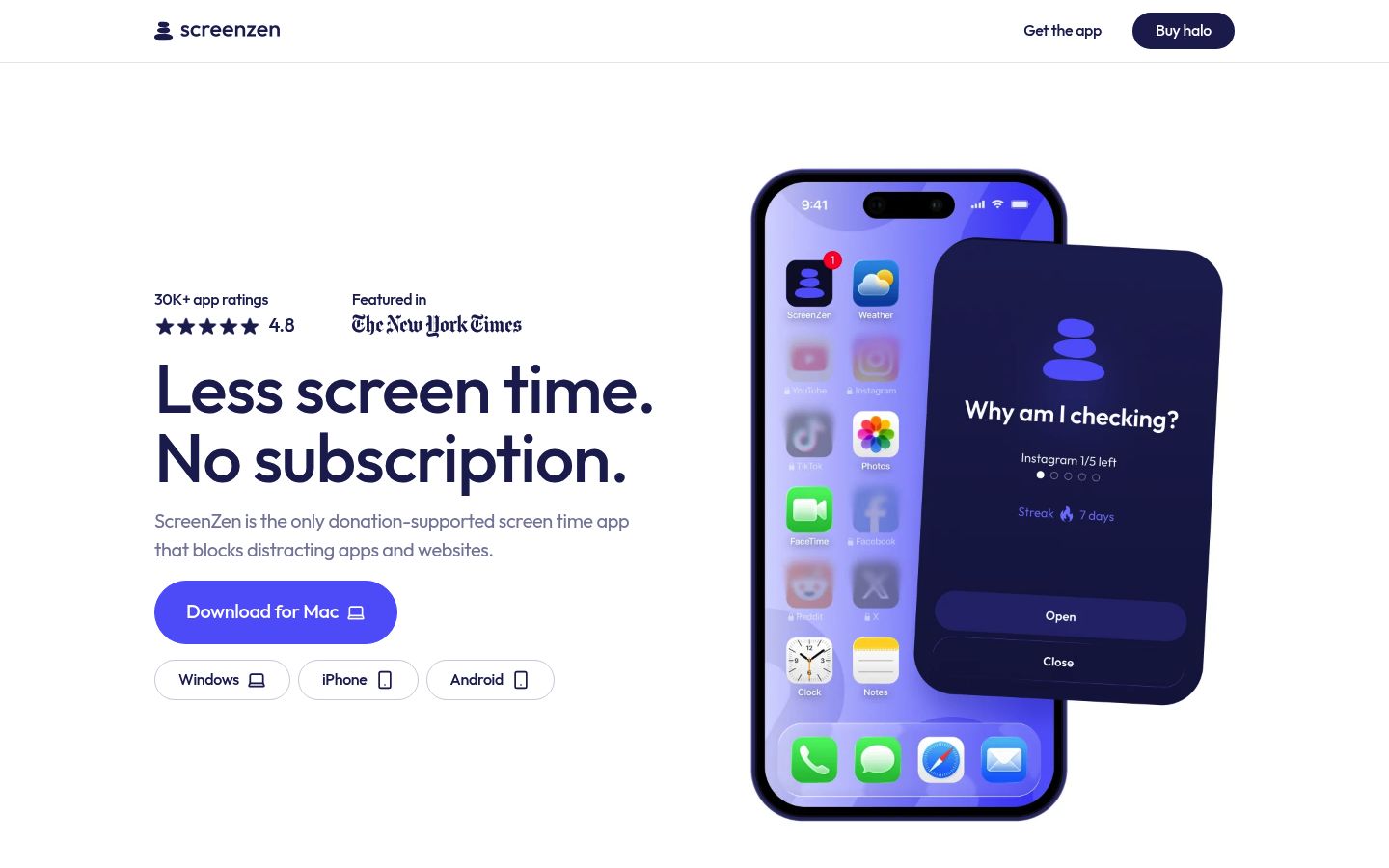
It covers iOS, macOS, Windows and Android, which is unusually broad for a free tool. ScreenZen has also launched halo, a small $49 companion device that blocks chosen apps while you are in a specific space, which is its own answer to Brick's physical approach.
Best fit: zero-budget readers who still want a real block, not just a pause. It is the closest free match to what Brick does.