
Can you block websites on your phone? Yes, though the right method depends on your phone and your goal. On iPhone, Screen Time's website restrictions handle it. On Android, use Family Link for a supervised child's account, or Private DNS with a filtering service when you want broader domain blocking.
A block in one place leaks in another. A site that refuses to load in your browser can still open inside a messaging app's built-in browser, in a second browser you installed, or on your laptop. Blocking a website and blocking access to its content are two different things, so the methods below come with a six-route check that tests each gap before you rely on the block.
For study distractions across devices, Kohru is another answer: it's an app built for students that blocks digital distractions on your phone and laptop together, currently on iOS with Android coming soon. For a single website on your iPhone, pair it with Screen Time rather than treating app blocking as a substitute for a URL restriction.
Table of Contents
- Which Method Fits Your Phone and Goal
- How to Block Websites on iPhone with Screen Time
- Check Whether a Block Really Works
- How to Block Websites on Android and Chrome
- Stronger Blocks with DNS, Routers and Focus Sessions
- Choose the Right Block for Your Situation
Which Method Fits Your Phone and Goal
Website blocking routes compared
| Method | Works on | What it blocks | Main weak spot |
|---|---|---|---|
| Screen Time URL deny list | iPhone | Named URLs in supported browsers | Unprotected Screen Time passcode |
| Family Link Chrome site blocks | Android with a supervised child account | Domains in Chrome and some Android apps | Adult owner can remove the controls |
| Android Private DNS filter | Android phones with a Private DNS setting | Domains across apps using that phone's configured DNS | VPN or changed DNS setting |
| Browser content blocker | Safari on iPhone, Firefox for Android | Ads and listed domains in that browser only | Other browsers ignore it |
| Router parental controls | Any phone on that Wi-Fi | Selected sites or categories for devices covered by the router's rules | Mobile data skips the router |
| Kohru focus sessions | iPhone now, Android coming soon, plus laptop | Selected phone apps and laptop websites during a session | Protection stops when the session ends |
Kohru is a study and productivity app built for students, with linked focus sessions that address distractions across phone and laptop. That fits a different problem from parental filtering: you're trying to finish an assignment without moving from a blocked laptop website to an available phone app.
The right choice starts with what you need to prevent. A parent might want an approved-only browsing environment. An adult might just want a news site out of reach while writing. Someone sharing a household network might want a home-wide filter without configuring every browser separately.
Choose the boundary before the tool
For a named website on an iPhone, start with Screen Time. It's built in, lets you maintain a specific blocked list, and doesn't require adding a browser extension.
For a child's Android phone, start with the supervised account and Family Link. Account supervision matters more than installing a blocker on whichever browser happens to be open.
For your own study sessions, decide whether you need a permanent restriction or temporary friction. A permanent block can interrupt legitimate research. A session-based restriction lets you reserve access for breaks or work that actually requires the site.
Practical rule: Choose the smallest restriction that covers your actual distraction, then test whether you can reach the same content another way.
Don't start by installing every available blocker. That creates overlapping settings that are difficult to troubleshoot, especially when a legitimate website stops working. Pick the goal first, choose the matching control, and add another layer only when testing reveals a specific gap.
How to Block Websites on iPhone with Screen Time
Screen Time's URL deny list is the most reliable built-in starting point for blocking named websites on an iPhone. It applies to the device's supported controls, not to every device using the same internet connection.
The Apple iPhone user guide describes specific website restrictions alongside broader web-content filtering. Use the manually blocked list when you know exactly which website you want to stop, rather than relying on an adult-content category to catch an unrelated distraction.
Set up the blocked website list
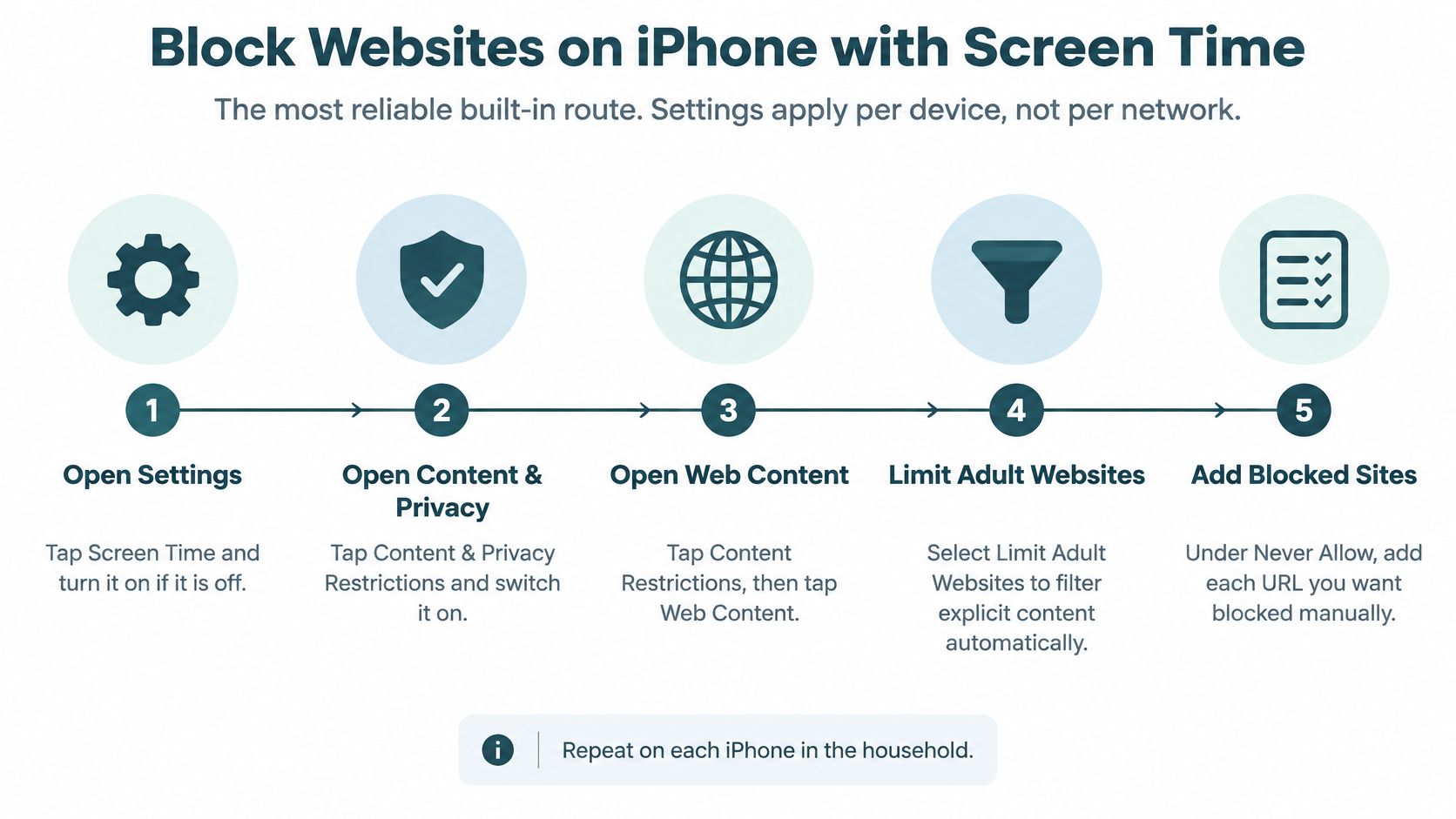
Open Settings and tap Screen Time. Turn it on if it isn't already enabled.
Open Content & Privacy Restrictions. Switch the restrictions on so the web-content rules can take effect.
Set a separate Screen Time passcode. Don't reuse the phone's lock code, because someone who knows that code shouldn't automatically be able to change the restriction.
Open App Store, Media, Web, & Games, then Web Content. Choose Limit Adult Websites, which exposes the controls for manually allowing or blocking websites.
Under Never Allow, tap Add Website. Enter the website you want blocked, and repeat for other sites on your list.
Include relevant address variants. Check the bare domain, its www version, and any mobile subdomain the website uses, then test those addresses in your installed browsers.
Don't assume the name Limit Adult Websites means this feature is only useful for explicit content. The manually maintained Never Allow list is the part you're using to restrict a particular news site, forum, or other distraction.
The visual below gives a compact overview of the setup. Menu labels can differ from the current path above, so follow the labels your iPhone presents.
Use Family controls for a child's iPhone
For a supervised child, the newer Family workflow is Settings → Family → child's name → Apps & Websites → Restrictions → Filtering. From there, use Approved Websites Only for an allowlist approach or Block Website for a specific restriction.
An approved-only list suits a tightly controlled browsing environment. A deny list suits a child who needs broad access for school but shouldn't visit particular websites. Before choosing the stricter option, gather the school portals, research tools, and sign-in pages the child actually needs.
Keep the parent-controlled passcode private. A carefully built blocked list has little value if the person using the phone can easily edit it.
Screen Time is not a network firewall. Equivalent content may remain reachable through an app, an unsupported browsing route, a proxy, or another device. The meaningful check is whether the restriction covers the routes you intend to control, not whether you successfully added an entry to a list.
Check Whether a Block Really Works
An in-app browser is an easy place to miss a gap. You block a website in your usual browser, then tap a link in a messaging or social app and discover that the content still opens inside that app.
That's why a successful browser test isn't proof of complete blocking. Apple's parental-control documentation distinguishes adult-content filtering, approved-only access, and manually allowed or blocked websites, rather than describing a universal restriction across every route to online content.
Six-route blocking test
| Test route | What it proves | Pass signal |
|---|---|---|
| Default browser, Safari or Chrome | The block works where you usually browse | Page does not load |
| Second browser | Whether the rule is tied to a browser | Page does not load |
| In-app browser from a messaging or social app | Whether embedded web views ignore the rule | Page does not load |
| The site's own native app | Whether an app reaches the same content | App shows no blocked content |
| Cellular data versus Wi-Fi | Whether network-level blocks differ by connection | Blocked on both |
| Second device on the same account | Whether the block is device-level or account-level | Blocked where intended |
Test the route, not just the address
Start by typing the address directly into your usual browser. Then open it from a search result and try the installed alternative browser. This separates a working URL restriction from a rule that only affects the browser where you configured it.
For the in-app test, send yourself a link and open it inside the messaging app if that option is available. For the native-app test, check whether the feed or content you wanted to avoid is still accessible without visiting the website.
Use the connection test deliberately. Turn Wi-Fi off, confirm the phone is using cellular data, and try again. For the second-device test, use a laptop or tablet signed into the relevant account, but judge success against your intended scope: a phone-only rule doesn't need to control an unrelated device.
A block passes when the unwanted content is unavailable through the routes you intended to restrict, not merely when a warning appears in your favorite browser.
Diagnose failures before adding rules
Reboot the phone and repeat the important tests while signed into the account you want to control. A child's supervised account and a parent's account can have different permissions.
If something still loads, record the app, account, connection, and address involved. That gives you a specific problem to fix.
A failure in a native app calls for app restrictions, not another copy of the website URL. A failure only on cellular data points toward a network-scoped control. Fix the uncovered route instead of piling unrelated restrictions onto a setting that already works.
How to Block Websites on Android and Chrome
On Android, first choose between explicit-content filtering, a manual website list, and time-based limits. For a child's phone, begin with supervision; for your own phone, begin with a filter or focus tool you're willing to keep enabled.
The setup below is for a parent managing a child's browsing.
Block named websites for a child
Confirm the supervised account. The child should be signed into the Google account you manage, rather than a guest or unmanaged account.
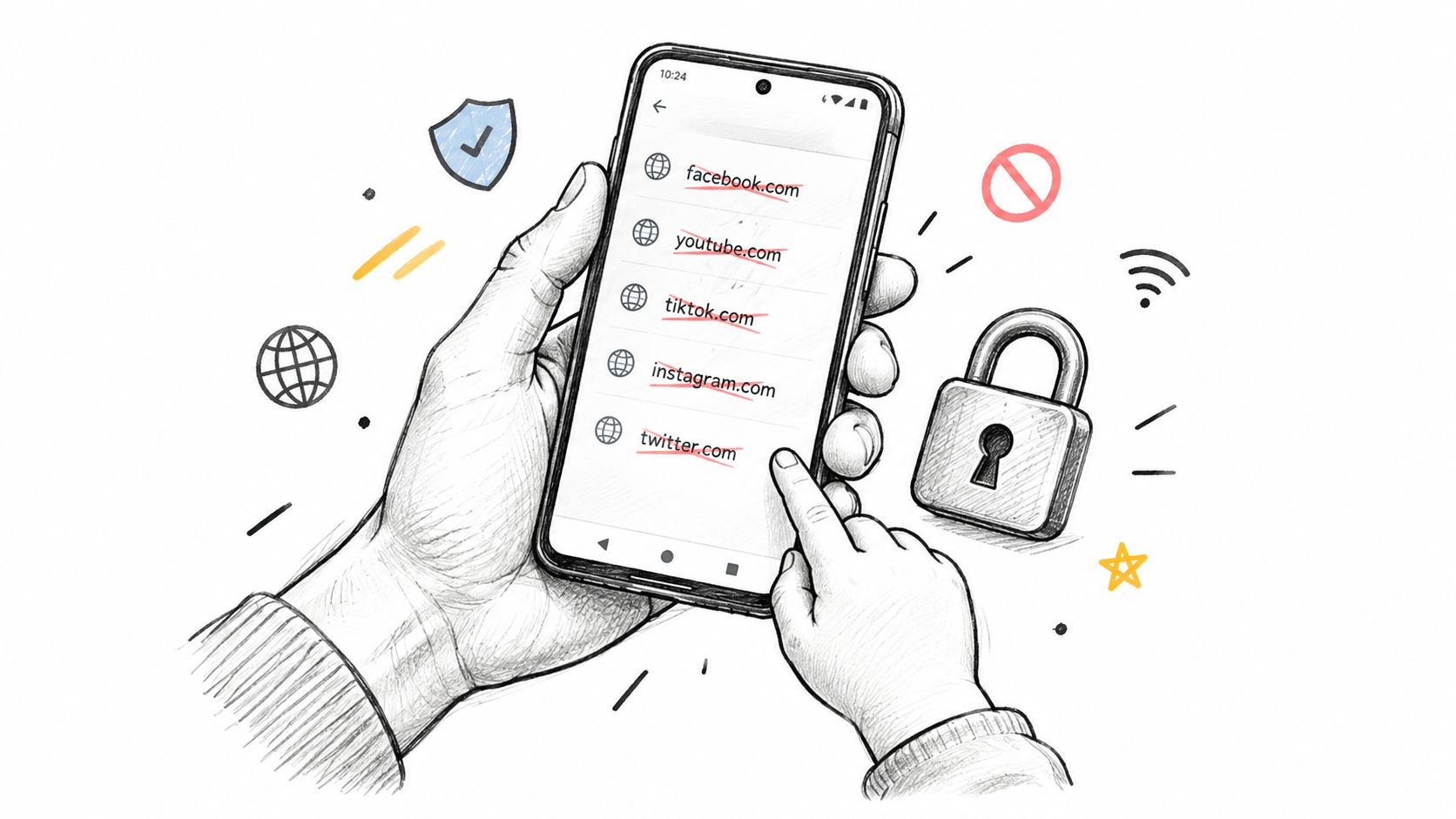
Open Family Link on the parent's phone. Select the child and open the Chrome website controls.
Open Manage sites and add the domain under Blocked sites. Use Approved sites when you want to maintain permitted destinations rather than only a deny list, and select the corresponding approved-only browsing option where available.
Enable explicit-content filtering if needed. In the available Android parental controls, use Settings → Parental controls → Web content filters → Block explicit sites, and enable filtering for explicit search results.
Google's Android parental-control guide describes web-content filtering and Family Link's website management, with Chrome site controls covering Chrome and some Android apps. Don't treat that scope as every browser, every operating system, or every account the child can access.
Check schoolwork immediately after setup. A page can require supporting domains for sign-in or learning materials, so an approved-only environment needs more care than blocking a particular distracting destination.
Use Private DNS for adult self-control
Android doesn't provide a universal per-site deny list for your own unmanaged profile. For broader filtering, open Settings → Network & internet → Private DNS, choose the provider-hostname option, and enter the hostname supplied by your filtering service.
Configure the provider's blocked categories or custom deny list as appropriate. Menu names can differ by manufacturer, so search Settings for Private DNS if the path isn't visible.
This can filter domain requests across apps that use the configured resolver. It isn't tamper-proof: if you own the phone and can change its settings, you can usually disable the filter.
For a visual companion to the setup, use this walkthrough.
Choose app timers for time limits
Digital Wellbeing addresses a different problem. Its Focus mode and app timers pause selected apps on a schedule or after an allowance, rather than maintaining a named-website deny list.
Use it when the problem is time spent in an app, not a particular URL. For stronger adult accountability, arrange separate administrative control or ask someone trusted to manage the filtering account, then verify the setup using the browser, app, account, and connection tests.
Stronger Blocks with DNS, Routers and Focus Sessions
A stronger setup isn't necessarily a stricter setting. It's a combination of controls whose coverage matches where you browse, study, and switch devices.
Browser blockers and router controls
Browser content blockers are useful when you want precise control inside a browser. Safari on iPhone supports content-blocker extensions from the App Store, while Firefox for Android supports uBlock Origin. Choose an extension that supports the particular domain-blocking rules you need, not just advertising filters.
Their boundary is straightforward: another browser or a native app can remain outside the extension's control. They're a practical fit for browser-centered work, not a complete parental-management system.
Router parental controls move enforcement to the home network. Assign the intended devices to the appropriate profile, then configure website or category restrictions for that profile. Check whether new household devices are included automatically or require manual assignment.
A router rule can cover phones and laptops without editing each browser, but it won't follow a phone onto cellular data or another Wi-Fi network. Don't buy a router-based solution expecting it to manage a child's browsing away from home.
DNS filtering reaches beyond the browser
Cloudflare's family filtering offers adult-content and malware filtering. NextDNS supports a custom deny list and can be configured on an iPhone through a configuration profile or on Android through Private DNS.
DNS filtering acts on domain lookups, so it's broader than a browser extension but less precise than page-level control. Blocking a domain can remove useful and distracting parts of the same service together.
Scope check: A DNS filter controls the lookups that reach it. It doesn't inspect and govern every possible connection from the phone.
A hard-coded IP connection may avoid a fresh lookup. A VPN or an app using its own DNS-over-HTTPS service may also use a different resolver. Test the apps you use rather than assuming that a successful browser check proves device-wide coverage.
Focus sessions address device switching
Kohru's Focus Sessions connect selected app restrictions on an iPhone with selected website restrictions through its laptop browser extension. Custom durations, difficulty modes, and a break system support a defined work period rather than an always-on parental policy.
It's built for students and can also suit people managing ADHD-related distractions, without being a treatment or a guarantee of sustained attention. It's available on iOS, with Android coming soon; Android users need another phone-side approach in the meantime.
Use session blocking when you want to protect a study window. Use persistent filtering when a website should remain unavailable outside that window too. These solve different problems, so choose based on the access you want to preserve as well as the content you want to remove.
Choose the Right Block for Your Situation
Starting method by situation
| Situation | Start with | Why it fits |
|---|---|---|
| Studying and drifting to distractions on phone and laptop | Kohru focus session | Starts linked restrictions for selected phone apps and laptop websites |
| A site you keep returning to on iPhone | Screen Time URL deny list | Quick, no extra app, per device |
| Filtering a child's iPhone | Screen Time Family controls with Approved Websites Only | Parent manages the permitted browsing environment |
| Filtering a child's Android phone | Family Link Chrome site blocks | Covers Chrome and some apps on the child's account |
| Blocking across devices at home | Router parental controls with DNS filtering | Covers devices included in the Wi-Fi filtering policy |
For a student who switches screens
Say you're writing a university assignment and keep opening a news website. When you close the laptop tab, you reach for the matching app on your iPhone.
Start with a Kohru focus session configured for those distractions. Block the news website through the laptop extension and restrict the distracting phone app during the same work period.
If you also keep opening that website in Safari, add a Screen Time URL restriction. That's a targeted addition for a different route, not a reason to rebuild your entire setup. Run the six-route check before relying on it for an important study session.
Keep course materials accessible. A restriction that blocks your readings or university sign-in creates a reason to disable everything, so test essential academic tasks before settling into work.
For a parent managing a high-schooler's phone
On Android, start with Family Link under the child's supervised account. On iPhone, use Family controls with Approved Websites Only when the child needs a tightly managed browsing environment.
Make the permitted schoolwork routes explicit. Check the learning portal, assignment links, library resources, and required authentication before handing the phone back.
Then check the child's account from another device. The purpose is to discover where the policy applies, not to assume that sharing an account automatically shares every restriction. Keep parent credentials and restriction passcodes separate from the child's everyday access.
For an adult using Android
Start with Private DNS through a filtering provider if domain blocking across apps is your priority. Ask someone you trust to manage the filtering account or hold administrative credentials where the setup supports that arrangement.
Be honest about its limits. Someone else holding the provider password doesn't necessarily prevent you from changing the phone's DNS setting. If you need stronger resistance, choose an accountability arrangement with meaningful administrative separation rather than relying on a password you can bypass.
The useful answer to “Can I block websites on my phone?” is a setup you'll stick with. Pick a method today, configure it this week, and run the six-route check before treating the block as dependable.
Kohru helps you protect study time with linked Focus Sessions for selected phone apps and laptop websites, so blocking a distraction on your laptop doesn't leave its phone app as the obvious alternative. Visit Kohru to try a session for your next assignment, and use Screen Time alongside it when you need a specific website restricted on your iPhone.
