Most screen-time failures come from weak account synchronization or background-app loops, not a broken timer. In controlled interventions, children reduced recreational screen use by 26.4 minutes per day and obesity prevalence fell by 2.3 percentage points, which shows that limits can help, but usually produce modest rather than dramatic change.
You set a limit, watch the countdown reach zero, and still open the same app five minutes later. Perhaps the phone lets you tap “one more minute,” or the restriction applies on your tablet but not your laptop. The result feels personal and chaotic, but the failure usually has a technical cause.
Native tools often enforce a request rather than an unbreakable boundary. A second family account, an app launched through a browser, or a background process that keeps reopening a session can subtly undermine the setting. I've found that three blind spots appear repeatedly: account drift, sub-session loops, and profile conflicts.
The practical response isn't to reboot the phone repeatedly. Diagnose where the rule loses authority, then add enough friction that bypassing it takes more effort than following it.
Table of Contents
- Why Screen Time Limits Keep Failing You
- Quick Checks to Run Before Deep Dives
- Troubleshooting Native Operating System Limits
- Fixing Account and Family Profile Conflicts
- When Native Tools Are Not Enough
- Testing and Sustaining Your New Setup
Why Screen Time Limits Keep Failing You
A timer can be accurate and still be ineffective. It may count activity in one app while missing the same service opened through Safari, Chrome, a web view, or another device. It may also treat a short interruption as the end of a session, even though the app resumes immediately when you return.
That creates the familiar sub-session loop. You leave a video app, answer a message, return to the video, and receive a fresh-looking interaction rather than a meaningful barrier. The timer has recorded fragments, but your attention has experienced one continuous pull.
The three blind spots
Account drift happens when the device enforcing the limit is no longer using the account you think it is. A child may be signed into a personal Apple Account while a parent manages a different Family Sharing profile. On Android, a Google account, device profile, or supervision setting may not match the account configured on the administrator's phone.
Sub-session loops appear when a restriction tracks an app but not the paths into it. A social platform's native app, mobile website, notification link, and embedded browser can behave like separate entry points. Blocking only one of them leaves a side door open.
Profile conflicts occur when several systems issue competing instructions. Downtime, app limits, content restrictions, work profiles, parental controls, battery settings, and third-party blockers may overlap. One setting can pause an app while another allows it, or a device can fall back to a default profile after an update.
Practical rule: Treat “screen time not working” as a configuration problem first, and a motivation problem second.
The evidence also argues against expecting a universal timer to solve every household's problem. A Playz parenting guide can help families think through practical boundaries, but the rule still needs a reliable owner, a clear target, and a replacement activity. An independent UK review found no convincing evidence for one universally safe screen-time cutoff, and highlighted content, context, and timing as potentially more useful questions than duration alone in its review of screen-time guidance.
Quick Checks to Run Before Deep Dives
Don't delete every restriction yet. Start with the checks that reveal whether the problem is connectivity, visibility, synchronization, or a temporary device glitch.
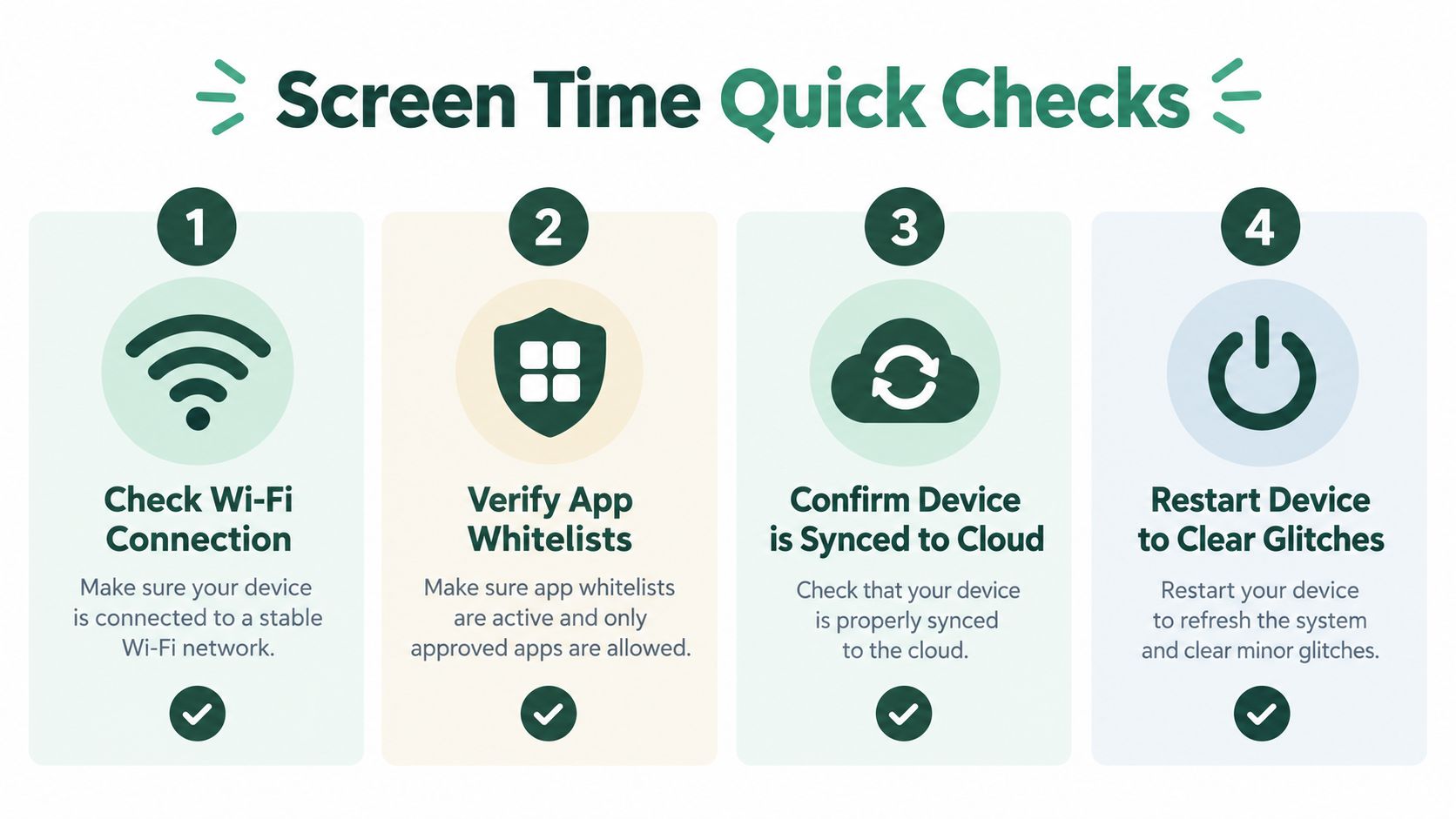
Check the active path
- Check the connection: Confirm that Wi-Fi or mobile data is working, especially if a family-management app needs to communicate with a cloud account. A rule that depends on synchronization can appear stale when the device hasn't received the latest policy.
- Verify the app list: Open the actual Screen Time or Digital Wellbeing list and search for the app by name. Check browser access too. If the service is allowed through a browser, restricting only the installed app won't address the behavior.
- Confirm the signed-in account: Compare the account shown on the child's device with the account shown in the family manager. Look for a personal profile, guest profile, work profile, or recently changed email address.
- Restart after saving: Save the rule, restart the device, and test it again. A restart can clear a stuck local process, but it won't repair the wrong account or an incomplete policy, so treat this as a diagnostic step, not the final fix.
Next, check whether the device has pending operating-system updates. Updates can change permission behavior or expose an old configuration, while an older operating system can fail to apply newer management settings consistently. Install updates only after recording your current limits, schedules, and administrator account.
Battery Saver and low-power modes deserve a closer look. They can restrict background activity, delay synchronization, or stop a companion service from refreshing its policy. That doesn't necessarily mean Battery Saver is overriding the limit directly, but it can prevent the enforcement layer from receiving or applying changes promptly.
Confirm one administrator
Only one person should be the source of truth for a shared setup. If two adults edit the same schedule from different devices, agree on which account owns the rule, make a change there, and wait for every managed device to reflect it.
Test a single restricted app immediately after the change. If the app remains available, don't keep adding more limits. First determine whether the policy reached the device at all.
Troubleshooting Native Operating System Limits
Apple Screen Time and Android Digital Wellbeing are useful baselines, but they're designed for broad device management, not every attention pattern. They can measure usage well while offering a weak response at the exact moment someone wants to override the rule.
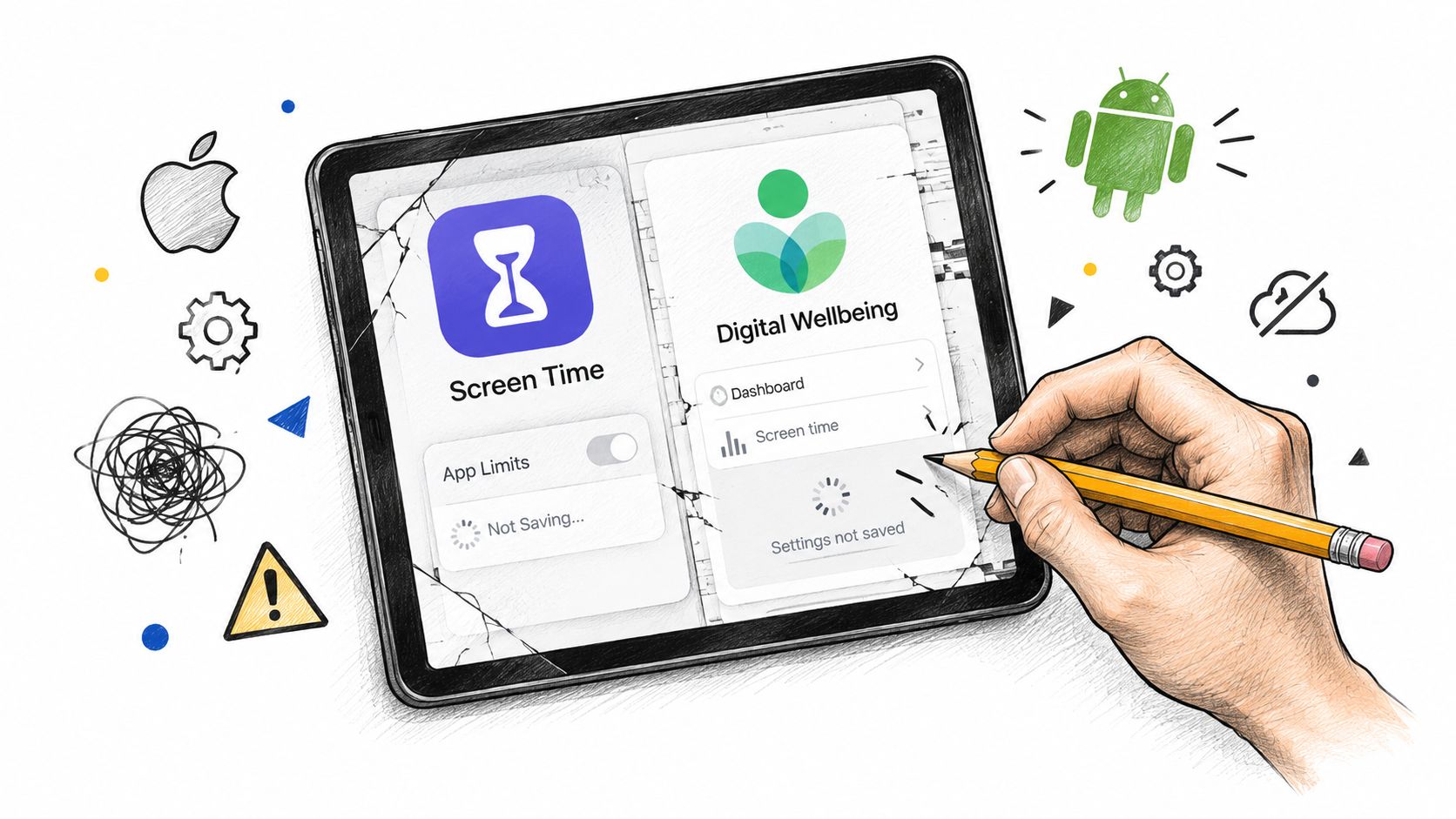
On an iPhone, review Screen Time from the device that manages the family member. Check App Limits, Downtime, Always Allowed, and Content & Privacy Restrictions as separate layers. If a distracting app appears in Always Allowed, an App Limit may look active while the app remains available during restricted periods.
Use a Screen Time passcode that the person trying to focus doesn't know. Don't reuse the phone's passcode, and don't leave the recovery process controlled by the same person who is expected to resist the distraction. Also check whether “Block at End of Limit” is enabled where the platform provides that option. A warning is easy to dismiss. A blocked state creates friction.
Configure Android as one system
On Android, inspect Digital Wellbeing's Dashboard, App timers, Focus mode, and notification controls. An app timer may limit the application while notifications continue to pull the user back through another route. Pause unnecessary notifications, then test the app from both its icon and a notification link.
Android devices can also contain multiple users, guest sessions, work profiles, or manufacturer-specific battery controls. Check the active profile before changing the timer. If a work profile or guest account can open the same distracting service, the personal profile's restriction hasn't solved the access problem.
A limit that can be dismissed with the same tap sequence used to open the distraction is a reminder, not a boundary.
Avoid stacking several native schedules before you understand the current one. A morning Focus mode, a work profile policy, and a family downtime schedule may each be reasonable, yet the combined result can be difficult to audit. Start with one clear restricted window, one administrator, and one test app.
Education alone rarely carries the load. A 2026 systematic review of school-based interventions found control groups increased screen time by 8.7%, while intervention groups decreased it by 3.6%, leaving a 12% post-intervention gap in the review's reported results. The same review reported that education represented 78% of interventions and that about 20% showed no statistically significant effect, a useful warning against relying on awareness without environmental changes and follow-through.
Use this short walkthrough as a visual reference, but verify each setting on the current device because menus change across operating-system versions.
Fixing Account and Family Profile Conflicts
Account drift is one of the least visible causes of “screen time not working.” The parent sees a schedule on one phone, the child uses another account, and both devices appear correctly configured in isolation. The policy is present, but it belongs to a different identity.
Start by writing down the account shown on every relevant device. Include the administrator's phone, the managed phone, tablets, browsers, and any laptop used to access the same services. Don't rely on the device name. Confirm the actual email address or account identifier inside the family-management settings.
Establish a clean ownership chain
Choose the administrator before changing anything else. On Apple devices, review Family Sharing membership and confirm that the child's account is managed by the intended organizer. On Android, inspect the family group and supervision relationship, then make sure the managed device is attached to the expected Google account.
If a device has been transferred between family members, remove obsolete supervision or management relationships only after recording the current settings. Then restart the account connection from the intended administrator. Relinking should be deliberate, not a series of repeated sign-outs that leaves the device in an uncertain state.
The sequence matters:
- Record the baseline: Note the account, profile, app list, schedule, and administrator.
- Remove the conflict: Disconnect the obsolete family or work relationship through the platform's supported settings.
- Refresh the local state: Sign out only where the platform requires it, restart the device, and clear stale app data where that option is available.
- Relink once: Connect the device to the correct administrator, then wait for the policy to arrive.
- Test before expanding: Block one known app and verify the result from its icon, notification, and browser route.
Don't let both parents edit the same rule while diagnosing the problem. Agree on a temporary owner and communicate exceptions separately. If one adult changes the schedule while another tests it, you can't tell whether the device failed or the policy changed.
Stop the family sub-session loop
A family profile can also fail socially, not just technically. One household member blocks an app on a child's phone while another signs the child into a second device, shares a hotspot, or grants an exception without updating the agreed plan. The child experiences a continuous flow even though each individual device appears to follow its local instructions.
Define what the restriction covers, including phones, tablets, browsers, and shared computers. Then decide what happens during homework, meals, travel, and emergencies. A recent review of early-childhood interventions found mixed results and no single approach outperforming the others, which supports building rules around the household's actual routines rather than searching for one perfect setting in the review of early-childhood interventions.
When Native Tools Are Not Enough
Native controls are good at displaying usage and applying simple schedules. They're less reliable when you need active blocking across several devices, protection from repeated overrides, or a single focus session that covers both a phone and a laptop.
The distinction is measurement versus enforcement. A dashboard tells you where time went. A blocker changes what the device permits during a chosen period. If the behavior is automatic, a report arriving later won't interrupt it.
Match the tool to the failure
| Your actual problem | A suitable control |
|---|---|
| You lose track of app use | Usage reports and scheduled app limits |
| You open the same site in several browsers | A site blocker that covers browser access |
| You switch from phone to laptop | Cross-device sessions |
| You repeatedly override reminders | A lock or delay that adds deliberate friction |
| You work in distracting environments | A predefined focus mode with a replacement task |
Third-party tools vary considerably. Some use local app blocking, some filter websites, and some depend on a browser extension or a cloud-managed account. Before installing one, check which devices it supports, whether private browsing is covered, how exceptions work, and who controls the bypass process.
A useful setup makes the undesired route inconvenient without making necessary work impossible. Block social apps during a study session, but leave research sites available. Block entertainment websites on the laptop while allowing a school portal. If a tool blocks entire internet connections, create an allowlist before starting the session so you don't trade distraction for unnecessary access problems.
Design friction instead of depending on willpower
Friction works best when it appears before the habit has momentum. Remove distracting apps from the home screen, disable their notifications, log out of high-risk services, and keep the blocking control separate from the device being used for focused work. These small changes reduce the number of decisions required at the vulnerable moment.
Kohru is one option for this type of setup. Its iPhone app uses Screen Time to block selected distracting apps during Focus Sessions, while its laptop support can block distracting sites and apps through the Chrome extension. It also combines focus sessions with work and personal task lists, custom durations, difficulty modes, breaks, and weekly habit targets, so the restriction is tied to a concrete task rather than an empty prohibition.
Automation still needs a clear scope. A blocker that covers only one browser won't solve a laptop-wide habit, and a phone-only tool won't stop the same distraction on a second device. Choose the smallest system that covers every route you use, then test the routes before trusting it.
Testing and Sustaining Your New Setup
A screen-time configuration isn't finished when the toggle turns green. It's finished when the restriction behaves correctly under the conditions that previously defeated it.
Test during an actual restricted window. Open the app from its home-screen icon, tap a related notification, search for the service in a browser, and try the second device that commonly becomes an escape route. If one path still works, record it instead of weakening the entire setup.
Use a repeatable audit
- Test enforcement: Confirm that the blocked app or site stops at the intended boundary, not merely that usage appears in a report.
- Test synchronization: Change one harmless setting from the administrator account and confirm that the managed device receives it.
- Test exceptions: Review Always Allowed apps, browser access, guest profiles, work profiles, and shared devices.
- Test recovery: Know how to handle an urgent exception without handing permanent control back to the person trying to focus.
- Review monthly: Recheck permissions, installed apps, browser extensions, account ownership, and schedules after major updates or device changes.
Keep a short failure log. Write down the date, device, app, access route, and which rule was supposed to stop it. Patterns emerge quickly. You may discover that the problem isn't the app timer at all, but a browser route, a second profile, or a family member changing the schedule.
The behavioral design matters as much as the technical design. Replace restricted activity with something specific, such as a walk, printed reading, a planned study task, or a conversation. Screen-time research has repeatedly found that reductions are often modest and may not last, while a 2026 review of non-pharmacological digital interventions reported adherence from 26.3% to 100%, with a median around 71% among studies that reported it in its adherence analysis. If the system requires constant manual check-ins, simplify it with defaults, prompts, and fewer sessions.
The strongest arrangement is one you can explain in a sentence: who controls the rule, which devices it covers, what it blocks, what replaces the blocked activity, and how exceptions work. When that sentence remains true after an update, a new app installation, or a difficult day, your setup is no longer just counting screen time. It's shaping the environment around the behavior.
If you're ready to replace flaky timers with a more deliberate focus routine, visit Kohru to create cross-device Focus Sessions that block selected distractions on iPhone and laptop. Use its task lists, custom sessions, and flexible habit targets to turn each restriction into a clear next action rather than another notification to dismiss.
