You capture a task while walking, save a useful article in Safari, promise yourself you'll handle an email after lunch, then write something unrelated in Notes. By evening, your iPhone contains several reminders, a few flagged messages, browser tabs, and one vague task that says “work on project.” The problem isn't that you can't create a to-do list on iPhone. The problem is that your tasks enter through too many doors and rarely arrive at a dependable review and execution process.
Apple Reminders can provide the foundation, but a reliable system needs more than checkboxes. You need fast capture, selective notifications, clear contexts, and a separate way to protect the attention required to complete demanding work. Here's how to build that system without turning your phone into another source of noise.
Table of Contents
- Why Most iPhone To Do Lists Fail
- Capturing Tasks Instantly Across iOS
- Organizing with Smart Lists and Focus Modes
- Syncing and Sharing Across Devices
- Executing Tasks with Kohru Focus Sessions
- Troubleshooting and Final Productivity Tips
Why Most iPhone To Do Lists Fail
A typical failure starts innocently. A graduate student saves research questions in Notes, sends links to themselves, adds deadlines to Reminders, and keeps project details in email. A remote worker does something similar with meeting follow-ups, client requests, and personal errands. Each individual capture feels reasonable, but no single place shows what matters today.
Apple's native task manager has evolved considerably. Reminders arrived as a system app with iOS 5, released on October 12, 2011, and Apple rebuilt it from the ground up in iOS 13, according to the history of Apple Reminders). It later expanded to macOS and watchOS, reflecting a shift from an iPhone checklist to a task system that follows you across Apple devices.
That history explains both the app's strength and its weakness. Reminders handles deadlines, alerts, synchronization, tags, Smart Lists, shared lists, and context-based triggers. It can also accept tasks from multiple places, including Safari's Share Sheet, widgets, Control Center, and other system entry points. Capture is no longer the hard part.
Practical rule: A task you've captured but never reviewed is only stored information, not a commitment you can trust.
Capture is easy, review is the missing habit
Many people treat the Reminders inbox as a final list. It isn't. An inbox should be a temporary holding area where unclear inputs wait until you decide what they mean, when they belong, and whether they deserve an alert.
Suppose you write “prepare presentation.” That item still hides several decisions. Do you need to outline it, find the latest data, create slides, rehearse, or send a draft? A system that stores the vague version may look organized while leaving the actual work undefined.
Task management also affects broader personal goals. If you're building routines around wellbeing, the guidance on achieving mental health goals is a useful reminder that goals become more workable when they're translated into concrete, reviewable actions. Your iPhone can support that translation, but it can't replace the review that keeps commitments visible.
Treat Reminders as a control panel, not a workbench
Apple Reminders is excellent at answering questions such as:
- What has a deadline? Due dates and early reminders make time-sensitive commitments visible.
- Where does this belong? Lists and tags separate areas, projects, and contexts.
- Who owns the next action? Shared lists support household and collaborative work.
- What needs attention now? Smart Lists can filter tasks by criteria you choose.
It isn't designed to be a complete deep-work environment. A deadline can tell you that an essay is due, but it doesn't create the uninterrupted conditions needed to research and write it. A notification can surface a task, but repeated alerts may train you to dismiss the very system you built to help you.
The dependable approach is a pipeline: capture everything quickly, clarify during review, filter what appears in each context, then execute important tasks in a protected focus environment.
Capturing Tasks Instantly Across iOS
The best capture method is the one available at the exact moment an idea appears. If adding a task requires opening several screens, choosing a list, and writing a perfect description, you'll postpone it. The task then competes with memory, messages, and whatever else is already demanding attention.
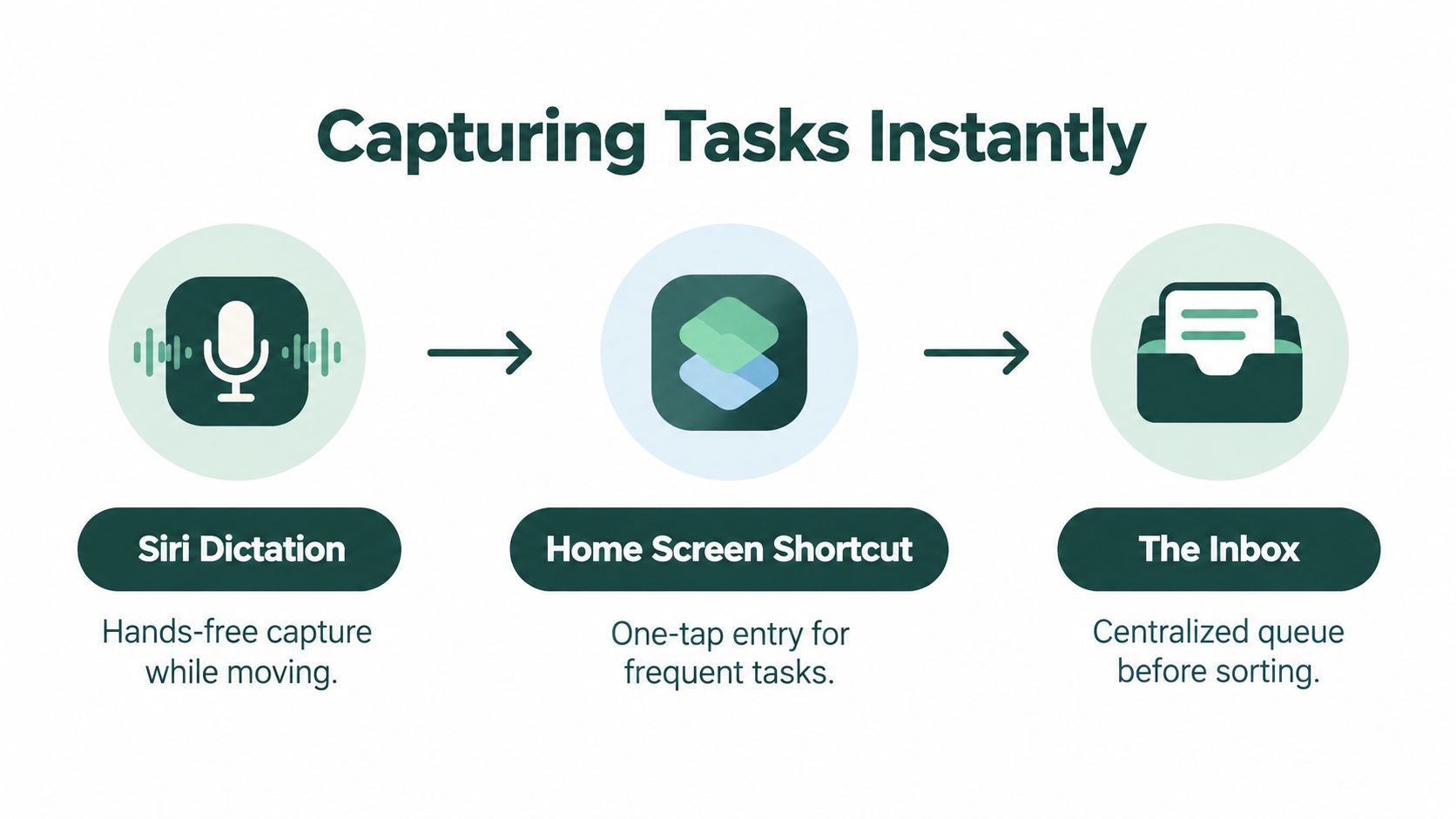
Start by creating one inbox list in Reminders. Name it something unambiguous, such as “Inbox,” and use it for unsorted inputs rather than ongoing projects. The inbox isn't where every task should remain. Its job is to prevent capture friction while preserving a single place for review.
Use Siri for time and location
Siri is useful when your hands are occupied or when typing would interrupt what you're doing. Speak a task in ordinary language, including the trigger when one matters. A request such as “Remind me to call the department office tomorrow morning” gives the task a useful time context, while a location-based request can surface an errand when you arrive somewhere relevant.
Apple's Reminders history shows the progression from Siri-aware reminders and cloud-backed lists to more context-aware task creation. Recent Apple guidance also describes natural-language parsing, where time or location language can be converted into reminder details. Check the result after dictation, especially when a deadline matters, because fast capture is valuable only if the task's meaning survives transcription.
Capture useful context from Safari and Notes
When a web page contains something you need to act on, use the Share Sheet instead of copying the URL into a vague note. Create a reminder with a clear verb, such as “Review scholarship eligibility requirements,” and keep the shared page attached for later reference. The task now tells you what to do and preserves where the information came from.
The same principle works with text in Notes, Messages, and other apps. Select the relevant passage, share it to Reminders, and rewrite the task so the next action is obvious. If you regularly work between an iPhone and tablet, a broader comparison of the best iPad apps for productivity can help you decide which device should handle capture, reading, or drafting.
Put one-tap capture within reach
Add Reminders to a Home Screen widget or configure a convenient Control Center entry where your iOS version supports it. On supported iPhone models, the Action button can also provide a fast route to a shortcut or capture action. The exact placement matters less than the behavior: you should be able to record an idea without reorganizing your entire list.
Keep capture deliberately incomplete. Don't stop to choose tags, set five alerts, or rewrite the task into a project plan while you're in motion. During a scheduled review, convert “book appointment” into a specific action, assign the correct list, add a date only if it represents a real commitment, and remove anything that doesn't deserve a future reminder.
Organizing with Smart Lists and Focus Modes
A long task list creates a visual problem before it creates a scheduling problem. When personal errands, study tasks, health routines, and work follow-ups appear together, your brain must repeatedly decide what not to look at. That extra filtering makes the list feel heavier and encourages notification fatigue.
Tags and Smart Lists solve this by changing the question from “What tasks do I have?” to “Which tasks are relevant in this context?” Use a small, stable vocabulary. Useful tags might include #deepwork, #admin, #errand, #waiting, or #phone. Add a tag because it changes how you'll act, not because categorizing feels satisfying.
Build views around decisions
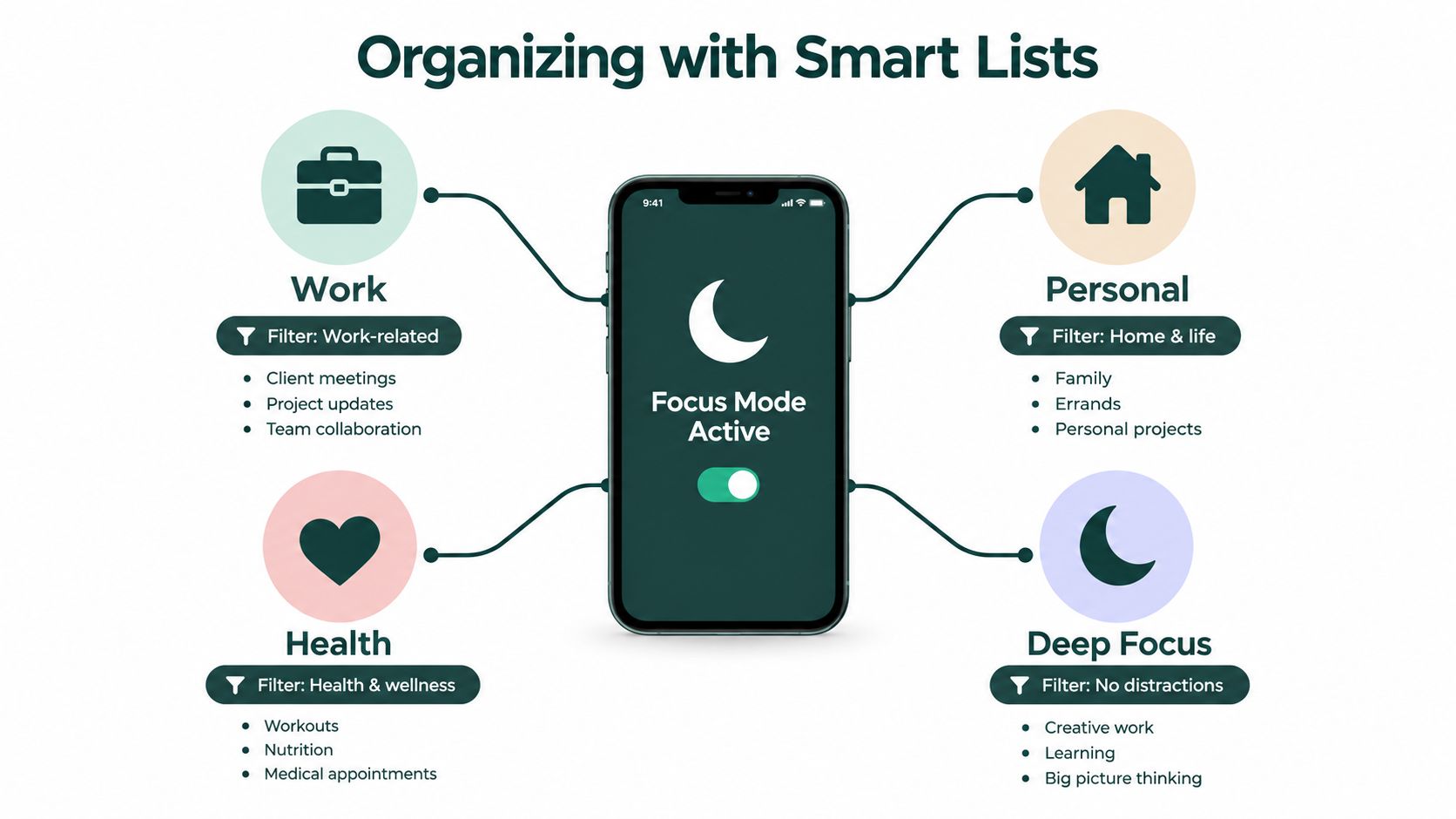
A Smart List for deep work might combine tasks from your Work or School list with the #deepwork tag and a high-priority flag. A separate Admin view could show short, low-energy tasks that fit between meetings. A Waiting view should contain delegated or externally dependent items, so you don't keep rediscovering them among work you can complete.
| Context | Useful filter | What it should exclude |
|---|---|---|
| Deep work | Work or School list, #deepwork, priority |
Chores, calls, quick replies |
| Admin | #admin or #phone |
Reading and creative work |
| Errands | #errand, location or shopping list |
Desk-based tasks |
| Weekend | Personal list and weekend tag | Academic or client deadlines |
The filters need to stay narrow enough to reduce choice. If every Smart List contains most of your tasks, you've created several copies of the same burden. Review each view during the week and remove tags that don't help you choose an action.
Connect Focus modes to attention
Create a Deep Work Focus mode that limits distracting app notifications and surfaces only the people and apps needed for the current block. Pair it with a Reminders view that shows study, research, or client tasks. A Weekend Focus can reverse the arrangement by hiding work prompts and showing household, personal, or health commitments.
This arrangement is especially useful for people who find switching contexts expensive. Students can protect reading or exam preparation from household reminders, while professionals can prevent personal errands from appearing during client work. The point isn't to hide responsibilities permanently. It's to reveal the right subset at the right time.
Make notifications earn their place
Not every task deserves an alert. Use notifications for deadlines, appointments, location-dependent actions, and commitments that would cause a real problem if missed. Leave routine actions visible in a Smart List without adding another interruption.
Apple Reminders supports due dates, early reminders, location triggers, shared lists, and scheduled reminders that can appear alongside calendar planning. Those features make the app more capable, but capability can become clutter when every task receives an alarm. A quiet list you review intentionally is often more reliable than a noisy list you repeatedly dismiss.
Syncing and Sharing Across Devices
Your task system should survive a change of device or location. If you capture an idea on your iPhone but can't find it on your iPad or Mac, you'll start keeping duplicate copies elsewhere. That duplication creates uncertainty about which version is current.
Turn on Reminders in iCloud on every Apple device you use, then confirm that each device is signed in to the same Apple Account. Keep list names and project boundaries consistent across devices. A simple structure such as Work, School, Personal, Errands, and Inbox is easier to maintain than a separate list for every small category.
Check synchronization before trusting it
Create a harmless test reminder on one device and confirm that it appears on the others. If it doesn't, check the iCloud Reminders toggle, internet access, account status, and software updates. Avoid creating replacement lists immediately, because parallel copies make it harder to determine which tasks are authoritative.
Apple's support guidance describes Reminders as a cross-device workflow that can receive tasks from system entry points and synchronize through iCloud. That matters for remote workers and researchers who move between a phone, a laptop, and a larger screen. The goal isn't merely convenience. It's confidence that a task captured away from your desk will still be available when you sit down to act.
Share lists with clear ownership
Shared lists work well for recurring household responsibilities, event preparation, and collaborative projects with people who use Apple devices. Invite the relevant people from the list's sharing controls, then assign tasks where ownership matters. “Order supplies” is more useful when one person owns it than when it sits in a shared queue that everyone assumes someone else will handle.
Keep shared lists focused. A family grocery list, a research project list, and a personal backlog should not become one massive shared database. Use comments or task notes for necessary context, but keep the task title action-oriented so another person can understand it without opening several screens.
Mistakes are inevitable in collaborative lists. If a task disappears, check the Recently Deleted area before recreating it. Recovery is part of a resilient workflow, particularly when several people edit the same list from different devices.
Executing Tasks with Kohru Focus Sessions
Reminders can tell you what needs to happen, but it doesn't provide the full environment for doing it. The difference becomes obvious with tasks such as “draft literature review,” “prepare analysis,” or “complete client proposal.” These are not reminders in the ordinary sense. They're work sessions that require a defined scope, available time, and protection from interruptions.
Use Reminders to identify the next action, then move that action into an execution block. “Work on thesis” is too broad. “Extract findings from the next three papers” gives you a starting point, a finish line, and a way to recognize completion. If the task still feels too large, split it by outcome rather than by meaningless micro-actions.
Separate planning from protected work
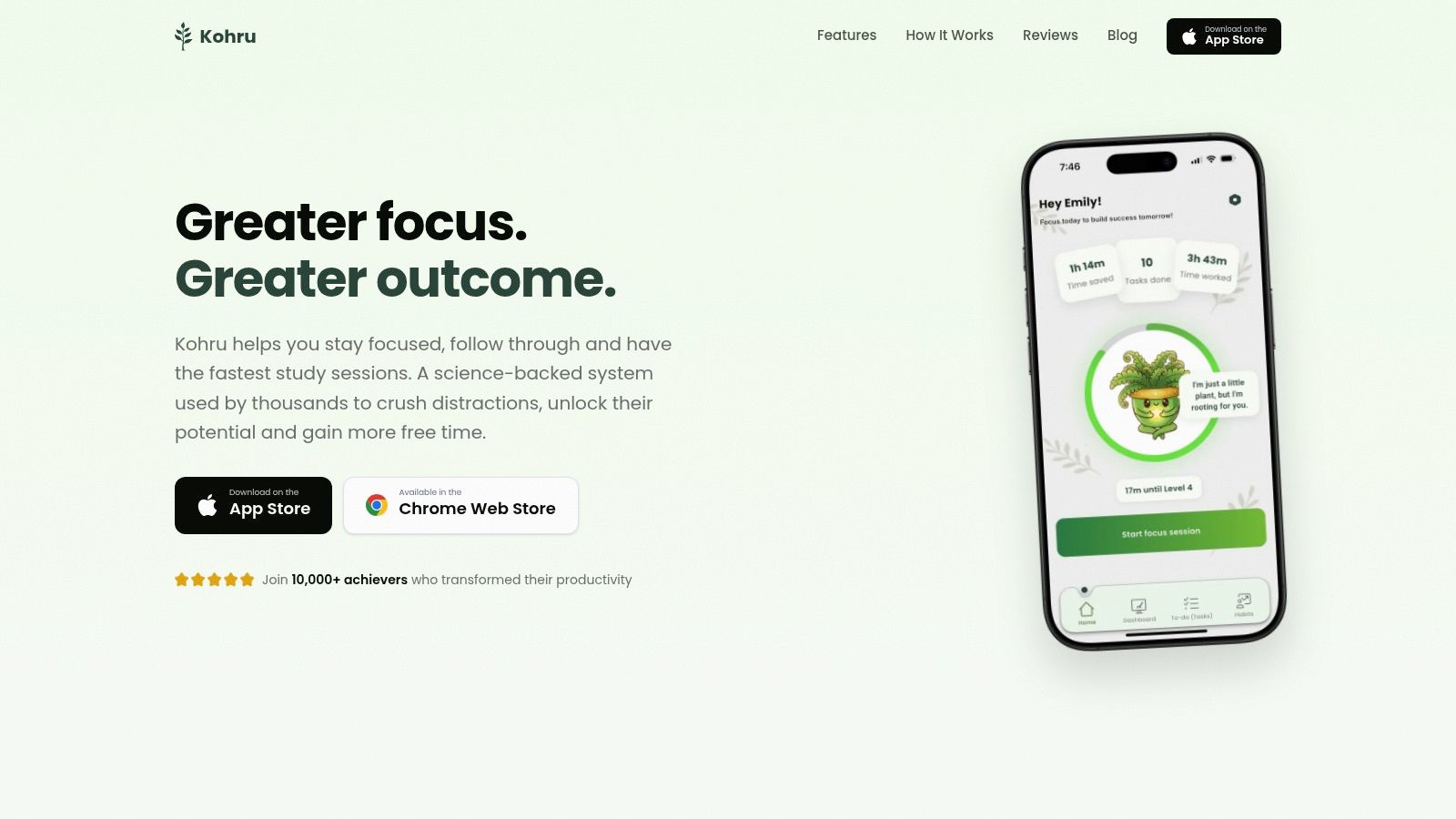
Kohru offers Smart To-Do Lists that separate Work and Personal tasks, with task difficulty and time estimates available for planning. Its Focus Sessions turn an item into a dedicated work period, while app-blocking can reduce digital interruptions across a phone and laptop. That makes it a possible execution layer alongside Apple Reminders, rather than a replacement for fast native capture.
A practical handoff looks like this:
- Clarify the outcome: Rewrite the Reminders item until you can tell what “done” means.
- Estimate the effort: Use a realistic duration and difficulty so the task fits the session you have.
- Choose the environment: Start a Focus Session when the work needs uninterrupted attention.
- Respect the break: Stop at the planned boundary, record the result, and decide whether another session is warranted.
This distinction helps students, researchers, and remote professionals avoid a common trap. They spend time arranging lists, changing labels, and responding to alerts, then mistake organization for progress. A focused session creates a visible transition from intention to behavior.
Kohru also uses flexible weekly targets rather than making a single missed day define the entire routine. That approach suits real schedules, where lectures, meetings, travel, and family responsibilities disrupt perfect daily plans. The system should make returning to the work straightforward instead of turning one interruption into abandonment.
Use the native list for commitments and capture. Use a focus tool for the task that needs sustained attention. The combination is stronger than asking one app to handle every stage.
Before starting, silence nonessential notifications and close unrelated tabs. At the end, mark the task complete only when the defined outcome is finished, not merely because you spent time looking at it. If the task remains open, leave a clear next action rather than carrying forward the same vague label.
Troubleshooting and Final Productivity Tips
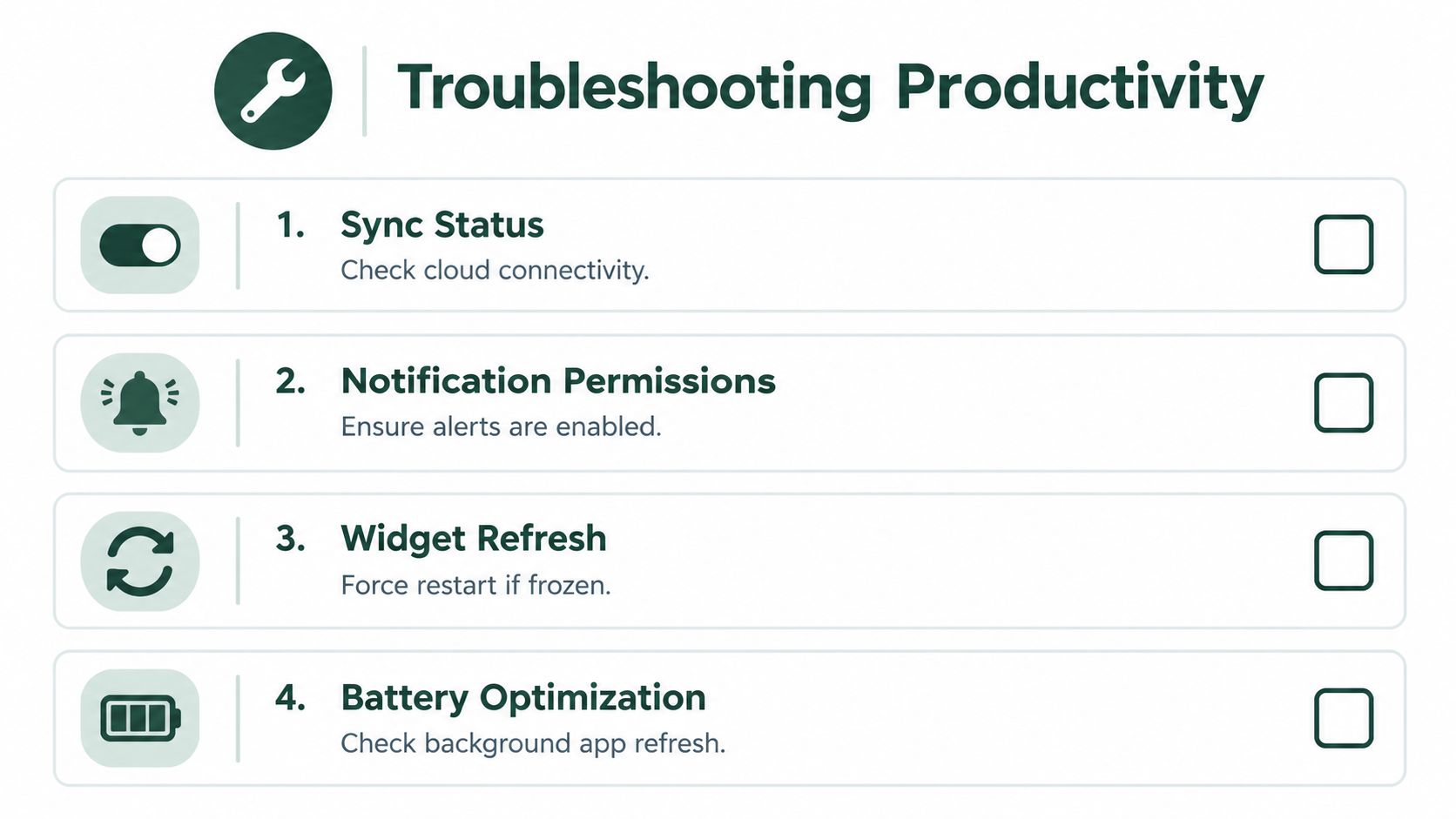
A reliable system needs maintenance because iOS settings, account states, and notification permissions can change. When a task doesn't appear where expected, diagnose the pathway instead of immediately adding a duplicate. Ask whether the task was captured in the correct account, whether iCloud is enabled, whether the device has connectivity, and whether a filter is hiding the item.
Fix the common failure points
Reminders aren't syncing: Confirm the Reminders iCloud setting on each device and make sure every device uses the same Apple Account. Create a temporary test task and check whether it travels across your devices before changing your list structure.
Notifications don't sound: Open notification settings for Reminders, verify alerts are enabled, and inspect the active Focus mode. A scheduled summary, muted device, or restrictive Focus configuration can make a correctly stored reminder appear silent.
A widget looks frozen: Open Reminders directly to check whether the underlying list is current. If the app has the latest data but the widget hasn't refreshed, remove and re-add the widget, then restart the device if necessary.
A task seems to have vanished: Search by title, inspect completed items, and check Recently Deleted. Shared-list edits can also change what you see, so confirm whether another participant moved or completed the item.
Review the system before adding complexity
Do a short review at a consistent time. Empty the inbox, clarify vague actions, assign dates only to real commitments, and remove alerts that no longer serve a purpose. Check tomorrow's tasks and select a small set of meaningful priorities instead of treating every open item as equally urgent.
A useful system has three distinct behaviors:
- Capture without hesitation: Siri, the Share Sheet, widgets, Control Center, and shortcuts should make entry quick.
- Filter with discipline: Lists, tags, Smart Lists, and Focus modes should show only the context you're ready to handle.
- Execute with protection: Dedicated sessions should reduce interruptions and turn a task into a defined period of work.
The iPhone is very good at collecting and surfacing commitments. It won't decide whether a task is specific enough, whether a notification is justified, or whether you have protected the attention needed to finish it. Those decisions belong in your workflow.
Keep the system small enough to review. If you stop trusting the list, reduce the number of lists, alerts, and tags until the next action becomes obvious again. A dependable to-do list on iPhone isn't the one with the most features. It's the one that captures reliably, filters, and leads you into the work.
Kohru adds Smart To-Do Lists, flexible Focus Sessions, task difficulty and time estimates, and app-blocking for the execution stage that Apple Reminders doesn't provide. Visit Kohru to pair your iPhone capture system with a focused way to follow through.
