Summary of the Article
You can cut your screen time with a simple loop: find out where the hours actually go, then set up an app that enforces the fix. Most people fail because they download a blocker without changing anything else, or they build a detox so strict they quit in three days.
- Start with a diagnosis: check Apple Screen Time or Android Digital Wellbeing for your top apps and worst hours.
- Match the fix to the failure: add friction, block apps, schedule focus windows, or build a replacement habit.
- Pair each strategy with the right app type: blockers, focus-session timers, app limits, or friction add-ons.
- Run a realistic first week: one blocked window per day, a few generous app limits, one replacement routine.
- Expect gradual progress, not zero screens. Cutting two hours a week is a real win.
If you just want the shortlist, the separate roundup of the 10 best apps to reduce screen time in 2026 compares options head to head. This guide covers the part most people skip: the setup that makes any of those apps work.
Step 1: Diagnose Where Your Screen Time Goes
Before you pick a screen time reduction app, spend one day reading your own data. Both platforms give it to you free.
On iPhone, open Settings > Screen Time. On Android, open Settings > Digital Wellbeing & parental controls. Both show your daily total, your most-used apps, and how many times you picked up the phone.
Write down three numbers:
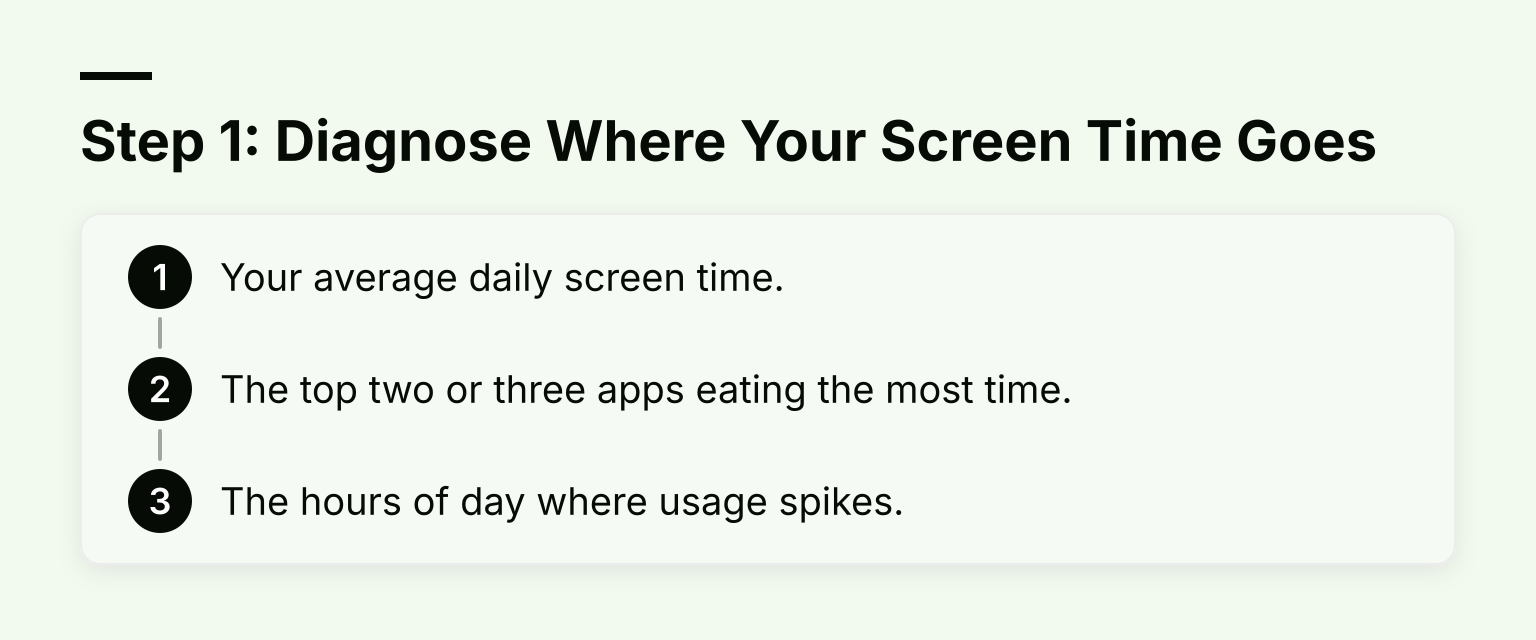
- Your average daily screen time.
- The top two or three apps eating the most time.
- The hours of day where usage spikes.
This matters because the right tool depends on the problem. A student who loses two hours a night to TikTok needs a different setup than a working student who tab-hops between YouTube and a laptop assignment. A generic "screen time apps" download fixes neither.
If your spike is evenings, your problem is habits and boredom, not willpower. If it happens during study blocks, your problem is distraction enforcement. If your total is spread evenly across the day, your phone has become your default activity, and you need replacement routines more than blocks.
Step 2: Know the Four Strategies That Actually Work
Research on behavior change points to a small set of reliable levers. Screen time is no different. Everything below falls into one of four strategies.
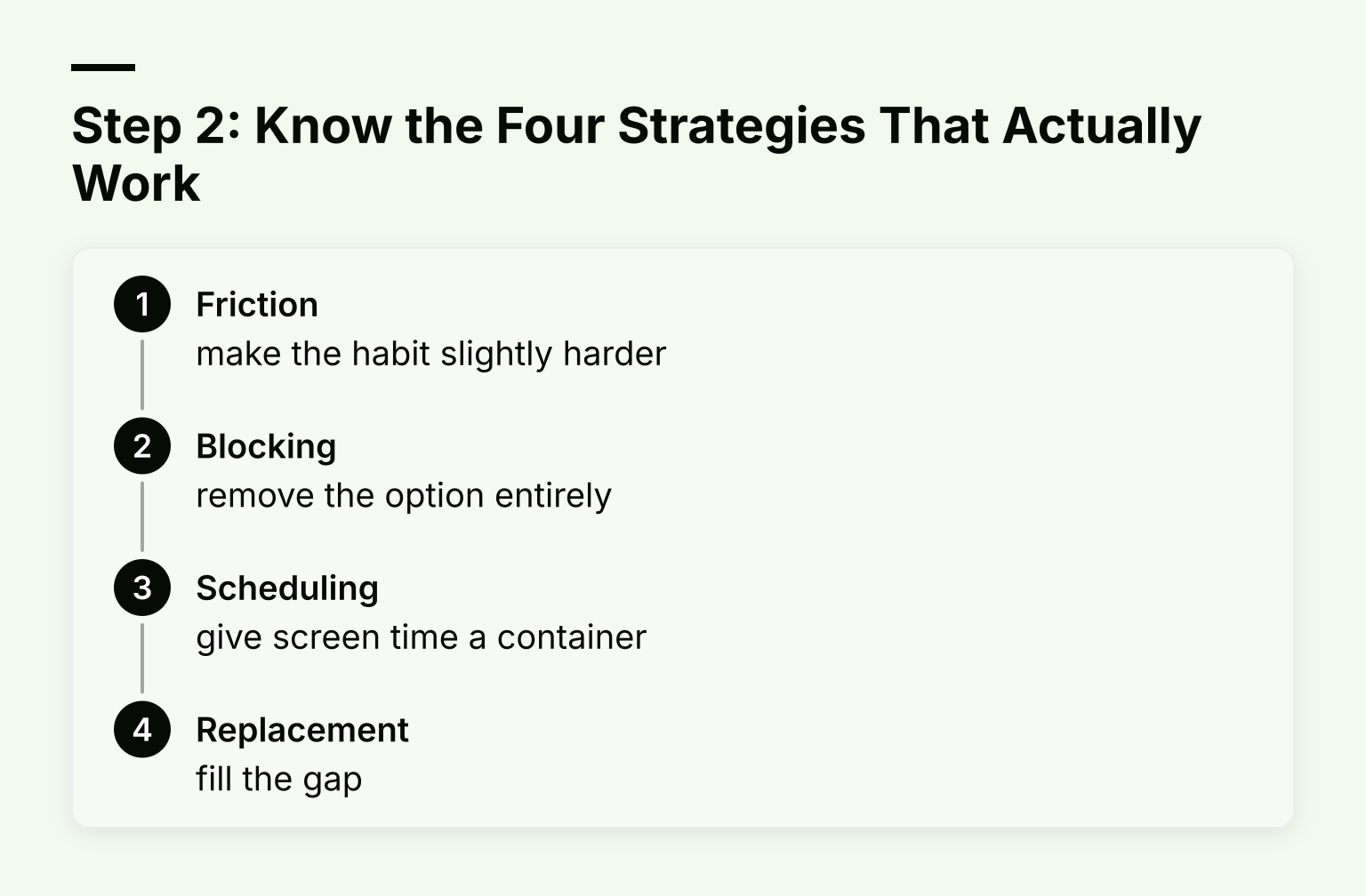
1. Friction: make the habit slightly harder
Friction means adding small obstacles between the impulse and the action: deleting an app from your home screen, logging out after each session, or turning off notifications. It sounds trivial, but small delays break automatic behavior. If checking Instagram takes four taps instead of one, you check it less.
2. Blocking: remove the option entirely
Blocking uses an app or built-in setting to make a distracting app or website unavailable during chosen times. This is the strongest lever, and the one that matters most when friction fails. The tradeoff: blocks you can bypass in five seconds do nothing, and blocks so strict you fight them daily get disabled.
3. Scheduling: give screen time a container
Scheduling means deciding in advance when screens are allowed and when they are not: no phone before 9 a.m., laptop entertainment off after 10 p.m., a two-hour study window with everything blocked. Time blocking works especially well for students because study sessions have natural start and end points.
4. Replacement: fill the gap
Every hour you remove leaves a hole. If nothing fills it, you drift back. A replacement habit, a book by the bed, a walk after dinner, a gym slot at the time you usually scroll, is what keeps the reduction permanent. This is also why habit tracking belongs in your setup, not just blocking.
Step 3: Match Each Strategy to the App Category That Enforces It
Once you know your failure pattern and your strategy, the app choice becomes simple. You are not shopping for "the best screen time app." You are shopping for the tool that enforces your specific fix.
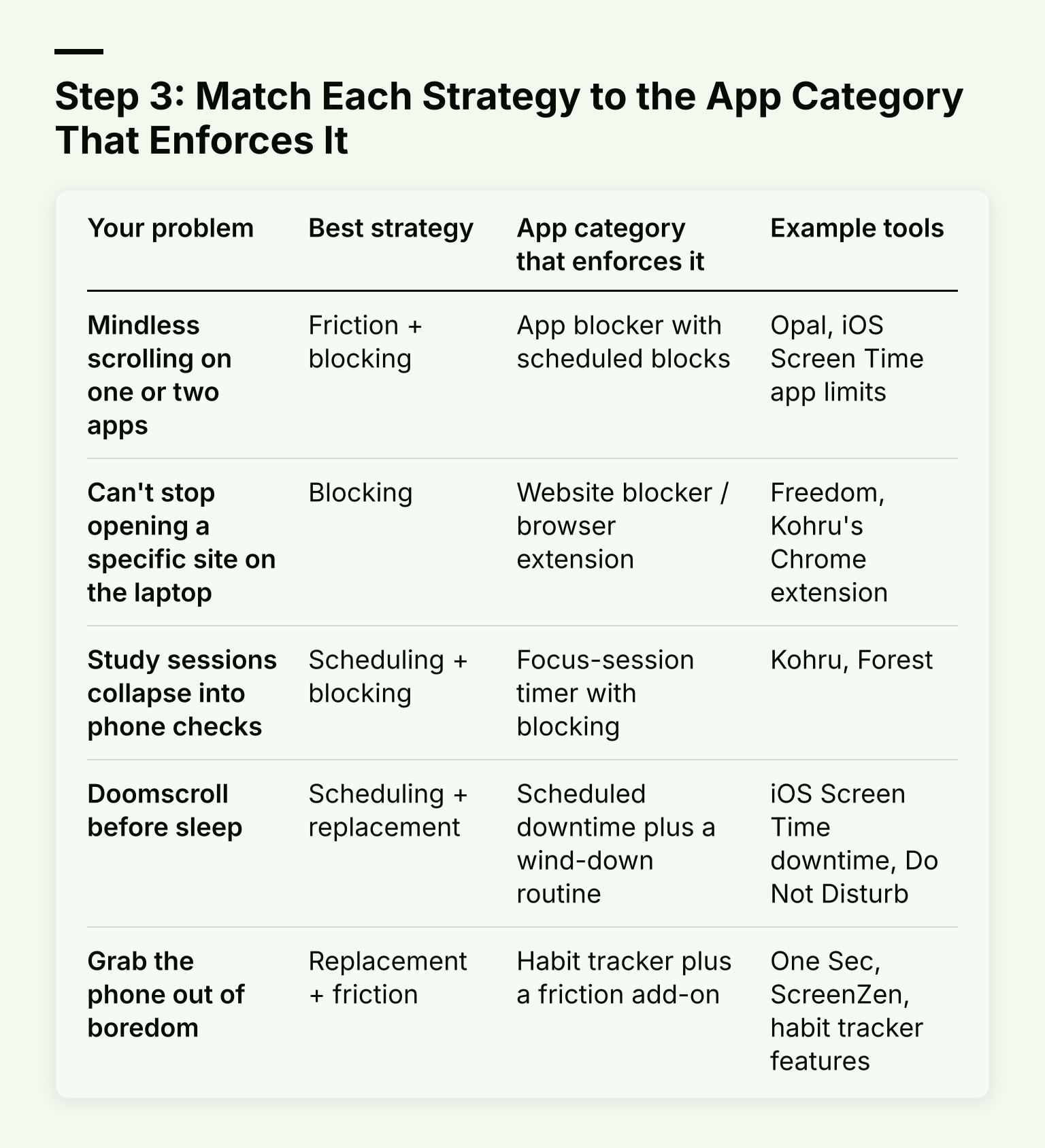
| Your problem |
Best strategy |
App category that enforces it |
Example tools |
| Mindless scrolling on one or two apps |
Friction + blocking |
App blocker with scheduled blocks |
Opal, iOS Screen Time app limits |
| Can't stop opening a specific site on the laptop |
Blocking |
Website blocker / browser extension |
Freedom, Kohru's Chrome extension |
| Study sessions collapse into phone checks |
Scheduling + blocking |
Focus-session timer with blocking |
Kohru, Forest |
| Doomscroll before sleep |
Scheduling + replacement |
Scheduled downtime plus a wind-down routine |
iOS Screen Time downtime, Do Not Disturb |
| Grab the phone out of boredom |
Replacement + friction |
Habit tracker plus a friction add-on |
One Sec, ScreenZen, habit tracker features |
A note on the friction category: apps like One Sec and ScreenZen add a breathing prompt or delay before an app opens. They are cheap to try and pair well with any blocker. The exact behavior of each app changes with updates, so check each app's own site before you commit.
How to Choose Between Screen Time Apps
How to choose an app: with your problem defined, evaluate apps on four criteria.
| Criteria |
Why it matters |
| Block strength |
Can you bypass it in two taps? If so, it won't survive week two. Look for strict modes or commitment contracts. |
| Scheduled blocks |
Blocks that run on a schedule (like 2 to 4 p.m.) work better than apps you open manually when you remember. |
| Coverage |
The app should handle the phone and the laptop. If it only covers one, distraction migrates to the other. |
| Session or task support |
Apps that tie blocking to a task or session (like Kohru does) give the block a purpose, not just a wall. |
How these mechanics compare
| Tool type |
Strength |
Weakness |
Best for |
| Hard blockers (Opal, Freedom) |
Very hard to bypass |
Can feel punishing; you may delete the app entirely |
Known problem apps you're ready to give up |
| App limits / timers (iOS Screen Time, Android Wellbeing) |
Free, built in, low friction to start |
Easy to dismiss; resets feel harmless |
Gentle first step |
| Friction apps (One Sec, ScreenZen) |
Interrupts the impulse before it becomes a session |
Doesn't enforce anything; you can skip it |
Compulsive app openers, especially on social media |
| Session-based focus tools (Kohru, Forest) |
Blocking tied to a real task; feels purposeful |
Requires starting a session, not just a setting |
Students who want the block tied to study, not just silence |
Where Kohru fits
Kohru approaches this differently from pure blockers: instead of locking your phone on a schedule, it runs focus sessions. You turn a task from your Work or Personal lists into a timed session, and while the session runs, Kohru blocks distracting apps and websites across your phone, laptop, and Chrome browser. It also tracks habits, focus time, and completed tasks, so you can see the progress you made inside those sessions.
That structure fits two groups well. Students with variable class schedules can anchor a session to each study block rather than fighting their timetable with one rigid daily limit. Working students can run one protected session on their laptop during a commute or between shifts, with the same blocking covering their phone at the same time.
The honest tradeoff: session-based tools require you to start a session. If your main problem is passive evening scrolling with no task attached, a scheduled hard blocker or a strict app limit may suit you better than a session tool.
For a detailed comparison of enforcement mechanics, see the guide to choosing a screen time control app.
A Realistic First Week
Here is a specific week-one plan. Adjust the times to fit your schedule.
Day 1 - Audit. Open your phone's screen time report and your laptop's browser activity. Write down your daily average and your top three apps. Do not change anything yet.
Day 2 - Remove. Delete or log out of your worst app from your phone home screen. This takes ten minutes and disrupts the default open.
Day 3 - Set one limit. Open iOS Screen Time or Android Digital Wellbeing and set one generous limit (say 45 minutes) on that app. Generous limits work better than tight ones because you do not blow through them and give up.
Day 4 - Add one replacement. Pick one specific daily moment, like the 30 minutes after dinner, and replace it with a non-screen activity you actually enjoy. Put it in your calendar.
Day 5 - Start one focus session. Open your study or work material, start a blocking session (through Kohru, an app blocker, or Do Not Disturb), and work for 25 minutes. This is the first enforcement, not just a limit.
Day 6 - Browser hygiene. Remove the tabs, bookmarks, and shortcuts that lead to your worst sites. This takes five minutes.
Day 7 - Review. Compare this week's daily average to last week's. If it dropped 30 minutes or more, you have a working baseline. If it did not, the problem is probably enforcement strength, not motivation, and you should look at a stricter tool.
A full walkthrough of the configuration side, including phone-specific steps, is in the guide to choosing an app to limit phone use.
How Students and Working Students Differ
The setup above is the skeleton. Two groups need to adjust it differently.
Full-time students usually have variable schedules: lectures, library gaps, evening study. Your blocked windows should follow your timetable, not the clock. Anchor each block to a class or an assignment, and treat study sessions as the unit of enforcement. A tool that converts tasks into timed sessions fits this pattern well.
Working students study in fragments around shifts and commutes. Your risk is not one long scroll session but ten two-minute ones. For you, friction tools and notification hygiene matter more than long blocks, and laptop-based work means your blocker must cover the browser, not just the phone. If your days are unpredictable, one daily protected window plus aggressive app limits will hold up better than an elaborate schedule.
If you want to build time-blocked days around either pattern, the roundup of apps for time blocking covers scheduling tools in detail.
Common Mistakes That Undo Progress
- All-or-nothing detox. Quitting every app for a weekend feels productive but leaves no lasting system behind. Monday you return to the same defaults.
- Blocking only the phone. If your blocker covers your phone but not Chrome and your desktop apps, distraction migrates to the laptop instead of disappearing.
- No replacement plan. Removing a habit without filling the space is the most common reason reductions reverse within a month. Screens have to be replaced by something, not just removed.
- Overly strict blocks. A block you fight every day gets disabled. Pick enforcement strength that matches your actual self-control, not your aspirational self-control.
What Realistic Results Look Like
Cutting screen time is gradual. A reasonable first-month target is 30 to 60 fewer minutes per day on your diagnosed top apps, not total screen time, which includes necessary use like classes, work, and staying in touch with people.
You will have bad days. What matters is whether your baseline trend is downward over weeks, not whether any single day looks perfect. If you want a fuller habit program to run alongside these app tools, the guide on how to reduce phone usage walks through that in depth.
The Next Step
You now have the loop: audit your usage, match a strategy to the problem, choose a tool, and run a small first week before judging results. If your failure pattern is losing the first 40 minutes of study sessions to your phone or laptop, that is exactly what Kohru was built for. You can download Kohru on the App Store, and the Chrome extension extends the same focus sessions to your browser.
FAQ
What is the best app to reduce screen time?
There is no single best app; the right one depends on your failure pattern. Blockers like Opal or Freedom suit scheduled app and site blocks, focus-session tools like Kohru or Forest suit study-driven reduction, and friction apps like One Sec or ScreenZen suit compulsive app-openers. Diagnose first, then match the category.
Do screen time apps actually work?
They work when they add friction or enforce a strategy you have committed to. An app that only shows you statistics is a mirror, not a brake. Combining a blocker with a replacement habit gives the best results.
How long does it take to reduce screen time?
Expect measurable movement within one to two weeks of a consistent setup, and a stable new baseline after about a month.
Is 4 hours of screen time bad?
There is no universal threshold. What matters more is what the time is doing: classes, work, and reading are different from passive scrolling at midnight. Judge screen time by whether it crowds out things you value, not by the raw number.
