
You sit down to finish a thesis chapter, client proposal, or exam revision session with a clear plan. A few minutes later, one harmless search has turned into a Wikipedia detour, a social media check, and several open tabs you never intended to visit. You haven't failed because you lack ambition. Your browser has made distraction easier than the work you meant to do.
A website blocker for Google Chrome can add the friction your intentions are missing. But installing an extension isn't the same as staying blocked. Durable focus depends on strict schedules, a carefully maintained blocklist, sensible breaks, and, when necessary, protection that covers your phone and other devices too.
Table of Contents
- Why Willpower Fails and Your Browser Needs Help
- Using Chrome's Built-in Restriction Tools
- Comparing the Best Extension Strategies
- Building a Realistic Scheduling Routine
- Breaking Through Cross-Device Distractions
- Troubleshooting Common Blocking Issues
Why Willpower Fails and Your Browser Needs Help
A student working on a dissertation often doesn't lose an hour in one dramatic decision. The slide usually happens through small permissions: “I'll check this reference,” “I'll answer one message,” or “I'll look up a quick explanation.” Each action feels reasonable, but the browser keeps presenting another easy escape before the original task has gained momentum.
That pattern isn't a character flaw. Social platforms, news sites, shopping pages, and entertainment services are designed to reduce the effort required to return. Your work, by contrast, often begins with uncertainty. Writing the first paragraph or solving the difficult problem requires sustained attention, while opening a familiar site requires almost none.

Chrome is a particularly important environment to manage because it reaches roughly 67% to 73% of the global browser market in the cited period, according to market context on the Chrome extension ecosystem. That reach gives productivity extensions a large potential audience, but it also means users face intense competition for attention inside a mature marketplace.
The useful role of external friction
A blocker doesn't create motivation. It removes a decision from the moment when your motivation is weakest. If a distracting site is unavailable during a planned work session, you don't need to debate whether this visit is justified.
The distinction matters:
- Willpower asks you to resist the same temptation repeatedly.
- A blocklist removes known repeat offenders from the session.
- A schedule prevents you from deciding whether to activate protection.
- A strict mode makes it harder for a tired or stressed version of you to undo the plan.
Practical rule: Build the restriction before you need it. A blocker configured after distraction has already started is a negotiation tool, not a focus system.
Browser blocking still has limits. An extension may be disabled, removed, bypassed through another browser, or avoided by moving to a phone. Treat it as a friction layer for a defined task, not as proof that every digital distraction has been solved.
Using Chrome's Built-in Restriction Tools
Start by checking what your current Chrome setup can do before adding another extension. Chrome's personal settings and account controls can provide light restrictions in some managed or supervised environments, but ordinary personal Chrome doesn't offer a full native website-blocking system comparable to a dedicated focus tool. That distinction is important because many people search through settings expecting a single universal block switch.
If your browser or account exposes restriction controls, use this sequence:
- Open Chrome and select the profile or account settings.
- Look for available supervision, content, or restriction controls.
- Add the domains that repeatedly interrupt your work.
- Test the restriction in a separate tab.
- Confirm whether it applies only to the current profile, or to other users and devices.
When light restrictions are enough
Native or account-level controls suit a short writing sprint, a temporary exam boundary, or a household where another person manages access. They keep your browser uncluttered and avoid granting a third-party extension broad permissions. They can also be useful for separating a study profile from a casual browsing profile.
They won't solve a determined self-bypass problem. Manual controls are easy to revisit, and they usually lack the combination that makes a blocker durable: recurring schedules, allowlists, session durations, break prompts, and protection against changes during an active session.
Use this method when you need a nudge. If you repeatedly open settings to remove the restriction, move to a dedicated extension with scheduled sessions and stricter controls. If you can switch browsers or devices to escape, browser settings alone aren't operating at the right level.
Comparing the Best Extension Strategies
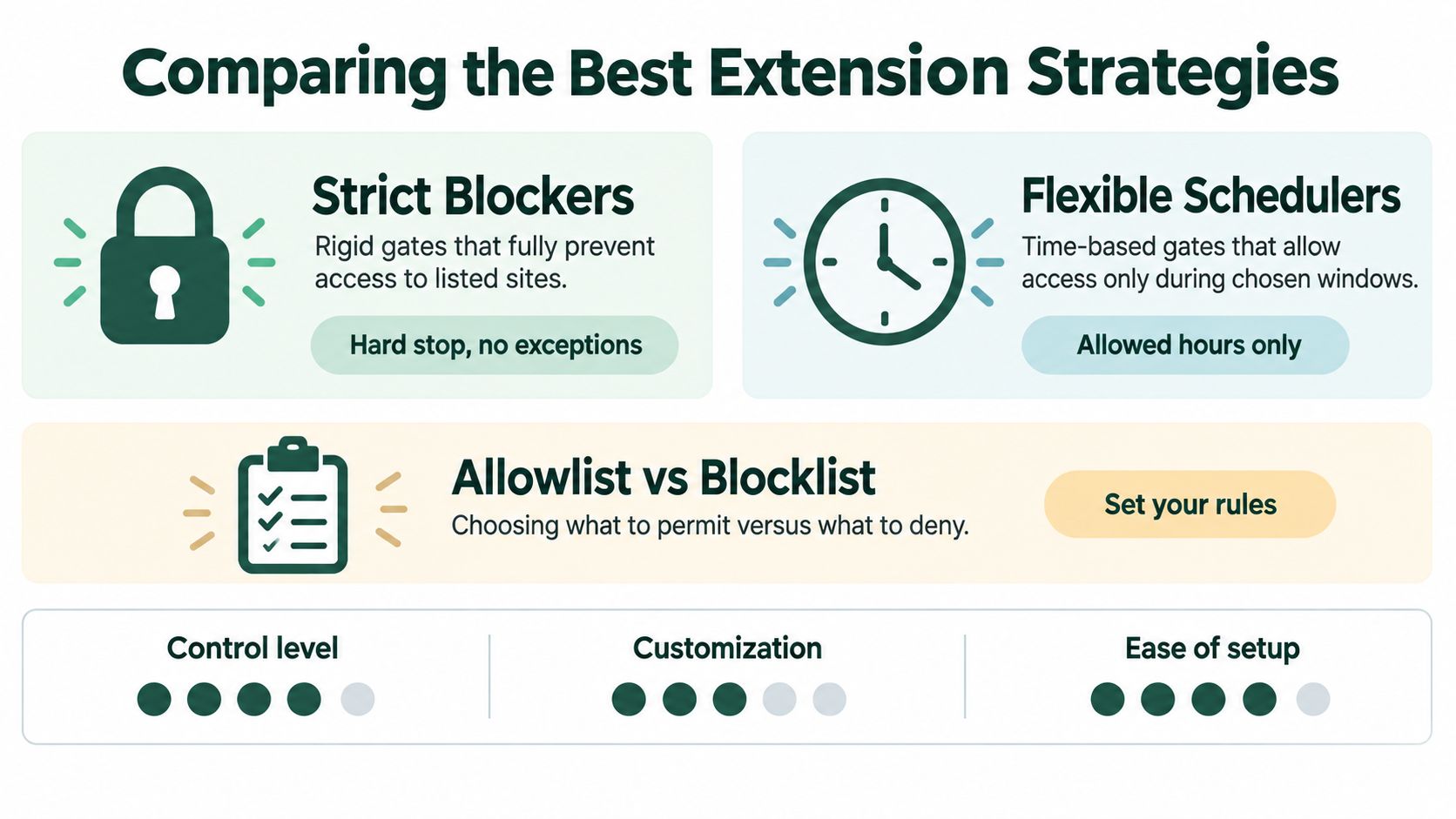
Not every Chrome blocker uses the same mechanism. Choosing the right one depends less on the feature list and more on how you behave when work becomes difficult.
Strict blockers
A strict blocker acts as a gate. You list distracting domains, activate a session, and lose access until the session ends or the configured rule allows it again. This is the right fit if you already know the sites that derail you and your main problem is impulsive access.
Strict blocking works best with a small, accurate list. Include the social network, video site, forum, or shopping destination you repeatedly visit, but don't block every site that could theoretically distract you. An overbroad list creates false positives, interrupts legitimate research, and encourages you to disable the entire system.
Choose strict blocking when:
- Your pattern is predictable: The same destinations pull you away each time.
- Your task has a clear boundary: You can define a work session and its end.
- You need a hard stop: Time budgets would become permission to keep browsing.
Time limits
Time-limiting extensions allow access until you've used the allotted allowance. This approach suits people who can browse briefly without losing control, but need a ceiling around high-risk sites.
The weakness is psychological. A time budget can turn into a countdown that you spend strategically, or an excuse to use the entire allowance before starting work. It also requires honest estimates. If your daily limit is based on what sounds reasonable rather than what your work demands, the setting may protect leisure while leaving the underlying interruption pattern intact.
Pomodoro and interval sessions
Pomodoro-style blockers combine access restrictions with work and break intervals. They address a problem that hard blocking can miss, namely that attention needs recovery as well as protection.
A workplace field study involving 32 information workers compared a baseline week with a blocking week and found reported productivity and focus duration improved when distractions were blocked, with the strongest gains among participants most distracted by social media. The study on blocking distractions and workplace focus also identified a warning: people with lower self-control sometimes worked longer without breaks, which increased stress.
| Strategy | Best fit | Main risk |
|---|---|---|
| Strict blocking | Known repeat-offender sites | Excessive lists create false positives |
| Time limiting | Moderate distractibility | The allowance becomes a browsing target |
| Interval sessions | Deep work that needs planned recovery | Break settings may be too loose |
The practical choice is simple. Use a strict blocker for a high-stakes writing or revision session, a time limit for controlled leisure, and interval sessions when you need focus without sacrificing breaks. Whatever you choose, pair it with a defined work window and rules that are difficult to change once the session begins.
Building a Realistic Scheduling Routine
The most common setup failure is leaving the blocker inactive until the moment distraction appears. Manual toggling asks you to make a good decision precisely when you want the easy alternative. Replace that decision with a schedule connected to the work you already intend to do.
Start with the calendar rather than the extension. Identify your reliable study or work periods, then create recurring blocks for those periods. A student might schedule protection around morning revision, while a remote professional might block social feeds during the hours reserved for writing or analysis. Keep the first schedule realistic enough to follow consistently.
A weekly maintenance loop
Use this review once a week:
- Check the interruptions: Note which sites you tried to open or which ones appeared in your browsing history.
- Trim false positives: Remove domains that support legitimate research or communication.
- Add repeat offenders: Include new destinations only when they have disrupted your work.
- Review the allowlist: Permit essential tools, documentation, calendars, and client platforms.
- Adjust the schedule: Move sessions to match when you work, not when an ideal routine says you should.
- Set breaks deliberately: Include recovery time so the block doesn't encourage uninterrupted strain.
A blocklist should stay small enough that you understand every entry. An allowlist can be even more effective for exam preparation or deep work because it defines what you may use instead of trying to anticipate every possible distraction.
A schedule should remove decisions, not create another project to manage. If you keep changing it during work, simplify the rules and protect fewer, higher-value sessions.
Review the system when your workload changes. Exam preparation, a product deadline, and a lighter administrative week call for different levels of restriction. The durable habit isn't keeping one permanent list. It's maintaining a focus environment that reflects the work in front of you.
Breaking Through Cross-Device Distractions
A Chrome extension can block a website in Chrome, but it can't stop you from picking up your phone. It also won't necessarily cover another browser, a desktop application, or a second laptop. This is why some people conclude that blocking “doesn't work” when the actual problem is that the interruption just changed channels.
A remote worker may protect a browser tab, then reach for a phone during a difficult paragraph. A student may avoid a blocked site in Chrome by opening another browser. Someone who has learned to reinstall or disable extensions has already shown that the obstacle is too easy to remove.

Match the control to the distraction
Browser-only blocking remains useful when your problem is narrow. If one or two websites interrupt a laptop-based task, a Chrome extension with a schedule and a precise blocklist may be enough. If the distraction moves between Chrome, a phone, and other apps, you need a session that follows the person rather than the browser.
Chrome Enterprise guidance illustrates the difference. Central administrators can enforce restrictions through policy, while individual users often lack comparable control over every device and context. Chrome's managed-site guidance helps explain why centrally enforced blocking is stronger than a consumer extension that the user controls alone.
A cross-device focus session should cover the points where you lose attention:
- Laptop browsing: Block selected Chrome websites during the active session.
- Phone interruptions: Prevent the same distracting behavior from continuing on a second screen.
- Alternative contexts: Reduce the temptation to switch browsers or apps.
- Session boundaries: Use a defined duration and planned break instead of relying on manual release.
Kohru connects Chrome website blocking with focus sessions across a phone and laptop, using custom blocklists and allowlist support. That makes it an option for people who have outgrown a browser-only setup and need their focus rule to travel with them.
The goal isn't to create a perfectly sealed digital life. It's to close the obvious escape routes long enough for meaningful work to happen.
The following visual demonstrates the broader idea of protecting several screens through one focus environment.
Troubleshooting Common Blocking Issues
When a blocker fails, don't immediately install another one. Diagnose the failure. Most breakdowns come from a blocklist that is too vague, a schedule that doesn't match real work, or a control system that leaves the escape hatch in your hands.
Fix the list before adding more rules
A list containing every entertainment site you've ever visited becomes impossible to maintain. It can block useful research, trigger frustration, and make disabling the extension feel easier than correcting it.
Begin with the top repeat offenders. Add only the destinations that have recently pulled you away from a defined task. If a site supports both work and leisure, use an allowlist or schedule rather than blocking it all day. Review the list regularly, because distraction patterns change as projects and habits change.
Treat bypassing as diagnostic evidence
Opening an incognito tab, switching browsers, disabling the extension, or reinstalling it isn't evidence that you need more motivation. It shows that browser-level control doesn't match your current risk.
Independent guidance on browser-level and system-level blocking recommends using a study or work profile, installing only essential productivity extensions, keeping a focused blocklist, scheduling actual work hours, and reviewing domains regularly. It also warns that browser tools are easier to bypass than system-level controls, so they work best as planned friction rather than the only safeguard.
Use these responses:
- You disable the extension: Choose a locked or password-protected mode, if available, and start sessions before work begins.
- You switch browsers: Move to system-level or cross-device protection.
- You use incognito: Enable supported extension access where appropriate, but don't assume that solves every bypass route.
- You stop taking breaks: Select interval sessions with explicit recovery periods.
- You block useful sites: Replace broad categories with a narrow blocklist or a task-specific allowlist.
A website blocker for Google Chrome works when its rules reflect your actual behavior. Start with a small boundary, automate it, observe how you evade it, and escalate the level of protection only when the evidence calls for it.
Kohru offers Chrome website blocking linked to cross-device Focus Sessions, custom blocklists, allowlists, session durations, and a break system for people who need more than a browser-only nudge. Visit Kohru to set up a focus workflow that protects both your laptop work and the devices that usually provide an escape route.
