Summary of the Article
Distraction blocking apps work in very different ways: some run on a schedule, some add friction before an app opens, some lock your devices hard, and some build habits over time. Pick the tool that matches how you actually fail, because no single blocker fits every device and every person.
- Kohru: focus sessions that block phone and laptop distractions and extend to Chrome; built for students.
- Freedom: syncs one block session across all your devices; Locked Mode stops you quitting early.
- Cold Turkey Blocker: near-unbreakable desktop blocking on Windows and Mac; one-time purchase, no phone support.
- Opal: iPhone-first blocking with gentle friction and a strong free tier; yearly Pro is pricey.
- FocusMe: scheduled blocking on Windows, Mac, Linux, Android and iOS; every plan has a 14-day free trial.
- AppBlock: free scheduled blocking on Android, iOS and browser extensions; Premium unlocks the strict options.
- ScreenZen: completely free, donation-supported, with a delay before apps open.
- one sec: a breathing screen before you open one app for free; Pro covers unlimited apps.
- Jomo: iPhone, iPad and Mac blocking with strict lock options and a $0 starter plan.
- StayFocusd: a free Chrome-only extension with a Nuclear Option and per-site time limits.
If you already know your failure mode, jump to the decision guide near the end.
The problem with most blockers is not finding one. It is that you stop using the strict ones or uninstall the gentle ones. The list below is organized by how each app enforces its block, so you can match the enforcement to your weakest moment, not just pick the most famous name.
How distraction blockers actually block
Almost every app here uses one of four mechanisms:
- Scheduled blocks. You set a recurring window, like 9 a.m. to 5 p.m. on weekdays, and your chosen apps and sites go dark during it. Good if your problem is predictable, like checking Instagram every time a page loads slowly.
- Friction. Instead of blocking outright, the app makes you wait a few seconds, breathe, or answer a question before a distracting app opens. This breaks the autopilot tap. It works when you mostly scroll out of habit, not obsession.
- Hard locks. The block cannot be ended early without real effort, like rebooting or waiting out a timer. Cold Turkey's Frozen Turkey can lock, log off, or shut down your whole computer. Use this if you have already proven you will bypass a soft block.
- Habit-locked. The app ties blocking to streaks, limits, or long-term habits, so the block gets stronger the longer you stick with it. This suits people who want to need the blocker less over time.
If you are new to the whole category, the application blocker explainer covers the mechanics in more depth.
What to compare before you pick
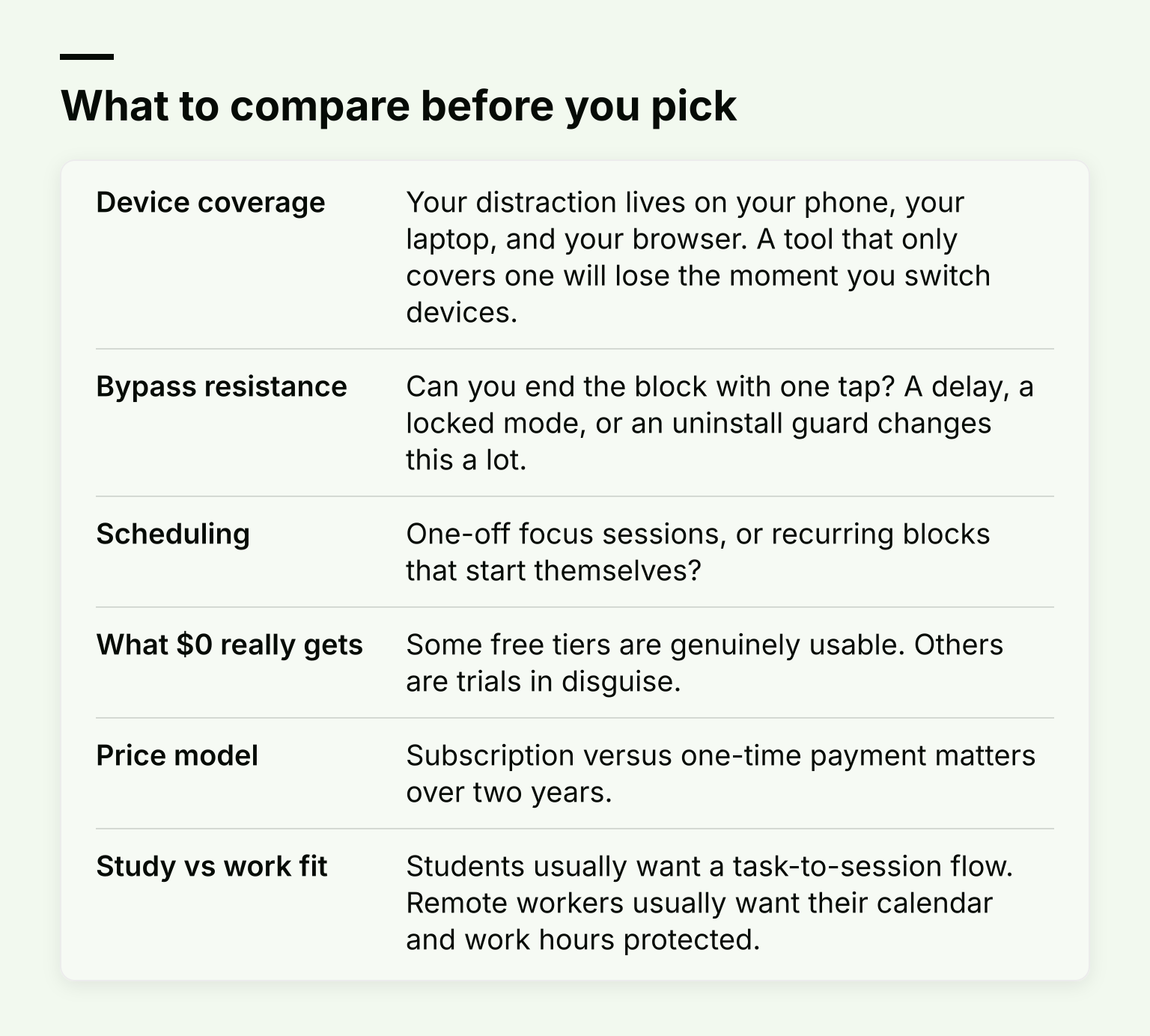
- Device coverage. Your distraction lives on your phone, your laptop, and your browser. A tool that only covers one will lose the moment you switch devices.
- Bypass resistance. Can you end the block with one tap? A delay, a locked mode, or an uninstall guard changes this a lot.
- Scheduling. One-off focus sessions, or recurring blocks that start themselves?
- What $0 really gets. Some free tiers are genuinely usable. Others are trials in disguise.
- Price model. Subscription versus one-time payment matters over two years.
- Study vs work fit. Students usually want a task-to-session flow. Remote workers usually want their calendar and work hours protected.
The 10 best distraction blocking apps
1. Kohru
Kohru is a study and productivity app that blocks distractions on your phone and laptop, then extends the same focus session to Chrome through its browser extension. That phone-laptop-Chrome coverage is the exact trio where most distraction happens, which is why it leads this list.
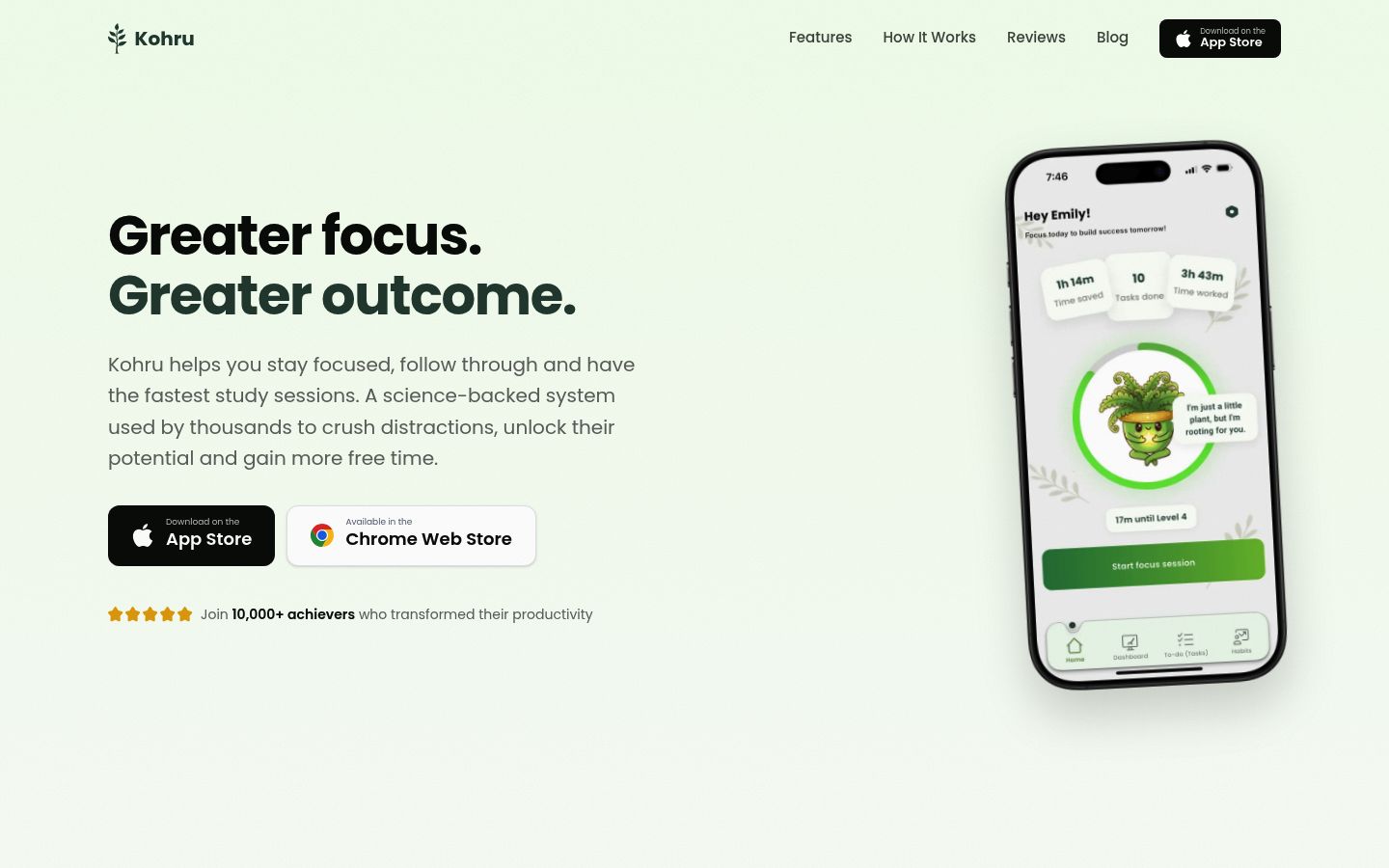
Its workflow starts from tasks rather than timers: you turn items from your Work and Personal lists into focus sessions, so the block is attached to something you actually want to finish. You also get smart to-do lists, habit tracking, and stats on focus time and completed tasks. It is designed for students, including working students and people with ADHD who struggle with task initiation, and the tone is non-judgmental rather than punitive.
Best for: students and working students who want blocking, task planning, and habit tracking in one app. If you want iPhone-specific depth instead, see the best app blocker for iPhone guide.
2. Freedom
Freedom's core strength is cross-device sync: one block session runs across Mac, Windows, iOS, Android and Chromebook at the same time, and the free tier never expires. According to Freedom's pricing page, the free plan covers unlimited devices, custom blocklists, and sessions up to two hours; Premium at $3.33/month billed yearly ($8.99 month-to-month) adds recurring scheduling, sessions longer than two hours, and Locked Mode, which prevents you from ending an active session or editing blocklists. A $99.50 forever plan removes subscription costs entirely.
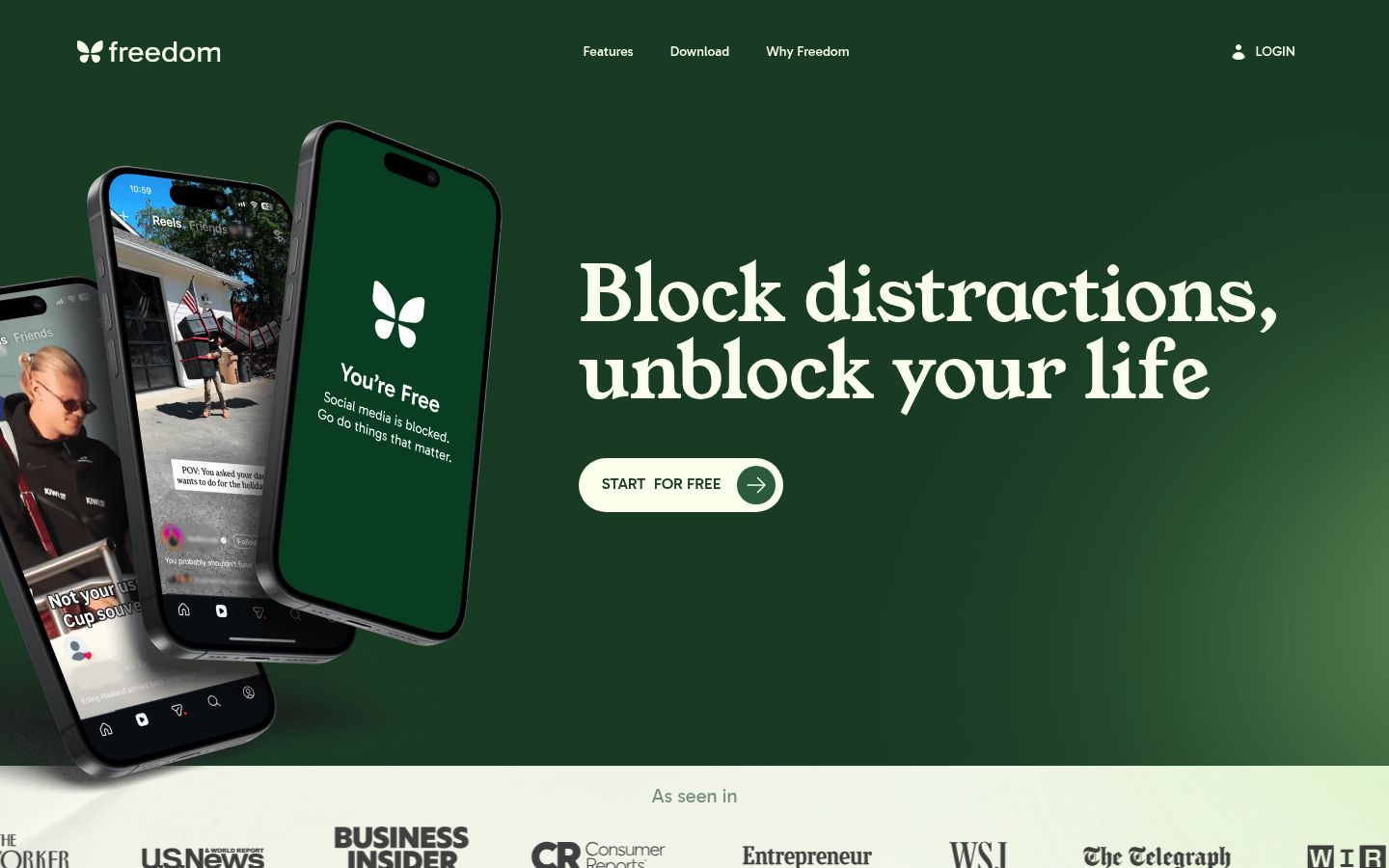
One honest caveat from Freedom's own support docs: on iOS, Locked Mode cannot stop you from disabling its Screen Time permission in iPhone Settings, so you should set a separate Screen Time passcode to close that loophole.
Best for: anyone whose distraction hops between devices, especially remote workers protecting calendar hours.
3. Cold Turkey Blocker
Cold Turkey is the strictest desktop-only option here. It blocks websites and applications on Windows and macOS, supports scheduled blocks, and its Frozen Turkey feature can lock your entire computer for a set time. There is no mobile app at all, which is the clear tradeoff.
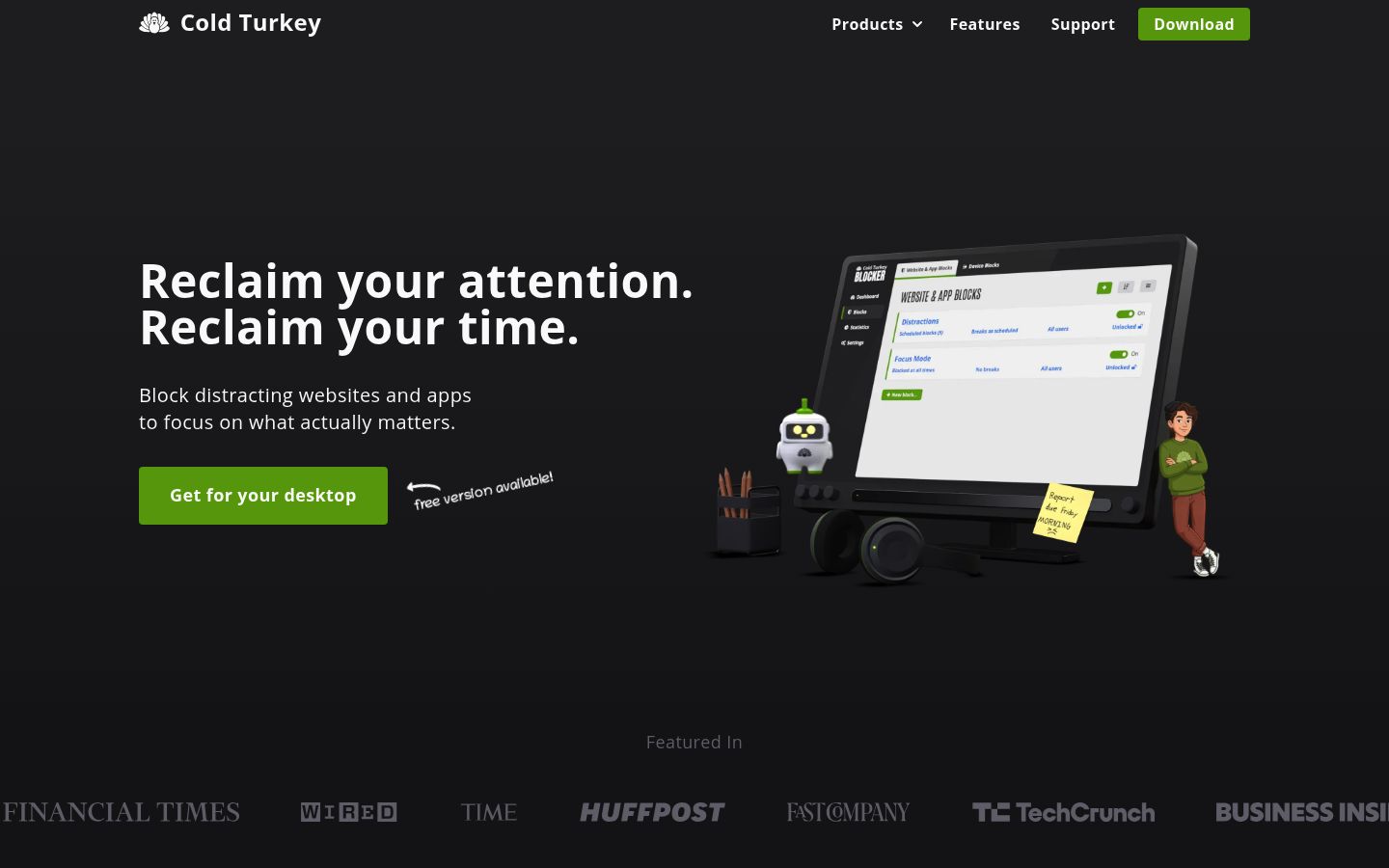
Its pricing page shows a free version (website blocking, timed blocks) plus a Pro one-time payment for lifetime access, with a 7-day Pro trial and a 20% student discount. Pay once and it covers every computer you personally use.
Best for: desktop deep work when you have already defeated softer blockers. If you want a Mac-focused comparison, see the app blocker for Mac guide.
4. Opal
Opal is iPhone-first. It builds on Apple's Screen Time API, which Opal's FAQ explains is the only practical way to block apps on iPhone, so your usage data stays on your device. Free features include recurring rules, timers, and weekly focus reports; Opal Pro adds more rules, allow lists, and a Hard Mode that prevents cancels and resets.
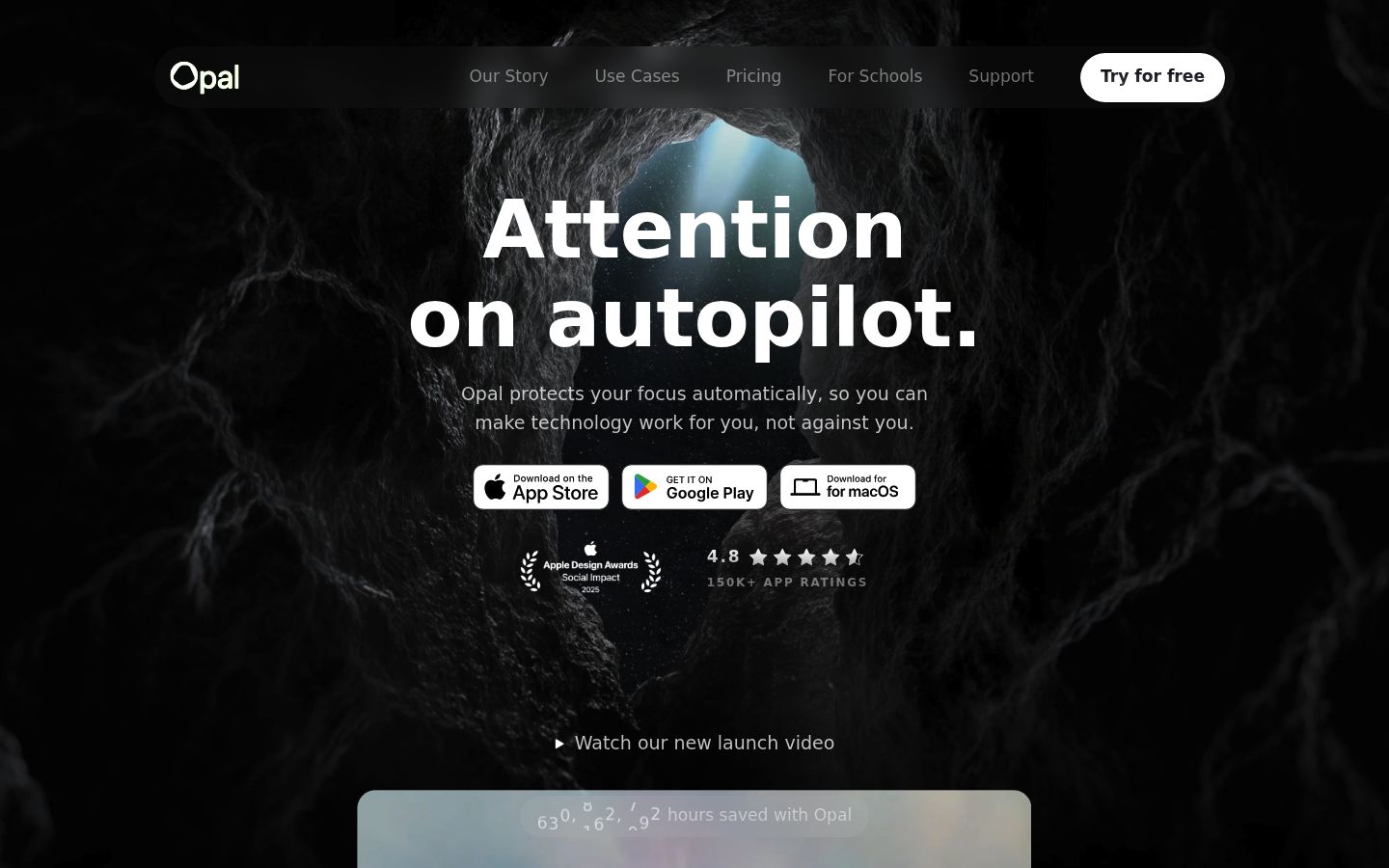
The main caveat is price and bypassability: the App Store lists a $99.99 yearly plan, and because everything runs through Screen Time, you can still disable Opal's permission in Settings unless you also set a Screen Time passcode, which Opal's own help center recommends.
Best for: phone-first people who want gentle friction, detailed focus reports, and social accountability features.
5. FocusMe
FocusMe covers the widest platform spread of any paid tool here: Windows, macOS, Linux, Android, iPhone and iPad, with one licence covering five computers and two mobile devices. Its pricing page lists monthly ($17.95), yearly ($119.40, about $9.95/month), and lifetime ($449) plans, a 14-day free trial with no card required, and a 60-day money-back guarantee. Students and teachers get 30% off.
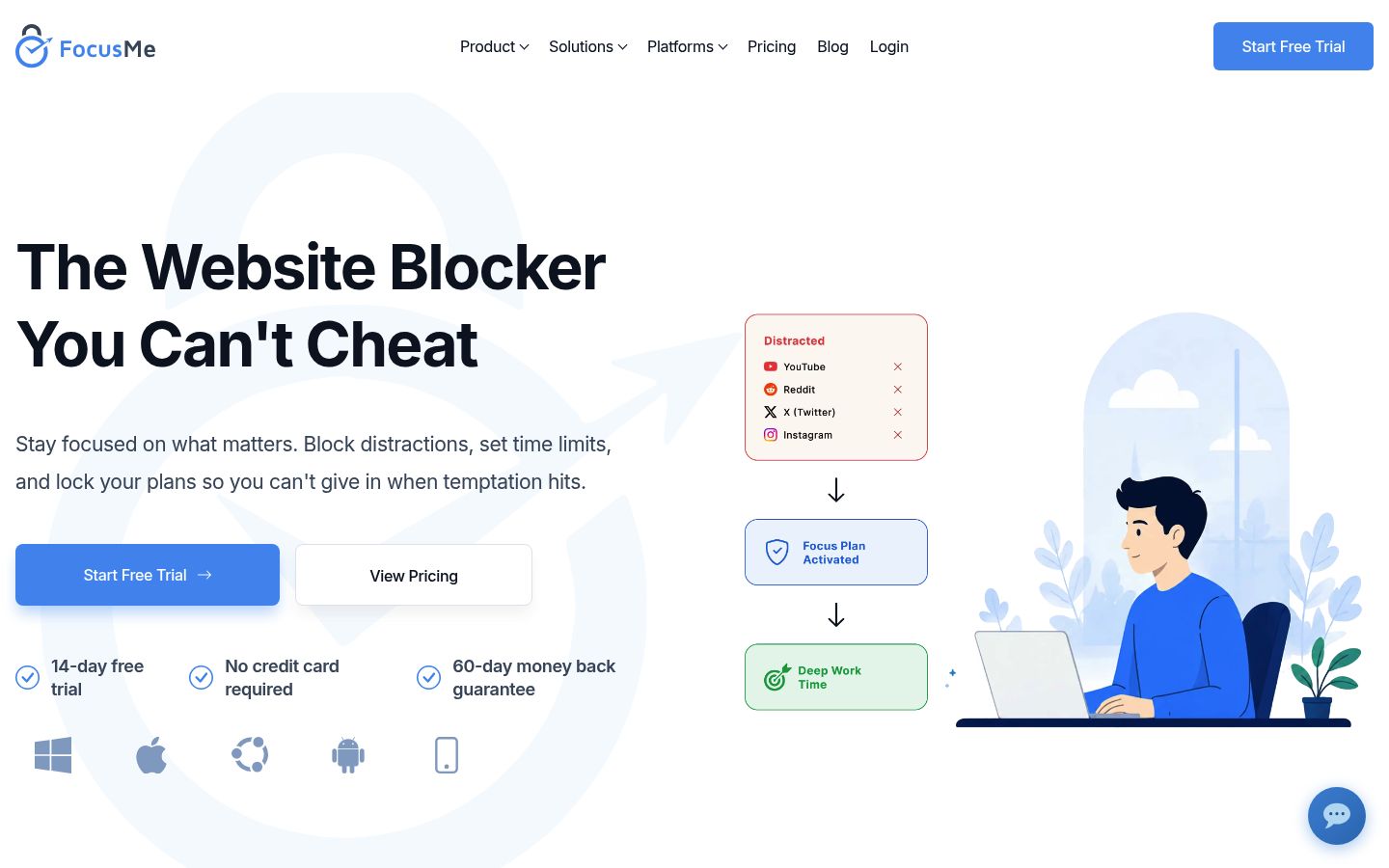
Best for: people who want scheduled blocking with synced plans across a mixed Windows/Mac/phone setup, or who prefer a lifetime licence.
6. AppBlock
AppBlock works on Android, iOS, and through browser extensions, and its free tier is genuinely usable: quick blocks, a few schedules, and usage limits all work without paying, as its free-vs-Premium guide describes. Premium removes the limits on schedules, block duration, and Strict Mode, which caps out at 12 to 24 hours on free depending on platform.
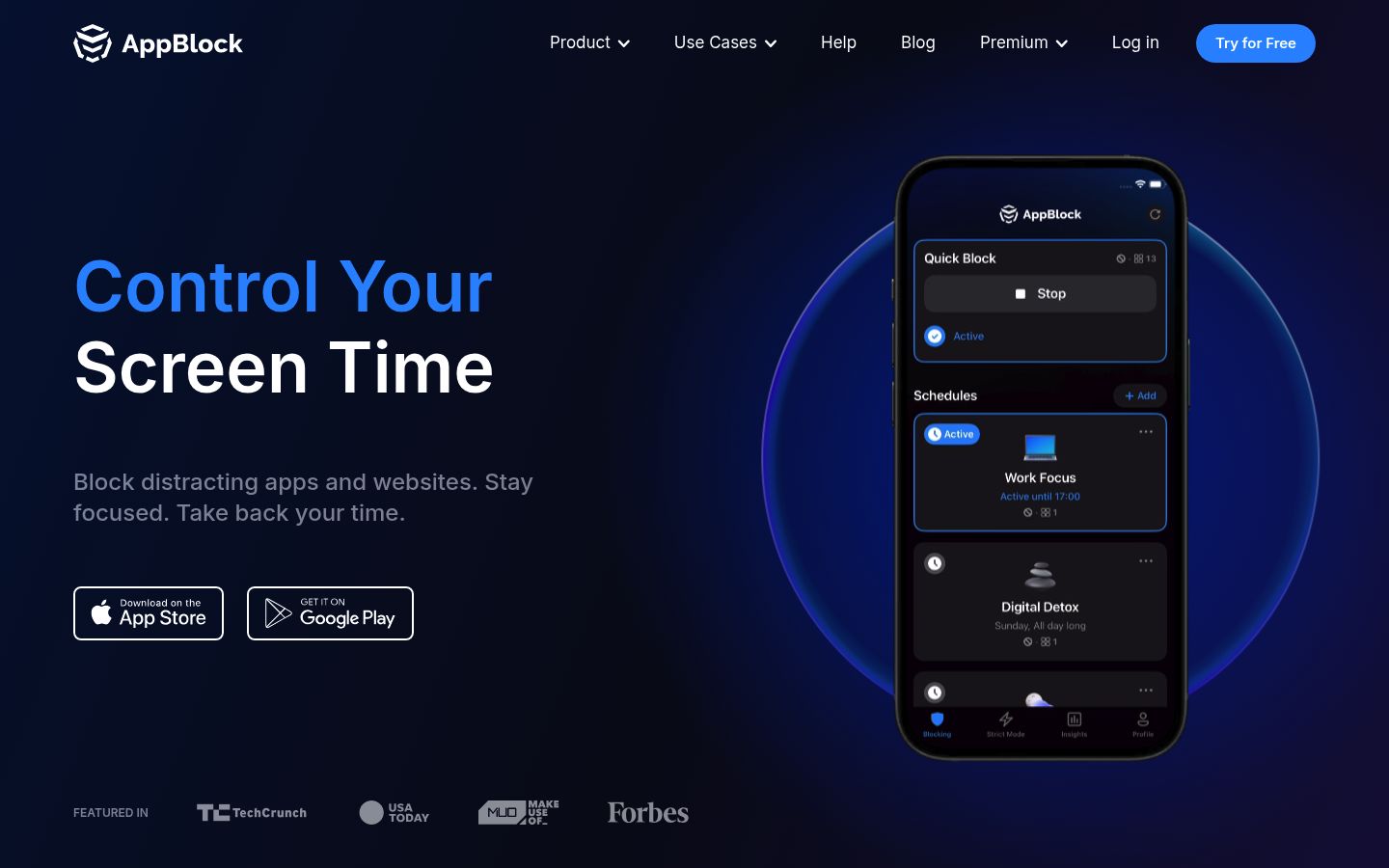
Best for: Android or iPhone users who want scheduled blocking and a strict mode without paying up front, then upgrading only if the limits bite.
7. ScreenZen
ScreenZen is completely free and donation-supported. Its approach is friction: a delay before a distracting app opens, growing longer with each use, plus daily limits, per-app schedules, and a lock mode that resists uninstalling and bypassing. The official site lists iOS, macOS, Windows and Android support, and the App Store version is rated 4.9.
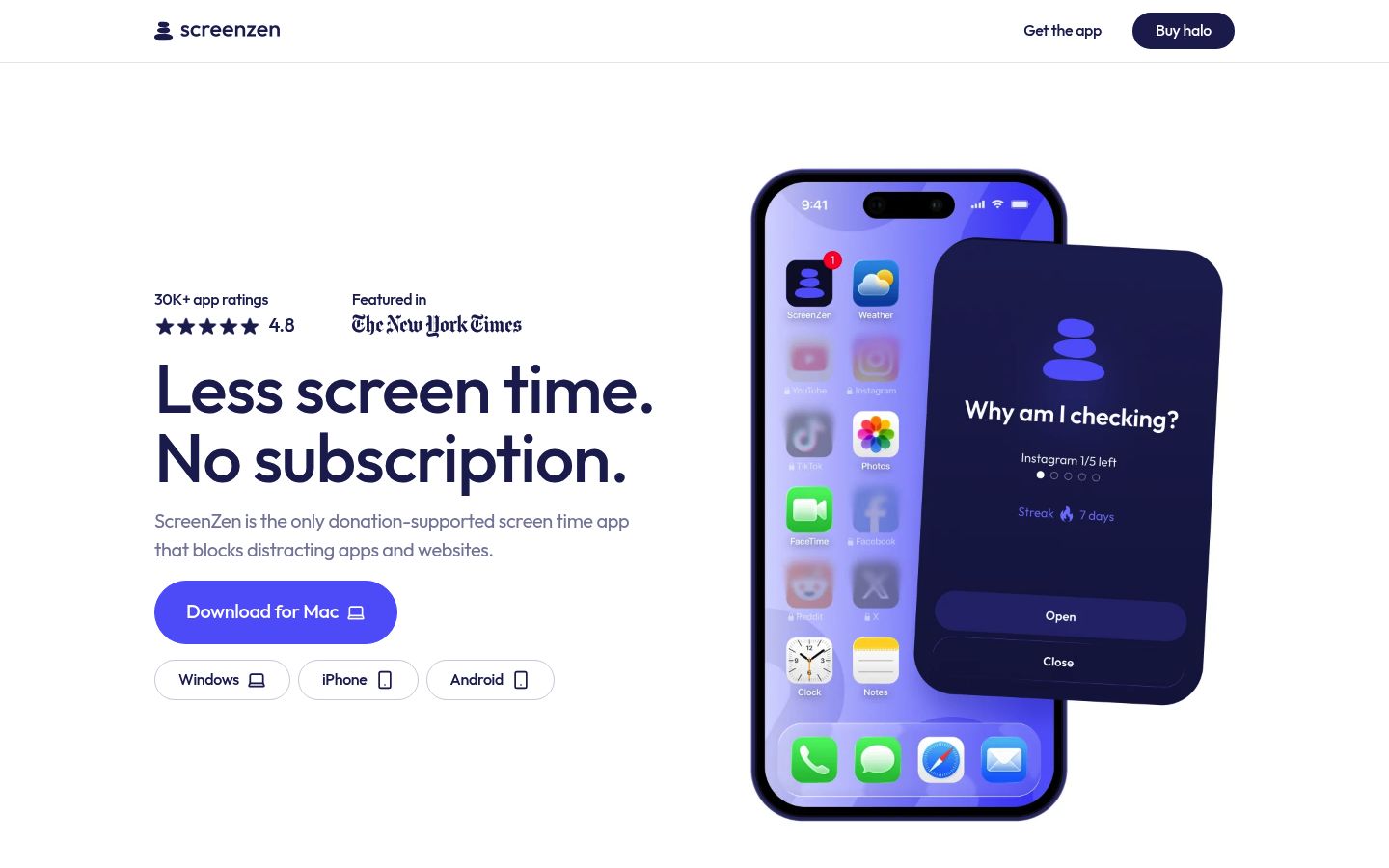
Best for: anyone who wants the strongest free option with no subscription, especially students on a budget.
8. one sec
one sec intercepts you with a breathing exercise before an app or website opens. Free use covers one app, which is enough to test whether the concept works for you; the FAQ page lists Pro from about 14.99 euros per year with a lifetime option, plus a 50% student discount and pay-what-you-can support if cost is a barrier. Pro works across iOS, Android, desktop web extension, and macOS.
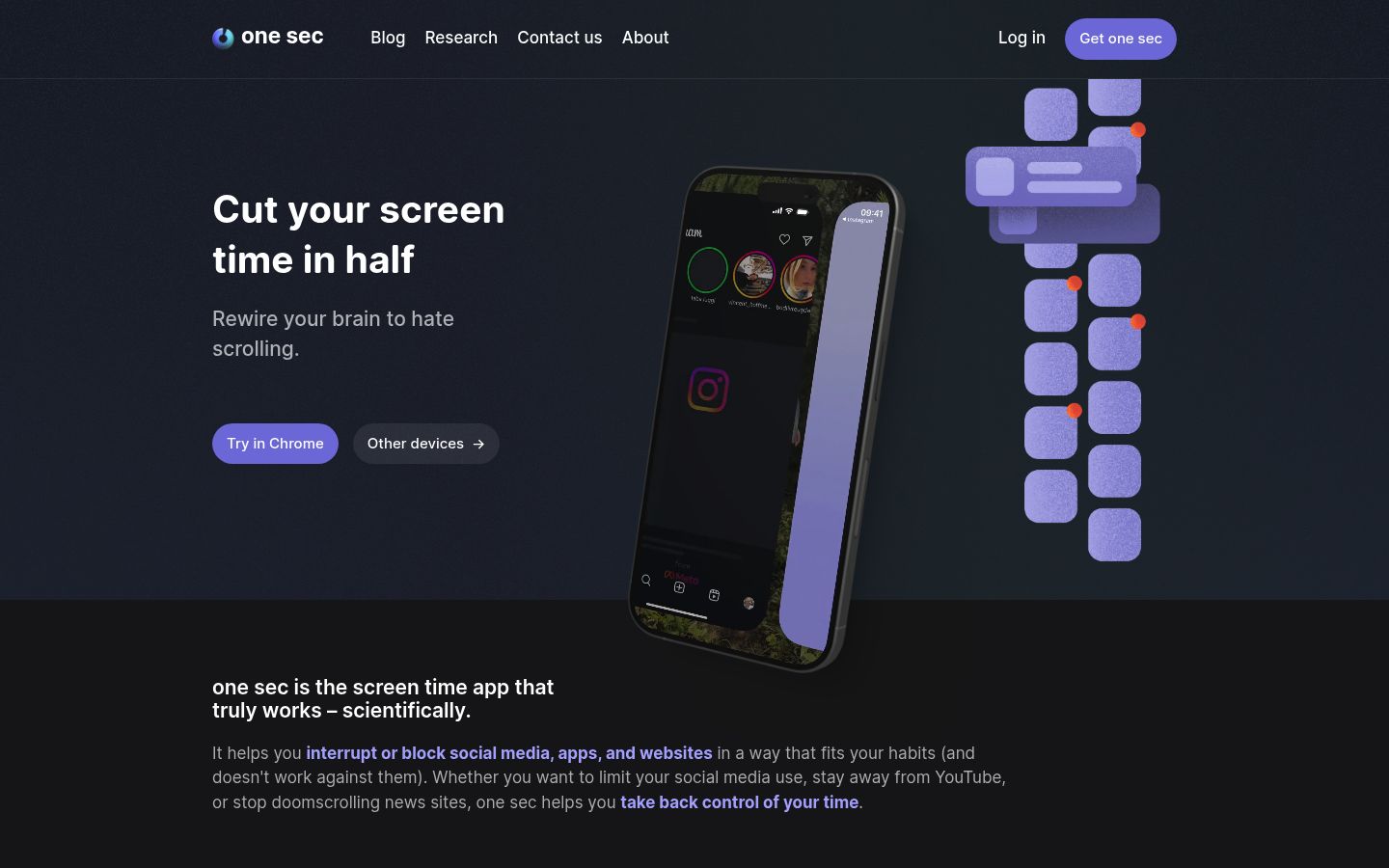
Best for: breaking one specific doomscrolling habit, like TikTok before bed, rather than running a full blocking regime.
9. Jomo
Jomo blocks apps and websites on iPhone, iPad and Mac using Apple's Screen Time API. Its pricing page is unusually friendly: a free plan with one session and one limit, $29.99/year Plus, a $99.99 one-time purchase, and a $14.99 student annual plan. Strict Mode lets you lock a block so it cannot be disabled, and you can choose between gentle unlocks and hard locks per rule.
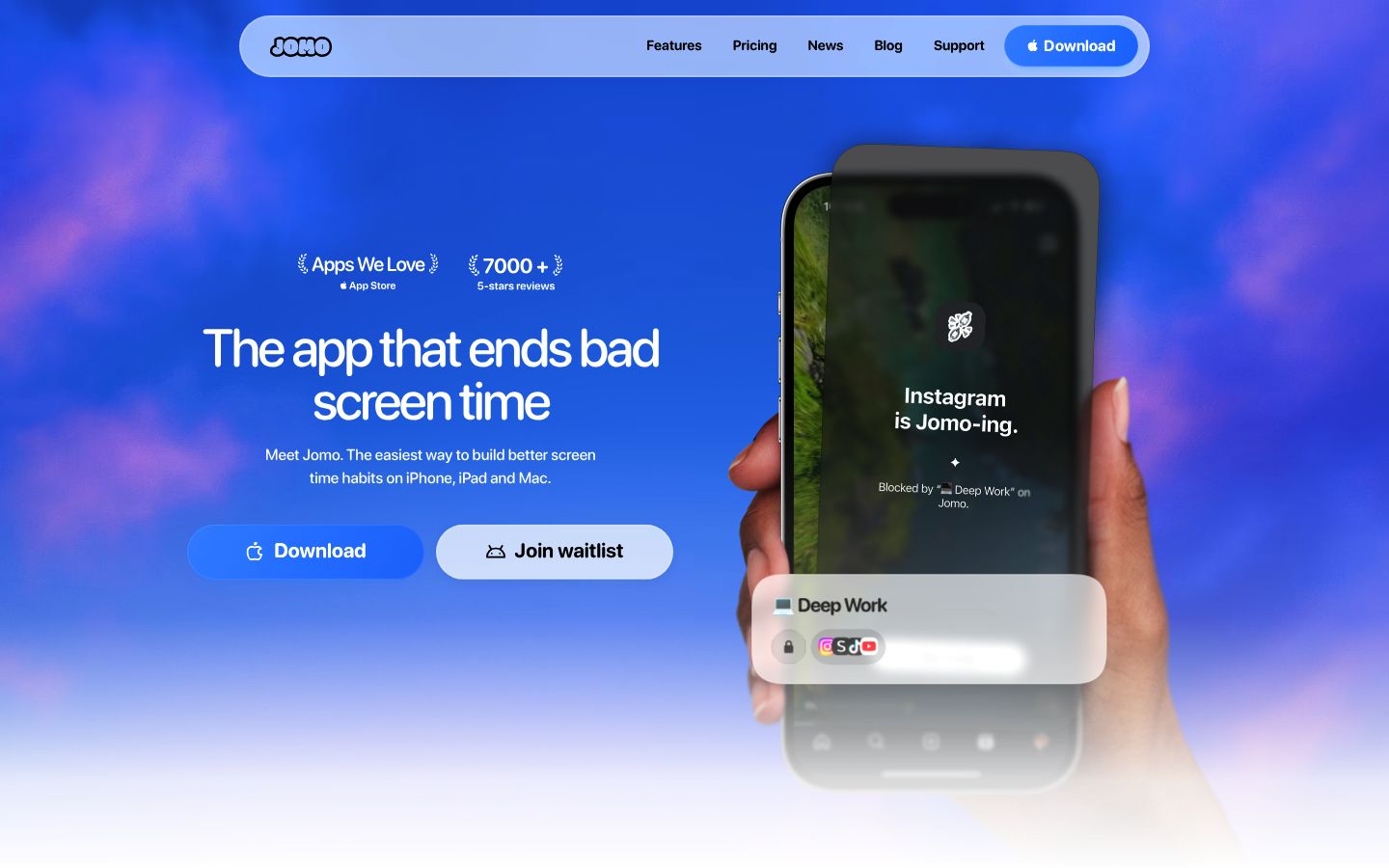
Best for: Apple-only users who want granular rules and both soft and strict enforcement in one app.
10. StayFocusd
StayFocusd is a free Chrome extension that limits how much time you can spend on time-wasting sites each day, and it also blocks in-page distractions like YouTube Shorts and comments. Its Nuclear Option blocks sites completely for hours you set and cannot be cancelled once started. Its main limit is obvious: it only covers Chrome, not apps or other browsers, though it pairs with the StayFree mobile app for tracking.
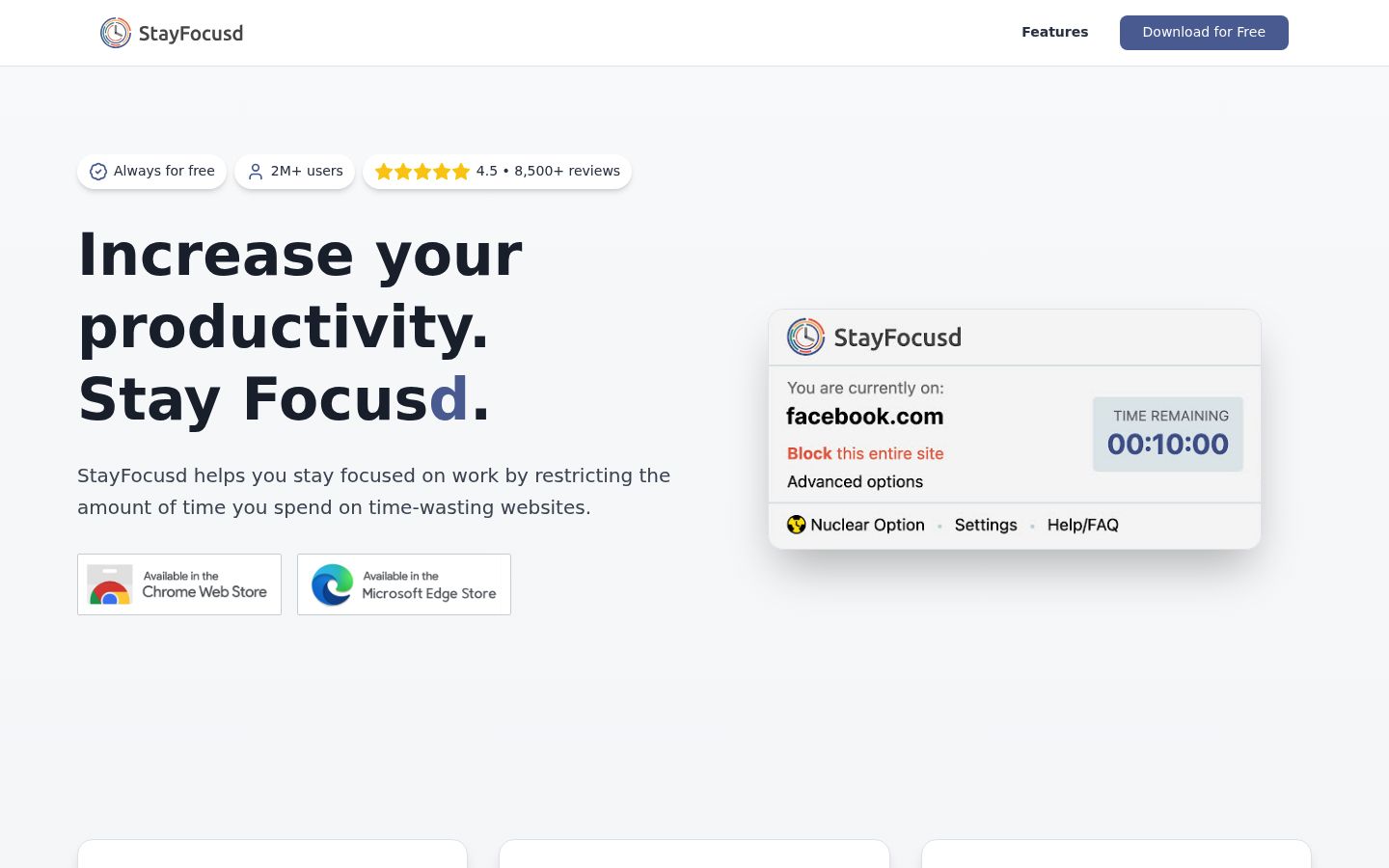
Best for: people whose only real distraction is browser tabs, or who want a free first step. If Chrome is your whole problem, the website blocker for Google Chrome roundup compares more extensions.
