The best app blocker for iPhone isn't the same for everyone, because people fail at different points. Apple Screen Time may be enough for system-wide limits on an iPhone, while someone who switches between a phone and laptop may need cross-device coverage from Freedom or Kohru. Users who need a stricter boundary may prefer AppBlock, while automatic tap-open habits are often better addressed by one sec or Clearspace, which introduce reflection before access rather than relying only on lockouts.
This comparison focuses on the failure point that matters: what gets blocked, whether distractions follow you across devices, how much friction resists overrides, what privacy and setup tradeoffs exist, how usable each tool feels, and how clearly pricing is presented. Independent research summarized in a 2026 review of app blockers found that only 4 interventions across 19 studies reduced phone use long-term, so a polished interface isn't enough. Use the roundup to match the enforcement style to your behavior, then check current plans and trials in each product's listing. Kohru's current pricing should be verified through its App Store listing, because its website doesn't publish plan details.
Table of Contents
1. Kohru
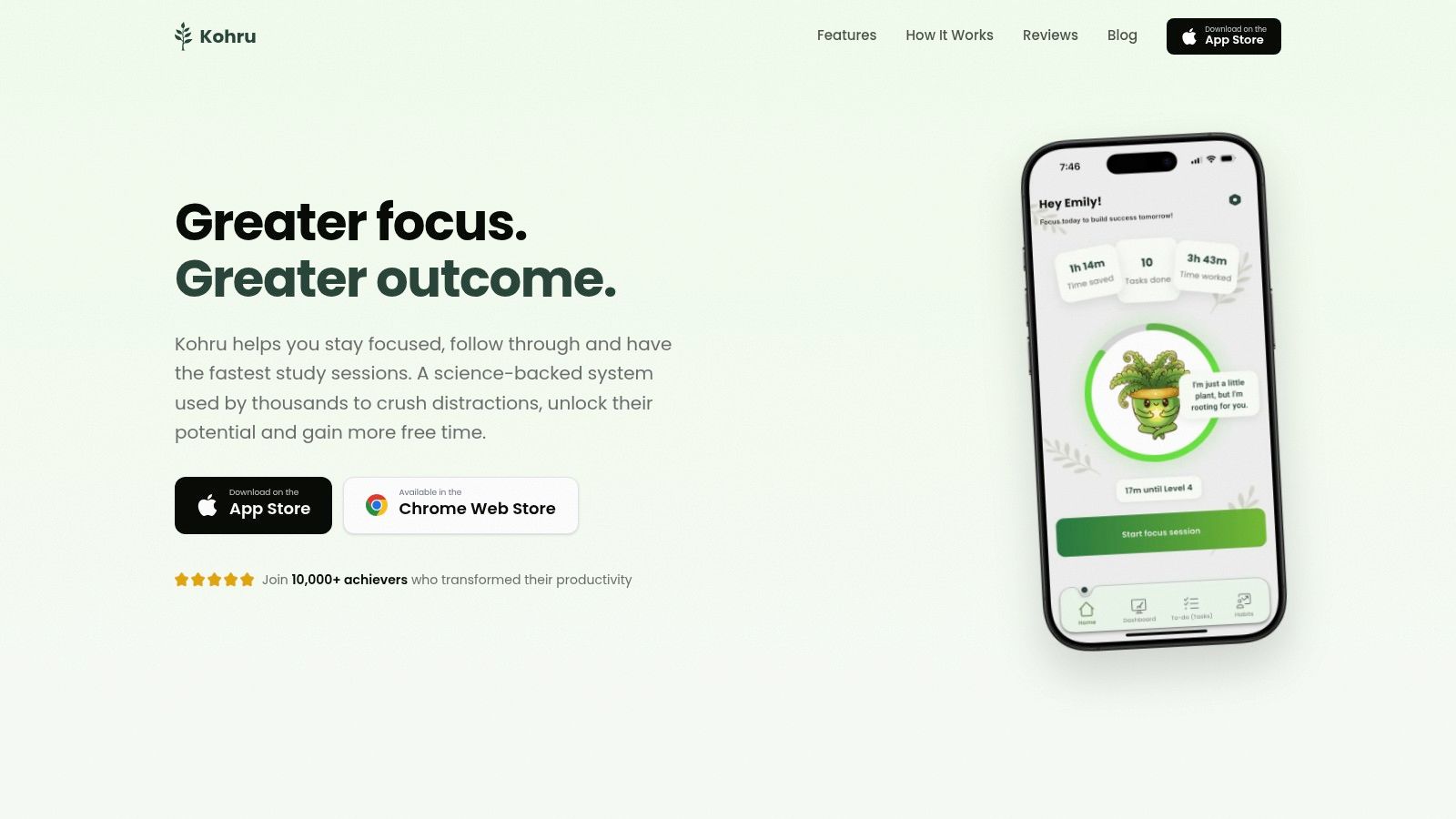
Kohru addresses the failure point that phone-only limits miss: distractions that follow you to another screen. Its one-click Focus Sessions block selected apps and sites across the iPhone, laptop, and Chrome browser. A blocked social feed on the phone therefore does not reappear on the computer. The session is useful only when it covers the devices and browser where work happens.
The workflow begins with the task rather than a generic timer. Smart To-Do Lists divide Work and Personal items, then turn a selected item into a distraction-free session. You choose a duration and enter a focus mode with custom durations, difficulty modes, and structured breaks. That task-to-session conversion reduces the repeated decision of what to start and how to begin.
Where Kohru changes the failure point
Blocking access is only one part of the problem. Kohru also targets vague tasks, scattered work, and the automatic decision to open a distracting app. Habit Tracking uses flexible weekly targets and cues instead of relying only on rigid daily streaks. Its dashboard shows focus time saved, tasks completed, and streaks built, giving you a way to judge whether the workflow improves follow-through.
That makes Kohru different from a simple app blacklist. The research summary linked earlier distinguishes single-feature blocking from interventions that combine several mechanisms. Kohru's relevant advantage is the combination of cross-device friction, task selection, timed focus, and progress review. The practical question is whether those features change your work routine, not merely whether the blocker can stop an app during a session.
Best fit: Students who need structured study sessions, professionals who work between an iPhone and Chrome, and people with ADHD who benefit from turning a specific task into a defined starting point.
Kohru is iOS-first, with Android support coming soon, and browser coverage focused on Chrome. That limits its reach if your work depends on other browsers or platforms. Its site does not detail pricing or feature tiers, so verify current plans through the Kohru App Store listing before subscribing.
2. Apple Screen Time
Apple Screen Time is a useful baseline because it is already built into the iPhone and operates at the system level. It records daily and weekly app usage, pickups, notifications, and time spent in each app or category. Those measurements help you set App Limits or Downtime based on observed behavior rather than guesses. Apple explains the weekly averages and Week and Day views in its Screen Time guide.
Its controls include App Limits, scheduled Downtime, Always Allowed apps, and Communication Limits. With Share Across Devices enabled, restrictions can extend across an iPhone, iPad, and Mac. That gives Screen Time wider coverage than a phone-only tool, although it remains limited to Apple devices. It also avoids adding another company or VPN profile, which reduces both setup complexity and the number of services involved in your privacy model.
Where override control remains weak
Screen Time measures use and applies restrictions, but it offers little support for changing the habit behind automatic app opening. Its interface is utilitarian, and a self-imposed limit remains only as strong as the Screen Time passcode controls. If you can change the passcode or settings whenever discomfort appears, the limit creates limited friction.
Use it as a first test, not automatically as a hard lock. Review the apps taking the most time, keep necessary communication tools in Always Allowed, and schedule Downtime for a defined no-distraction period. For bedtime, combine the feature with advice on how to break the screen habit for sleep, since nighttime checking is also a routine problem rather than only an app-access problem.
Screen Time answers “where is my time going?” better than “how do I make an override difficult?”
Choose it for a free system baseline, parental management, or usage measurement before paying for another blocker. Students can use it to impose simple study limits, while professionals may value its low setup burden across Apple devices. People with ADHD may need a tool that creates stronger resistance to overrides or addresses the trigger to open an app. Screen Time is a poor sole choice when the main failure point is changing your own limits under pressure.
3. Freedom
Freedom is designed for the user whose distraction moves from device to device. Its sessions and blocklists can cover iPhone, iPad, Mac, Windows, Android, and Chromebook, so switching from a blocked phone to an available laptop isn't an obvious escape route. That broad device coverage is its main advantage, and it directly addresses a weakness shared by many iPhone-only tools.
On iOS, Freedom combines Screen Time-based app blocking with website blocking through a VPN-based system. It can therefore address both an installed app and a browser destination, while synced sessions keep the schedule consistent across supported devices. The service also includes schedules and Locked Mode, which can add friction when ending a session early.
Coverage comes with platform dependencies
Freedom's cross-device design is more valuable than feature count if your work and distractions are split across several operating systems. A student using an iPhone, Chromebook, and home computer has a different problem from someone who only needs to limit one social app on a phone. Freedom is built for the first case.
The limitation is that iOS enforcement still depends partly on Apple's Screen Time framework. If Screen Time is disabled, the protection can be undermined, and VPN-based website blocking can introduce setup considerations that a simple local app limit doesn't. You should also review which sites and services need to remain available before starting a long session.
Freedom's website provides product information and platform guidance at Freedom. Exact App Store pricing may not appear until the purchase flow, so verify the current amount and billing terms before subscribing. The product's strongest purchasing argument isn't a specific interface feature. It's the reduction of device-switching loopholes.
4. Opal
Opal suits users who want a polished routine around scheduled focus. It uses Apple's Screen Time framework to block selected apps and websites, then adds scheduled sessions, Time Limits, Focus Difficulty options, and browser-extension synchronization. The result is a more guided experience than Apple's built-in controls, especially for people who want recurring work or study windows rather than occasional manual limits.
Its difficulty settings are important because they let you choose how much resistance a session should create. Time Limits can automatically block an app after its daily allowance, while Emergency Pass controls can make temporary access more constrained. Opal also provides guidance around uninstall protection, which matters because a blocker that disappears during temptation doesn't solve the underlying problem.
A polished experience still has a ceiling
Opal's appeal is usability. Clear setup, routines, and visible controls can make it easier to establish a repeatable pattern than a settings page buried inside iOS. Browser extensions extend the intervention beyond the phone, although that coverage depends on installing and maintaining the relevant extensions.
The tradeoff is structural. Opal ultimately operates within Apple's Screen Time framework, so its enforcement isn't independent of iOS permissions and platform behavior. Its App Store pricing tiers can also vary by subscription period, which makes checking the live offer more important than relying on an old comparison.
Use Opal when: You want scheduled routines and graduated difficulty, and you'll accept platform dependence in exchange for a polished setup.
The Opal app is a strong match for professionals with recurring work blocks or users who respond well to visual routines. It isn't the clearest choice for someone whose main problem is cross-platform coverage across many operating systems, or for someone who wants task management and habit tracking built into the blocker.
5. one sec
one sec addresses a different failure point: the automatic tap. Rather than trying to build a strict barrier around every distracting app, it inserts a short pause, such as breathing or reflection, before a selected app opens. That interruption targets the moment when you launch an app without first deciding what you intend to do.
The pause can appear again during the same session, while a Safari extension applies the approach to websites. Widgets and iOS integrations support the surrounding workflow without turning one sec into a broad productivity suite. Setup is relatively light, making it suitable for testing behavior change before adopting stricter schedules.
A pause helps only when awareness is the problem
one sec is a behavioral intervention, not a hard blocker. After completing the pause, you can still continue into the app. It can therefore interrupt muscle-memory openings, but it offers limited resistance to someone who has already decided to override the prompt.
Its real value is friction at the point of entry. If you open social media before recognizing the impulse, a brief delay creates room to reconsider. If you repeatedly tap through, the pause has identified the problem rather than solved it. Use it as one layer and add a stricter block when you consistently override the interruption.
If your finger opens an app before you know why, one sec addresses that automatic trigger directly. If you keep choosing “continue,” move to a stricter tool.
Full access, including multiple apps and advanced options, requires the Pro tier. Visit one sec for current product details. It suits users who want to change automatic opening habits, students who need a low-friction first intervention, and people with ADHD who benefit from a prompt before impulsive access. Professionals needing firm work-session enforcement should pair it with, or choose instead, a blocker that can prevent access.
6. Clearspace
Clearspace sits between strict blocking and mindful delay. It can block or limit selected apps, apply schedules, and introduce Screen Time Challenges and intention prompts. That makes it a practical middle ground for someone who finds a total lockout too disruptive but still wants more than a breathing pause before access.
The interface is deliberately simple. That matters when setup itself can become another form of avoidance. You can identify a small group of problem apps, define the times or limits that matter, and use prompts to turn an automatic opening into a conscious choice. Its active iOS compatibility work also matters because blockers that depend on Apple's frameworks can be affected by platform changes.
Minimalism helps, but it doesn't replace enforcement
Clearspace's strength is its balance. It gives users more control than a purely reflective tool while keeping the experience less elaborate than a full focus suite. Its attention challenges and prompts aim to build awareness around the habit, not just hide the app for a set period.
The limitation is that advanced habit and tracking tools are simpler than those in dedicated productivity systems. Premium features require a subscription, and pricing varies by region, so check the current offer on Clearspace before making a decision.
Choose Clearspace if you want a clean interface, basic schedules, and habit-oriented prompts without committing to the most aggressive lock mode. It won't be the best answer for someone who needs every device covered, and it may be too permissive for a user who treats every prompt as an invitation to override.
7. AppBlock
AppBlock is the clearest choice for users who know that ordinary limits are too easy to reverse. It provides Quick Block for immediate restrictions, scheduled blocking for recurring windows, and Strict Mode, which time-locks settings to add friction against rapid backtracking. It also supports Safari website blocking and optional Shortcuts integrations.
That enforcement model targets a specific failure point: changing the rules while a focus session is in progress. Instead of relying only on a daily allowance, you can create a defined block and make the settings harder to alter until the lock period ends. For people who repeatedly disable limits, that extra step can matter more than analytics or visual polish.
Strict Mode isn't the same as independence from iOS
AppBlock uses Apple's Screen Time framework on iPhone. Disabling Screen Time can therefore undermine the blocker, and the app can't transcend Apple's global limitations. Users should configure the system carefully, including essential apps and websites, before turning on a strict session.
The product has a clear free-versus-premium structure, but feature access and pricing can vary by region. A 2026 App Store review snapshot for AppBlock showed 4.6 out of 5 stars from 961 ratings on one regional storefront. That rating is a useful satisfaction signal, but it isn't proof of enforcement strength, so prioritize recent reviews that discuss reliability and overrides.
Choose AppBlock when: Your problem isn't recognizing distraction. It's reopening the app after you've already decided to stop.
AppBlock's official site has the relevant product details. Test Strict Mode with one representative distraction first, and whitelist essentials before using it during an important work or study session.
Top 7 iPhone App Blockers Comparison
| Tool |
Implementation complexity |
Resource requirements |
Expected outcomes |
Ideal use cases |
Key advantages |
| Kohru |
Medium, iOS app + Chrome extension setup |
iOS device, Chrome browser extension, account; possible paid tiers |
Faster deep-work sessions, improved task completion and habit tracking |
Students and professionals seeking structured focus sessions and habit support |
One-click Focus Sessions, Smart To‑Do conversion, habit-focused dashboard |
| Apple Screen Time |
Low, built into Apple devices |
iPhone/iPad/Mac with Screen Time enabled (no extra app) |
System-wide app limits, scheduled downtime, reduced device use |
Any Apple user wanting a free, baseline blocker |
Free, deep OS integration, syncs across Apple devices |
| Freedom |
Medium, apps + account; VPN setup on iOS for web blocking |
Multi‑OS support (iOS, Android, macOS, Windows, Chromebook), subscription |
Cross-device synced blocks and schedules, prevents device-escape |
Users who switch between phone and computer and need unified blocks |
Cross-device sync, VPN-based website blocking, mature support |
| Opal |
Medium, Screen Time API plus browser extension setup |
iOS device, browser extension, account/subscription |
Scheduled sessions, difficulty modes, reduced app/web use |
People wanting routine-based blocking with graded friction |
Polished UX, Focus Difficulty options, Emergency Pass controls |
| one sec |
Low, install and select target apps |
iOS device; Pro for advanced options |
Fewer automatic app opens via short pause/interventions |
Users preferring mindful interruptions over hard lockouts |
Lightweight behavioral delays, re‑intervention, Safari extension |
| Clearspace |
Low, simple setup and schedules |
iOS device; subscription for premium features |
More intentional app openings, gentle habit prompts |
Minimalist users seeking simple habit-oriented blocking |
Clean UI, intention prompts, straightforward scheduling |
| AppBlock |
Medium, configure Quick Block/Strict Mode and extensions |
iOS device, Safari extension, optional Shortcuts, premium for advanced |
Enforced blocking with time-lock options and schedules |
Users needing firm, tamper-resistant limits |
Strong Strict Mode, clear free vs premium features, scheduled blocking |
Choose the Weak Point You Need to Fix
There isn't one universal winner because these tools intervene at different points in the distraction cycle. Apple Screen Time is the best free baseline for system-wide measurement and limits. It shows where your time goes and gives you App Limits, Downtime, Always Allowed controls, and cross-device sharing within Apple's ecosystem, but it may not create enough resistance for self-imposed restrictions.
Kohru is the strongest fit for students and professionals who want a focus session connected to a task, with blocking across iPhone and Chrome. Its Smart To-Do Lists, flexible habit targets, custom durations, difficulty modes, and progress dashboard address the work structure around distraction. Freedom is the better choice when your escape route includes several device types, because synced sessions can follow you across iPhone, computers, Android, and Chromebook.
Opal suits users who value polished routines, browser synchronization, and difficulty controls. AppBlock is more appropriate when the key problem is changing settings or reopening apps during a block, especially with Strict Mode enabled. one sec is for automatic app-opening habits, where a pause can interrupt the tap before you decide whether access is worthwhile. Clearspace provides a minimalist middle ground with blocking, limits, schedules, challenges, and intention prompts.
Use this decision process before subscribing:
- Start with one representative distraction: Choose the app or website you open automatically, rather than blocking everything at once.
- Protect essential access: Keep communication, maps, calendars, authentication, and other necessary tools available before starting a strict session.
- Follow the distraction across devices: If you work on a laptop or browser, test whether the product blocks that route too.
- Match enforcement to behavior: Pick delay-based friction for automatic openings, and choose locked settings or scheduled blocks when you repeatedly override prompts.
- Verify current terms: App Store pricing, subscription periods, trials, iOS requirements, and feature availability can change. Check the live listing before paying.
For students, Kohru is the most complete task-to-focus option, while AppBlock is better when exam preparation requires a firmer boundary. People with ADHD may prefer Kohru's task structure and flexible weekly targets, or one sec when the main problem is impulsive app opening rather than prolonged access. Professionals should consider Opal for polished scheduled routines, Freedom for mixed-device work, and AppBlock when interruptions persist despite ordinary limits.
The right blocker is the one that closes your actual escape route without creating so much setup or lockout regret that you stop using it.
Kohru combines one-click Focus Sessions, iPhone and Chrome distraction blocking, task-based Smart To-Do Lists, flexible habit targets, and progress tracking for study and work. Visit Kohru to see whether its cross-device focus workflow fits the distraction pattern you need to fix.