Summary of the Article
Yes, you can lock your phone, or just the apps that tempt you most, for any period you choose. There are three ways to do it: lock the whole device, lock selected apps for a set time, or run a focus session that starts now or on a schedule. The right pick depends on two things: how strict the lock needs to be, and whether the same distractions follow you to a laptop.
- Kohru: task-linked focus sessions across phone, laptop, and Chrome; made for study and work sessions.
- iOS Screen Time: free built-in Downtime and App Limits; you hold the passcode, so it is easy for you to undo.
- Android Focus mode: free built-in app pausing with schedules; one tap ends it.
- Opal: per-app blocking with paid strict modes; a weekly Emergency Pass still exists for real emergencies.
- Freedom: blocks apps, sites, or the whole internet across devices; Locked Mode stops early exits on paid plans.
- AppBlock: strong Android strict mode with a cooldown timer and partner approval.
- ScreenZen: free, friction-first blocking with a lock mode that closes common loopholes.
- one sec: a breathing pause before distracting apps open; free for one app.
If you have ever searched for an app to lock phone for period of time, you already know the problem: you sit down to study, and twenty minutes later you are somehow deep in a feed. A time lock closes that gap. This guide explains how the different locks work, what each option costs, and how to pick the one that matches your self-control on an honest day.
Three Ways to Lock a Phone for a Set Time
Every time lock app does one of three jobs. Knowing which one you need cuts the decision in half before you look at a single product page.
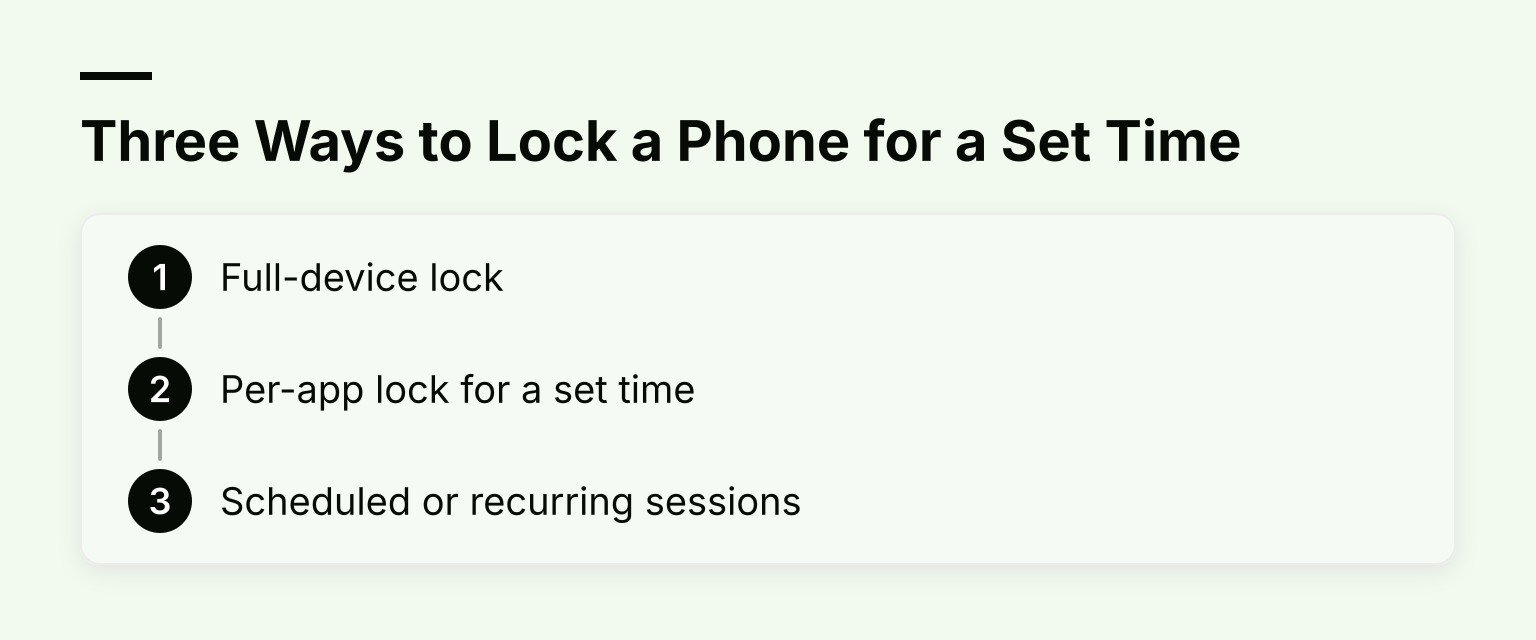
- Full-device lock. The whole phone goes dark for a countdown. On Android, some blockers offer a no-exit mode where you cannot cancel at all. At the extreme end, hardware lock boxes physically hold your phone for a set time, and no app can undo that.
- Per-app lock for a set time. This is what most people actually want: an app that locks apps for a set time while the phone stays usable for calls, maps, and messages. iOS App Limits, Opal, and AppBlock all work this way.
- Scheduled or recurring sessions. Instead of locking something right now, you set blocks to start on their own, every weekday at 9 a.m., for example. Freedom's schedules and Kohru's focus sessions live here.
Most people mix all three. A one-off full lock before an exam. A per-app limit for TikTok on ordinary evenings. A recurring block for every study session.
The Strictness Axis: How Hard Is It to End the Lock?
Here is the question that decides whether a lock actually holds: when the urge hits, what stands between you and your apps?
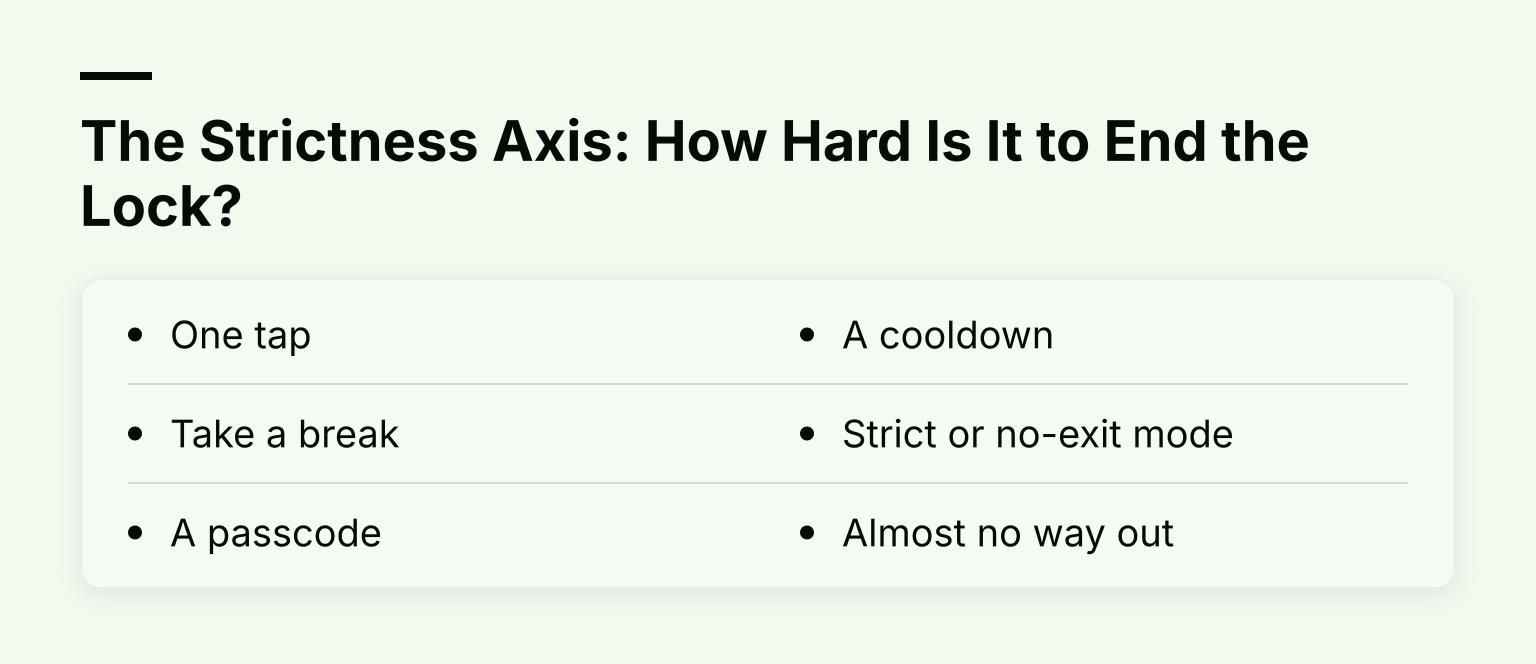
From loosest to strictest:
- One tap. Android's Focus mode and most Do Not Disturb setups end with a single tap. Great for gentle reminders, useless against real temptation.
- Take a break. Android Focus mode lets you temporarily unpause apps with a set break timer. The lock comes back, but the door is open now.
- A passcode. iOS Screen Time rules can require a Screen Time passcode to change. That works well when a parent or partner holds the code. It works less well when you hold it, because you know the code.
- A cooldown. AppBlock's Strict Mode can force a waiting period before you can change anything, which is often enough to kill the impulse.
- Strict or no-exit mode. Freedom's Locked Mode prevents ending a session early. AppBlock's timer condition locks your settings until the timer runs out. Opal's strict timers allow no unblocks or resets while they run.
- Almost no way out. Opal still offers one weekly Emergency Pass for genuine emergencies, and a hardware lock box has no software exit at all.
Be honest with yourself here. If you have picked up your phone mid-session twelve times this week, a one-tap pause will not save you. Choose one rung stricter than feels comfortable.
Start with the Free Built-In Tools
Before paying for anything, check what your phone already does. Both platforms ship capable time locks, and both are free.
iOS Screen Time (built into iPhone)
Screen Time gives you two set-period tools. Downtime makes most apps unavailable during hours you choose, with calls, messages, and apps you allow still working. App Limits cap how long you can use an app or category each day. Turn on Block at Downtime and set a Screen Time passcode, and the limits can no longer be ignored with a tap.
The catch: you can set a one-off Downtime for tonight, but Screen Time thinks in daily schedules, not arbitrary 90-minute blocks. And the person being locked holds the passcode, unless you hand it to someone else. For a full walkthrough of the passcode setup, see our guide on how to set a Screen Time lock for unbreakable focus.
Android Digital Wellbeing and Focus mode (built into Android)
Focus mode pauses the apps you choose, along with their notifications, and can switch on automatically on a schedule. It is free and takes about a minute to set up. But it is also the loosest lock in this guide: you can turn it off, or tap "Take a break" and unpause apps for a while. There is no strict mode and no passcode option.
Both built-ins are the right starting point. They are also the right baseline to judge paid tools against: any app you pay for should do something the free option cannot, usually strictness or cross-device coverage.
Third-Party Apps That Lock a Phone for a Set Time
Here are the leading options, compared on what they lock, how long a lock can run, how hard it is to undo, and what they cover. Pricing changes often, so check each linked page for current numbers.
| Option |
What it locks |
Custom duration? |
Ending it early |
Works on |
Cost |
| Kohru |
Apps and websites across phone and laptop, via a Chrome extension |
Yes, focus sessions you set |
You control the session |
iPhone app + Chrome |
See the Kohru site |
| iOS Screen Time |
Selected apps or the whole device |
Daily schedules and limits |
Passcode required if set |
iPhone, iPad, Mac |
Free |
| Android Focus mode |
Selected apps |
Schedules, or on now |
One tap, or Take a break |
Android |
Free |
| Opal |
Apps and categories |
Timers, schedules, limits |
Strict modes on Pro; weekly Emergency Pass |
iOS, Android, Mac |
Free tier; Pro from $8.29/mo billed yearly |
| Freedom |
Apps, websites, or the whole internet |
Sessions of any length on paid plans |
Locked Mode prevents early exits |
Mac, Windows, iOS, Android, Chromebook |
Free tier (2-hour cap); Premium from $3.33/mo billed yearly |
| AppBlock |
Apps and websites |
Quick Block and schedules |
Strict Mode with cooldown, PIN, or partner approval |
Android, iOS |
Free tier with limits; Premium paid |
| ScreenZen |
Apps and websites |
Limits, schedules, strict blocks |
Lock mode against loopholes |
iPhone, iPad, Mac |
Free, donation-supported |
| one sec |
Apps and websites |
Focus times on a schedule |
Friction, not a hard lock |
iOS, Android, browser extensions |
Free for one app; Pro from €3.99/mo |
Kohru: focus sessions tied to your actual task
Kohru takes a different angle on time locking. Instead of only blocking apps, it is a study and productivity app that runs distraction-free focus sessions you start for the period you need. You pick a task from your Work or Personal lists, turn it into a focus session, and Kohru blocks distracting apps and websites on your phone while the session runs. A browser extension extends the same session to Chrome on your laptop, so the block follows you when you switch devices.
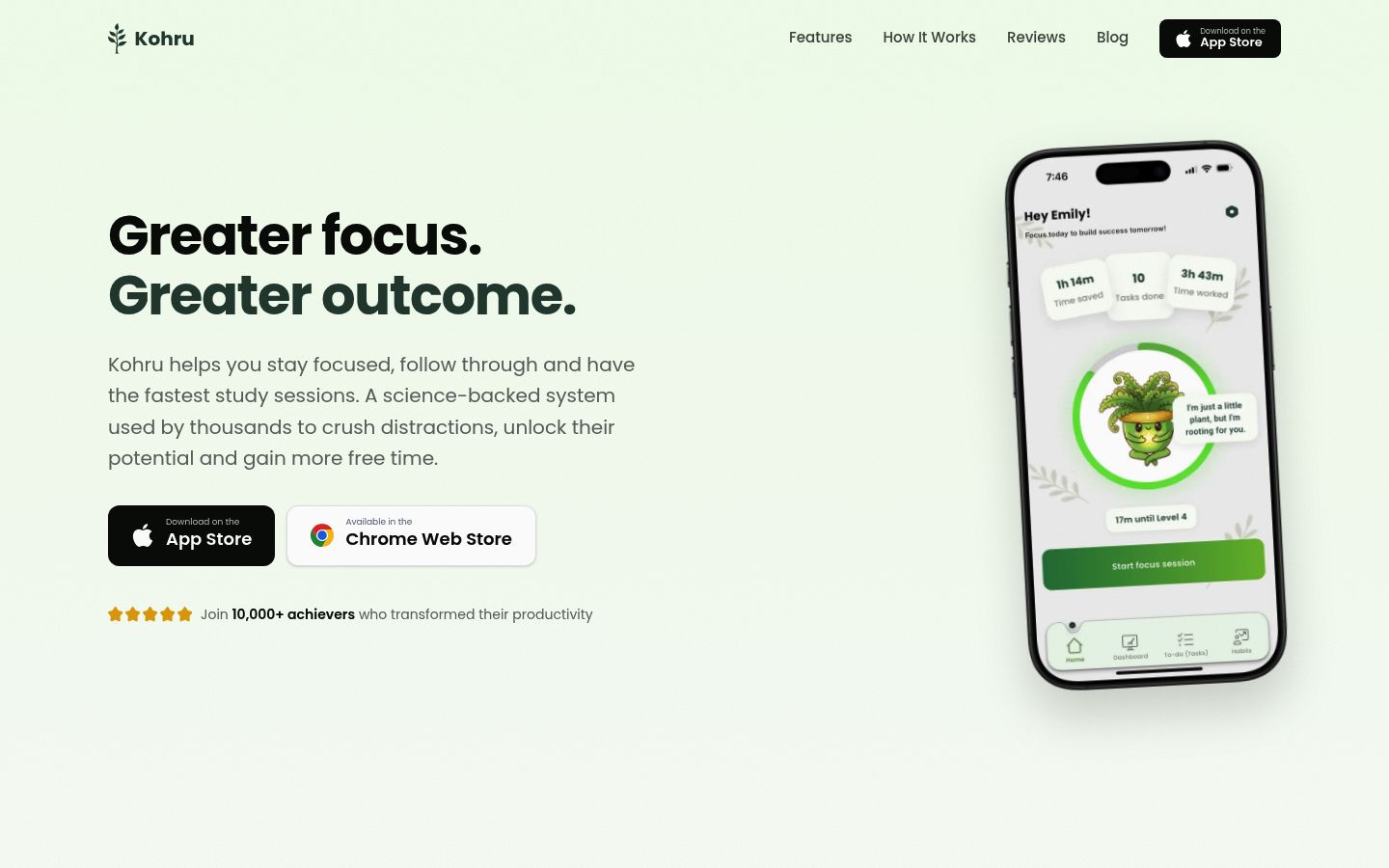
That task-first design is the main difference from plain blockers. A blocker locks your phone and hopes you use the time well. Kohru starts from what you are supposed to be doing, which helps if your real problem is starting, not just scrolling. It also tracks habits, focus time, and completed tasks, and it is built to support people with ADHD or other attention-regulation and task-initiation challenges. If your job is specifically studying, our guide to apps that lock your phone for studying goes deeper on that use case.
Honest tradeoff: Kohru is focused on study and work sessions rather than being a general parental-control or all-day screen time tool. If you want to block a toddler's apps or shut your phone down every night automatically, other options fit better.
Opal: per-app blocking with paid strictness
Opal blocks apps and app categories on iPhone, Android, and Mac using timers, schedules, and limits. The free tier includes one rule; Opal Pro, from $8.29 per month billed annually, adds harder blocking difficulty, no-unblocks modes, and unlimited rules.
Two things to know before you rely on the strict modes. First, Opal's strict timers are designed to leave no unblocks or resets while they run, but Opal's help docs document a weekly Emergency Pass that unblocks everything for an hour. That is a sensible safety valve, just know it exists. Second, on iPhone, anyone holding the device passcode can remove Opal's Screen Time permission in iOS Settings unless you have also locked that down. Opal's help center covers that setup, but it is an extra step many people skip.
Freedom: cross-device sessions with a real Locked Mode
Freedom blocks apps, websites, or the entire internet on Mac, Windows, iOS, Android, and Chromebook, with sessions synced across all your devices at once. On its pricing page, the free tier lets you run start-now sessions capped at two hours; Premium, from $3.33 per month billed yearly, adds scheduled and recurring sessions, sessions longer than two hours, and Locked Mode.
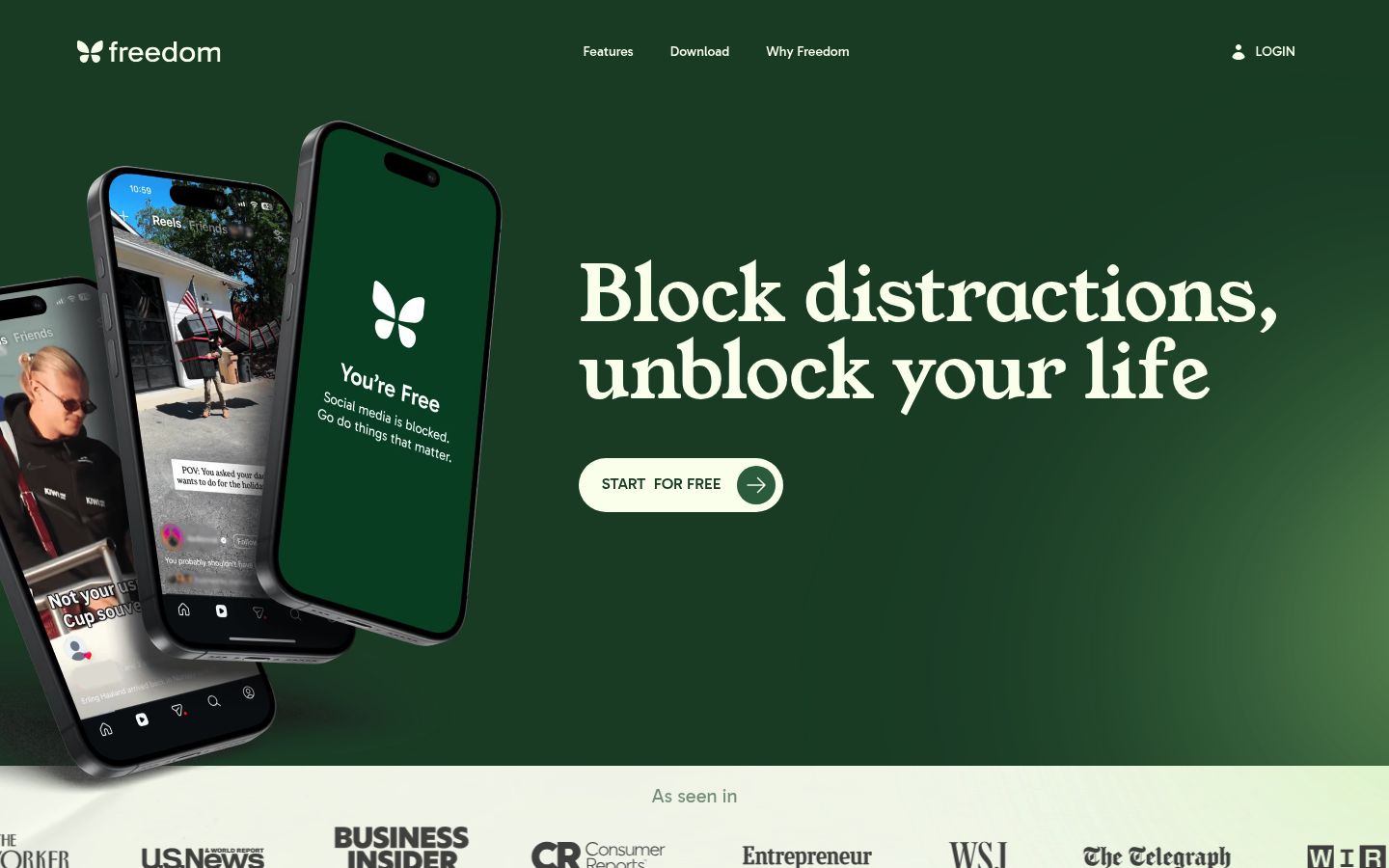
Locked Mode is the interesting part for this article. Per Freedom's support docs, when it is on you cannot end a session early more than once every seven days, remove apps from active blocklists, or log out of the app mid-session, and it cannot be switched off while a session is running. One caveat from the same docs: on iOS, Locked Mode does not stop someone from disabling Freedom's Screen Time permission in iPhone Settings, so pair it with a Screen Time passcode.
AppBlock: the strict mode leader on Android
AppBlock covers Android and iOS, and its Strict Mode is the most configurable strictness system in this list. You can lock your settings behind a timer condition, a PIN code, a cooldown of two to ten minutes, or approval from a trusted partner who gets an email when you try to unlock. Free accounts get limited schedules and block durations; Premium lifts those caps and unlocks all strict-mode options.
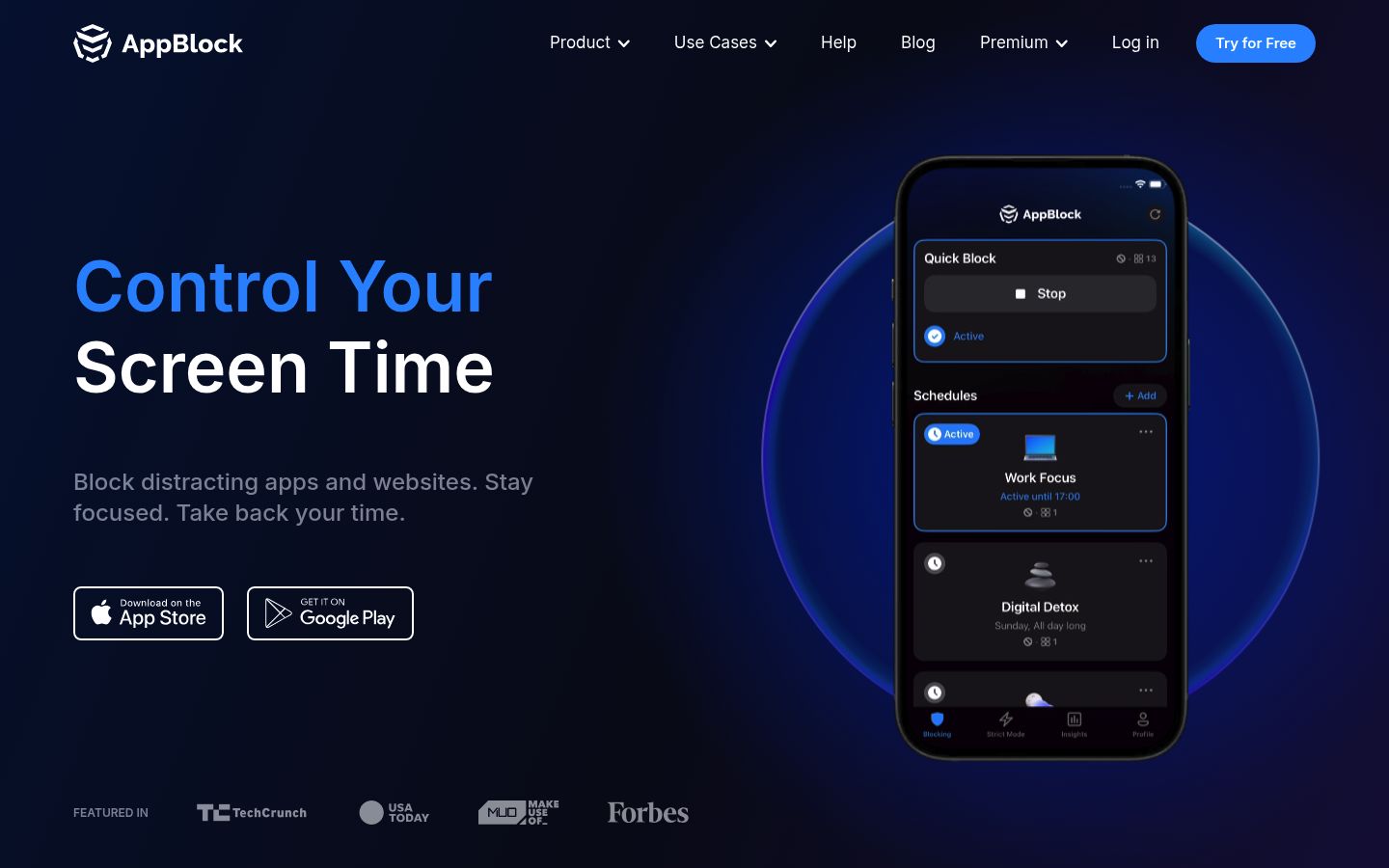
For students on Android who keep defeating softer apps, AppBlock's cooldown-plus-approval combo is hard to beat. The tradeoff: it does not cover your laptop, so a Chrome-tab relapse is still possible.
ScreenZen: free, gentle friction with teeth when you want them
ScreenZen is free and donation-supported, with no subscription. Its core idea is friction: a configurable delay before a distracting app opens, optional breathing prompts, and messages asking whether this is important. It also offers daily limits, schedules, strict blocks for set time ranges, and a lock mode that prevents uninstalling and closes common loopholes, per the App Store listing.
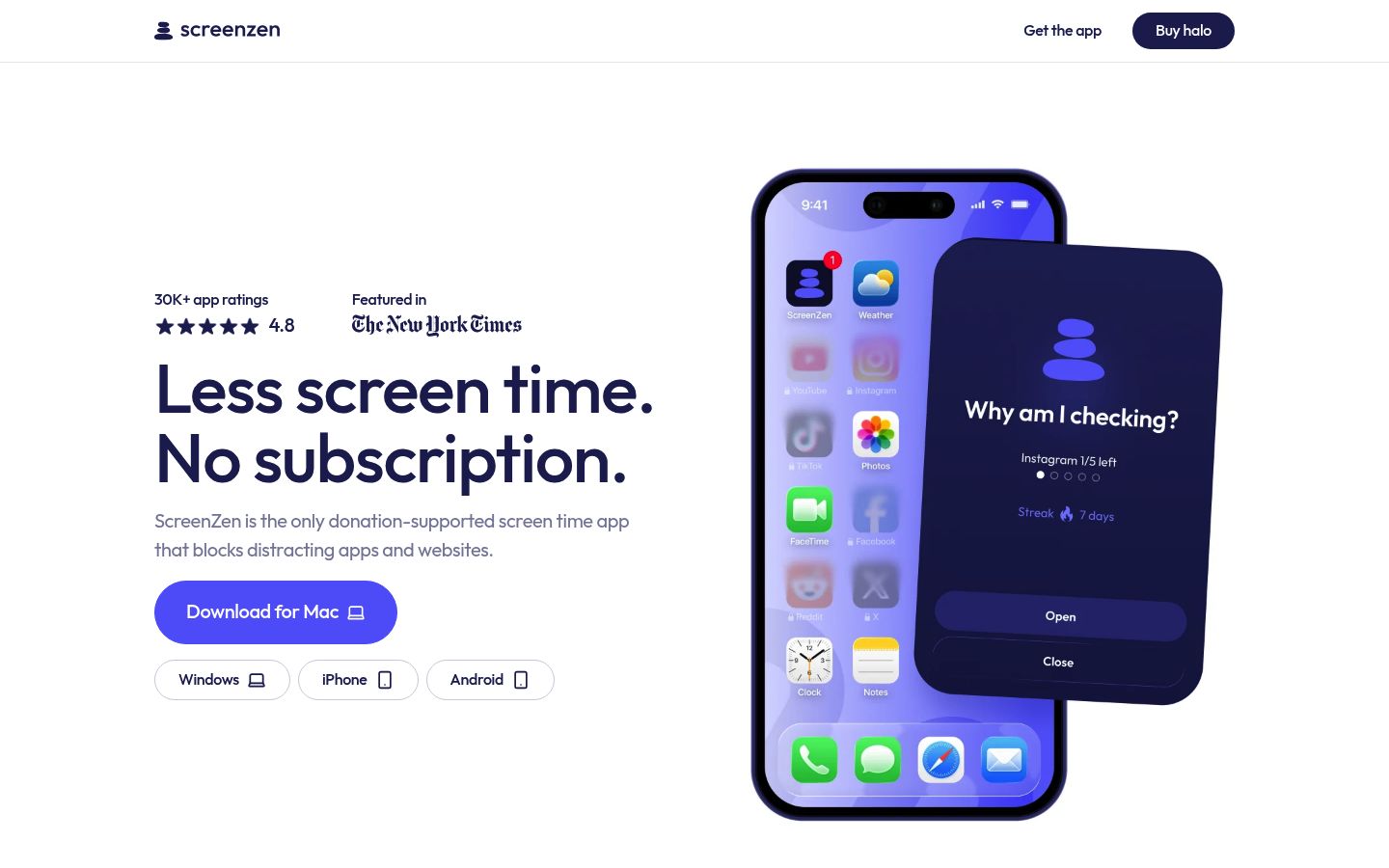
ScreenZen suits people who do not want a hard wall but know that a five-second pause kills most impulsive opens. It runs on iPhone, iPad, and Mac, which is generous for a free tool.
one sec: change the habit, not just the session
one sec interrupts you before an app opens with a breathing exercise, based on the idea that most scrolling is autopilot behavior. It works on iOS and Android, plus browser extensions for desktop, and its focus times let you schedule phone-free hours. The FAQ lists a free version for one app, with Pro from €3.99 per month, €14.99 per year, or a €99.99 lifetime option.
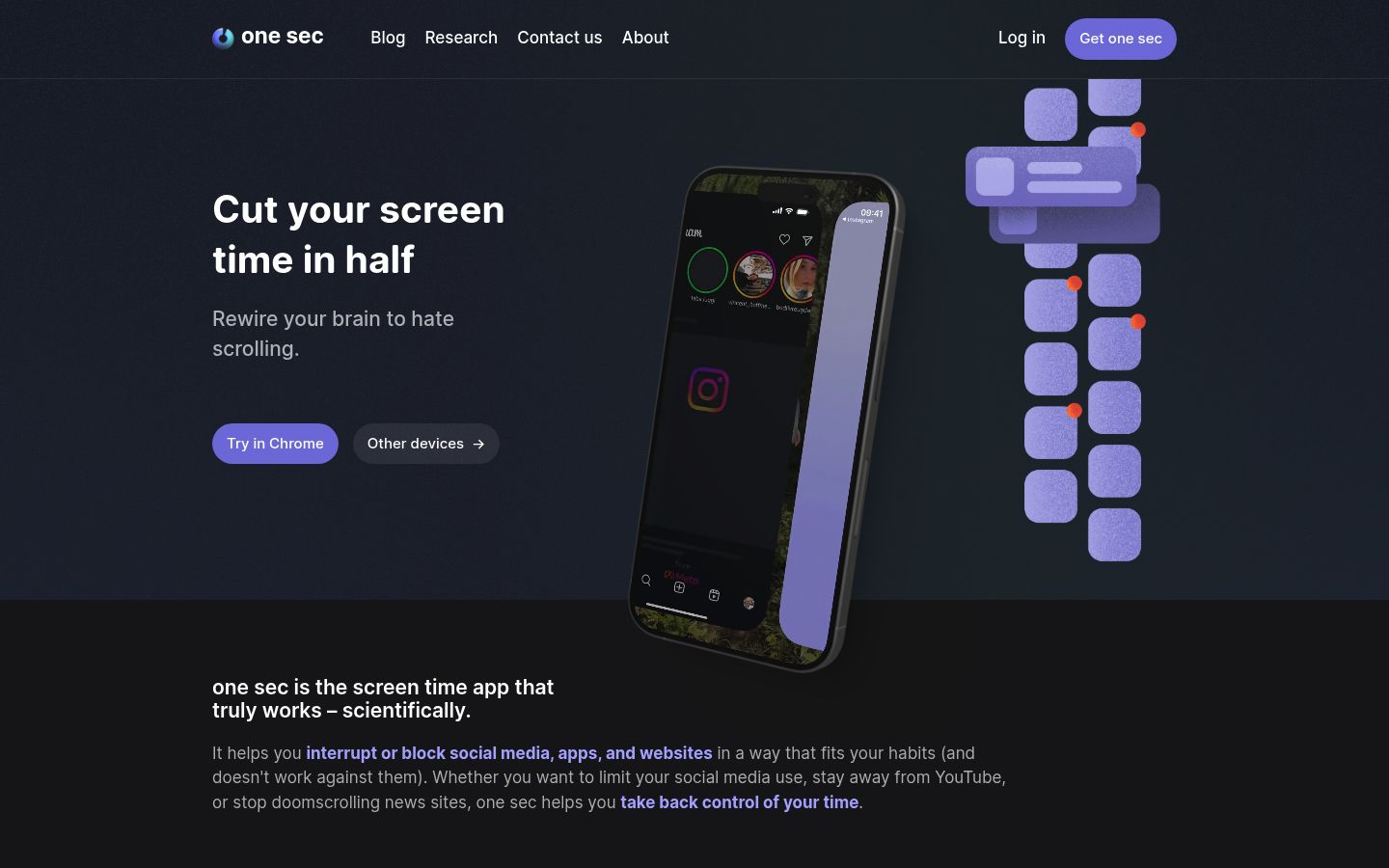
The honest framing: one sec slows you down rather than locking you out. If you can talk yourself through a breathing screen, it will not stop you. It is a habit-change tool first, a time lock second.
The Cross-Device Problem: Your Laptop Counts Too
A phone-only lock has a familiar failure mode. Instagram is blocked on your iPhone, so you open Instagram in Chrome. The block worked, and you were distracted anyway.
Two things help. First, cover the browser: a blocker that runs in Chrome, like Kohru's extension or Freedom's desktop apps, closes the same apps on both machines. Second, schedule rather than improvise, so blocks start whether or not you remember. If you have realized per-app blocking across all your devices is the real need, our guide on how to block apps on every device walks through it in detail.
How to Choose Your Lock in Four Questions
Answer these in order and you will land on one or two options:
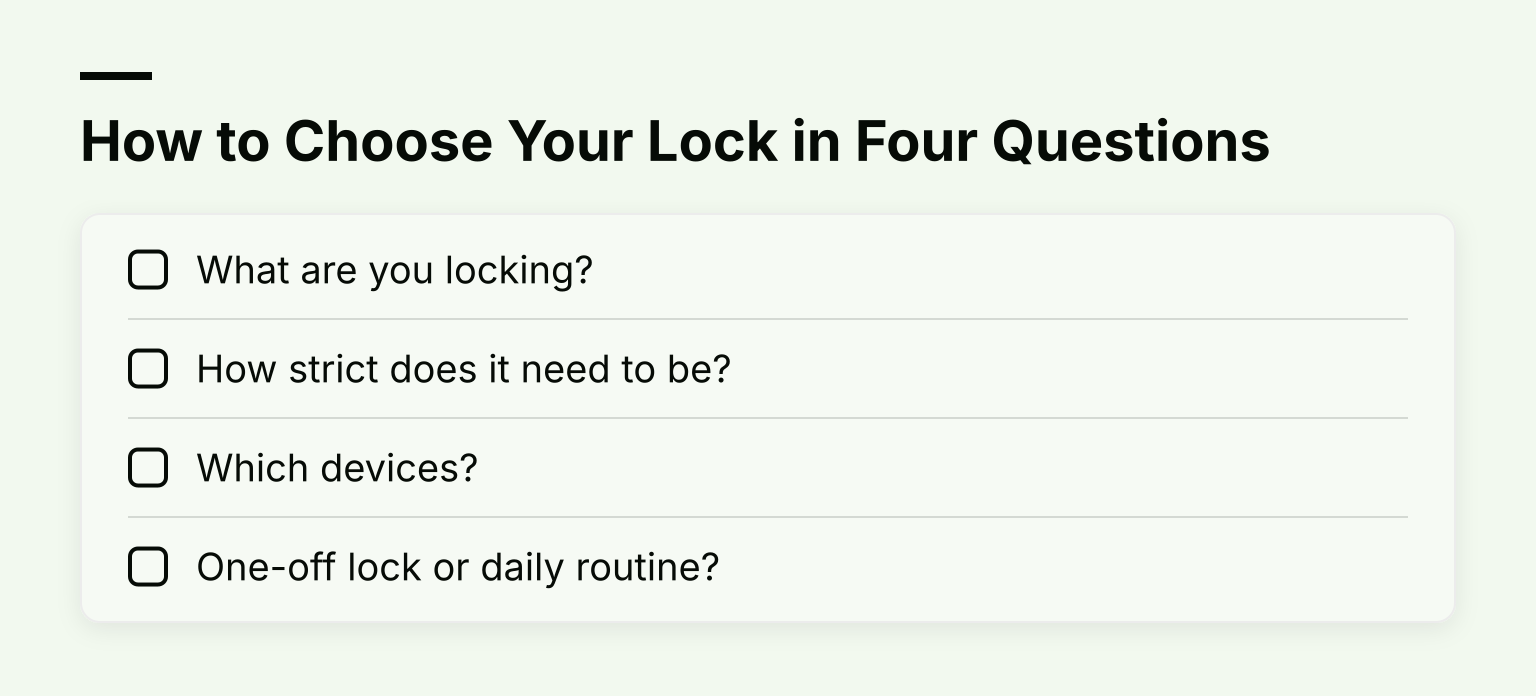
- What are you locking? The whole phone points to full-device locks or a hardware box. Specific apps point to per-app tools, which is what most students need.
- How strict does it need to be? Gentle: ScreenZen or one sec. Medium: built-in tools with a passcode someone else holds. Strict: Freedom Locked Mode, AppBlock Strict Mode, or Opal's no-unblocks Pro modes. Absolute: a timed lock box.
- Which devices? Phone only opens the whole list. Phone plus laptop narrows it to Freedom, Kohru, or combining a phone app with a browser blocker.
- One-off lock or daily routine? A single lock before one exam suits anything, including the built-ins. A daily study habit suits scheduled sessions, and it is worth reading about time blocking as a system once the locks are working.
Honest Limitations Before You Lock
No consumer tool makes a phone truly unbreakable, and it is worth knowing where the holes are:
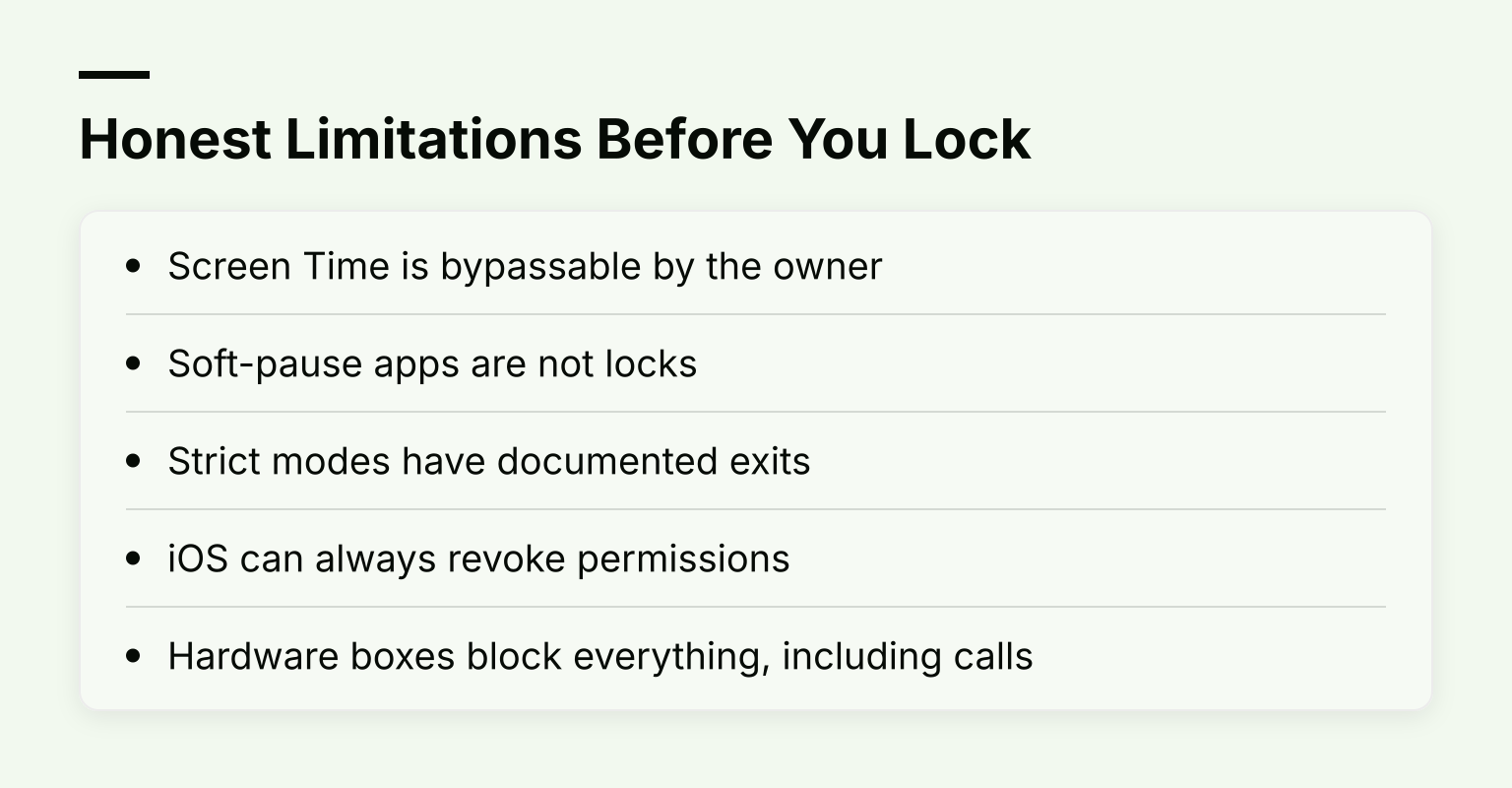
- Screen Time is bypassable by the owner. You set the passcode, so you can change it. Handing the code to a friend or parent is the only real fix.
- Soft-pause apps are not locks. one sec and much of ScreenZen add friction. They work because a pause defeats impulse, not because they stop a determined you.
- Strict modes have documented exits. Opal's strict timers have a weekly Emergency Pass. Freedom's Locked Mode still permits one early end per week. AppBlock's approval mode depends on a responsive partner. These are reasonable safety valves, but they are exits.
- iOS can always revoke permissions. Any iOS blocking app depends on Screen Time permission, which the device passcode can strip away in Settings unless you configure the lockout extra steps.
- Hardware boxes block everything, including calls. If you physically seal your phone away, you also cannot take an urgent call. Think through emergencies before using one.
Common Questions
Can you lock a phone without installing an app?
Yes. iPhone Screen Time and Android Focus mode are built in and need no download. A hardware lock box is the other app-free route: you put the phone inside a timed container. What you cannot easily do is get true strictness for free on your own device, because built-in tools assume the owner can undo them.
How long can a time lock run?
It depends on the tool. Screen Time schedules repeat daily. Freedom's free sessions cap at two hours, with unlimited lengths on Premium. AppBlock's free Strict Mode timer is limited per platform, with longer locks on Premium. For most study sessions, somewhere between 25 minutes and two hours is the practical range anyway.
Do locks block calls and emergencies?
Usually no, by design. iOS Downtime keeps calls, messages, and apps you allow working, and you can always allow specific contacts. Per-app blockers never touch the phone app. The exception is a hardware lock box, which blocks everything, so keep a backup way to reach people in an emergency.
Is this different from locking a kid's phone?
Yes, in one important way. When you lock your own phone, you hold every key, so the strictness has to come from the tool: cooldowns, no-exit modes, or a partner who approves unlocks. When you lock a child's phone, a passcode held by the parent turns even the free built-in tools into strong locks. Same features, very different results.
Pick Your Lock Tonight
Start with the strictness question, not the app store. If a pause is enough, ScreenZen or the free built-ins will do. If you need a wall, AppBlock on Android or Freedom's Locked Mode across devices. And if what you really want is to sit down, pick a task, and have your phone lock itself for exactly that session, Kohru was built for that job, and you can download it from the App Store, with the Chrome extension for your laptop.
