Summary of the Article
A focus lock app blocks distracting apps and websites on your phone and laptop while you study, so you can't scroll when the work gets hard. Setting one up well takes about ten minutes: choose what to block, decide what stays reachable, set a realistic session length, plan your breaks, cover your other devices, and track completed sessions.
- Start strict on distractions, not on everything: an over-blocked phone is annoying enough that people abandon the whole system.
- Keep first sessions short, around 25 to 45 minutes, and build up from there.
- Plan breaks on purpose. An unplanned "escape" is where most sessions fall apart.
- Cover your laptop and Chrome too. Blocking only your phone just moves the distraction.
- Track completed sessions so you build a streak, and treat a missed day as data, not failure.
A phone sitting face-up next to your textbook is not a neutral object. Every few minutes, a small part of your brain asks whether anything new has arrived, and answering that question is enough to break your concentration. A focus lock app removes the question. It locks apps during study sessions so the decision is made once, in advance, instead of being relitigated every minute.
This guide walks through the full setup: what to block, what to keep, how long to run each session, how to design breaks that don't turn into relapse, and how to build a streak you can keep for weeks. We'll use Kohru as the worked example, since it blocks distractions across your phone, laptop, and Chrome browser and tracks your focus time and habits in one place.
What a Focus Lock App Is (and When You Need One)
A focus lock app blocks specific apps, websites, or your whole phone for a set period. You start a session, the blocklist goes dark, and the timer runs.
Your phone already has partial versions of this. iPhone Screen Time and Android's Digital Wellbeing can limit apps, and Do Not Disturb silences notifications. Those work for casual use. The weakness is that they're easy to bypass and easy to forget: a pause button, a retype of your own passcode, or plain forgetfulness, and the block is gone. If you want a deeper comparison of the built-in route, see how to set a screen time lock.
Reach for a dedicated focus lock app when any of these sound like you:
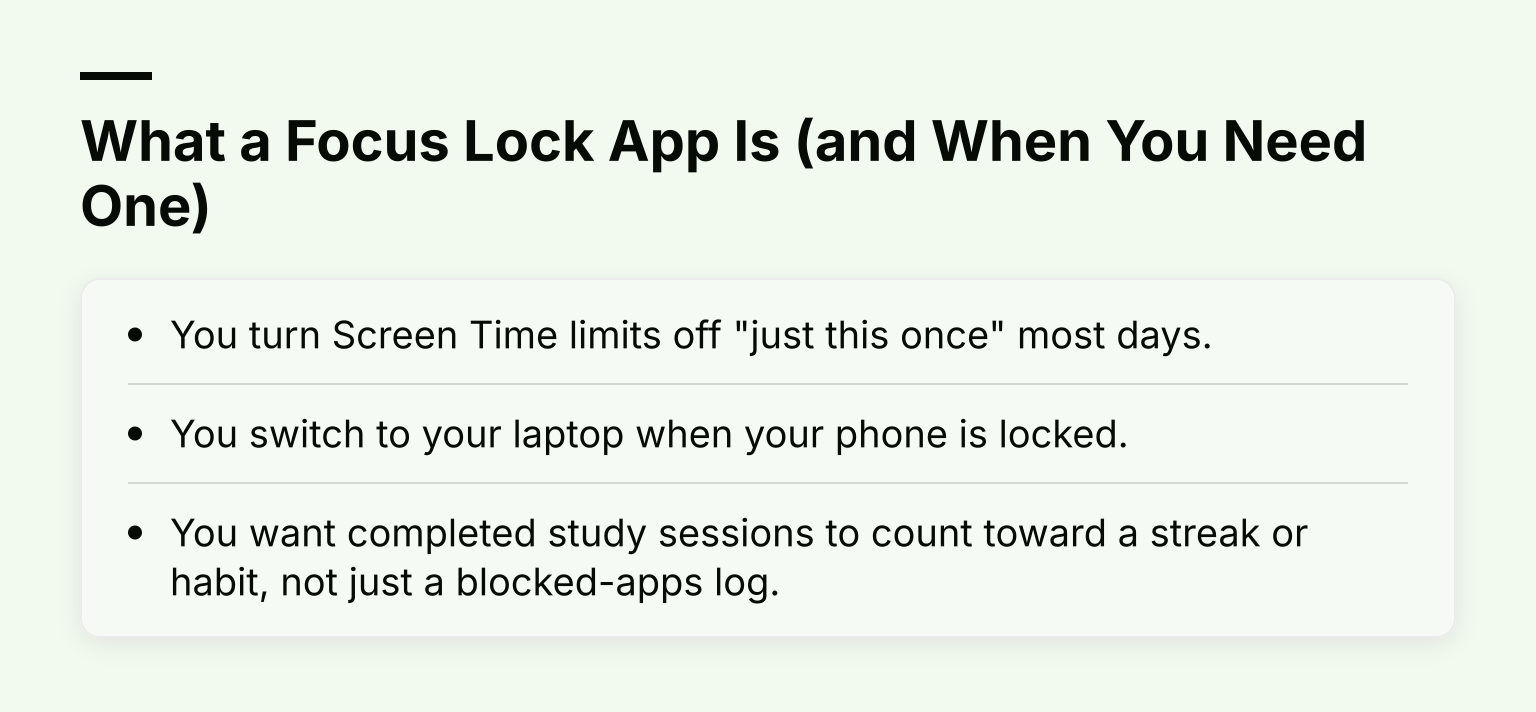
- You turn Screen Time limits off "just this once" most days.
- You switch to your laptop when your phone is locked.
- You want completed study sessions to count toward a streak or habit, not just a blocked-apps log.
Step 1: Choose What to Block
The first decision is not "what should I block?" It's "what actually pulls me away?" Look at your last week honestly. For most students it's a short list: Instagram, TikTok, YouTube, Snapchat, and a game or two.
Match the strictness to your blocklist:
- Just apps: enough if your problem is one or two apps and you can resist opening Chrome instead.
- Apps plus websites: needed if you'd happily scroll YouTube in a browser tab the moment the app is blocked.
- Whole phone lock: for exam season or deadline panic, when even messages are too much. Aggressive, and only sustainable for a defined session.
A common mistake is blocking the whole phone from day one. That feels disciplined, but it usually ends with you disabling the lock entirely, because you need your phone for real life. Start narrow. Widen the blocklist only if you catch yourself finding workarounds.
In Kohru, you'd start a focus session and pick the apps and websites to block for that session. You can also turn a task from your Work or Personal list into a session, which ties the block to something concrete you're finishing rather than an abstract "be focused now."
Step 2: Decide What Stays Reachable
Over-blocking is why most locks fail. If your maps, messages from your group project, or your actual study app are behind the lock, you'll either break the lock constantly or abandon the system by Thursday.
Do a quick allowlist before your first session:
- Messages or calls: decide if anyone needs to reach you. If yes, allow those contacts only.
- Maps and transit apps: essential if you study on campus or commute.
- Your study tools: your notes app, course platform, flashcards, calculator.
- Music or focus sounds: fine to keep, as long as they don't lead you back into a feed.
If you find yourself unlocking to check something you forgot, that's a signal to adjust the allowlist, not a signal to quit. Locks that survive are slightly too permissive, not slightly too strict.
Step 3: Set a Session Length That Matches Your Attention
The honest version: focused attention rarely holds itself for hours unaided. In field observations of information workers, researchers led by Gloria Mark found people averaged about three minutes on a task before switching, and even a whole project held their attention for only around 11 to 12 minutes before an interruption (González and Mark, 2004). The Pomodoro Technique, built by Francesco Cirillo around short timed work intervals and restorative breaks, is the best-known way to work with that reality instead of against it, and his own guidance stresses that the timer exists to protect rest and attention, not to force heroics (see the official technique page).
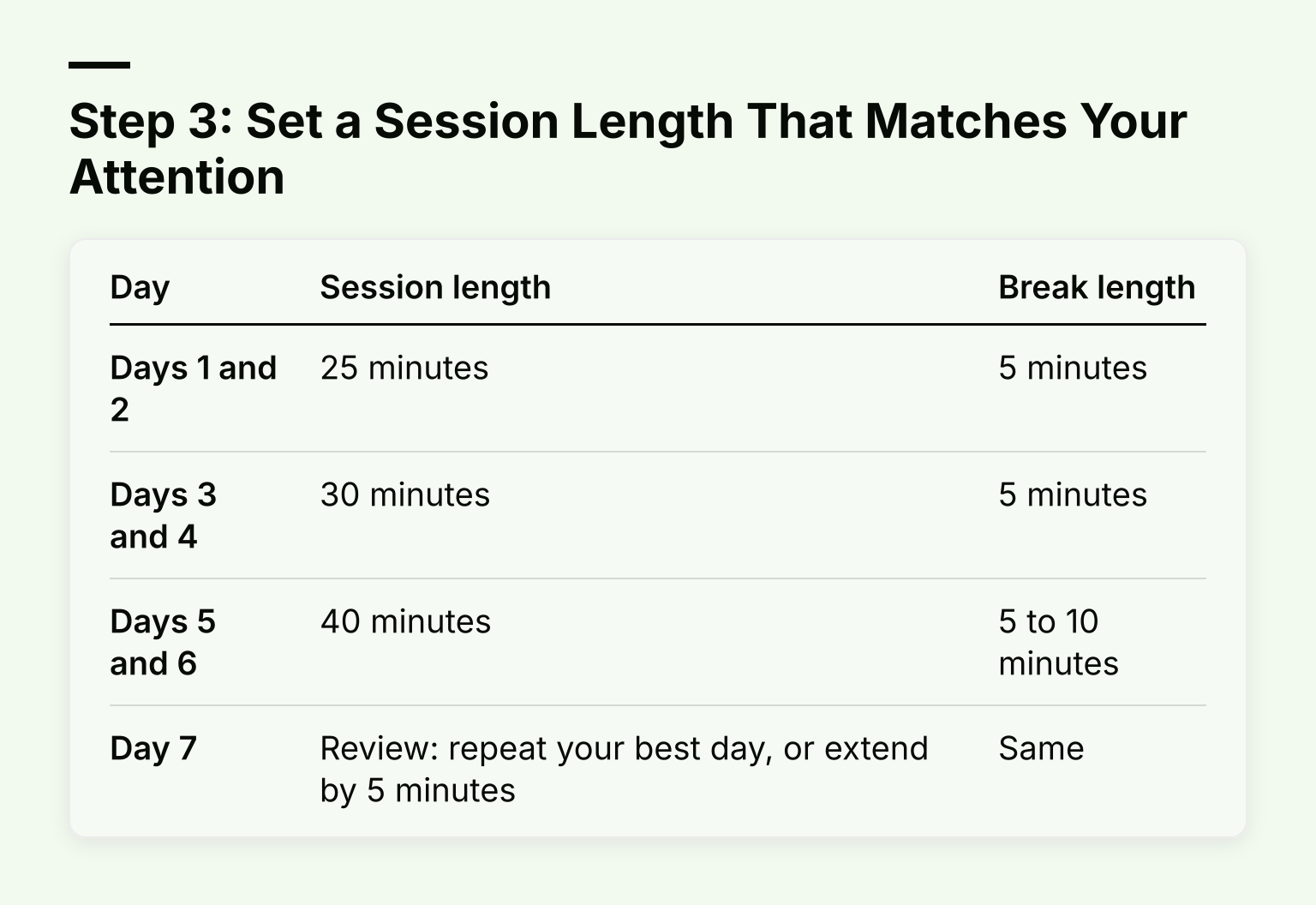
A workable starting plan for week one:
| Day | Session length | Break length |
|---|---|---|
| Days 1 and 2 | 25 minutes | 5 minutes |
| Days 3 and 4 | 30 minutes | 5 minutes |
| Days 5 and 6 | 40 minutes | 5 to 10 minutes |
| Day 7 | Review: repeat your best day, or extend by 5 minutes | Same |
In week two, extend to 45 minutes if week one felt easy. Longer exam-mode blocks are fine once you've proven you can hold them, but keep the breaks scheduled.
Resist the urge to schedule a three-hour locked session on day one. A lock that outlasts your attention doesn't make you study; it makes you sit at your desk with your mind somewhere else, or worse, quit the app.