Summary of the Article
Scrolling apps work in three ways: they add friction before an app opens, they block apps on a schedule, or they lock you out completely. Match the tool to how your own scrolling habit fails and you will pick far better than by comparing feature lists.
- Kohru: blocks apps and websites across phone and laptop (including Chrome) and turns tasks into focus sessions; best if your scrolling jumps between devices.
- ScreenZen: free, donation-supported friction pauses and open limits; best low-cost first step.
- one sec: a breathing pause before apps open, with a doomscrolling emergency brake; free for one app.
- Opal: scheduled rules, analytics and a hard-to-escape Pro mode; pricier, and the strongest features sit behind Pro.
- Freedom: scheduled blocking synced across Mac, Windows, iOS, Android and Chromebook; best for cross-device walls.
- Jomo: a strict iOS blocker with unbreakable rules; best if you need the block to be genuinely hard to bypass.
- Built-in Screen Time (iOS/Android): free baseline limits that are easy to bypass, but worth trying first.
The catch with all of them: a blocker removes access, not the urge. The most durable results come from pairing one of these apps with habits that address why you reach for your phone.
How to Pick in 30 Seconds
Think about your last failed attempt to stop scrolling, then choose the mechanic that addresses that failure:
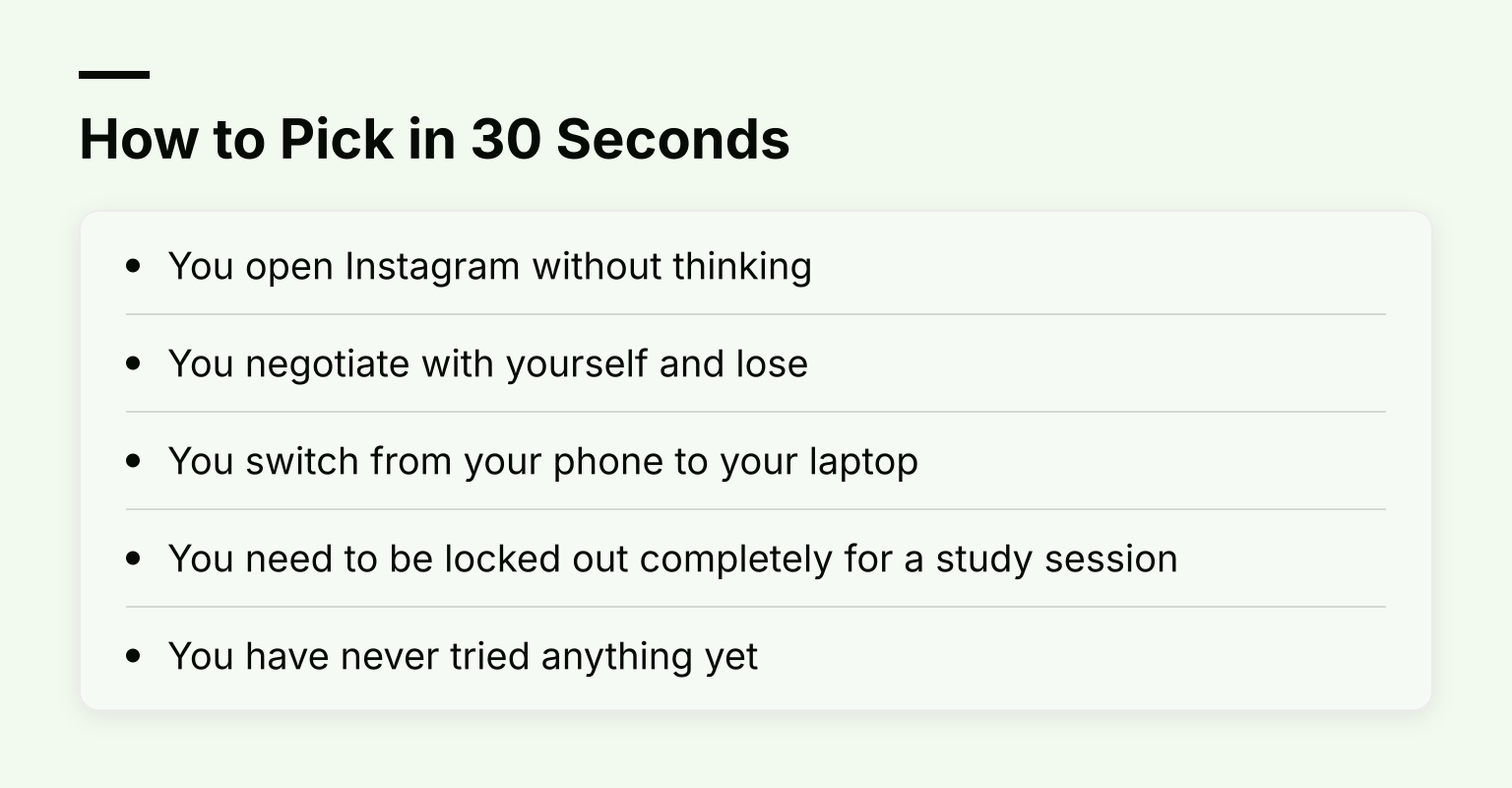
- You open Instagram without thinking. You need friction: a pause before the app opens. Try one sec or ScreenZen.
- You negotiate with yourself and lose. 'Just five minutes' turns into an hour. You need a schedule or a limit that is locked in. Try Opal, Jomo, or Freedom.
- You switch from your phone to your laptop. You need a cross-device blocker. Try Kohru or Freedom.
- You need to be locked out completely for a study session. You need a hard block or strict mode. Try Jomo, Opal's Hard Mode, or a dedicated study lock.
- You have never tried anything yet. Start free with your phone's built-in Screen Time limits before spending money.
The Three Mechanics That Stop Scrolling
Every app on this list uses one or more of these three ideas. Understanding them helps you evaluate any tool, not just the ones here.
1. Friction pauses. Instead of blocking an app, the tool inserts a delay: a breathing screen, a waiting timer, or a message asking 'is this important?'. This works because much of scrolling is autopilot, and a pause gives your deliberate brain time to catch up. Research cited by one sec reports 57% fewer app openings on average, though that study has developer involvement, so treat it as encouraging rather than proven.
2. Scheduled blocks and limits. The tool blocks apps or websites at set times, after a usage limit, or during a session you start. This is stronger than friction because it removes the decision entirely. If your scrolling is predictable (evenings, study hours), schedules beat willpower.
3. Hard locks and strict modes. The strongest option makes the block genuinely hard to undo: no unblocking, long waits, or rules you cannot delete. This is for when you know you will try to bypass softer measures.
Most people need a mix: friction for autopilot opens, a schedule for predictable scroll times, and a strict mode for the moments you argue with yourself.
Kohru: Best for Cross-Device Scrollers Who Work in Sessions
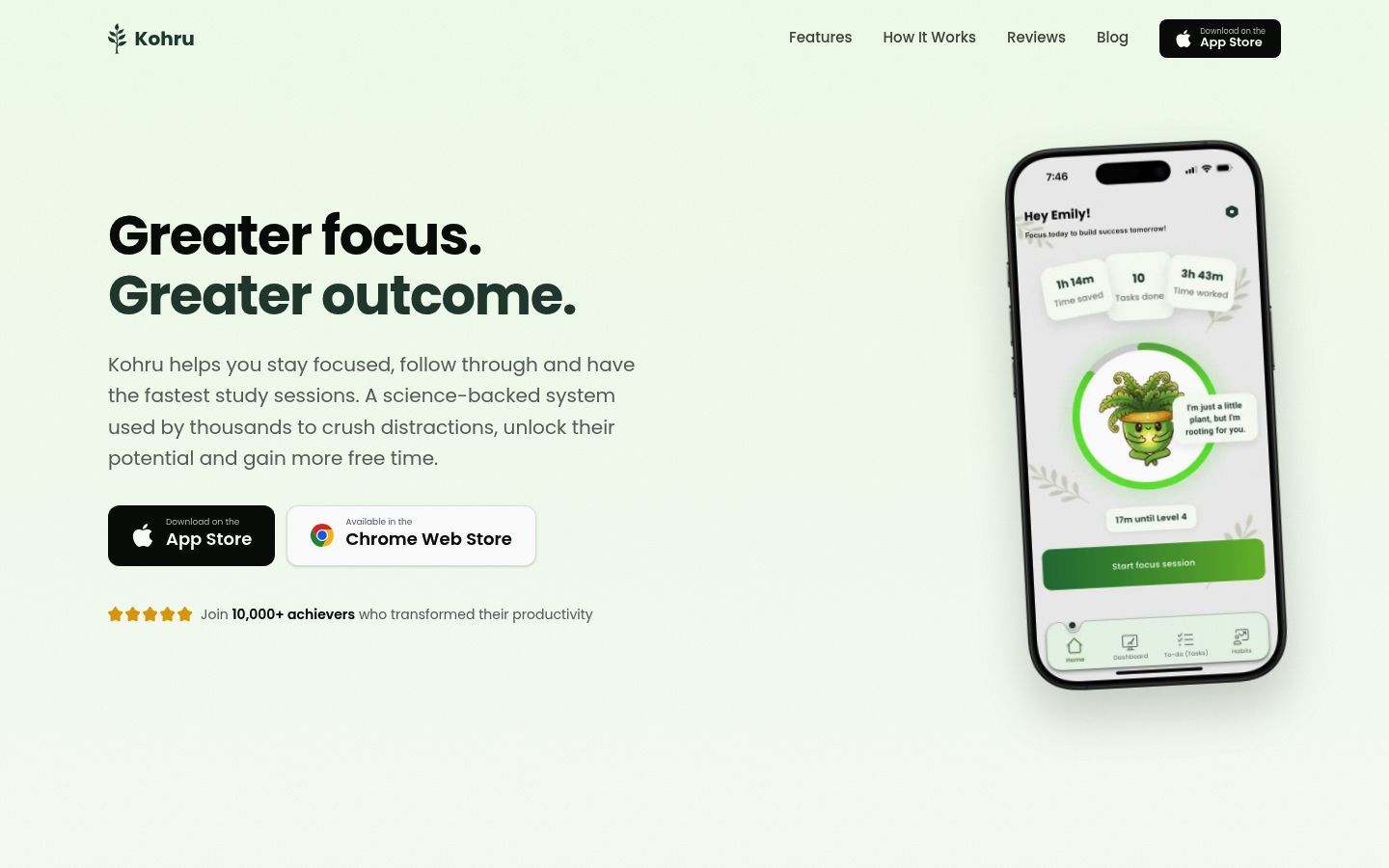
Kohru is a study and productivity app built for students and young professionals, which shapes how it stops scrolling. Rather than only blocking apps, it organizes your tasks and turns them into focus sessions, with distracting apps and websites blocked while you work.
Where it stands out:
- Blocks distracting apps and websites across a phone, laptop and Chrome browser through a Chrome extension. This matters if your scrolling migrates: you put the phone down, then drift to the laptop and open the same feeds.
- Turns tasks from your Work and Personal lists into focus sessions, so the block is tied to something you are actually doing.
- Tracks habits, focus time, completed tasks and progress, so you can see whether your scrolling is actually going down.
- Supports people with ADHD and other attention-regulation challenges, which the design reflects: the goal is making it easy to start tasks, not just to feel bad about scrolling.
Tradeoff: Kohru is built around study and work sessions rather than pure blocking. If you only want to limit casual scrolling on a phone, a lighter friction app may suit you better.
If you lean toward the hard-lock end of the spectrum for studying, the dedicated comparison of apps that lock your phone for studying covers that in depth.
ScreenZen: Best Free Option
ScreenZen is completely free and donation-supported, with no subscription. That alone makes it the right first try for most students.
It attacks scrolling from several angles at once: a delay before opening an app (which can increase each time you open it), short interruption windows so you cannot get sucked into a feed, daily limits that block when reached, and messages like 'Is this important?' before an app opens. It also has lock mode to protect against common bypass loopholes, so it can tighten over time.
ScreenZen covers iOS, macOS, Windows and Android. Tradeoff: because it is free and donation-funded, you are choosing breadth of tactics over polish and advanced scheduling that paid apps offer.
one sec: Best for Autopilot Opens
one sec adds a breathing pause before a distracting app or website opens. The idea is to interrupt the instant dopamine hit, and the site claims this cuts screen time in half with 57% fewer app openings on average. As noted, the study behind those numbers has developer ties, so read it as a direction, not a guarantee.
The free version covers one app of your choice, which is a fair test. one sec pro costs 3.99 EUR monthly, 14.99 EUR yearly or 99.99 EUR lifetime (its FAQ lists these; prices vary by region). It is available on iOS, Android and as a desktop browser extension, and it includes a Doom Scroll Emergency Brake for those 2 a.m. news spirals.
Tradeoff: one app on the free tier limits how much you can test, and the friction-first approach will not stop someone determined to scroll anyway.
Opal: Best for Scheduled Rules and Analytics
Opal centers on recurring Rules: schedules, time limits and open limits. The free version includes three recurring rules, immediate timers, weekly focus reports and today's screen-time score.
Pro is where the teeth are, especially Hard Mode, which Opal describes as 'no way out: you can't turn Opal off', plus allow-list blocking and score history. Per Opal's pricing page, Pro costs $99.99 per year (about $8.29 per month), $19.99 monthly, or $399 for life.
Tradeoffs: Pro is expensive compared with rivals, the free tier is more of a trial, and Opal is focused on the Apple ecosystem (iOS, Android and Mac), so it is not the tool for a Windows laptop.