TL;DR
Most "free" screen time apps are really trials or one-app demos. Only a few give you real, lasting help without paying. The difference that matters is enforcement: does the tool actually block access, or just make you pause before letting you through?
- ScreenZen: genuinely free forever, donation-supported. Delay prompts, a strict block mode, and locked settings on iOS, Android, Mac and Windows.
- iOS Screen Time: free and built into every iPhone. Solid schedules, but a one-tap "Ignore Limit" makes it easy to bypass unless you harden it.
- One Sec: free tier covers about one app. Adds a breathing pause that a published field study found cut target app openings by 57% on average, but you can tap through it.
- ClearSpace: free for one app on iPhone. A mindful pause before you open the app, plus sessions that end themselves.
- Forest: free focus timer with a tree-planting game. Motivating, but nothing technically stops you from picking up the phone.
- Freedom: strong cross-device blocker, but its free version is limited and works more like a trial.
- Opal: polished blocker with real enforcement, but reviewers describe the free tier as a demo of the paid app.
- Kohru: not a free-forever pick, so it doesn't compete on price here. It's the option that ties phone and laptop blocking to a full study system, which matters if your real problem is starting tasks, not just scrolling.
The key idea: enforcement beats friction. A lock you can't easily get around actually changes behavior. A delay you can tap through only helps when your motivation is already strong.
What Counts as "Free" and "Actually Works" Here
Before picking anything, get clear on two questions:
- Is it truly free? Some apps are free forever. Some are free for one app. Some are 7-day trials wearing a free label. This article tells you which is which.
- Does it enforce or just add friction? Enforcement means the app actually blocks access, and getting around it takes deliberate effort. Friction means the app makes you pause, breathe, or wait, then lets you continue anyway. Friction works surprisingly well for automatic habits: a field study of one sec run with Heidelberg University, published in PNAS, found a mindful breathing pause cut actual target app openings by 57% after six weeks. But if you're determined to scroll, friction alone won't stop you.
The honest ranking for a broke student: free enforcement first, free friction second, demos last.
| App | Genuinely free? | Free tier includes | Enforcement | Platforms |
|---|---|---|---|---|
| ScreenZen | Yes, forever | Everything; tips optional | Delays + strict block + settings locks | iOS, Android, Mac, Windows |
| iOS Screen Time | Yes, built in | Full app limits and schedules | Weak, easy to bypass | iPhone, iPad, Mac |
| One Sec | About one app | Breathing interruption | Friction, tap-through | iOS, Android, browsers |
| ClearSpace | One app only | Mindful pause, limits | Friction with some enforcement | iPhone |
| Forest | Core timer free | Focus timer, app allowlist | Weak, motivation-based | iOS, Android, browsers |
| Freedom | Very limited | Basic sessions | Real block, but limited free use | Nearly everything |
| Opal | Mostly demo | Limited features | Real block (paid) | iPhone, Mac, Android |
| Kohru | Not a free-forever pick | Cross-device blocking plus a full study system | Real block during focus sessions | iPhone, laptop, Chrome |
ScreenZen: Free Forever, Donation-Supported, With a Real Lock
ScreenZen is the rare app that's actually free. The developer funds it through optional tips and donations, and the site states plainly: no subscription, no feature held back to push you into one.
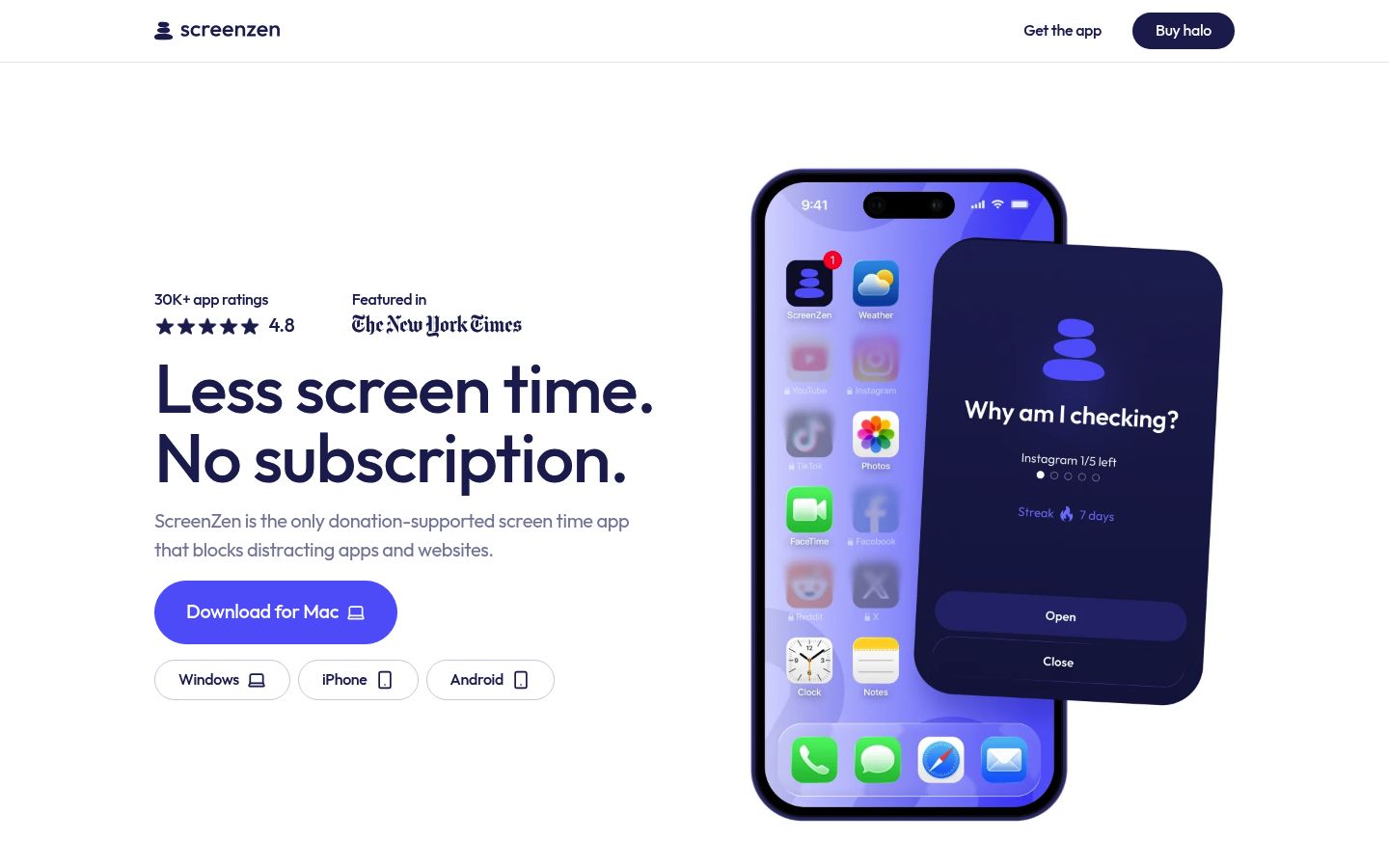
What you get for free is a lot. You can set a delay before opening a distracting app, with the wait getting longer each time. You can add messages like "Is this important?" before the app opens. And crucially, ScreenZen has a strict block mode plus locks on its own settings, so you can't quietly relax your rules when a craving hits. You can even add an accountability partner who has to unlock changes.
The tradeoff: ScreenZen's enforcement is stronger than most free apps, but it still relies partly on friction and streaks. The settings lock is what makes it stick. It works on iPhone, Android, Mac and Windows, which covers most of a student's devices.
iOS Screen Time: Free, Built In, and Easy to Bypass
If you have an iPhone, you already own a free screen time blocker. Apple's built-in Screen Time does app limits, downtime schedules, and category allowances without any download. Android has similar built-in tools in Digital Wellbeing, including app timers and a PIN to protect your limits.
The known weakness on the iPhone is the one-tap bypass. When your limit runs out, iOS lets you extend or ignore the limit right from the prompt. Many people find their limits fail for exactly this reason; our guide to Screen Time not working walks through the common loopholes and fixes.
How to harden it for free:
- Set a Screen Time passcode so changing limits isn't instant (ask a friend to pick it if you must).
- Turn off the "ignore limit" convenience by setting tighter daily limits instead.
- Treat Screen Time as your base layer of schedules, then add a blocker like ScreenZen on top for the apps you truly can't resist.
One Sec: A Free Breathing Pause for One App
One Sec inserts a deep-breathing exercise before a distracting app or website opens. It's the best-known friction app, and it has real science behind it: the PNAS field study run with Heidelberg University found users cut target app openings by 57% over six weeks.
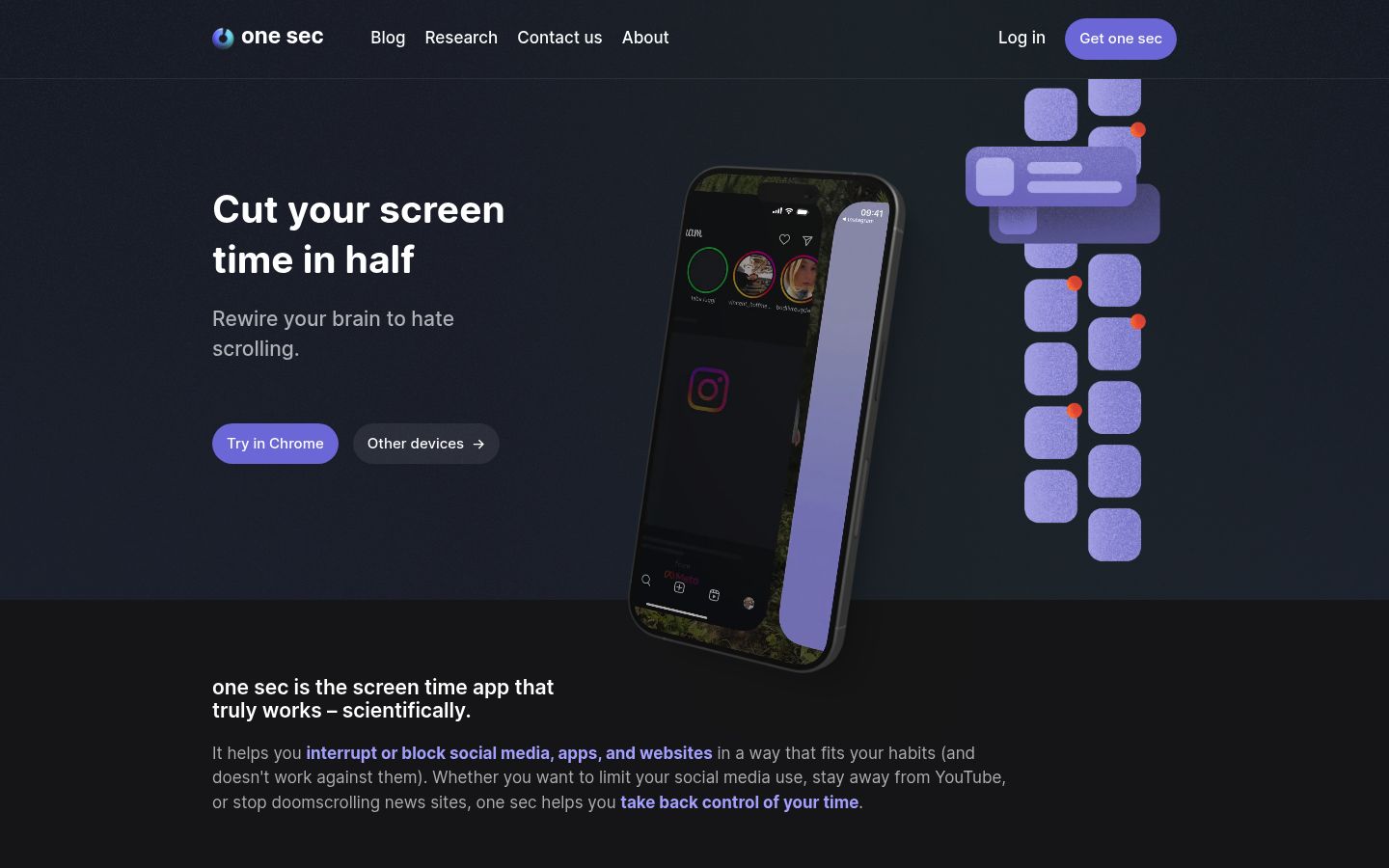
The free tier is honest but small. Third-party comparisons report it covers about one app or website, and you move to the paid version to cover more apps and unlock customization. Check one sec's current pricing page before you count on it, because free tiers shift. The question to ask yourself: is there one app causing most of the damage? If it's just TikTok, the free tier might genuinely be enough. If it's six apps, you'll hit the paywall fast.
ClearSpace: Free for One App, iPhone Only
ClearSpace works similarly: it asks you to complete a centering exercise, like a breathing moment or even pushups, before you enter a selected app. It can also end your session automatically after a time you set.
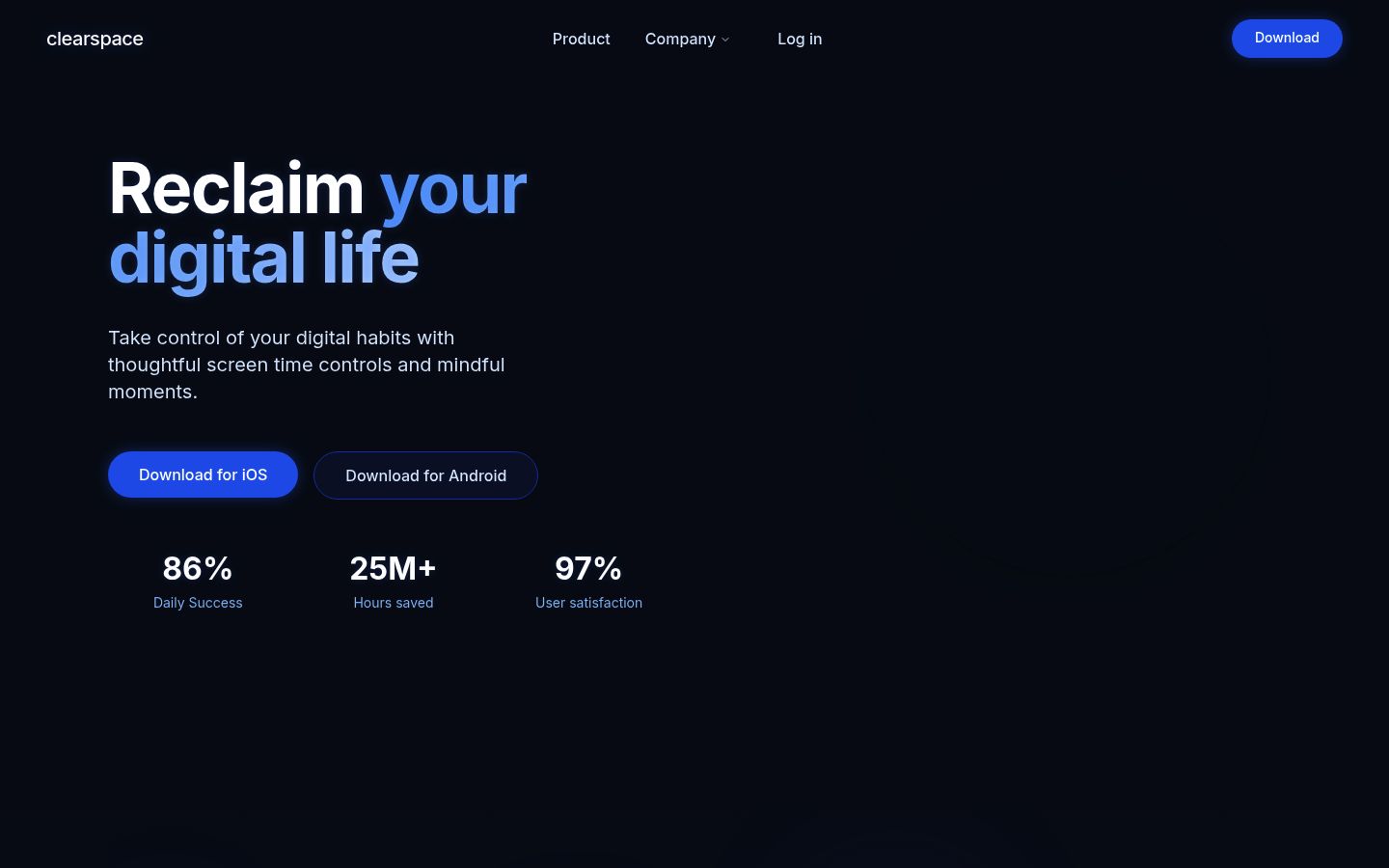
Reviews report the free tier covers one app, with paid plans unlocking multiple apps. It's iPhone only. One interesting feature it shares with ScreenZen: an accountability partner who gets notified if you delete the app or blow past your budget. If you want mindful friction rather than a hard lock, and your problem fits in one app, the free tier is a fair deal.
Forest: Free Focus Timer, Weak Enforcement
Forest takes a different angle: you plant a virtual tree that grows while you focus, and using another phone app kills it. Sessions build into a visible forest, and completed sessions help plant real trees through Forest's partnership with Trees for the Future. The basic version is free.
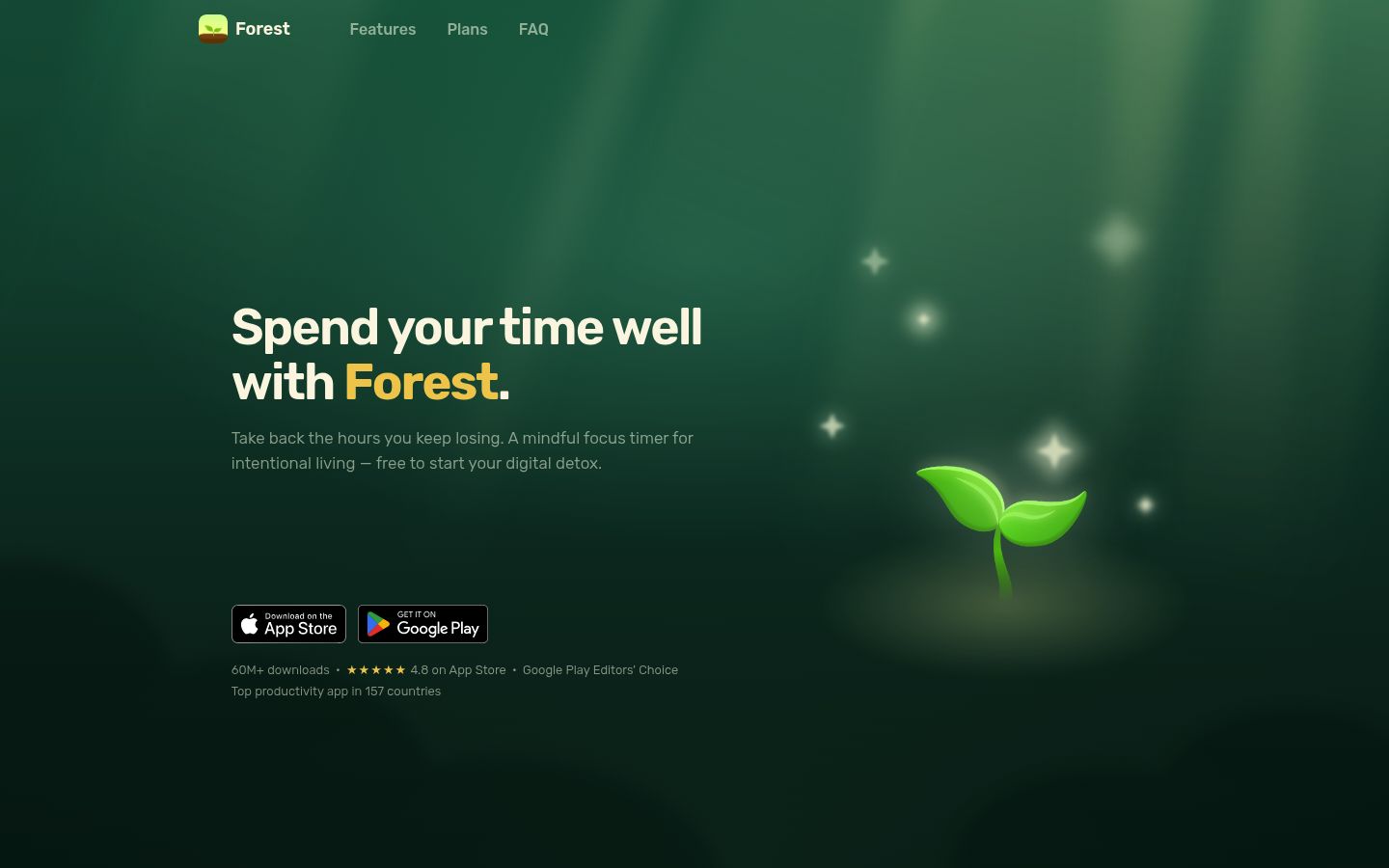
Be clear-eyed about what Forest is. It's motivation, not enforcement. Nothing technically stops you from picking up your phone; you just lose the tree. For many students that emotional stake is exactly enough, and it's free at the basic level. But if you can shrug off a dead tree, pair Forest with a real blocker.
Kohru: A Blocker Plus a Study System for Students
One more option, with an honest label: Kohru isn't a free-forever tool, so it doesn't compete on this list's main criterion. It earns a mention because of what it bundles.
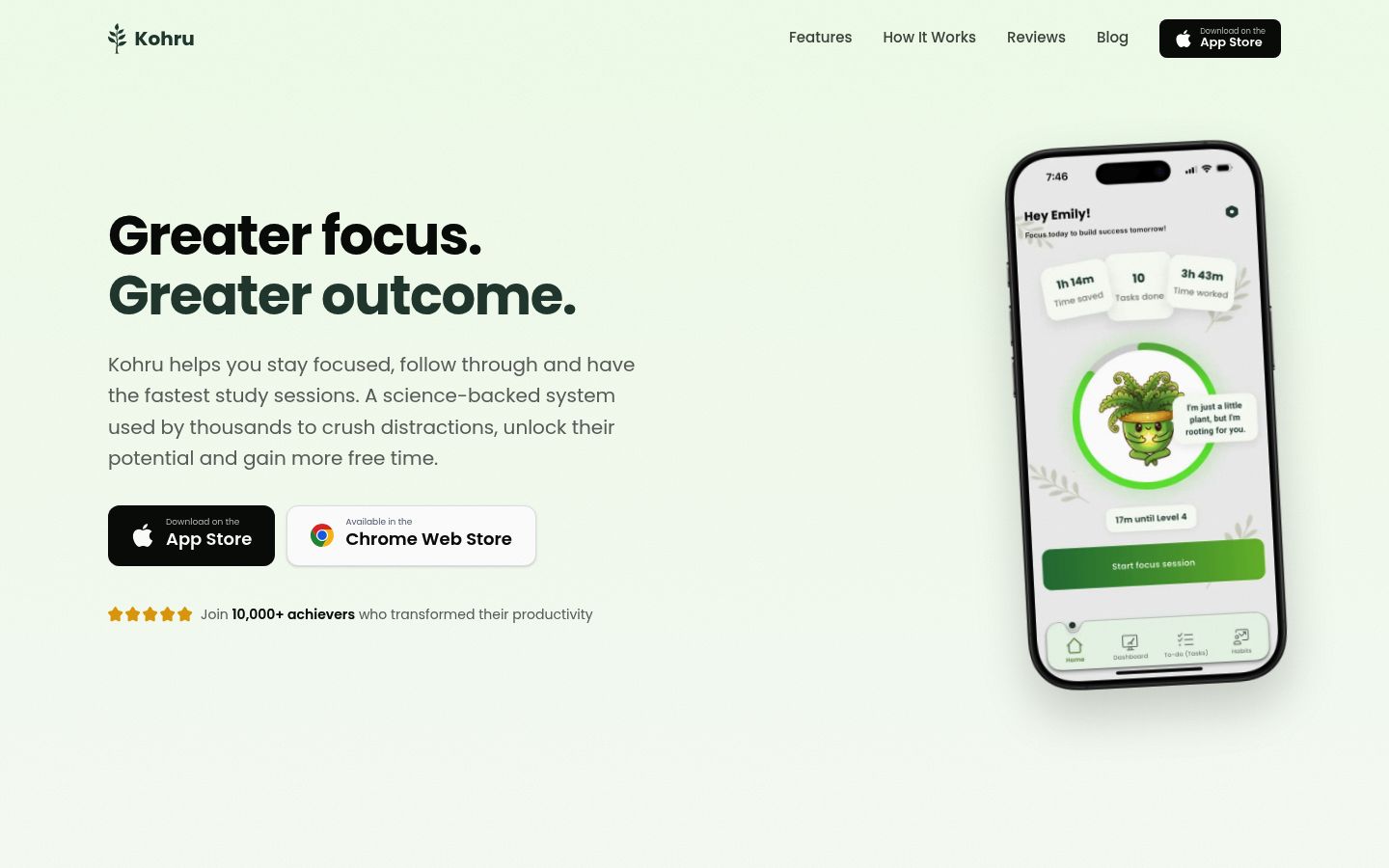
During a focus session, Kohru blocks distracting apps on your iPhone and laptop at the same time and extends to Chrome through a browser extension. Around that blocking, it adds smart to-do lists, structured breaks, and habit and progress tracking, so the blocking serves an actual study plan instead of running alone. Check its site for current pricing.
If you end this article realizing your real problem is task initiation and not just scrolling, that combined approach is worth a look.
Watch Out for "Free" Apps That Are Really Trials
Two popular tools keep showing up in "free screen time app" searches, and both deserve a careful look before you download:
Freedom
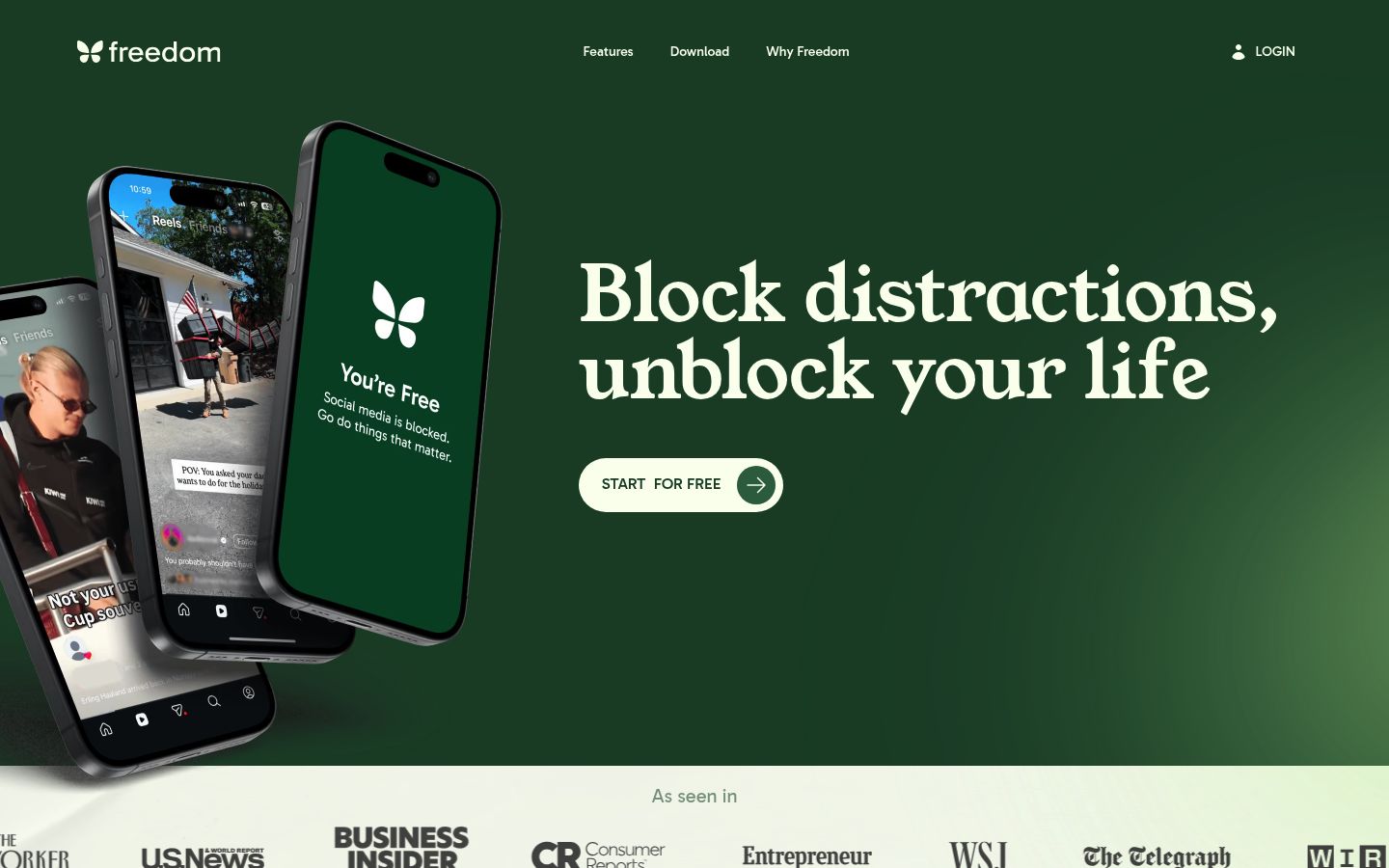
Freedom is a strong cross-device blocker: it syncs blocking sessions across Mac, Windows, iPhone, Android and Chrome, which almost nothing else does. But its own site describes the free version as "limited features," and third-party comparisons report the free tier runs out after a small number of sessions. In practice, Freedom is best understood as a paid tool with a free trial, not a free tool.
Opal
Opal markets itself heavily as a free screen time app, and it does include real enforcement: a Deep Focus mode that can't be bypassed. But third-party comparisons report the free tier is limited to a small number of blocked apps, and other reviewers describe the free experience as a demo of the paid product. If you install it expecting a full free blocker, you'll likely end up staring at an upgrade screen within a session or two.
Neither app is a scam. They're subscription businesses, and the marketing word "free" is doing more work than the product is. Check the current pricing page before you commit to anything in this article; free tiers change often.
How to Combine Free Tools into One Stack
You don't have to pick a winner. A free stack that many students can copy:
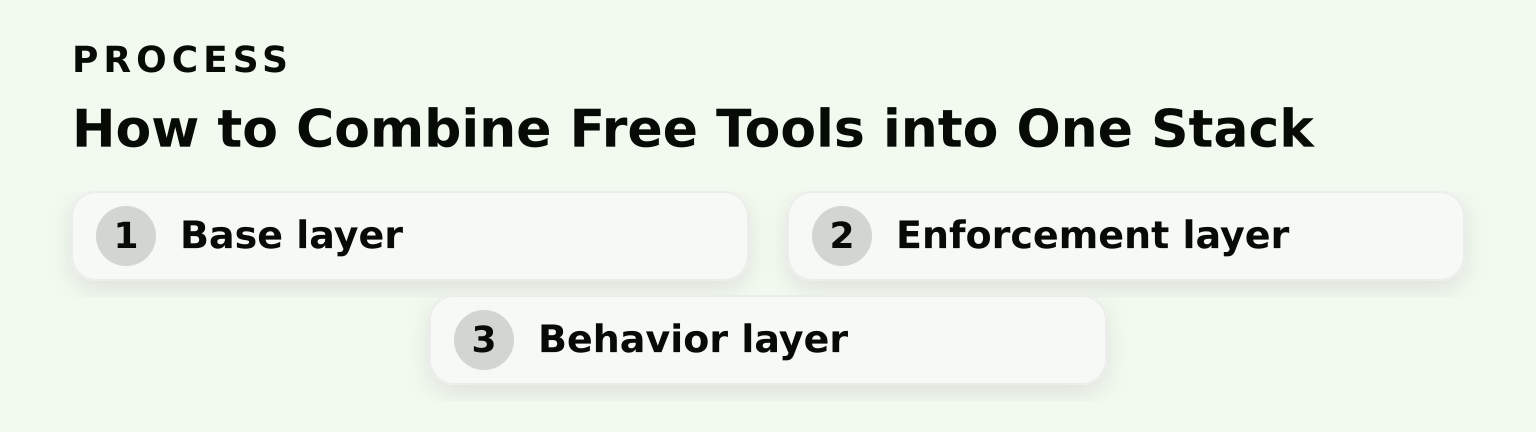
- Base layer: Use iOS Screen Time (or Android Digital Wellbeing) for schedules, like no social media before 10 a.m.
- Enforcement layer: Add ScreenZen's strict block and settings lock for the two or three apps that break every rule.
- Behavior layer: Keep One Sec's free breathing pause on your single worst app, and use Forest when you need motivation to sit down and study.
Total cost: zero. The layers cover each other's weaknesses. If you want a fuller menu beyond these tools, our list of the 10 best apps to reduce screen time covers paid options too, and how to reduce phone usage covers the routines that make any tool stick.
Quick Chooser: Which Pick Fits You
- You want free forever and real blocking: ScreenZen. Nothing else here matches its combination of price and enforcement.
- You want free forever and already have an iPhone: iOS Screen Time, hardened with a passcode and paired with another layer.
- One app is ruining your life: One Sec's free tier, or ClearSpace on iPhone.
- You need motivation more than locks: Forest.
- You need blocking tied to a study plan across phone, laptop and Chrome: Kohru, as the next step once your free stack is in place. Check its current pricing.
- You need synced blocking across many devices: Freedom, budget for Premium.
One last honest note: if you have ADHD, willpower-based friction can be harder to sustain, and enforcement tools matter more. Our guide on ADHD and screen time goes deeper into what the evidence says.
Ready to try a focus system that blocks distractions on your phone, laptop and browser in one tap? Download Kohru from the App Store and start your first protected focus session today.
