
You open your laptop to research an assignment, reach for your phone to check a quick answer, and return twenty minutes later with half a dozen new tabs and no useful notes. The problem isn't finding another timer. It's stopping the switch from research to scrolling, especially when your phone remains available beside a blocked laptop.
Kohru is the most practical all-in-one starting point for students who need to block distractions on their phone and laptop at the same time. Built for students and professionals, this science-backed focus and productivity app combines one-click Focus Sessions, custom durations, difficulty modes, and a synced Chrome extension. It's available on iOS and through the Chrome Web Store, with Android coming soon. Task lists, habits, breaks, and progress tracking make it more than a browser extension.
The right focus website blocker still depends on your workflow. Browser-only distractions call for lighter controls; repeated workarounds call for firmer enforcement; irregular study days need flexibility rather than an elaborate schedule you won't follow.
Start with the device you reach for when work becomes uncomfortable. Then pair the appropriate blocker with a defined task and a realistic session length to find your deep work rhythm.
Table of Contents
- 1. Kohru
- 2. Freedom
- 3. Cold Turkey Blocker
- 4. FocusMe
- 5. Opal
- 6. Forest
- 7. BlockSite
- 8. StayFocusd
- 9. Focus (HeyFocus)
- 10. RescueTime
- Top 10 Focus Website Blockers: Feature Comparison
- Final Thoughts
1. Kohru
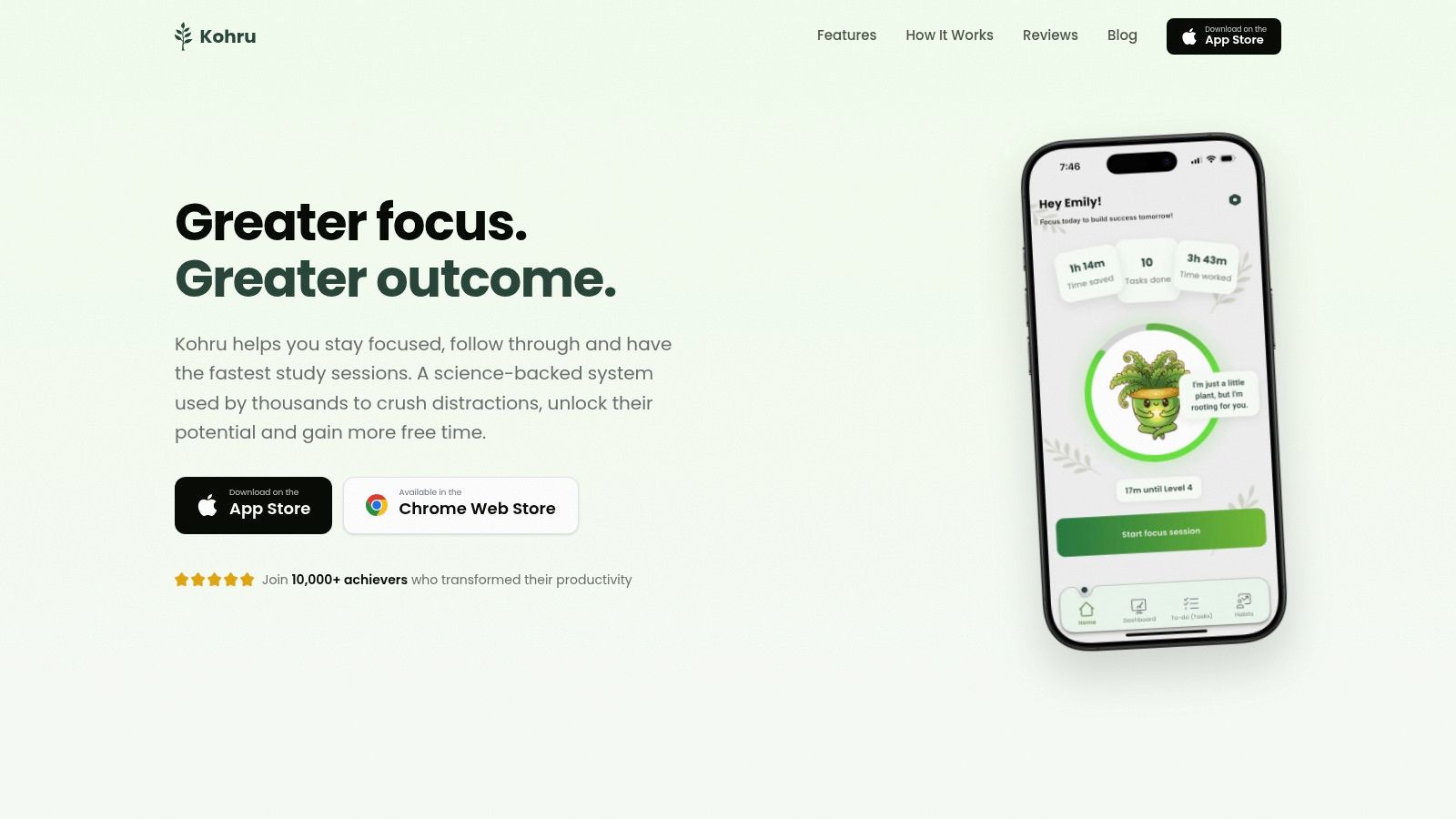
Best for students who want phone-and-laptop blocking connected to an actual study plan. Kohru addresses the gap between deciding to study and starting distraction-free work. Choose a task, set a custom duration and difficulty, and launch a Focus Session that restricts distracting apps and websites across your devices.
Its Chrome extension syncs with the app and supports custom blocklists, allowlists, and a one-click override. An allowlist is particularly useful during research: preserve access to your course portal and reference material without leaving every distracting destination available.
More Than a Blocklist
Smart To-Do Lists separate Work and Personal tasks and turn priorities into focused sessions. Flexible weekly habit targets provide an alternative to rigid daily streaks, while the dashboard displays focus time, completed tasks, and streaks. Built-in breaks and a calm interface round out the workflow.
- What works: Planning, blocking, and progress review sit together instead of requiring separate tools.
- What needs judgment: The override supports intentional exceptions, but it isn't equivalent to an irreversible lock.
- What to check: Android isn't available yet, pricing isn't specified here, and device-level enforcement should be tested against your actual distractions.
Kohru's testimonials describe less scrolling, more enjoyable sessions, and faster completion of study notes. Treat those as individual experiences, not guaranteed outcomes. Its science-backed positioning also shouldn't be mistaken for proof that Kohru itself improves grades.
For an iOS-and-Chrome student workflow, Kohru is the clearest starting recommendation: connect the assignment to a session rather than merely blocking sites and hoping productive work follows.
2. Freedom
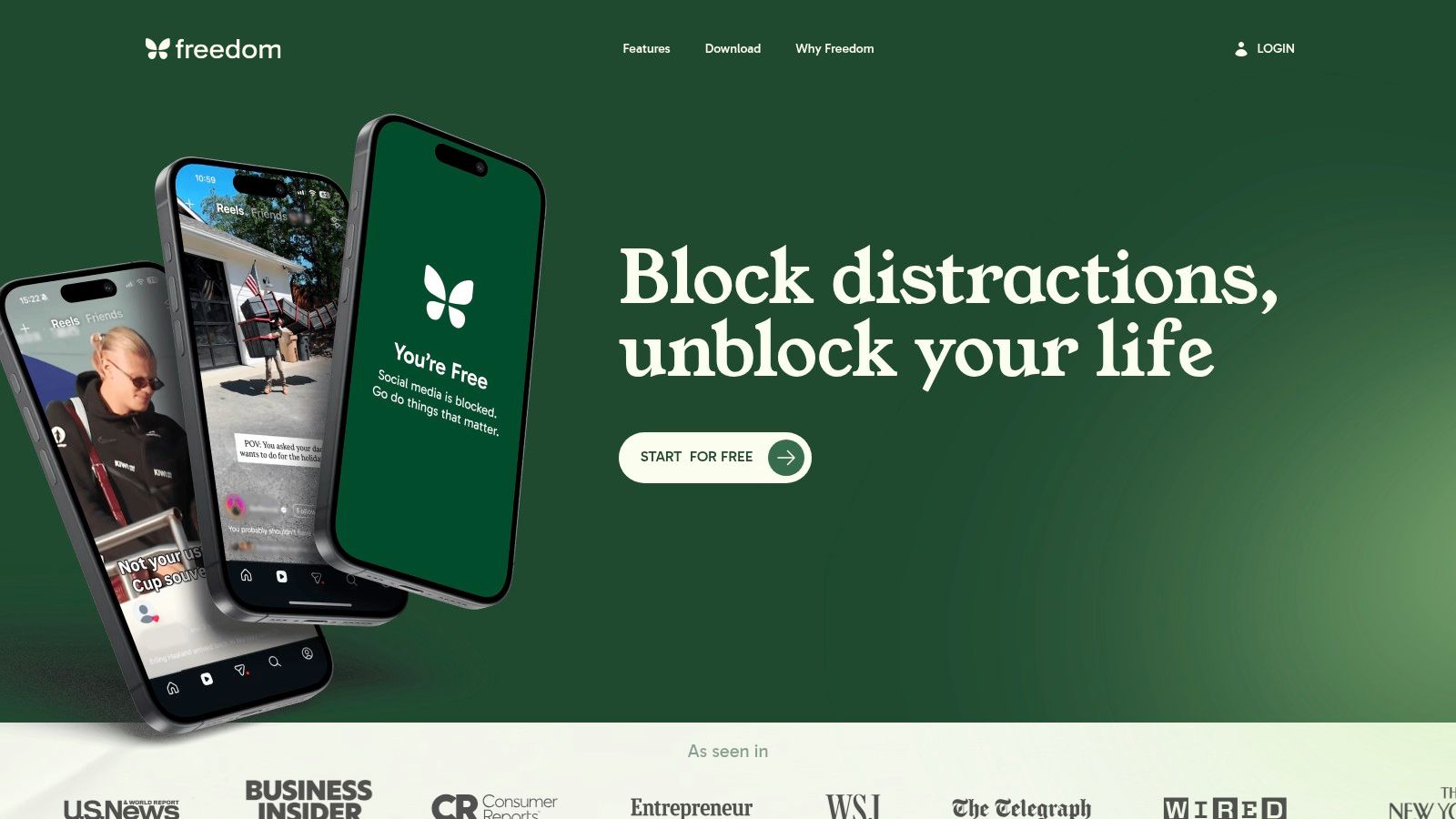
If blocking your laptop sends you to your phone, prioritize synchronized sessions. Freedom blocks websites, apps, or the whole internet across supported devices, with availability spanning Mac, Windows, iOS, Android, Chromebook, and Linux.
Custom blocklists let you separate research distractions from after-hours temptations. Scheduled and recurring sessions suit predictable workdays, while Locked Mode adds resistance when you're likely to change the rules mid-session.
Practical rule: Test every device before relying on a cross-device block. A session running on your computer doesn't prove your phone permissions are configured correctly.
Freedom offers a free tier, but free sessions are limited to two hours. Recurring schedules and Locked Mode require a paid plan, so evaluate the version you'll use rather than assuming every advertised control is free.
On iOS, expect Apple permissions and potentially additional setup. That's an implementation step to complete before a deadline, not during it.
Choose Freedom when broad device coverage matters more than integrated task and habit management. Compared with Kohru's study-oriented workflow, Freedom is the more direct choice when your primary requirement is a coordinated blocking session across a mixed collection of devices.
3. Cold Turkey Blocker
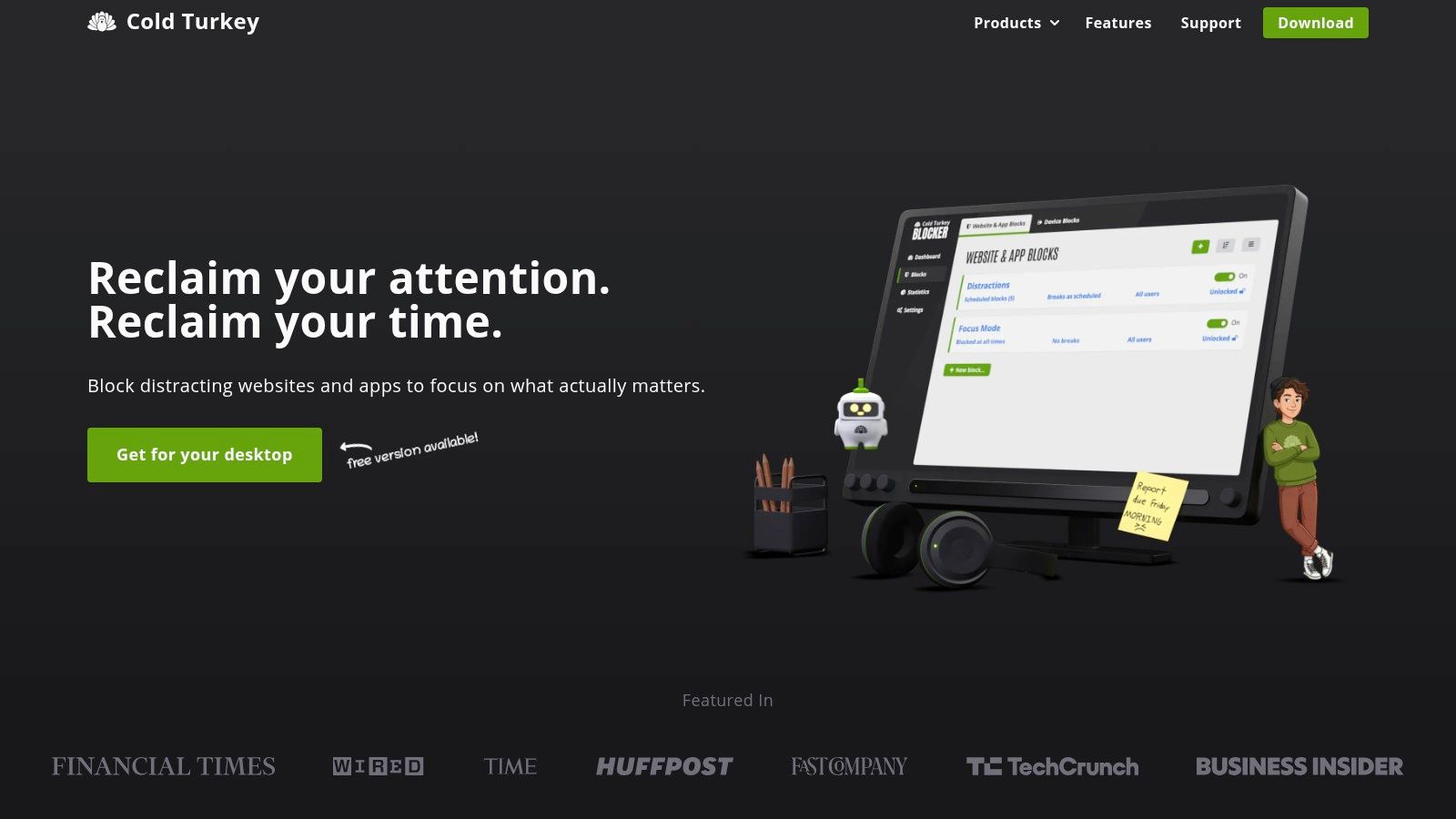
Some routines fail because you keep renegotiating them. Cold Turkey Blocker suits desktop users who need firmer boundaries, not another reminder they can dismiss.
Cold Turkey Blocker runs on Windows and macOS, blocking websites and desktop apps. Controls can target URLs, domains, keywords, YouTube channels, or the whole internet. Scheduled blocks, automatic starts, allowances, and usage tracking support recurring work routines.
Configure Before You Lock
Locked blocks and uninstall prevention make this a different proposition from a casual browser extension. Before enforcing a research session, check that your authentication pages, document tools, and required reference sites remain accessible.
- Strong point: Fine-grained rules can distinguish a useful destination from the broader platform surrounding it.
- Purchase model: The paid version uses a one-time purchase rather than a recurring subscription.
- Main limitation: It isn't a unified phone-and-computer solution, so your phone needs a separate boundary.
Strictness is useful only when the block matches the work. If your assignment changes or a colleague sends an unexpected resource, a rigid session can become inconvenient.
Choose Cold Turkey when your desktop is the main distraction source and you routinely disable softer controls. Don't mistake stronger desktop enforcement for complete protection against switching devices.
4. FocusMe
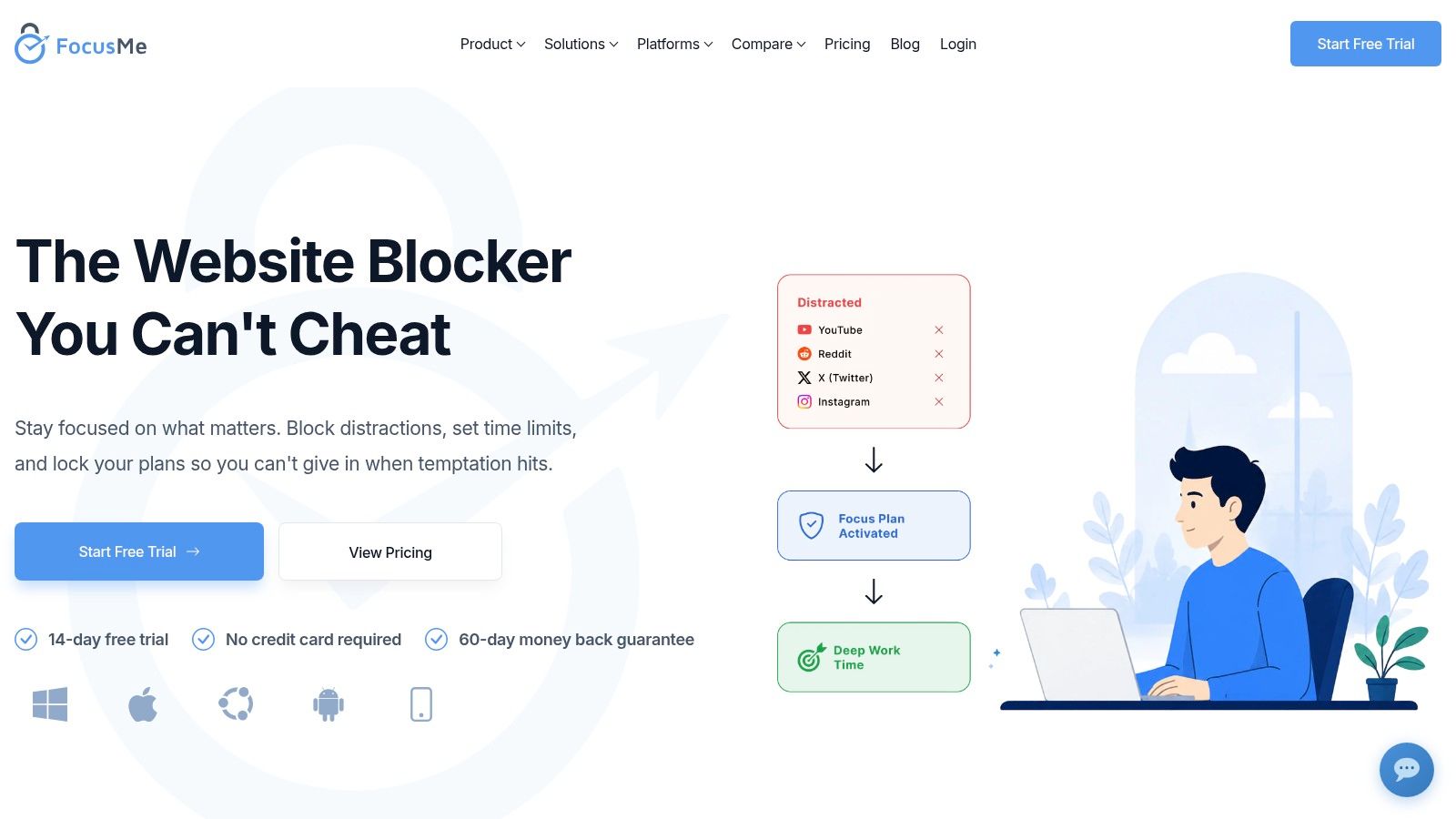
A graduate student's reading week and a freelancer's client day rarely follow the same clock. FocusMe is built for people whose routines need schedules, usage budgets, and enforced breaks baked into the blocking itself.
Website, app, and game blocking sit alongside daily and weekly limits, Pomodoro-style cycles, Enforced Mode, usage statistics, and a productivity coach. Windows, macOS, Linux, Android, and iOS are all listed, though features and behavior differ between platforms.
- Scheduled plans fit predictable study, writing, or admin blocks.
- Time budgets allow limited access to sites you still need for work.
- Enforced breaks demand care if your day includes calls or presentations you can't pause.
Configuration effort is the cost here. A detailed setup can become a project in itself, so start with the one activity that most often breaks your concentration and expand from there.
FocusMe offers a trial without a credit card and a stated 60-day money-back guarantee. Confirm the purchase terms on your platform before paying.
Choose FocusMe when scheduling precision outweighs setup effort. Test your rules on each device, because desktop enforcement and mobile enforcement don't always behave identically.
5. Opal
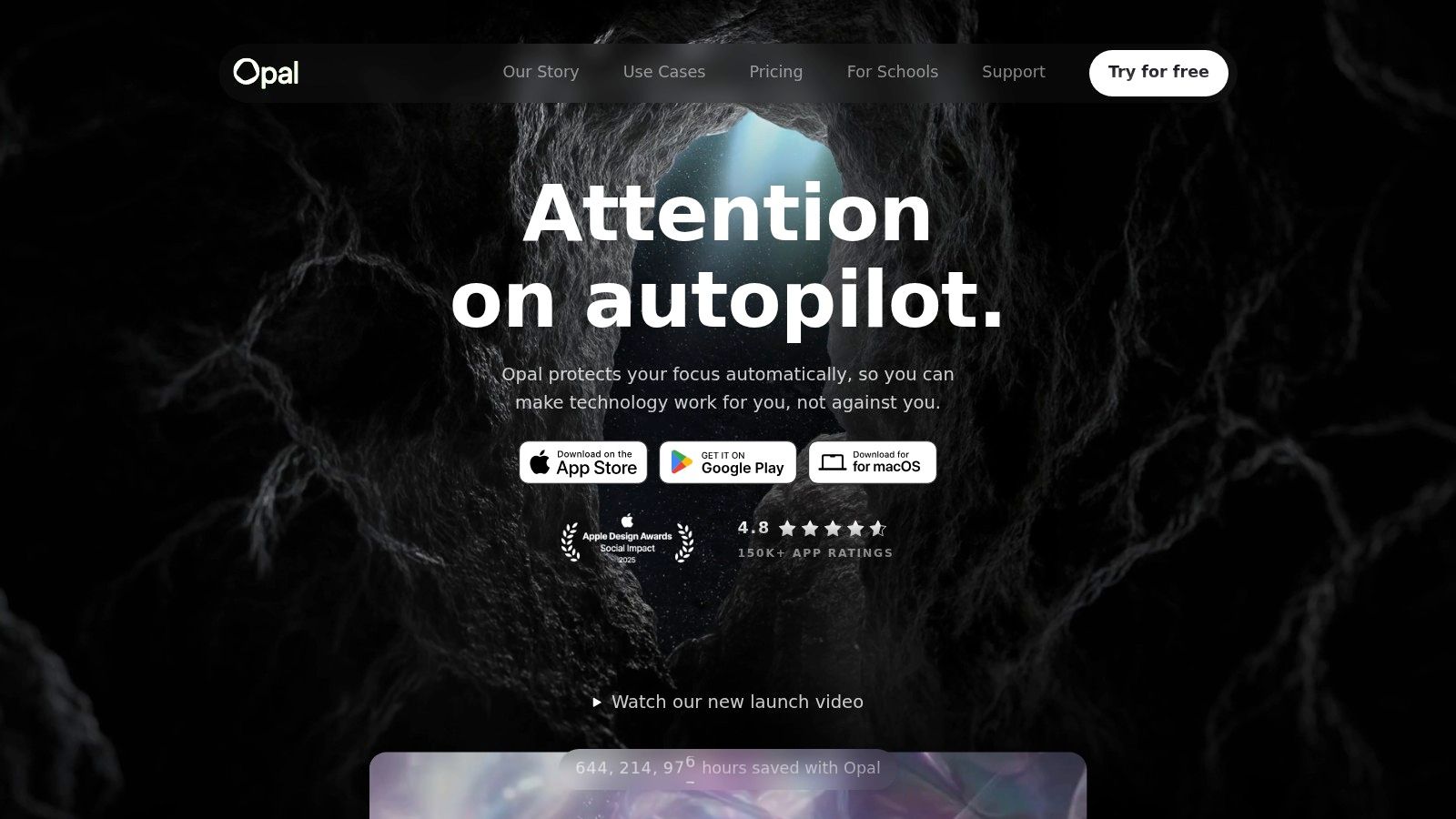
Opal is worth considering when phone distraction is central to the problem. Its app and website blocking sit alongside focus sessions, schedules, timers, time limits, and focus statistics.
Opal lists support for iOS, Android, and Mac. That makes it relevant to phone-centered routines, but Windows and Linux users should look elsewhere for coverage of their computers.
The free plan covers basic blocking and timers. Paid plans add more rules and stronger focus controls, including restrictive modes, and student discounts are advertised.
Available on several platforms doesn't automatically mean every setting, restriction, or statistic behaves identically across them. Verify the workflow you need before subscribing.
For a student, a sensible starting point is to protect independent reading while leaving essential course communication available. For a remote worker, distinguish distracting browsing from messaging required for an active client engagement.
The main trade-off is access to stronger controls. If you already know you'll dismiss a gentle block, assess the paid restrictions rather than judging Opal solely by its free timer.
Choose it for screen-time management with blocking and feedback. Don't assume its platform list alone guarantees the synchronized phone-and-laptop session you're looking for.
6. Forest
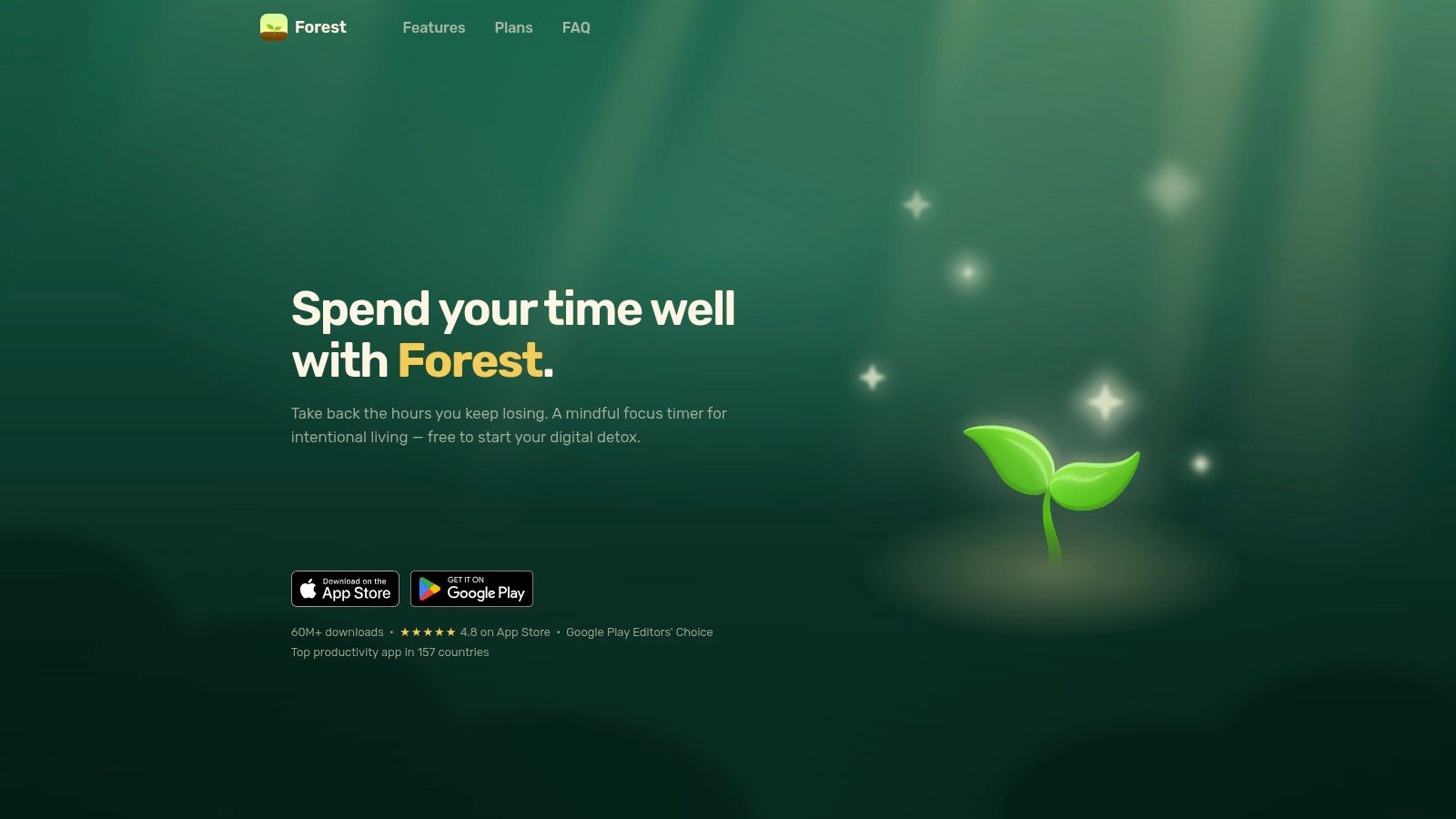
Growing a virtual tree won't appeal to everyone. For someone who finds a blank timer unrewarding, however, Forest offers a visible reason to stay with a session.
Forest combines a focus timer with virtual tree growth, Deep Focus controls, session history, and group focus sessions. It's available on iOS and Android, with Chrome and Firefox extensions. Optional real-tree planting adds another motivational element.
Motivation Before Maximum Enforcement
Forest fits a library session with friends or an independent reading routine where starting is the difficult part. Group sessions provide a shared activity, although they shouldn't be confused with another person actively helping you work.
- Why choose it: Visual rewards and shared sessions can make the routine more appealing.
- What's accessible: Core features are available without a subscription.
- Where limits appear: Some analytics, allowlists, and expanded blocking features require Plus.
The practical question is whether the visual commitment changes your behavior. If you protect the virtual tree but continue checking another device, the timer isn't solving the distraction problem.
Choose Forest when encouragement is more useful than strict enforcement. If you repeatedly bypass restrictions, prioritize blocking coverage and session locks over how satisfying the reward looks.
7. BlockSite
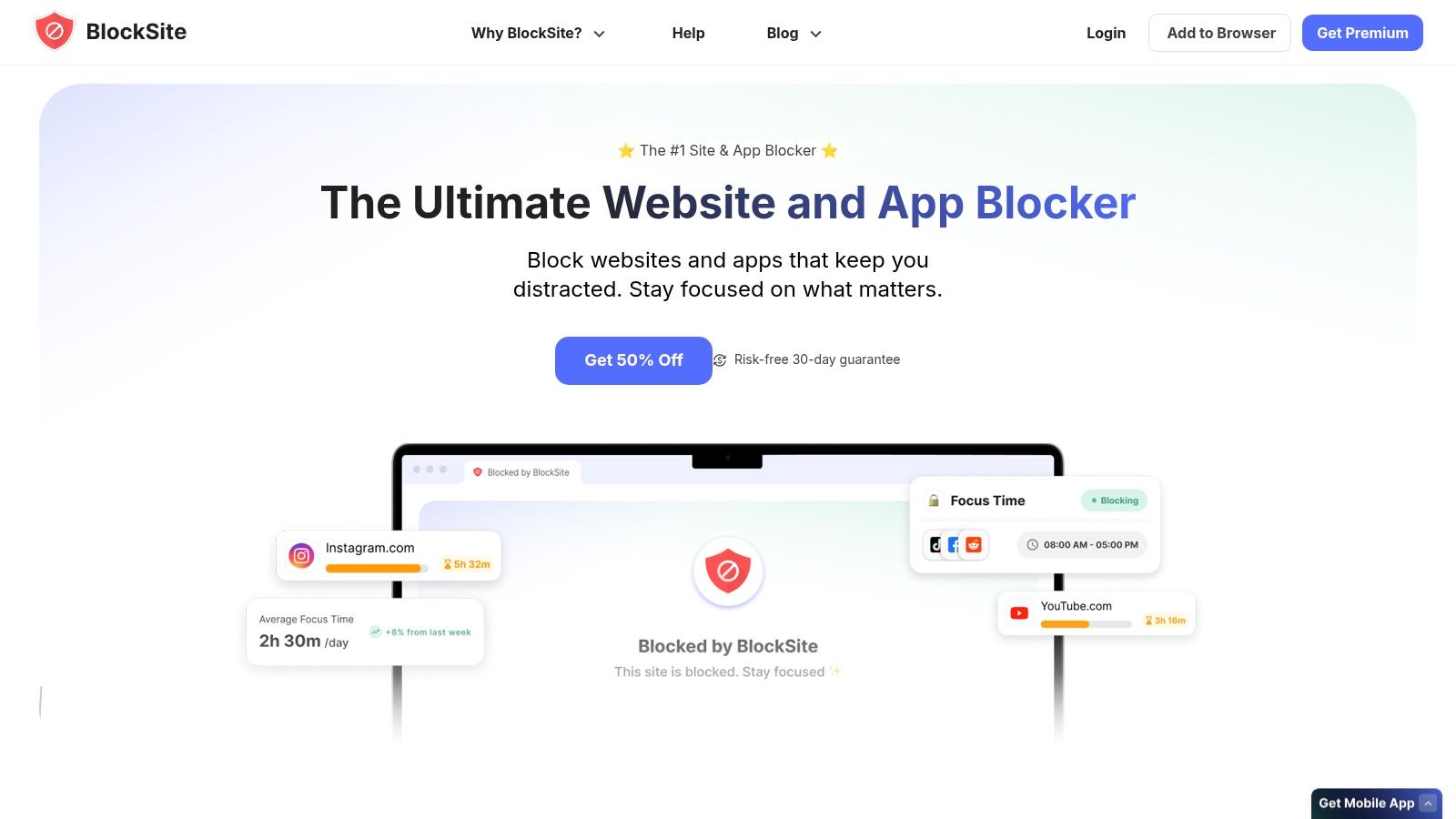
For familiar blocklists and scheduled focus periods, BlockSite offers a straightforward route into distraction blocking. You don't need to adopt a broader task-management system to make use of it.
BlockSite includes website and app blocking, Focus Mode, and schedules. Its paid offering advertises category and keyword filtering, cross-device syncing, and usage insights.
Start with named destinations you already know cause trouble. Broad category or keyword rules can be convenient, but check that they don't also restrict resources needed for coursework or client research.
- Useful starting point: A free browser extension lets you assess the basic workflow.
- Paid boundaries: Unlimited blocking and cross-device sync require payment.
- Purchase caution: Official pages list differing lifetime prices, so verify the current checkout price and terms.
Platform and browser coverage also deserve attention. Someone who works in a supported browser but studies in another application may need more coverage than the extension provides.
Choose BlockSite when you want recognizable controls without designing a complex focus system. If synchronized phone-and-laptop blocking is the deciding feature, evaluate that paid workflow specifically rather than treating the free extension as a complete test of it.
8. StayFocusd
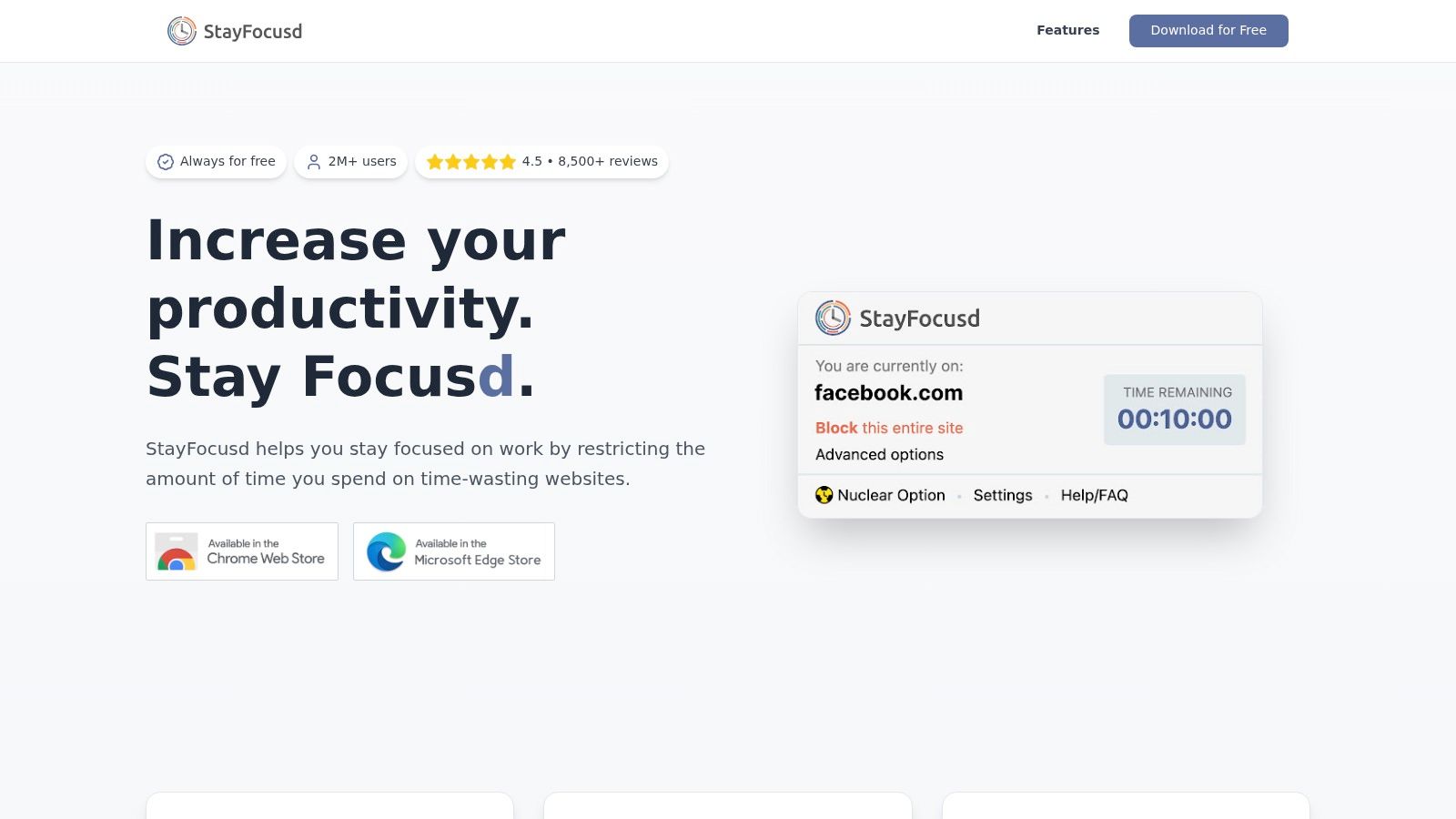
Not every distraction problem requires a desktop application. StayFocusd makes sense when your work and your distractions mostly happen inside a supported browser.
StayFocusd is free according to its official site. It offers daily website time limits, full-site blocking, usage metrics, a stricter Nuclear Option, and scheduled strict controls.
Selective blocking can preserve useful parts of platforms such as YouTube, Instagram, and TikTok while restricting distracting sections. That distinction matters when an instructor assigns a video but the surrounding platform keeps drawing you elsewhere.
Keep the resource you need. Restrict the part you browse without a purpose.
Daily limits suit intentional recreational access; full blocking is a better fit when even opening a site tends to derail the task. Decide which behavior you're trying to change before choosing the rule.
The limitation is scope. A browser-focused tool may be bypassed by switching browsers or picking up your phone, so it isn't a unified phone-and-laptop blocker.
Choose StayFocusd for a lightweight browser boundary you're willing to respect. If changing devices is already your usual workaround, address that directly rather than expecting a stricter browser setting to solve it.
9. Focus (HeyFocus)
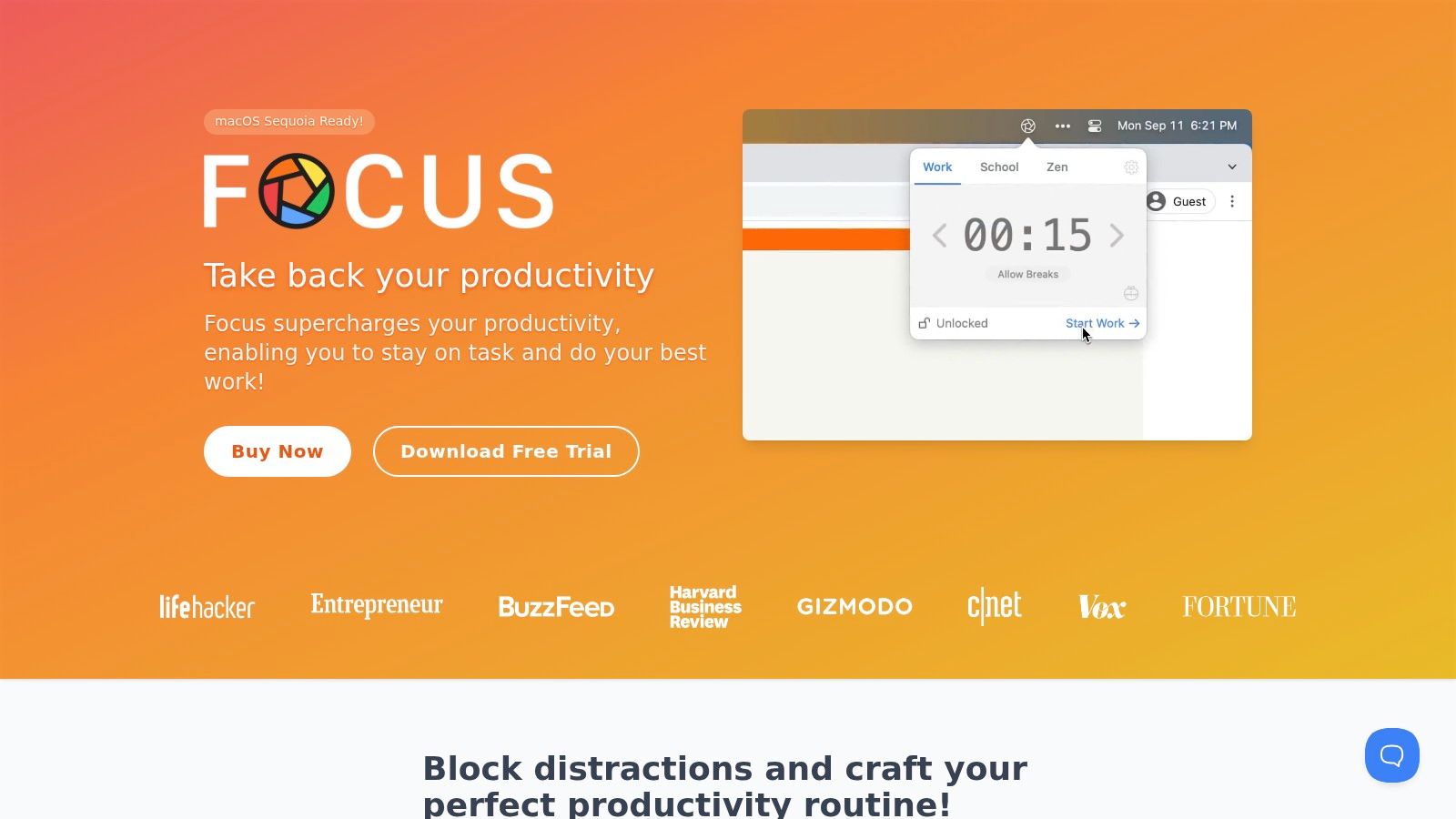
Writing a dissertation and handling administrative work require different access. Focus, also known as HeyFocus, suits Mac users who want separate profiles for those routines.
Focus blocks websites and apps, with schedules, Pomodoro sessions, breaks, session locks, and statistics. Filters support domains, specific URLs, keywords, and allowlists, while scripting offers additional automation.
Separate Research From Writing
A research profile can preserve broader access to reference material. A writing profile can narrow access to your document tools and essential sources, reducing the opportunity to turn every difficult sentence into another search.
- Detailed control: Profiles and URL filters support distinct work contexts.
- Privacy consideration: The developer says data is kept locally.
- Access limits: It's Mac-only paid software, with a seven-day free trial rather than a permanent free option.
Scripting is useful if you already automate your Mac. It's unnecessary if your real requirement is blocking distracting sites while drafting.
Choose Focus for a Mac-centered routine with contextual rules and automation. It won't cover your phone, so plan separately for mobile distractions. Keep the initial setup simple enough that you will use the profiles instead of continually refining them.
10. RescueTime
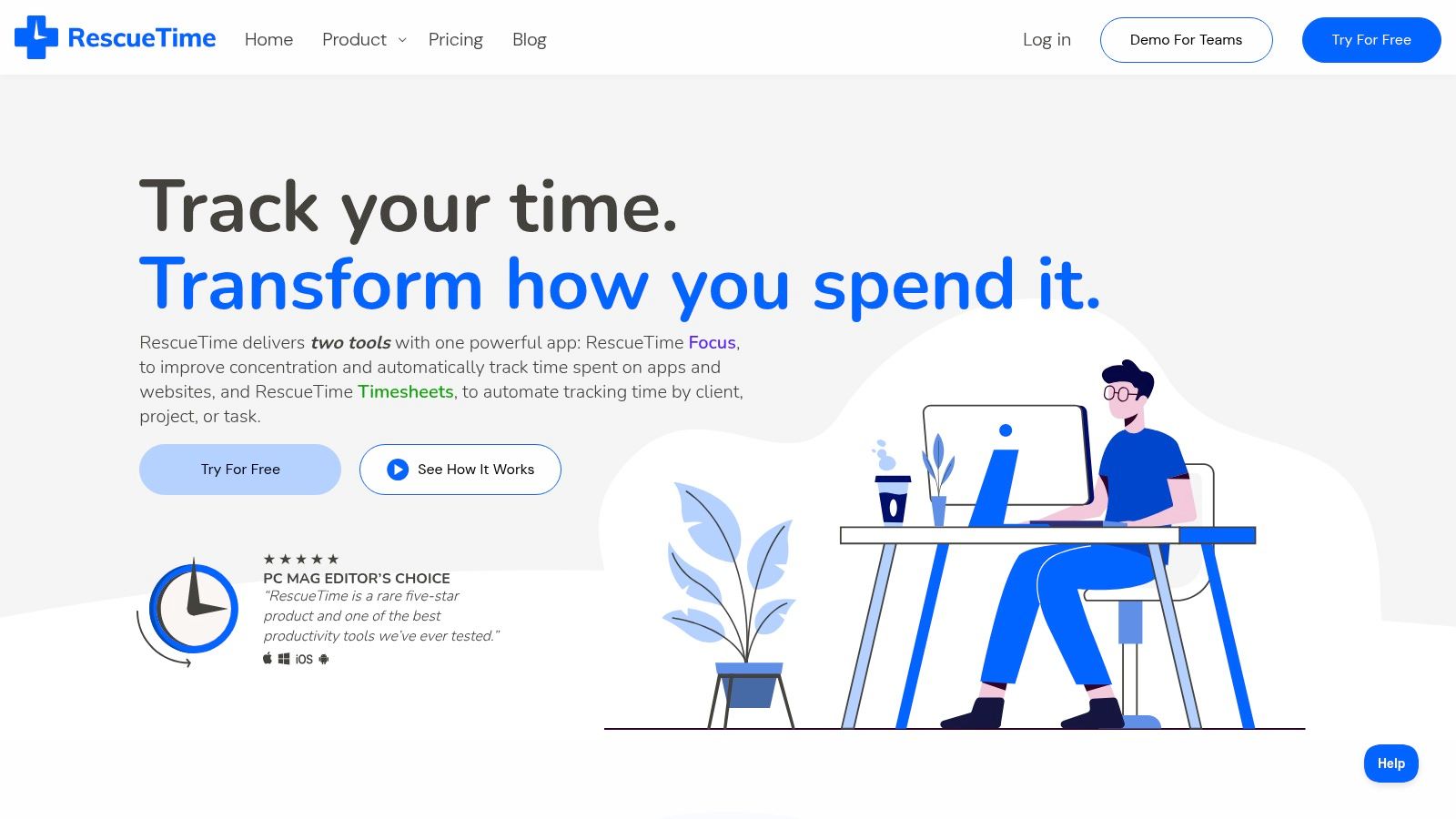
If you can't identify where your workday goes, another blocklist may be premature. RescueTime combines time-use visibility with distraction blocking, making it particularly relevant to professionals and freelancers.
RescueTime includes automatic activity tracking, activity categories, goals, alerts, and detailed reports. Paid Focus Sessions add website and app blocking, and sessions can sync across connected devices.
The useful workflow is to identify an unwanted pattern, categorize it appropriately, and protect the work period it repeatedly interrupts. Avoid labeling every communication tool as distracting if answering messages is part of your job.
- Main advantage: Tracking helps inform what you block instead of relying entirely on memory.
- Free starting point: Lite can help you assess habits before upgrading.
- Main limitation: Blocking requires a paid plan, and time tracking remains central to the product.
For someone who only wants to block social media during study, that reporting layer may be more than necessary. For a freelancer separating client delivery from aimless browsing, it may be the reason to choose RescueTime.
Judge the result by completed work, not a favorable activity category alone. A long period inside a document editor doesn't establish that the draft became clearer or the assignment was finished.
Top 10 Focus Website Blockers: Feature Comparison
| Product | Focus and Planning Features | Blocking and Controls | Platforms | Best For | Price and Access |
|---|---|---|---|---|---|
| Kohru (Recommended) | One-tap sessions, task lists, flexible weekly habits, progress dashboard, breaks | Custom durations and difficulty; app and website blocking with synced Chrome extension | iOS, Chrome; Android coming soon | Students and professionals seeking guided focus plus task and habit tools | Not stated |
| Freedom | Focus sessions, schedules, recurring sessions | Blocks apps, websites, or the internet; synced sessions and Locked Mode | Mac, Windows, iOS, Android, Chromebook, Linux | Blocking distractions across many devices | Free tier; some features limited |
| Cold Turkey Blocker | Schedules, allowances, usage tracking | Detailed website and desktop app blocking; locked blocks | Windows, macOS | Users wanting strict desktop controls | Paid version is a one-time purchase |
| FocusMe | Schedules, Pomodoro cycles, breaks, usage statistics | App, website, and game blocking; limits and Enforced Mode | Windows, macOS, Linux, Android, iOS | Users who want configurable routines | Free trial; 60-day money-back guarantee |
| Opal | Focus timers, schedules, statistics | App and website blocking; Hard Mode | iOS, Android, Mac | Phone and desktop screen-time control | Free plan; paid plans available |
| Forest | Focus timer, visual rewards, group sessions | Deep Focus and browser extensions | iOS, Android, Chrome, Firefox | Users motivated by playful rewards or group focus | Core features available without subscription |
| BlockSite | Focus Mode, schedules, usage insights | App and website blocklists; category and keyword filters | Varies by platform and browser | Users seeking familiar blocking controls | Free extension; some features require paid plan |
| StayFocusd | Daily website time limits, usage metrics | Full or selective site blocking; Nuclear Option | Supported browsers | Users mainly distracted while browsing | Free |
| Focus (HeyFocus) | Profiles, schedules, Pomodoro, breaks, statistics | Detailed website and app blocking; locked sessions | Mac | Mac users wanting detailed controls and automation | Seven-day trial; paid, no permanent free plan |
| RescueTime | Automatic time tracking, goals, alerts, reports | Website and app blocking during Focus Sessions | Connected devices; platform details vary | Professionals who want time-use insights alongside blocking | Free Lite plan; blocking requires paid plan |
Final Thoughts
The best focus website blocker closes the distraction route you use. Choose Kohru for a student-oriented phone-and-laptop workflow, Freedom for broad synchronized coverage, or Cold Turkey for firmer desktop boundaries. FocusMe and HeyFocus suit detailed routines, while StayFocusd is a lighter choice for browser-contained distractions.
There's credible evidence for blocking, but not for promising everyone the same improvement. A Carnegie Mellon experiment involving online crowd-work participants found that automatic blocking produced approximately 8 additional tasks and $0.80 more earnings per hour than baseline conditions. Those are task-specific absolute gains, not a universal productivity percentage or proof of improved academic performance.
A Microsoft Research workplace study of 32 information workers compared five normal working days with five blocking days and found higher reported productivity and focus, alongside longer focus periods. Its small sample and partly self-reported outcomes call for realistic expectations.
Measure Work, Not Just Restrictions
For students, distraction also matters beyond productivity perceptions. A University at Albany analysis of 27 experiments involving 2,245 participants found a statistically significant, medium-sized negative effect of mobile-technology distraction on recall. That supports protecting learning sessions, but it doesn't establish that any particular blocker improves grades.
Use your own work to judge fit:
- Define the output: Finish the problem set, annotate the reading, or revise the draft.
- Protect necessary access: Preserve course portals, authentication, accessibility tools, and essential communication.
- Review recovery: Notice whether an interruption becomes a brief exception or an abandoned session.
Stricter isn't automatically better, especially for neurodivergent users whose needs differ. A scholarly analysis of ADHD and digital disconnection considers contrasting neurodivergent perspectives rather than treating disconnection as a universal solution.
Start with a manageable blocklist and a concrete task. Increase enforcement if you keep bypassing it; simplify the setup if maintaining it becomes another form of procrastination. The useful outcome is work completed with fewer unwanted detours, not perfect compliance with an elaborate system.
Kohru combines phone-and-laptop distraction blocking with Smart To-Do Lists, flexible habit targets, and progress tracking built around focused work. Visit Kohru to explore its Focus Sessions, then choose a study task, set your duration, and protect the apps and websites you need to finish it.
