
Yes, Chrome can block websites, but its pop-up and site settings, SafeSearch, and extensions aren't interchangeable: full-site blocking usually needs an extension or managed policy, while stronger enforcement can require network-level controls.
You've got lecture notes open, an assignment waiting, and a distracting tab that keeps winning your attention. Blocking that tab helps, but it doesn't solve much if you immediately reach for your phone. Kohru is an app built for students that helps block distractions on your phone and laptop at the same time, making it a practical answer when your real problem extends beyond Chrome.
Table of Contents
- Yes, Chrome Can Block Websites, but With Limits
- What Chrome Can and Cannot Block on Its Own
- Built-In Settings, SafeSearch, and Family Link Setup
- Chrome Web Store Extensions and Manifest V3 Rules
- How Kohru Closes the Phone and Laptop Gap
- Managed Policies, Network Filters, and the Host File
- Troubleshooting Gaps and a Recommended Workflow
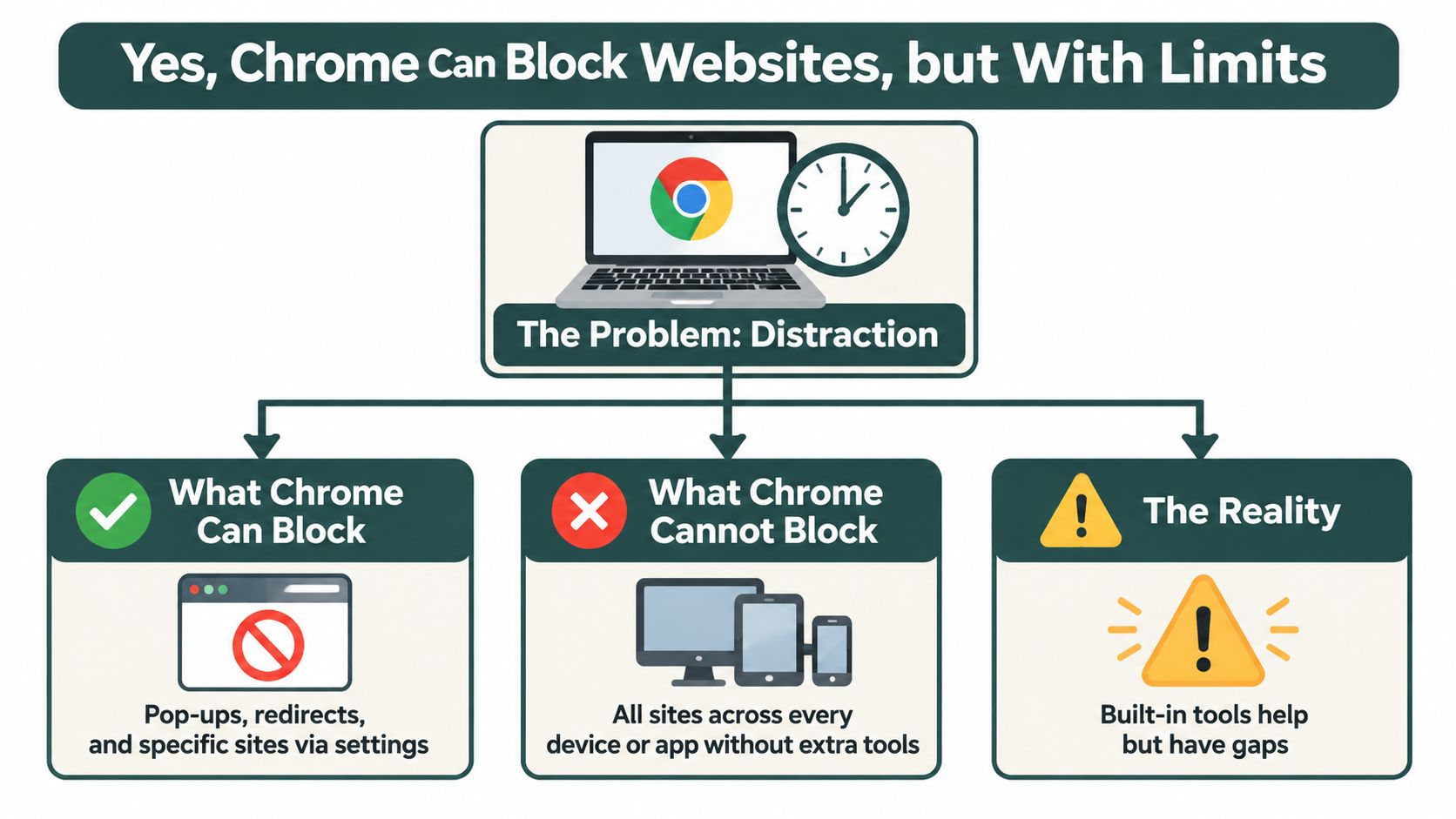
Yes, Chrome Can Block Websites, but With Limits
A distracting tab is easy to open and surprisingly easy to justify. You need a break, you're checking a message, or you're looking up something vaguely related to your assignment. My recommendation is to decide what you need to restrict before choosing a blocking method.
Chrome offers different levels of control, not a single universal website blocker. Ordinary settings handle narrower site behaviors, extensions add blocking tools for personal use, and managed policies give administrators centralized control. Those options serve different people and shouldn't be presented as equivalents.
Three Layers of Blocking in Chrome
| Layer | Who controls it | Best for |
|---|---|---|
| Consumer site settings | The person using Chrome | Restricting unwanted site behaviors |
| Chrome Web Store extensions | The person installing and configuring them | Personal distraction management |
| Administrator-managed policies | A school, employer, or device administrator | Enforcing browser access rules |
The important distinction is blocking inside Chrome versus controlling distractions across devices. Choose a browser tool if the browser is your problem. Choose coordinated phone and laptop blocking if you keep switching screens whenever studying gets uncomfortable.
There's an academic reason to take phone distractions seriously. A 2024 University at Albany analysis of 27 randomized experiments with college-age students found a statistically significant, medium-sized negative effect on immediate recall of lecture and reading material when mobile-phone distractions were present.
That finding supports reducing distractions during learning. It doesn't prove that a particular blocker improves grades, and it shouldn't be stretched into a product performance claim.
Practical rule: Block the distraction where you actually use it, not just where you first noticed it.
For self-management, start with the smallest setup that covers your habits. For supervision, start with who controls the settings and whether the person being supervised can change them. Those are different jobs, and confusing them leads to weak setups.
What Chrome Can and Cannot Block on Its Own
Don't waste an afternoon searching Chrome's ordinary menus for a universal blocked-websites list. For an unmanaged personal browser, that's not the standard consumer control.
Chrome's site permissions govern what a website can do. Restricting a site's behavior isn't the same as preventing you from visiting it. A setting that stops an unwanted window doesn't necessarily stop you from typing the destination into the address bar.
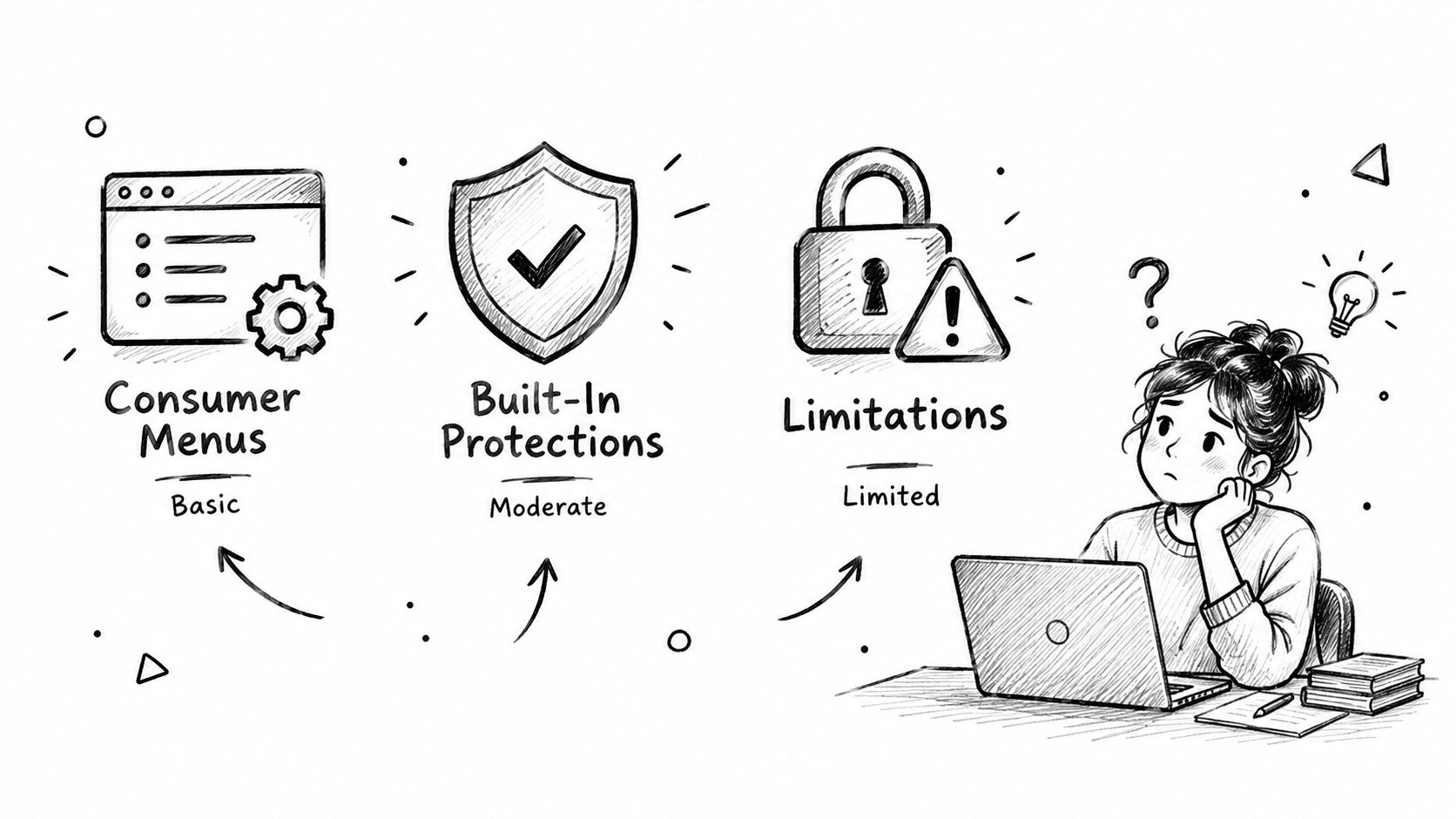
Match the Control to the Outcome
| Your intended outcome | Appropriate starting point |
|---|---|
| Stop a website opening unwanted windows | Pop-up and redirect settings |
| Stop yourself visiting selected domains | A website-blocking extension |
| Enforce browser restrictions for managed users | Administrator URL policies |
| Reduce distractions across phone and laptop | A cross-device focus tool |
Extensions provide genuine domain-blocking capability for ordinary personal use. The Chrome Web Store's website-blocking listing describes adding websites to a blocked list, with scheduling available in some blocking tools. Check the actual feature set instead of assuming every extension includes the same controls.
Administrator policies belong to a different category. They're centrally configured access rules, not a hidden productivity switch that every personal Chrome installation exposes.
Judge a blocking method by what happens when you deliberately open the unwanted destination, not by whether a settings page says “blocked.”
Use a simple acceptance test: write down what should become inaccessible, activate the restriction, and try opening it normally. If the page still loads but its pop-ups disappear, the setting is working as designed. You just selected the wrong type of restriction.
Also separate self-imposed friction from enforced supervision. A removable extension can still be useful when you want help following your own decision. It isn't a sensible foundation for restrictions that someone else is motivated to evade.
Built-In Settings, SafeSearch, and Family Link Setup
Start with Chrome's built-in settings when the problem is unwanted windows, not ordinary access to a distracting website. Google's desktop pop-up and redirect instructions provide the relevant path.
Configure Pop-Ups and Redirects
- Open Settings in Chrome.
- Select Privacy and security.
- Open Site Settings, then Pop-ups and redirects.
- Find the list of sites not allowed to send pop-ups or use redirects.
- Add the website you want to restrict.
Test the behavior that bothered you. If an unwanted window no longer opens, you've addressed that issue. Don't expect this list to stop ordinary navigation to the website itself.
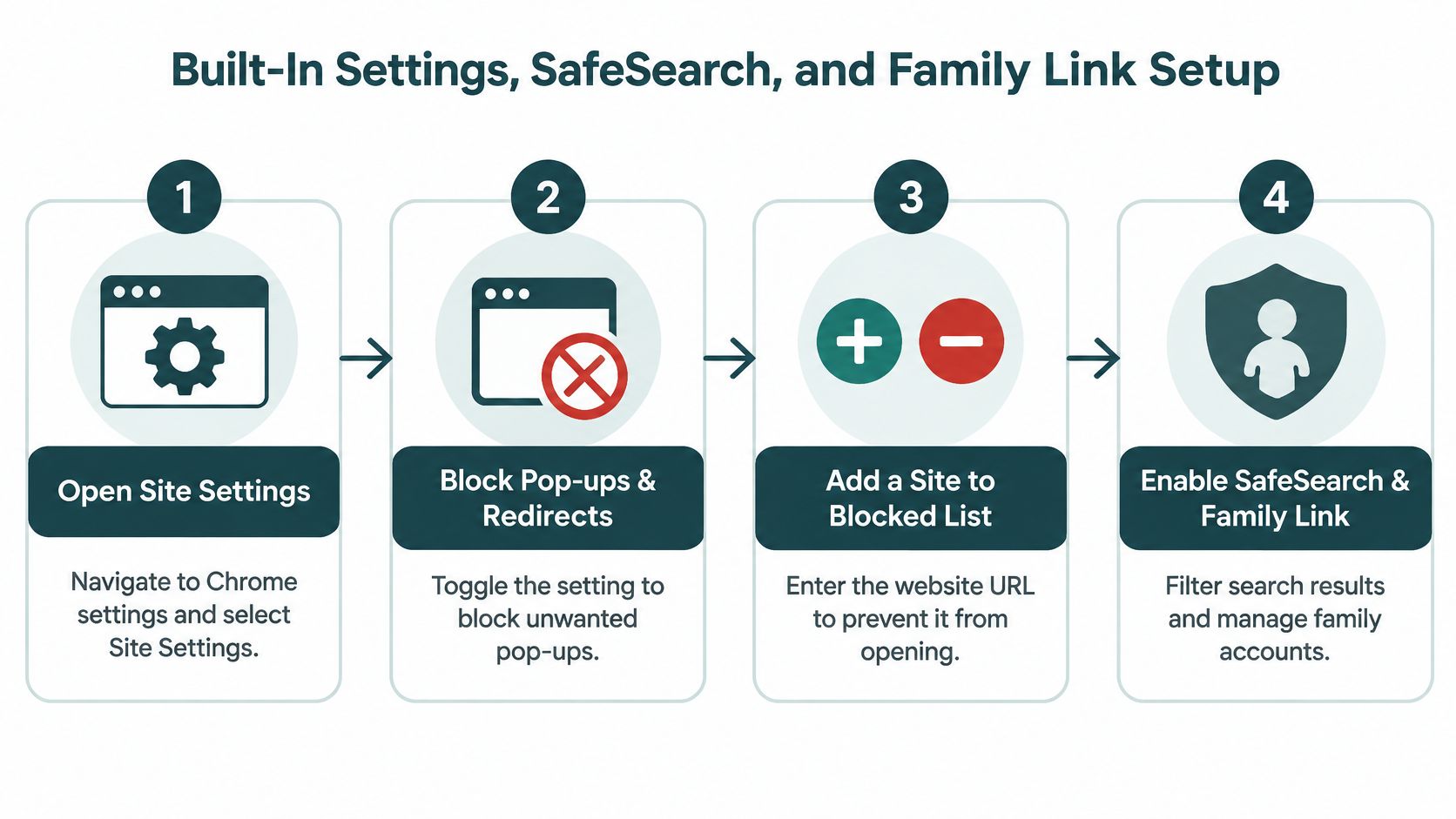
The blocked list shown in this workflow is a pop-up restriction list, not a universal website denylist. Keep that distinction in mind when following any illustrated setup guide.
Use SafeSearch for Search Filtering
Treat SafeSearch as a separate content-filtering choice, not your study-session blocker. Open Google Search settings, find SafeSearch, and select the stricter filtering option when that's your goal.
For a supervised setup, check whether the account's management controls enforce that choice. Don't assume changing a personal preference locks it against later edits. More importantly, don't use a search setting as your test of whether direct website access is restricted.
Use Family Link for Supervision
Parents and guardians should start with a parent-managed account rather than trying to turn a student's personal extension into a parental-control system.
- Select the child's profile: Open Family Link and choose the account you're supervising.
- Find Chrome controls: Under Controls, open Google Chrome and Web.
- Choose the access approach: Select the available filtering or approved-sites option that fits your household.
- Manage exceptions: Use the approved and blocked site controls to specify destinations.
- Review screen-time controls: Set these separately from website decisions, then test the child's actual device.
Menu wording and availability deserve a check on the device you're configuring. Don't assume a desktop setup applies unchanged to mobile, or that an account restriction covers every installed app.
My advice is straightforward: use pop-up controls for annoying browser behavior, SafeSearch for search filtering, and supervised account controls for parenting. None should be mistaken for a complete personal productivity setup.
Chrome Web Store Extensions and Manifest V3 Rules
For personal desktop Chrome, an extension is the practical starting point when you want selected websites to stop opening. You don't need to build one yourself, but understanding the underlying rules helps explain why a block sometimes misses.
Choose an extension whose description clearly explains domain blocking, scheduling, and permissions. Add your distractions deliberately, activate the restriction, and test before relying on it during an assignment. Don't install several overlapping blockers just because the first hasn't been configured properly.
How Modern Blocking Rules Work
Under Manifest V3, extensions can use declarativeNetRequest to give Chrome rules it evaluates without the extension inspecting each request in code. Google's migration guide for blocking web requests documents the declarative model and the required manifest changes.
For developers, the implementation sequence is:
- Declare the declarative_net_request permission.
- Register a ruleset in manifest.json.
- Give the blocking rule a unique id, a priority, a block action, and a condition.
- Define urlFilter with domain-aware matching rather than a loose text fragment.
- Specify resourceTypes, commonly main_frame, for top-level page navigation.
The plain-language version: Chrome checks a navigation against predefined conditions and blocks it when the rule matches. The rule's coverage matters more than whether the extension's interface looks convincing.
Mistakes That Leave Gaps
- Incomplete hostname coverage: A service may use multiple subdomains or alternate destinations. Test the versions you visit.
- Missing resource types: Be explicit about which requests the rule should affect.
- Substring confusion: A text match isn't a correct domain match.
- Embedded-content assumptions: Blocking top-level navigation doesn't block that service's content inside another website.
Those are configuration problems, not evidence that website blocking is impossible. Fix the matching logic instead of repeatedly toggling the same ineffective rule.
Developer check: Test the request you meant to block, including its destination and resource type. A successful test against a different URL proves very little.
For ordinary users, turn that advice into a short test record: the destination you tried, whether it opened, and what happened after any redirect. Include cached pages and alternate URL forms when evaluating a custom extension. Don't describe a blocker as dependable until you've tested the paths you use.
How Kohru Closes the Phone and Laptop Gap
You block a distracting website, return to your notes, then pick up your phone and open the corresponding app. You haven't failed some character test. You've configured a restriction that doesn't cover your study environment.
Kohru pairs phone app blocking with laptop website and app blocking, so a single Focus Session applies across both devices, as described in its guide to focus time. That's the relevant answer for students whose distractions move between screens.
Build a Session Around an Actual Task
Don't start with a vague promise to be productive. Choose a concrete piece of work, decide which resources it needs, and restrict the distractions that don't belong in that session.
On the laptop, select the distracting websites or apps. On the phone, select the distracting apps. Pair the blocking setup so the session covers both screens rather than leaving your easiest escape route untouched.
| Study need | Recommended setup decision |
|---|---|
| Read lecture material | Keep course resources accessible |
| Draft an assignment | Restrict unrelated browsing and distracting apps |
| Complete a personal task | Keep it separate from academic work |
| Review progress | Look at completed work alongside focus activity |
The product's broader workflow includes separate Work and Personal task lists, tasks that can become distraction-free sessions, flexible weekly habit targets, and a dashboard for focus time and completed tasks. Use those features to connect blocking to follow-through, not to spend your study window organizing a productivity system.
The science-backed framing needs a sensible boundary: research on distraction provides a reason to protect attention. It doesn't establish that any specific app guarantees better retention, faster studying, or higher marks.
My recommendation is to use Kohru when phone and laptop distraction are the same practical problem. A Chrome-only tool remains reasonable if your needs stop at the browser. For students who keep switching screens, coordinated blocking is the more appropriate setup.
Managed Policies, Network Filters, and the Host File
Schools and employers need more than a user's willingness to leave an extension enabled. Chrome Enterprise URL policies provide centralized browser access control, with an explicit place to manage restrictions and exceptions.
Google's administrator guide to blocking and allowing URLs describes the configuration process. In the Admin console, go to Devices → Chrome → Settings → Content → URL Blocking, add domains or URL patterns, configure exceptions, and save or apply the policy to the intended organizational unit.
Configure Scope and Exceptions Carefully
Device-managed deployments can use the URLBlocklist and URLAllowlist keys through the appropriate Group Policy or JSON configuration. Review allowlist exceptions early when a blocked destination remains accessible, rather than assuming policy delivery failed.
Google's URL filter syntax documentation supports matching hostnames, subdomains, paths, query parameters, wildcard patterns, and ports from 1 to 65,535. Chrome compares matching specificity using host length, path length, and query-token matches, with allowlist precedence relevant to exception handling.
Administrators can block selected destinations while leaving the rest available, or block broadly and permit approved destinations. If no rule matches, access is allowed by default. Choose the model deliberately, especially where students need access to changing research resources.
Compare Browser and External Controls
| Method | Where I'd consider it | Main decision |
|---|---|---|
| Managed Chrome policies | Schools and workplaces managing Chrome | Which users and browsers receive the policy |
| DNS filtering | Broader filtering beyond a browser preference | Which devices and networks must use it |
| Router parental controls | Shared household access rules | Which connected devices belong to each profile |
| Operating-system hosts file | A narrowly defined local restriction | Who maintains and can change the configuration |
NextDNS and OpenDNS are options to evaluate when considering DNS-level filtering. Router controls are another route for household management, while hosts-file editing is an operating-system approach rather than a Chrome setting. I wouldn't choose manual hosts-file maintenance as the default for a student who just wants to finish an essay.
Google recommends a content-filtering web proxy or extension when basic URL policies aren't sufficient. That recommendation matters: browser policy isn't universal network enforcement.
Don't apply the same bypass assumptions to every method. Another browser can sidestep a Chrome-only restriction; an unmanaged device or alternate network can fall outside other controls. Review alternate destinations, permissions, and device coverage before calling a supervised setup complete.
Troubleshooting Gaps and a Recommended Workflow
Incognito needs an explicit check. Chrome doesn't run extensions there by default; users can individually allow them, while administrators who need to close that route must disable Incognito, as Google's Incognito policy guidance explains.
Validate Before You Rely on It
- Test destinations: Try the exact hostname, subdomains, HTTP and HTTPS variants, and redirect chains.
- Test browsing states: Check private browsing and the intended managed profile.
- Test exceptions: Confirm an explicitly allowed destination still works.
For students and self-managers, use SafeSearch if search filtering is relevant, choose a suitable blocking extension where needed, and run a Kohru Focus Session for phone and laptop coverage. Avoid redundant tools unless each serves a distinct purpose.
For schools, employers, and parents, choose managed policies or network filtering, then add appropriate supervision or device management. Yes, Chrome can block websites. A well-tested setup makes that answer useful.
Kohru offers students coordinated distraction blocking across phone and laptop, so a study session doesn't end with a switch to the other screen. Visit Kohru, choose the distractions you want blocked on each device, and set up a Focus Session around your next assignment.
