
You open Chrome to check one reference for a report. A few clicks later, a social feed is open, then a video, then a discussion thread you never intended to read. The original task is still waiting, but the browser has made distraction easier than returning to work.
If you're searching for how to block a specific site on Chrome, the right method depends on how easily you can talk yourself into undoing it. A browser extension is fast but fragile. A host-file rule creates more friction. Router controls protect connected devices, while Chrome enterprise policies provide the strongest centralized enforcement on managed machines.
Table of Contents
- Why Standard Willpower Fails Against Browser Distractions
- Using Chrome Extensions for Quick Domain Blocking
- System-Level Blocks Using Host Files and Router Settings
- Enforcing Strict Access with Chrome Enterprise Policies
- Upgrading to Science-Backed Focus Workflows
- Troubleshooting Blocks and Clearing Browsing Data
Why Standard Willpower Fails Against Browser Distractions
The familiar failure starts with a harmless thought: “I'll just check it for a second.” Chrome makes that decision almost frictionless. A saved bookmark, autocomplete suggestion, open tab, or remembered login can put the distracting site in front of you before you've had time to reconsider.
That matters because deep work depends on maintaining a task context. A quick visit doesn't stay isolated. You may need to close the tab, remember what you were writing, find the document again, and reconstruct the next step. The practical consequences of this mental switching are explained clearly in Zemith's guide to context switching costs, which is useful background when deciding whether a block is worth the inconvenience.
Students face this while researching papers. Developers face it while debugging. Remote workers face it when an uncomfortable task sits beside an instantly rewarding website. The problem isn't a lack of knowledge about what you should be doing. The problem is that the distraction remains available at the exact moment motivation dips.
Practical rule: If a site is easy to open during a vulnerable moment, assume you'll eventually open it.
Website blocking works as environmental design. Instead of asking your future self to make a better choice, you change the conditions around the choice. A blocked page forces a pause, and that pause may be enough to return to the task.
The useful question isn't whether a method can block a domain under ideal conditions. It's whether the method will still hold when you're tired, bored, or actively looking for a workaround. That creates a spectrum:
- Low resistance: extensions that you can disable from Chrome.
- Moderate resistance: host-file rules and router restrictions that require administrative access.
- High resistance: managed Chrome policies applied centrally to the correct device or user group.
Choose the weakest barrier that reliably stops your own impulse. More control isn't automatically better if maintaining it becomes another form of procrastination.
Using Chrome Extensions for Quick Domain Blocking
For a personal laptop, an extension is usually the quickest starting point. Open the Chrome Web Store, search for a blocker, review its permissions, and select Add to Chrome. After installation, pin it from the puzzle-piece menu so its controls are visible rather than buried in the toolbar.

Most blockers follow a similar setup:
- Open the extension dashboard. Use the toolbar icon or Chrome's extensions page.
- Add the distracting domain. Enter the site you want restricted, then save the rule.
- Choose a schedule if available. Set the block for your work or study window instead of leaving it active permanently.
- Add friction. Use a delay, lock feature, password controlled by someone else, or a commitment setting if the extension supports it.
- Test the rule. Open the domain in a regular tab and confirm that the block page appears.
A key limitation is precision. A Chrome Web Store listing for a domain blocker explains that adding a site can block the whole domain, not only the exact page URL, so a rule aimed at one path may affect the rest of that site as well. That's often acceptable for social platforms, but it can be inconvenient when a shared domain contains both useful documentation and distracting content.
For more ideas about configuring your browser for focused work, you can browse these productivity extensions for Chrome.
Extensions also have a serious bypass problem. You can often disable or remove one from Chrome's extension controls, use another browser, or try a private window if the extension isn't enabled there. A schedule may help with casual browsing, but it won't stop someone who has decided to defeat the rule.
A blocker that you can remove in seconds is a reminder, not a lock.
Use this method when convenience matters and your main risk is automatic clicking. If you already know you'll disable the extension during a difficult task, skip straight to a system-level method.
This short walkthrough shows the general interaction model used by website-blocking tools. Treat it as a setup reference, not proof that every extension offers the same controls.
System-Level Blocks Using Host Files and Router Settings
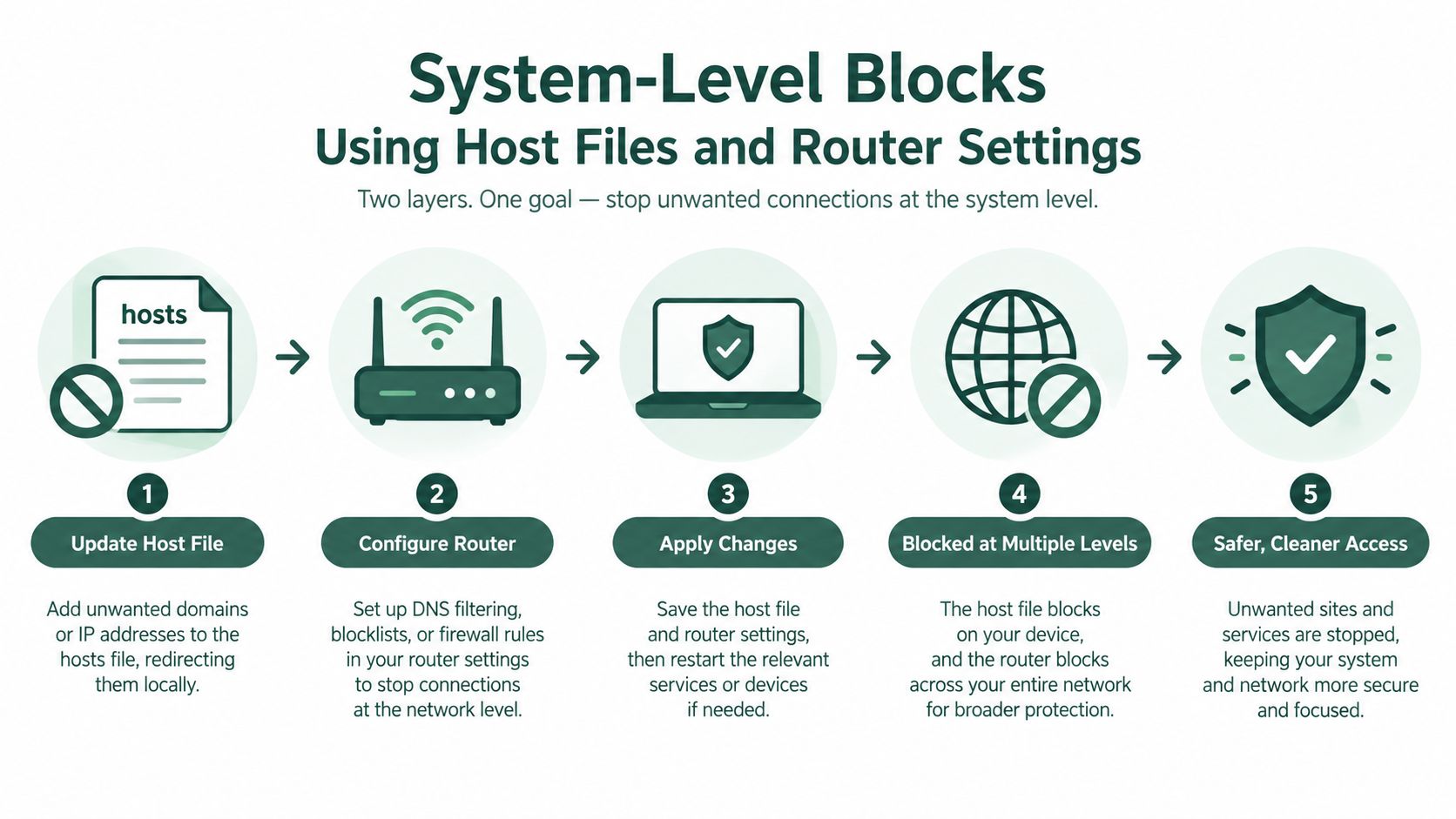
When Chrome extensions don't create enough resistance, move the restriction outside the browser. A host-file rule applies at the operating-system level, so opening Incognito or disabling a Chrome add-on doesn't remove it.
On Windows, open Notepad with administrator privileges and go to the system hosts file at C:\Windows\System32\drivers\etc\hosts. Add a separate entry for each domain you want to stop, using the loopback address followed by the domain name. Save the file, then flush the local DNS cache from a Command Prompt run as administrator so the change is recognized promptly.
On macOS, open Terminal and edit /etc/hosts with administrator permission. Add the relevant domain entries, save the file, and flush the macOS DNS cache. The exact commands differ by operating-system version, so check Apple or Microsoft documentation if the change doesn't take effect.
Why host files resist impulse edits
This approach adds useful friction because undoing it requires locating a system file, obtaining administrator access, and reversing the entry. It also works beyond Chrome on the same computer. That makes it more durable than an extension, but it's still not tamper-proof if you control the administrator account.
Watch for common implementation gaps:
- Domain coverage: Blocking one hostname may not cover every related hostname used by the service.
- Permissions: Without administrator access, you may be unable to save the file or change it later.
- Cache behavior: Chrome, the operating system, or the network may retain information after the edit.
- Shared resources: A broad domain rule can interfere with useful pages, embedded services, or authentication flows.
Router controls take the same principle to the network. Sign in to the router's administrator panel, find website filtering, parental controls, or access restrictions, and add the domain to the appropriate block list. The interface varies by manufacturer, so this practical guide to blocking URLs in router admin settings can help you locate the relevant menu.
A router rule can cover devices connected to that network, including phones and laptops. It won't protect you when you switch to mobile data, another Wi-Fi network, or a VPN, and anyone with router administrator access may be able to reverse it.
Use the host file for one computer. Use router controls when the distraction follows you across several devices at home. For serious self-enforcement, give the administrator credentials to someone you trust.
Enforcing Strict Access with Chrome Enterprise Policies
Chrome enterprise policies are the strongest option when you need centralized control rather than a personal reminder. Google documents website control through URL blocking, where administrators add blocked URLs in Chrome policy settings and can distribute the rules through policy templates or JSON configuration. This is a mature, system-level mechanism, not a browser add-on layered on top of ordinary browsing.
In a managed deployment, an administrator can use the Google Admin Console or Windows Group Policy. The documented Admin Console path is:
Devices > Chrome > Settings > Users & browsers > Content > URL Blocking
From there, add the URLs under the blocked list, optionally define exceptions, and save the policy. Google's documentation says the policy can accept up to 1,000 URLs on separate lines in its Chrome enterprise URL-blocking guidance.
Blocklists and allowlists
A blocklist denies selected destinations while leaving the rest of the web available. It's practical when you know the domains that trigger procrastination. An allowlist takes the opposite approach, permitting only approved destinations, which is more restrictive but can disrupt ordinary research and work.
Exceptions matter when a shared domain contains both necessary and distracting resources. A carefully scoped exception can prevent overblocking, but every exception increases maintenance and creates another place for a rule to fail.
| Policy choice | Useful when | Main risk |
|---|---|---|
| Blocklist | You have a short, known list of distractions | New or related domains remain available |
| Allowlist | The device has a narrow, predictable purpose | Legitimate work resources may stop loading |
| Blocklist with exceptions | A blocked domain contains essential pages | Poorly written exceptions can weaken the policy |
The most important operational detail is scope. A URL rule must apply to the correct organizational unit, browser group, or device. If the policy lands outside that scope, users in another group won't receive the restriction. Administrators should verify the effective policy on the target browser instead of assuming that saving the setting applied it everywhere.
Enterprise policies also support stronger extension governance. Google describes runtime blocked hosts and host-pattern syntax for controlling where extensions may run in managed environments. That can prevent an extension from operating on sensitive sites, although malformed patterns can produce confusing results.
This method is appropriate for organizations, schools, parents managing a dedicated device, or advanced users willing to maintain a managed setup. It's less suitable for a casual personal block because the administrative overhead is substantial. Its bypass resistance comes from policy enforcement, not from the inconvenience of finding a hidden setting.
Upgrading to Science-Backed Focus Workflows
Manual blocking solves access, but it can create its own interruption. If you edit a hosts file before every study session, adjust router controls after every break, or maintain a long enterprise policy for personal work, the setup starts competing with the task it's meant to protect.
A better workflow separates configuration from execution. Configure the sites once, then start a focus session when you begin a task. The session should apply the selected restrictions without sending you through a sequence of technical menus.
Comparing the practical options
| Method | Start-up effort | Bypass resistance | Best fit |
|---|---|---|---|
| Chrome extension | Low | Low to moderate | Automatic distractions on one browser |
| Host file | Moderate | Moderate | One computer across browsers |
| Router restriction | Moderate | Moderate | Multiple devices on one network |
| Enterprise policy | High | High | Managed devices and strict enforcement |
| Focus-session app | Low after setup | Depends on device controls | Repeated study or work sessions |
A dedicated focus workflow can also connect blocking to the task itself. Instead of deciding whether to visit a distracting site every time discomfort appears, you open the work item, start the session, and let the selected restrictions remain active for its duration.
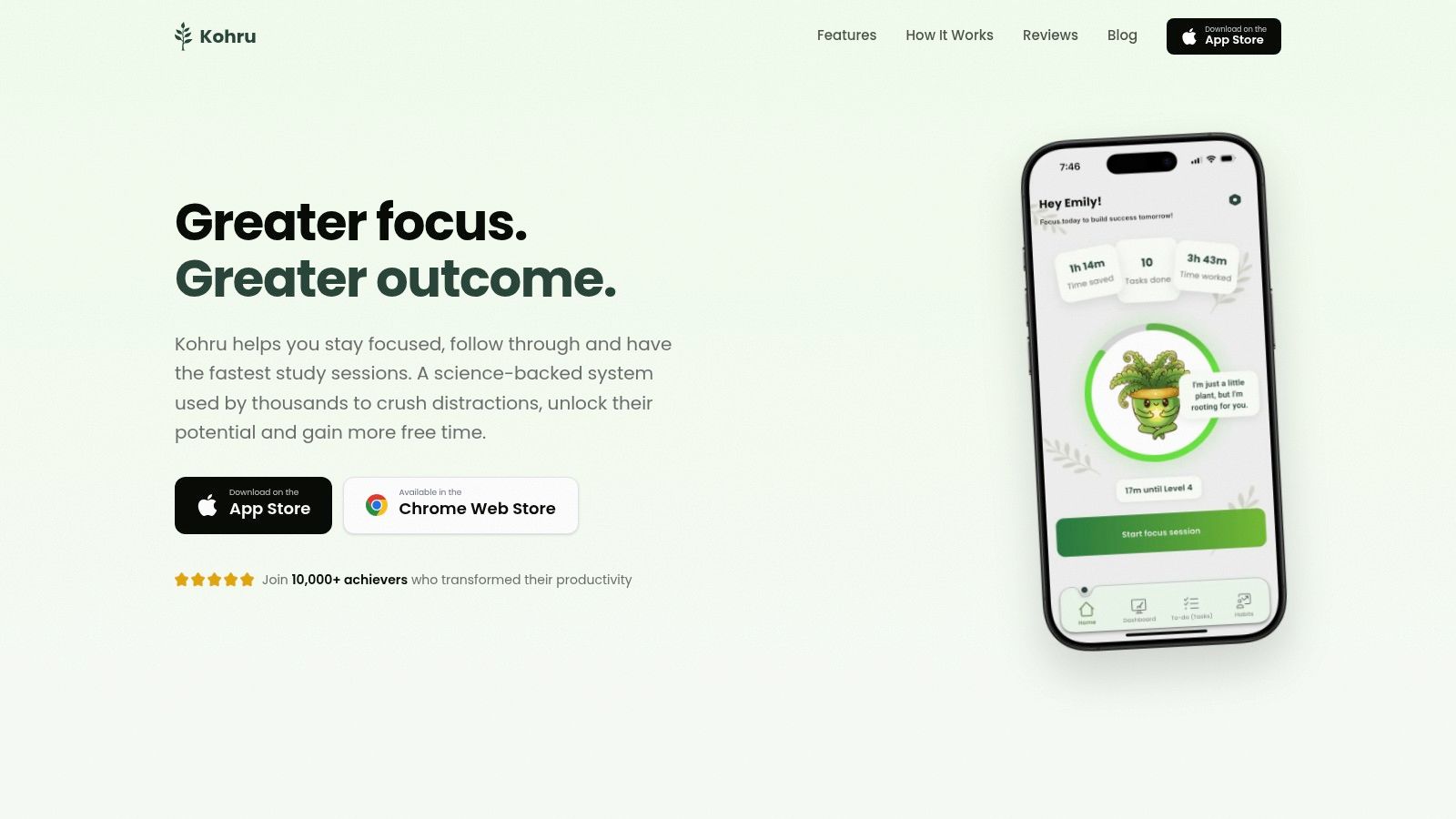
Kohru is one option in this category. Its Focus Sessions can block selected distracting websites across a phone and laptop, while its Smart To-Do Lists turn work items into distraction-free sessions. That approach reduces the number of times you need to negotiate with yourself, though it still depends on the platform permissions and controls available on your devices.
The “science-backed” part should be interpreted carefully. No app removes the need for a clear task, a realistic session length, or proper breaks. The useful design principle is simpler: reduce context switching and make the desired behavior easier to start than the unwanted behavior.
Use enterprise controls when someone must enforce access. Use a focus workflow when you repeatedly need to enter and leave protected work periods without rebuilding your technical setup.
Troubleshooting Blocks and Clearing Browsing Data
A block can appear broken even when the rule is correct. Old DNS results, cached page assets, alternate hostnames, or a browser service worker may let part of a site appear after you've changed the restriction.
Work through this checklist:
- Confirm the exact scope: Check that the rule covers the domain or URL pattern you are opening.
- Refresh network information: Flush the operating system DNS cache after editing a hosts file.
- Restart Chrome: Close every Chrome window and reopen it to clear stale browser state.
- Check extensions: Make sure the blocker is enabled and allowed in the browsing mode you are using.
- Review policy application: On managed devices, confirm that the correct user, browser group, or organizational unit received the policy.
- Clear stored suggestions: Remove autocomplete entries and distracting bookmarks that keep presenting the same destination.
- Clear browsing data: Google says Chrome history can retain visited pages for up to 90 days on Android, and desktop users can search, review, and delete history entries. The Chrome history guidance is relevant when you are removing those cues during troubleshooting.
The best method depends on your failure pattern. Choose an extension if you need a quick nudge, a host file or router rule if you keep disabling browser tools, and enterprise policy if the device must remain restricted even when you're determined to bypass it.
Kohru gives you one-click Focus Sessions that block selected digital distractions across your laptop and phone, then connects those sessions to Smart To-Do Lists and flexible habit targets. Visit Kohru to set up a less fragile way to start focused work without manually rebuilding your block list each time.
