
You sit down to study or finish a report, open one distracting site for “just a minute,” and lose the next stretch of time to tabs, notifications, or your phone. Blocking that site on one laptop browser helps, but it doesn't solve the actual problem if another browser, an alternate connection, or a second device remains available.
The practical answer to how to block websites on a laptop is to combine the right control with enough friction to interrupt the habit, without blocking the tools you really need. This guide covers Windows, macOS, browsers, network controls, and cross-device options, including Kohru, an app that helps block distractions on your phone and laptop at the same time and is built for students.
Table of Contents
- Why Blocking Websites on a Laptop Is Harder Than It Looks
- The Five Main Blocking Methods at a Glance
- Blocking Websites on Windows Step by Step
- Blocking Websites on macOS Step by Step
- Browser Extensions, Routers, and Cross-Device Apps
- Schedules, Temporary Blocks, and Bypass Prevention
- Troubleshooting and When Blocking Actually Backfires
Why Blocking Websites on a Laptop Is Harder Than It Looks
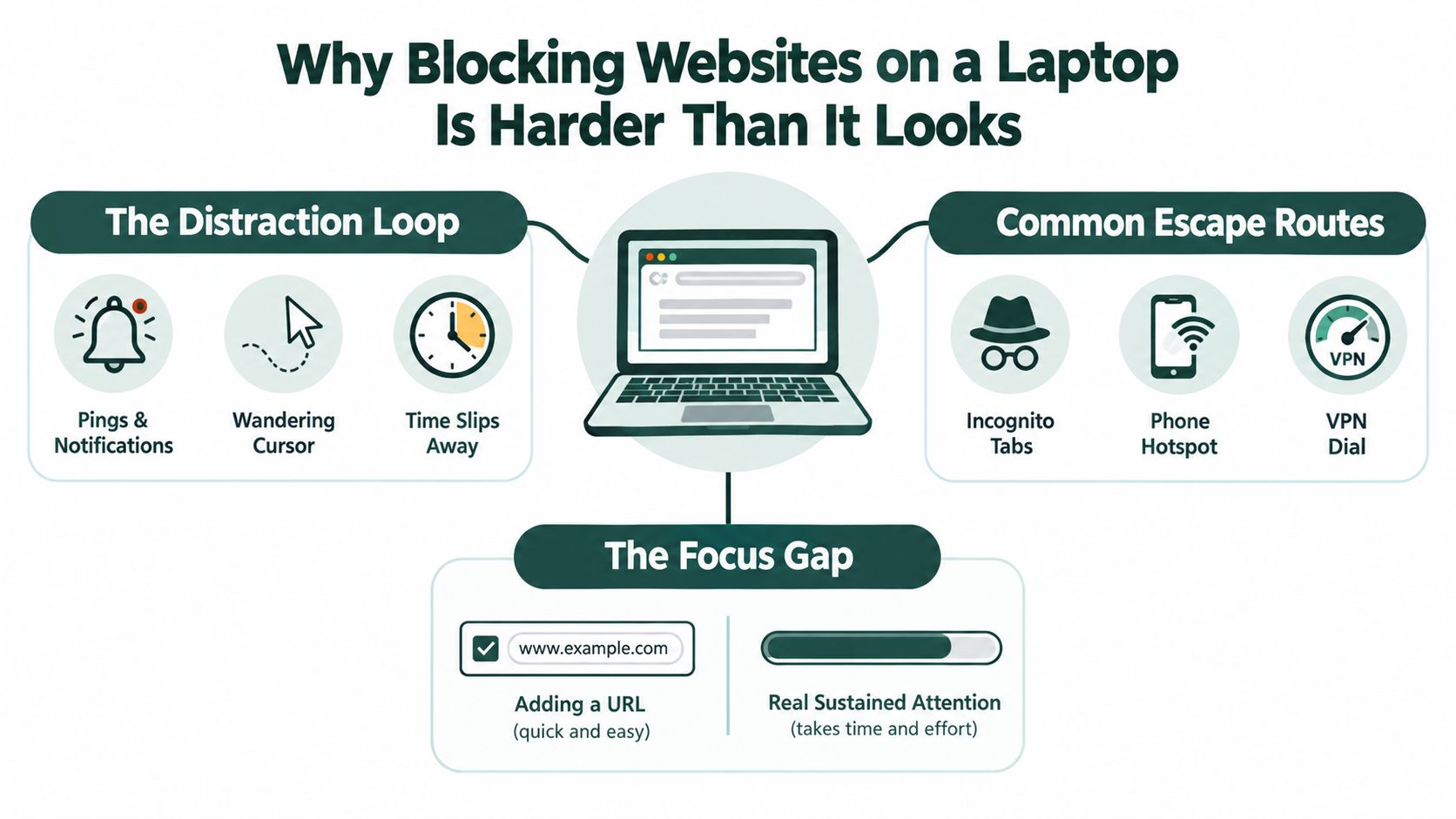
A student opens a laptop to revise for an exam. They block Instagram in Chrome, then switch to Edge when the urge appears. If that fails, their phone is beside the notebook, connected through mobile data. The block worked exactly as configured, but the focus session still failed because the distraction had several escape routes.
A remote worker faces the same problem in a different form. They add social media to a browser extension, then open a private window, use another browser profile, or reach for a phone during a difficult task. A URL list is only one layer. Focus depends on coverage, friction, and a plan for legitimate exceptions.
Blocking is a habit system
Website blocking works best when it interrupts an automatic decision before the distracting page opens. A warning, delay, scheduled session, or strict block can create that pause. The right level depends on whether you're trying to reduce impulsive checking, supervise another user, or make access difficult during a defined study period.
Kohru fits the cross-device version of this problem. It helps block digital distractions on a phone and laptop at the same time, which matters for students who move between devices during one study session. A laptop-only rule can't control what happens on a phone.
The research is useful but not a reason to install the most aggressive blocker available. A foundational workplace study published in 2018 tested website blocking with 32 information workers. During the intervention, participants reported significantly higher productivity and longer periods of focus, but participants with lower self-control also tended to take fewer breaks and experienced higher stress in the study's findings.
Practical rule: Block the distractions that repeatedly interrupt your work, not the entire internet you need to complete it.
That principle determines the rest of the setup. Judge each method by browser coverage, device coverage, bypass resistance, and ease of recovery, not just by how quickly it adds a URL.
The Five Main Blocking Methods at a Glance
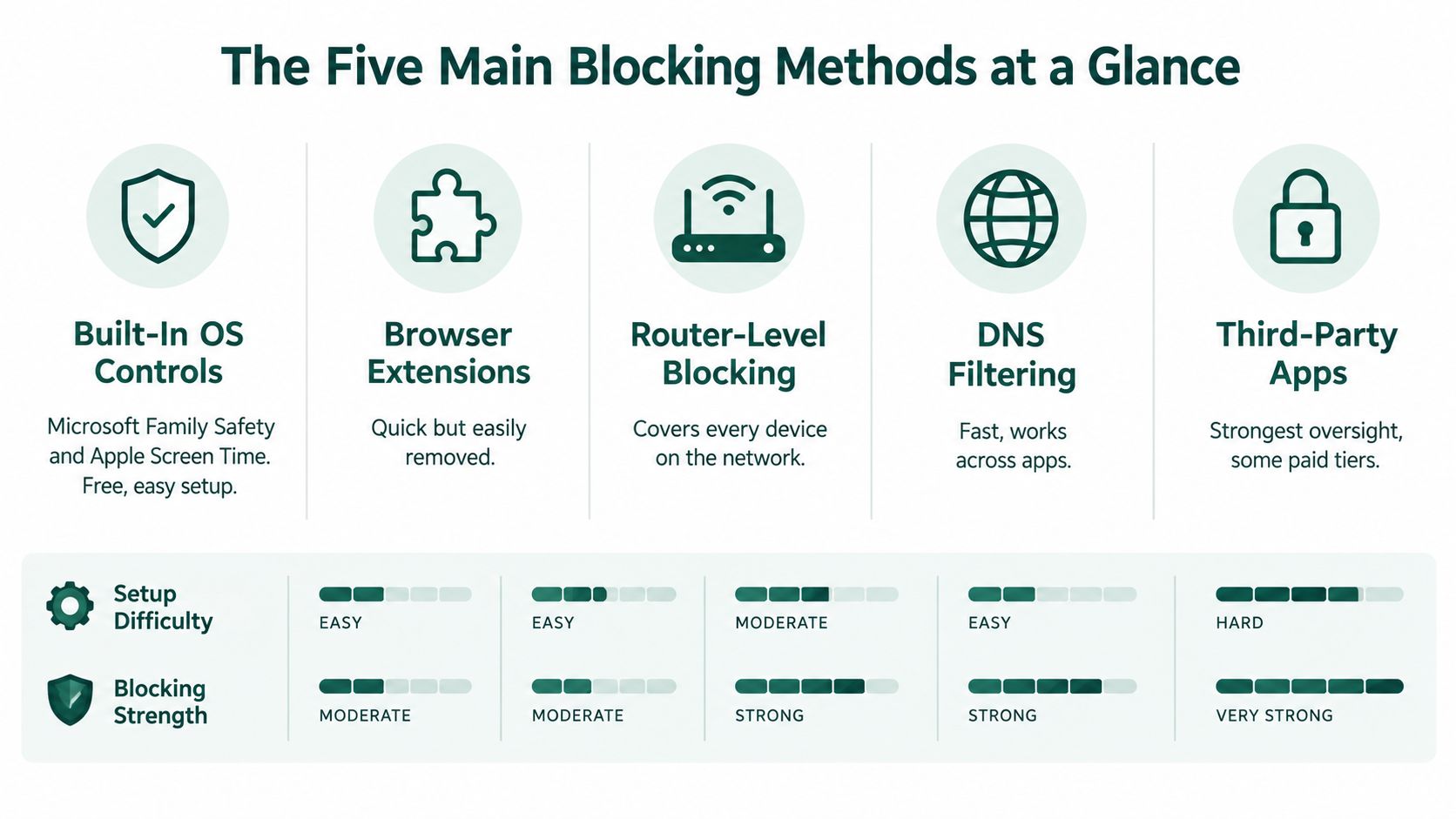
You don't need every method. Choose the lightest control that reliably changes your behavior, then add another layer only when a clear gap remains.
Built-in operating-system controls
Microsoft Family Safety can block or allow specific website URLs and can switch to an Only use allowed websites mode. On Apple devices, Screen Time supports content restrictions, website limits, and app limits. These options make sense for family-managed accounts or users who want settings tied to an operating-system account rather than a single extension.
Their weakness is coverage. Microsoft states that its web filters apply through Edge and supported Family Safety apps, so other browsers must be blocked separately for the restriction to function as intended Microsoft Family Safety's filtering guidance.
The Windows hosts file
The hosts file is free and works at a system-wide browser level for listed hostnames. It suits a quick personal block on Windows, but it isn't secure enforcement. An administrator can delete the entries, and VPNs, proxies, encrypted DNS, alternate domains, or mobile tethering can bypass the result.
Browser extensions
Extensions are the fastest choice for a short focus session. They usually support custom lists and schedules, but they live inside one browser profile. A second browser, private browsing, another account, or a removed extension can end the protection.
Router and DNS filtering
Router-level controls cover devices connected to the same network, which is useful for a household or supervised environment. DNS filtering can extend coverage beyond a single browser, but it can be too broad for an individual who needs different access rules during work, study, and personal time. For a deeper explanation of how DNS filtering works in practice, Blowfish Technology DNS filtering is a useful technical resource.
Third-party focus apps
A cross-device app is the better fit when the problem is a repeated habit rather than one website. These tools can combine blocklists, scheduled sessions, adjustable strictness, and progress feedback. They may require more setup or a paid tier, but they address the phone and laptop gap that browser controls leave open.
Research on digital self-control interventions supports adjustable strictness. Blocking can range from warnings and usage statistics to temporary or complete denial of access. A deliberate task also changes the barrier: entering 30 digits reduced distraction initiation more strongly, with d = 0.47, than entering 10 digits, with d = 0.27, or receiving a simple warning, with d = 0.13 the systematic review of digital self-control interventions.
Blocking Websites on Windows Step by Step
A Windows laptop can block a distracting site in minutes, but the right method depends on who controls the machine. Use Microsoft Family Safety for supervised accounts. Use the hosts file for a narrow, local block on your own laptop.
Use Microsoft Family Safety for managed accounts
Open Microsoft Family Safety, select the relevant family member, and choose Content filters. Add the website URLs to the blocked list, or turn on Only use allowed websites when the account should reach only approved pages.
This approach suits a child or supervised student because the rule follows the account instead of relying on one browser extension. As noted in the methods overview, Microsoft's filters apply through Edge and supported Family Safety apps, so other browsers must be blocked separately.
Because the policy is account-bound, verify it on every browser profile the student uses, including school-managed browsers installed outside the default Edge setup. Test the blocked domain while signed in to each relevant account. A block that works in one profile can leave another profile untouched.
Edit the hosts file for a local block
For a personally managed laptop, the hosts file is quick and focused:
- Open Notepad with administrator privileges.
- Open
C:\Windows\System32\drivers\etc\hosts. - Add one line for the target domain and another for its
wwwvariant, mapping each hostname to127.0.0.1. - Save the file.
- Restart the affected browsers fully, then test the site.
Leave out https:// and every other URL scheme. Hosts-file rules use hostnames, not complete web addresses. Include both hostname variants because a browser may request a different one from the entry you added.
This blocks normal hostname resolution for the listed names, but it is not tamper-proof. An administrator can remove the entries, while encrypted DNS, VPNs, proxies, browser DNS caches, and mobile tethering can bypass or sidestep the rule, as Microsoft explains in its hosts-file troubleshooting response.
Use this method for a short personal distraction list. Choose stronger account or network controls when you need supervision or enforcement.
Blocking Websites on macOS Step by Step
macOS has a cleaner built-in path through Screen Time. It also gives you two different controls, domain restrictions and time limits, which solve different problems.
Restrict websites through Content and Privacy
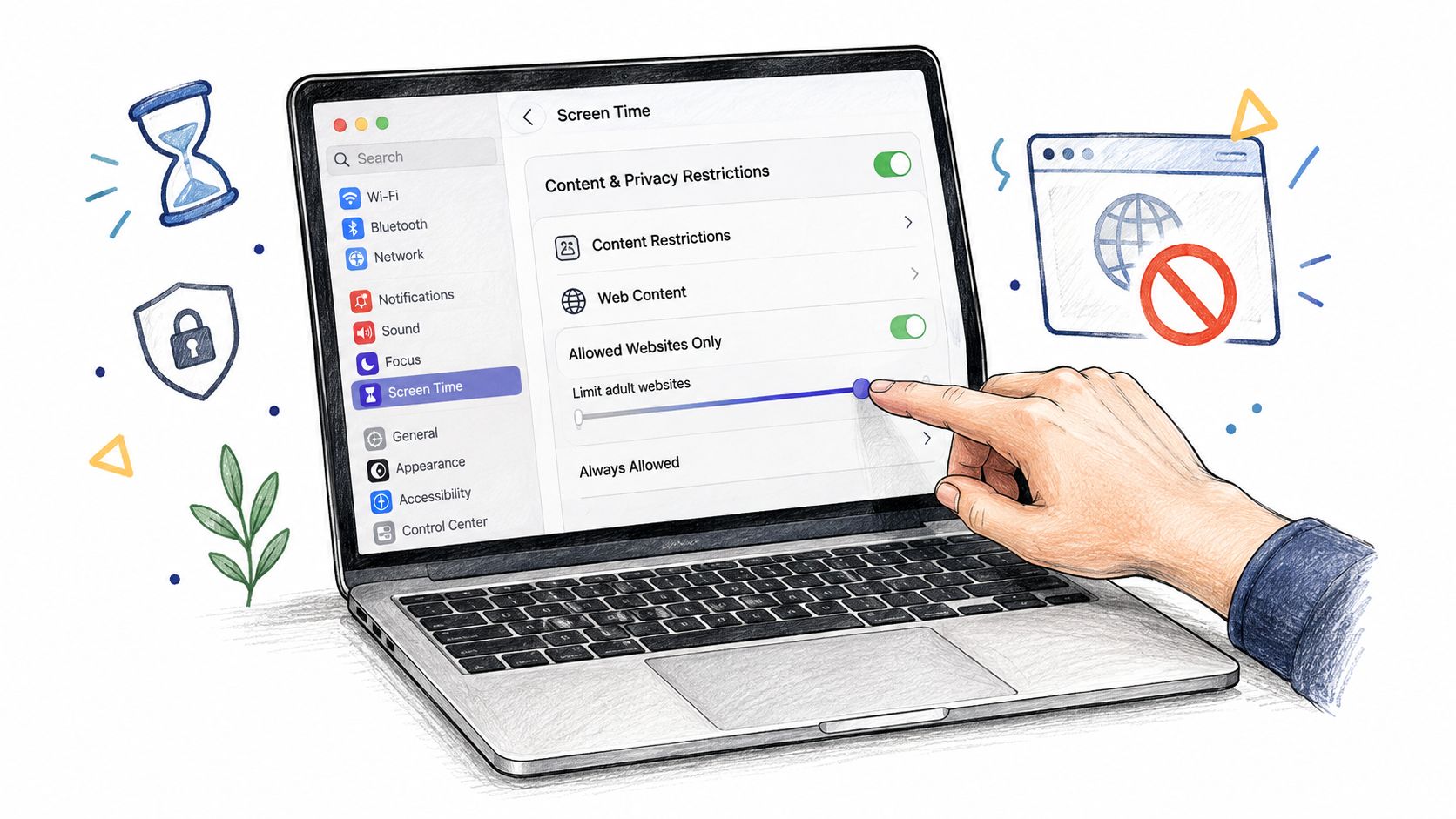
Open System Settings, choose Screen Time, then go to Content & Privacy and Content Restrictions. Select the correct user or family member, enable the restrictions, and configure the web-content policy.
Protect the Screen Time settings with a separate passcode. Without that protection, a user can easily change the policy when the block becomes inconvenient. Apple documents Screen Time as a framework for managing web usage, not as a universal guarantee that every route to a site will be closed in its Mac user guide.
A domain rule can miss access through another browser, an alternate URL, embedded content, or a different network connection. Test the blocked site in every installed browser after restarting the Mac.
Add a time-based limit
For a study session, go to System Settings > Screen Time > App Limits > Add Limit. Select the websites or apps to include, choose the allowed duration, and enable Block at end of limit so access becomes unavailable when the limit expires.
This is more useful than hiding a bookmark. It creates a defined boundary around recreational browsing while leaving the rest of the laptop available for work. Use it for a planned session rather than applying a permanent restriction to every potentially distracting service.
Apple also supports shared limits across devices. Turn on Share across devices so Screen Time limits can apply across a Mac and other Apple devices connected to the same setup Apple's cross-device Screen Time guidance.
A Mac limit is only cross-device protection when device sharing is enabled.
Finish with a real test. Confirm the correct family member is selected, verify the Screen Time passcode, open each installed browser, restart the Mac, and check that the user can't switch accounts to avoid the policy.
Browser Extensions, Routers, and Cross-Device Apps
The right blocker depends on where distractions appear. A browser extension is quick to install and works well for a short focus period, but its reach usually stops at one browser. A second browser, private window, separate profile, or phone can provide an easy escape.
Router and DNS controls cover more devices and traffic types than a browser add-on. They suit households or small offices where one person manages the network. The trade-off is shared impact. A rule created for one student or remote worker can also block legitimate sites for everyone else on the connection. Services such as Blowfish Technology DNS filtering can help administrators apply broader network rules, but they require careful testing before deployment.
A cross-device focus app fits users who work across a laptop and phone. Kohru uses scheduled Focus Sessions, allowing a student to set a temporary barrier for one revision block instead of maintaining a permanent network policy. That approach adds friction at the moment of distraction while keeping legitimate access available outside the session.
Compare coverage before choosing
| Method | Browser Coverage | Cross-Device | Bypass Risk |
|---|---|---|---|
| Browser extension | Usually one browser | No | High |
| Hosts file | Common browsers on one laptop | No | High for administrators |
| Built-in OS controls | Depends on account and supported browser | Sometimes | Medium |
| Router or DNS filtering | Broad network coverage | Yes on the network | Medium |
| Cross-device focus app | Selected laptop browsers and app-supported devices | Yes | Depends on settings and overrides |
Use an extension for a fast nudge when one browser is the problem. Use router or DNS filtering when you control a household network and need coverage beyond browser tabs. Account controls fit parent-managed or administrator-managed devices, where policy ownership matters.
Choose a cross-device session when your phone is the obvious escape route. Start with the least restrictive method that addresses the underlying problem, then add network or account controls only when browser-level blocking is easy to bypass.
Schedules, Temporary Blocks, and Bypass Prevention
A permanent block can make ordinary work harder. Research pages, embedded videos, cloud documents, and reference sites may all be legitimate, so an overly broad rule creates friction without solving the actual distraction.
Use scheduled or temporary sessions for focused work. Set the block for your study or writing window, then restore access afterward. Apple's Block at end of limit provides one time boundary, while Family Safety can support account-level restrictions and approved-site policies. A session-based setup works best when the goal is a defined work period, not permanent removal of every tempting site.
As the 2018 workplace study cited earlier showed, longer focus periods can come with fewer breaks and more stress. Schedule a forced break every 45 to 60 minutes inside the block window. A three-hour uninterrupted session is not the target. Sustained work with planned recovery is more useful.
Use defense in depth
A determined user, or a distracted future version of you, can switch browsers, open an incognito window, use another account, try an alternate domain, connect through a VPN, tether to a phone, or edit the hosts file. One URL entry will not cover every route.
Use this checklist:
- Start narrow: Block the domains that interrupt your work, while keeping legitimate tools available.
- Cover browsers: Test Chrome, Edge, Safari, Firefox, and every browser you typically use.
- Cover devices: Include the phone when it routinely replaces the laptop as the escape route.
- Add friction: Require a delay, confirmation, passcode, or locked session. A warning alone is easy to ignore.
- Keep recovery deliberate: Handle legitimate exceptions through a controlled review or override path.
A strong setup makes distraction inconvenient without blocking necessary work. Review the rules after a real study or work session, then tighten only the routes that still provide an easy bypass.
Troubleshooting and When Blocking Actually Backfires
Blocking fails when the policy covers too much or too little. Recent reporting on school web filters found that about 70% of teachers and students said filters interfered with completing assignments, while roughly three-quarters of responding teachers said students used workarounds to reach an unfiltered internet in the documented school-filtering guidance.
That result points to a better workflow:
- A work page is blocked: Keep a small allowlist for research sources, cloud documents, learning platforms, and embedded media.
- Only one browser is filtered: Check whether the rule belongs to Edge, an extension, or an account policy, then test other browsers.
- The passcode gets changed: Give policy ownership to a separate parent, administrator, or trusted person where supervision is required.
- The phone becomes the workaround: Use a cross-device session or apply a shared device policy instead of blocking only the laptop.
- The block breaks a legitimate task: Create an emergency-unblock or review path, then update the list after the task is complete.
Test during a real assignment, not just by opening a blocked homepage. Check embedded content, redirects, alternate domains, and the tools you need for normal work. Also remember that hosts-file and DNS workarounds can affect privacy, account access, and network behavior, so avoid changing them casually on a managed device.
For a solo student or remote worker, start with a short blocklist and scheduled sessions. For a family, use account controls and protect the settings. For someone who repeatedly switches from laptop to phone, use a cross-device system and review the results each week.
Kohru offers Focus Sessions that block selected distractions across your phone and laptop, with custom blocking choices and session-based control for study or work. If your current laptop block keeps failing because your phone remains available, try Kohru and set up one cross-device focus session around the task you need to finish.
