You sit down to study, open your phone to look up one definition, and a few taps later you're watching videos, checking a social feed, or reading news that has nothing to do with the task. The phone hasn't malfunctioned. It's doing exactly what it was designed to do: make every tempting distraction immediately available.
A phone website blocker changes that environment before the urge arrives. It won't replace a clear plan, and it won't make every distraction disappear, but it can add enough friction to help you stay with the work you chose.
Table of Contents
- Why You Need a Phone Website Blocker Right Now
- Blocking Distracting Websites on iOS Using Screen Time
- Blocking Distracting Websites on Android Using Digital Wellbeing
- Built-in Tools Versus Dedicated Apps Like Kohru
- Why Blocking Your Phone Alone Often Fails
- Setting Up Your Focus Session and Sticking With It
Why You Need a Phone Website Blocker Right Now
The need usually becomes obvious during a task that requires sustained attention. A student opens a browser for a research source, a remote worker checks one message before writing, or a professional reaches for the phone during a difficult decision. The original task remains open, but attention has moved elsewhere.
That problem matters because mobile browsing is no longer a minor side channel. Mobile devices generated 0.72% of global web traffic in Q1 2009, but that share reached 64.35% by Q3 2025, a 63.63-percentage-point increase over that period, according to historical mobile traffic data from SOAX. A blocker that protects only a desktop browser leaves a major route to distraction untouched.

The phone is also an ambivalent tool. It may contain a lecture platform, authentication app, dictionary, calendar, navigation, banking access, and communication tools alongside the sites that derail a session. Treating the entire device as harmful creates unnecessary friction. Treating it as harmless makes impulsive browsing too easy.
Practical rule: Block the destinations that pull you away, not every function you may need to complete the task.
A useful blocker therefore works before the decision point. You select the sites, apps, categories, and session duration while you're calm. During the session, visiting a restricted destination requires an intentional override instead of a reflexive tap. That small change is the foundation, but the quality of the setup determines whether it survives real studying or demanding work.
Blocking Distracting Websites on iOS Using Screen Time
On an iPhone, Apple's built-in Screen Time is the simplest starting point. Open Settings, select Screen Time, and turn it on if it isn't active. Then choose Content & Privacy Restrictions, enable the restrictions, and open App Store, Media, Web, & Games or the similarly named web-content menu shown by your iOS version.
Choose Web Content. You'll generally see options such as Unrestricted Access, Limit Adult Websites, and Allowed Websites Only. For a narrow intervention, use Limit Adult Websites, then add distracting domains under Never Allow. For a tightly controlled study device or supervised child account, Allowed Websites Only creates a stronger boundary, but it can also block legitimate resources you haven't anticipated.
Make the restriction difficult to undo
Screen Time works only as well as the override process. Set a Screen Time passcode from the Screen Time settings and avoid using a code you enter constantly elsewhere. If you're blocking your own phone, giving the code to a trusted person can remove the easiest impulsive bypass. If you're configuring a child's device, keep the passcode private and use the family setup that matches your household's needs.
The important distinction is between a blocked page and a restriction you can instantly reverse. If the passcode is available during a difficult study moment, the system has little behavioral resistance. You may also need to restrict distracting apps through App Limits or Downtime, because a website block won't stop an installed social or video app from providing the same escape route.
Try the setup with a short session before relying on it for an exam or deadline. Check each browser you use, test an alternative URL, and confirm that essential study resources remain available. Apple's official Screen Time guidance is useful when menu names differ across iOS releases.
A good iPhone configuration usually has three layers:
- Specific website restrictions: Add the domains that repeatedly interrupt your work.
- App controls: Limit or pause the installed apps that reproduce the same distraction.
- Protected access: Make the passcode or override process hard enough that you must consciously choose it.
Screen Time is appropriate when you need basic control on one iPhone and can accept some manual configuration. If your work moves between a phone and a laptop, or if you regularly defeat the restriction by switching tools, you'll need a broader system.
Blocking Distracting Websites on Android Using Digital Wellbeing
Android's native route is Digital Wellbeing and parental controls. Open Settings, find Digital Wellbeing and parental controls, and review the dashboard to identify which apps consume your attention. For individual distractions, open Dashboard, select an app, choose App timer, and set a limit that matches your intended use.
For a planned study block, use Focus mode. Select the apps you want paused, such as social media, video, games, or messaging, then activate the mode before you begin. Schedule it if your study or work pattern is predictable, but manual activation is often better when your day changes.
Know where Android's native controls stop
Digital Wellbeing is strong at controlling apps, but it's less granular for blocking individual websites inside a browser. You can pause Chrome or another browser, yet that may also remove access to websites you need for legitimate work. App timers can also become a daily quota rather than a focused session, which makes them less precise for a single assignment.
Before adding another tool, configure the native controls around your actual problem. If short-form video is the issue, pause the relevant app. If messaging interrupts writing, include it in Focus mode but keep calls or approved communication available where possible. If the distraction comes from several domains across multiple browsers, native Android settings may not provide enough coverage.
A third-party phone website blocker becomes more appropriate when you need specific URL rules, broader browser coverage, session-based activation, or protection that extends beyond the handset. For managed family or organization-owned devices, supervised controls and device-management policies may be more suitable than a personal productivity app.
Use the least restrictive setting that solves the problem. A block that prevents essential navigation, authentication, or study research will create pressure to disable the entire system.
Test the restriction with a real workflow. Open the browser you normally use, try the distracting destination, then confirm that your required resources still load. Check whether the control pauses only the selected apps or creates wider consequences. Android menus vary by device manufacturer and software version, so consult Google's Digital Wellbeing documentation if the labels on your phone differ.
Built-in Tools Versus Dedicated Apps Like Kohru
Native controls solve a narrow problem with little setup. If one app consumes your study period, pausing it may be enough. If a child's iPhone needs restrictions for a short list of websites, Screen Time can create a reasonable boundary without another service.
The weaknesses appear when distractions offer several exit routes. Built-in settings usually address one operating system, device, or control category at a time. They may leave your laptop uncovered, require separate rules for each device, or provide little visibility into repeated overrides. Reducing phone minutes can still leave the underlying behavior unchanged if the same browsing moves elsewhere.
Match the control to your situation
| Situation | Native controls may be enough | A dedicated blocker is more useful |
|---|---|---|
| One distracting app | App timers or Focus mode can pause it | Useful when the same distraction appears in browsers |
| A few iPhone websites | Screen Time can restrict selected domains | Better when you need reusable session rules |
| Several Android browsers | Native controls may be too broad | URL and browser coverage can reduce gaps |
| Phone and laptop work | Each device needs separate setup | Cross-device enforcement reduces substitution |
| Flexible study routines | Scheduled limits may feel rigid | Session durations and custom modes fit changing tasks |
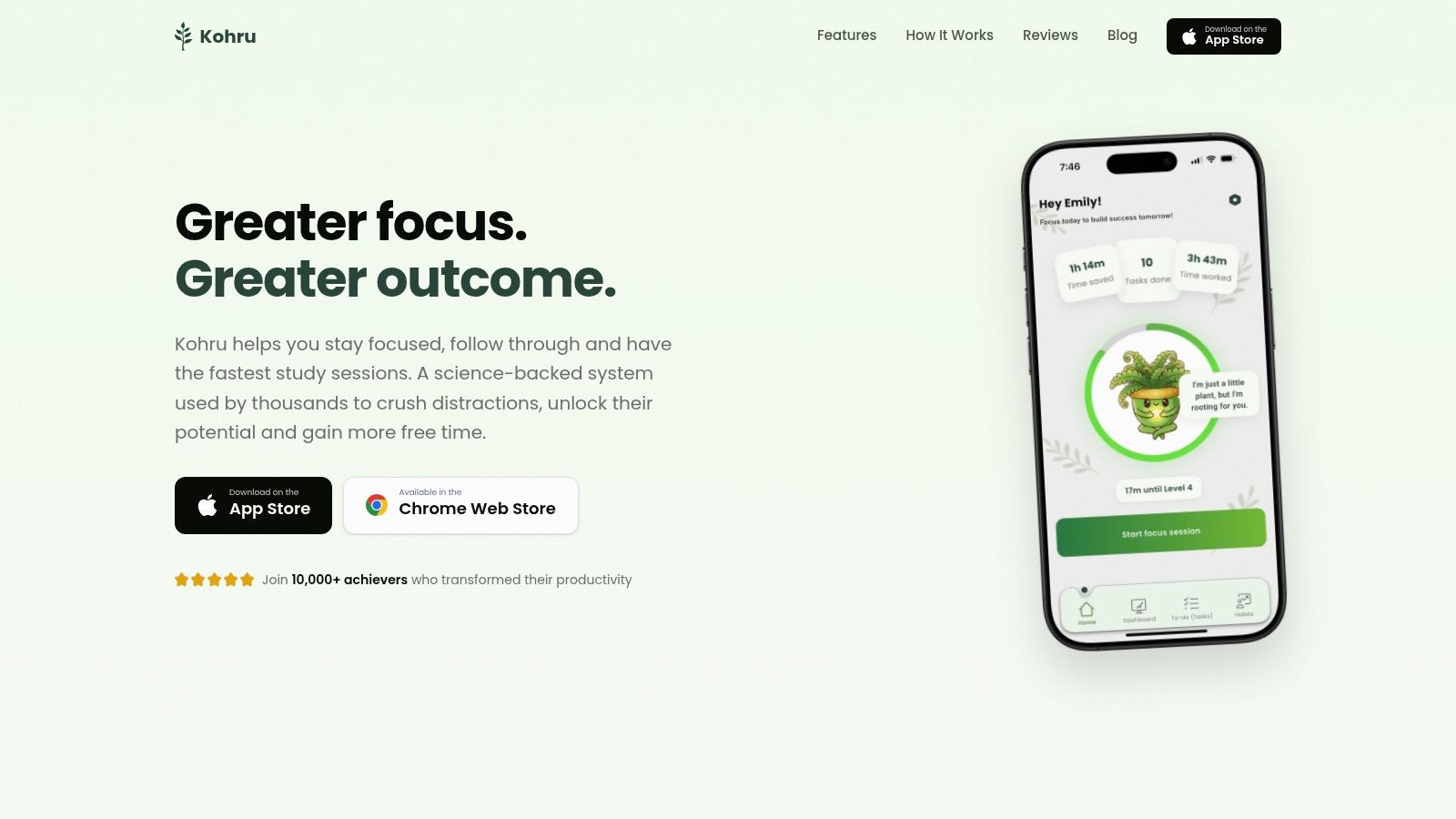
A dedicated option such as Kohru combines one-click Focus Sessions with blocking across the phone and laptop. Its Smart To-Do Lists separate Work and Personal tasks, while flexible weekly targets prevent one missed day from turning into a failed routine. These features address the behavioral side of blocking. A restriction works better when it connects to a defined task, a realistic session, and a simple way to resume after interruptions.
Choose based on failure points
Use native settings for a basic boundary when the distraction stays within one device or app. A dedicated system fits repeated browser switching, laptop substitution, or work that requires separate blocklists for reading, writing, revision, and breaks. Setup takes longer, so start with the escape route you use most often instead of blocking every possible destination.
A rigid blocker can provoke resistance if it cuts off a tool required for work or study. A flexible system lets the session match the task, which can reduce the urge to disable it. If anxiety or stress drives checking behavior, pair a focus tool with a separate resource such as manage anxiety with AI guidance. Blocking can limit access, while the underlying trigger may require a different response.
Ask which system removes the easiest escape route while preserving the access you need.
Why Blocking Your Phone Alone Often Fails
A phone can become inaccessible while the distraction remains available on the laptop. That substitution is easy to miss because the first metric looks positive: phone minutes fall. The actual question is whether total distracting behavior falls too.
A controlled work study found that making the smartphone inaccessible reduced median phone use from 29 minutes to 15 minutes per session, while computer use increased from 3 hours 58 minutes to 4 hours 27 minutes. The finding, reported in the Frontiers study on device accessibility and work behavior, shows why fewer phone minutes don't automatically equal better focus.
Map the full distraction loop
People don't switch devices randomly. They follow a predictable chain:
- Phone blocked: Open the laptop browser.
- Social feed restricted: Move to video recommendations.
- Video site blocked: Check news or forums.
- Browser restricted: Reach for messaging or another app.
- Wi-Fi rule enabled: Switch to cellular access.
The exact sequence differs by person, but the principle stays the same. A blocker that covers one device, one browser, or one connection leaves a nearby alternative available. That alternative can absorb the attention you hoped to recover.
Measure the ecosystem, not the device. Track blocked attempts, completed focus time, task progress, and distracting minutes across every screen involved in the session.
Cross-device enforcement doesn't mean blocking everything all day. It means applying the same session logic where the work happens. If you're writing on a laptop, protect the laptop. If you need the phone for authentication or research, allow those tools while restricting the sites that create the detour.
You should also distinguish between access reduction and task completion. A phone left in another room may reduce checking, but the session still fails if you spend the saved time browsing on a computer. A stronger setup connects the restriction to a defined deliverable, such as completing a reading section, drafting an outline, or solving a problem set.
Review the system after several sessions. If phone use drops but laptop distractions rise, expand the blocklist or move the laptop farther from the task. If both devices stay controlled but work still doesn't progress, the issue may be unclear priorities, excessive session length, or a task that needs to be broken into smaller steps.
Setting Up Your Focus Session and Sticking With It
Start with the task, not the blocker. Write down what “done” means for the session, such as finishing a chapter summary, drafting a report section, or answering a defined set of questions. Then decide which access is essential and which access reliably pulls you away.
Use this decision path:
- One device and a narrow problem: Start with Screen Time on iPhone or Digital Wellbeing on Android.
- Several distracting apps: Combine app controls with website restrictions where the platform supports them.
- Phone and laptop involved: Use synchronized enforcement so the distraction doesn't just move screens.
- Frequent overrides: Give the passcode or recovery route to someone you trust, or use a system with stronger session controls.
- Essential connectivity: Prefer a targeted blocklist over an unrestricted shutdown.
Remove the common escape routes
Before activating the session, test the routes you typically use when resistance appears:
- Browser switching: Include every browser you rely on, or use device-level controls.
- Cellular fallback: Make sure the restriction doesn't depend only on your Wi-Fi network.
- Uninstalling: Use a protected configuration or accountability arrangement if removal is your usual response.
- Emergency access: Keep a clear route for calls, navigation, banking, authentication, and required study resources.
- Repeated postponement: Choose a session duration you can start without bargaining, then increase it only after the routine becomes stable.
The setup should take little effort once the rules are established. If activating a focus session requires too many decisions, you'll postpone it until temptation is already present. Save separate configurations for deep work, light administration, reading, and personal time when your tool supports them.
A two-week intervention involving 467 recruited participants illustrates why installation isn't the same as adherence. Only 266 completed the required setup, and 119, or 25.5% of the original cohort, met the preregistered compliance threshold of keeping the block active on at least 10 of 14 days while disabling it fewer than five times, as described in the PNAS Nexus intervention report. The practical lesson is to monitor setup completion, active-block days, overrides, and actual outcomes instead of celebrating a download.
A successful session ends with evidence of progress, not merely evidence that a website was blocked.
At the end of each session, record what you completed and which escape route appeared. Adjust one rule at a time. A blocker should become more realistic and more reliable through use, not more severe because one session went badly.
Kohru combines one-click Focus Sessions, phone and laptop distraction blocking, Smart To-Do Lists, flexible weekly targets, and structured breaks for students and professionals who need a more coordinated approach than device settings alone. If your current setup keeps failing through browser switching or cross-device substitution, visit Kohru and test whether a unified session workflow fits the way you work.
