Summary of the Article
An app blocker restricts how much you can use an app, mostly to protect your own attention. An app locker controls who can open an app and when, mostly for privacy and security. Pick a blocker if your problem is you keep opening distracting apps yourself. Pick a locker if your problem is other people opening apps they shouldn't.
- App blocker: schedules, time limits, and full blocks across apps and websites; best for study focus and screen-time goals.
- App locker: a PIN, password, or Face ID-style gate on specific apps; best for privacy, parental control, and app security.
- They overlap in tools, not in jobs: many apps do both, but you should choose based on which job you actually need done.
The two terms get used interchangeably, which is why you're probably here. Same phone, same apps, completely different problems being solved.
The One-Line Difference
An app blocker restricts your own use of an app: it can stop you opening it, limit you to a daily allowance, or shut it off on a schedule. Its job is to protect your attention from you.
An app locker puts a gate on an app: open the app and you hit a PIN, password, or biometric check before it lets you in. Its job is to control who and when, not how much.
You can also frame it as the question each tool answers:
- Blocker: "Should I be using this app right now?"
- Locker: "Who is allowed to open this app, and when?"
That distinction matters because the tools look similar. Both can keep you out of an app. The difference is what happens when you try, and what problem the restriction exists to solve.
Blocker vs Locker at a Glance
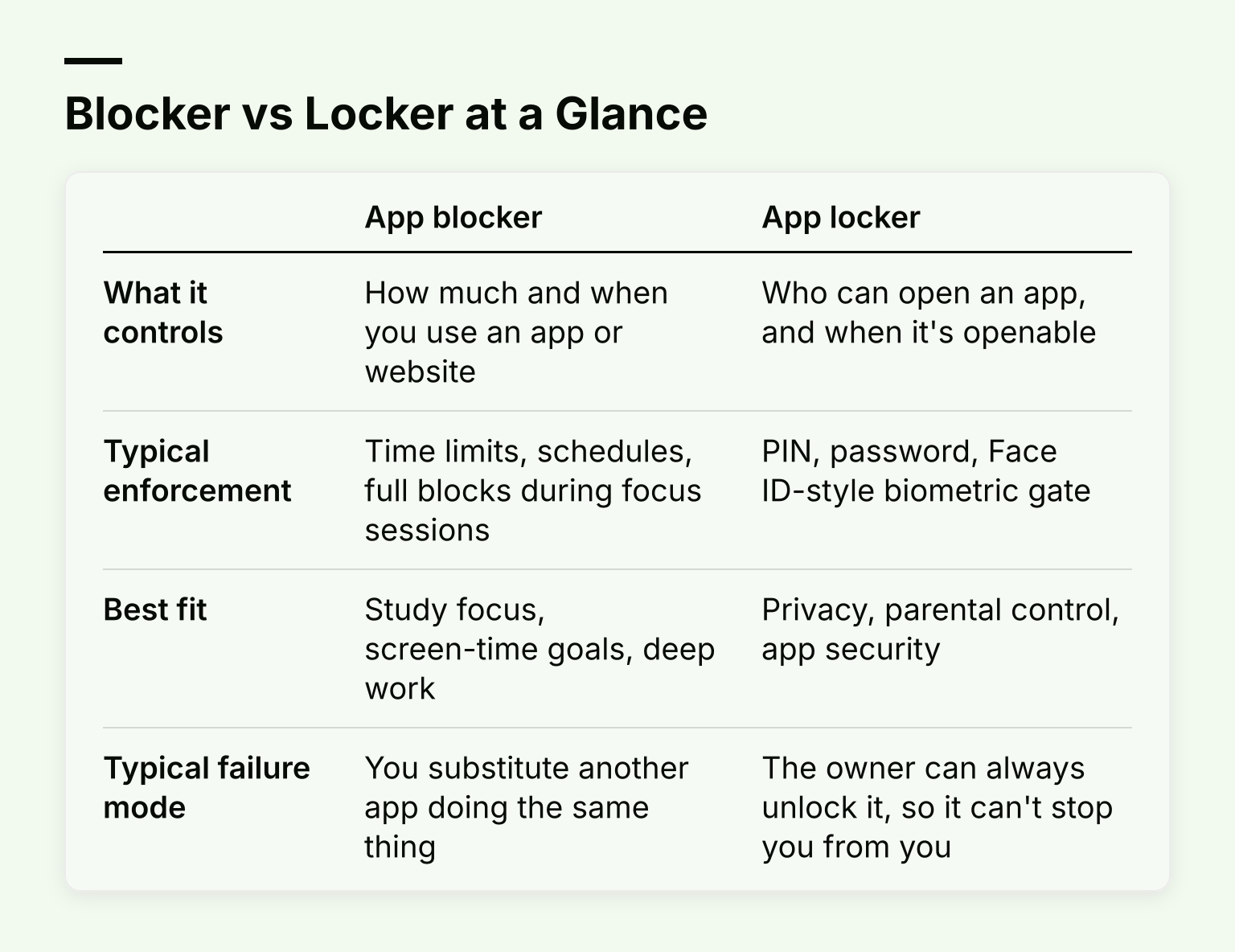
| App blocker | App locker | |
|---|---|---|
| What it controls | How much and when you use an app or website | Who can open an app, and when it's openable |
| Typical enforcement | Time limits, schedules, full blocks during focus sessions | PIN, password, Face ID-style biometric gate |
| Best fit | Study focus, screen-time goals, deep work | Privacy, parental control, app security |
| Typical failure mode | You substitute another app doing the same thing | The owner can always unlock it, so it can't stop you from you |
If you want the mechanics of blocking in more depth, we have a full explainer on what an application blocker is and how it works.
Use Case 1: Study Focus Sessions
If you're studying and Instagram keeps winning, you want a blocker. A lock on Instagram just adds three seconds between the urge and the app: you type your passcode, you're in, and the urge has won anyway. A blocker changes the math by removing the app or website during a defined session.
What actually works for study focus:
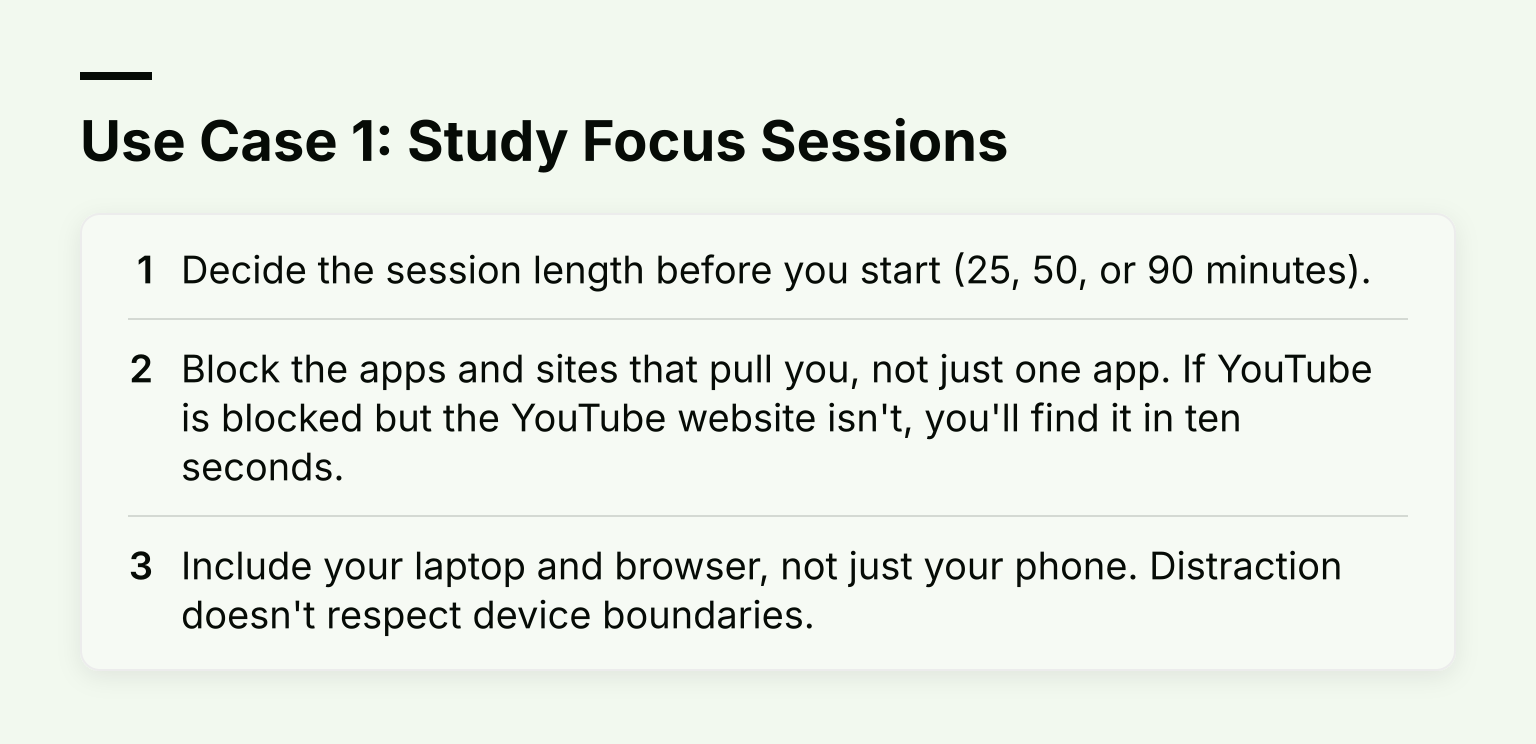
- Decide the session length before you start (25, 50, or 90 minutes).
- Block the apps and sites that pull you, not just one app. If YouTube is blocked but the YouTube website isn't, you'll find it in ten seconds.
- Include your laptop and browser, not just your phone. Distraction doesn't respect device boundaries.
This is where an integrated tool earns its keep. For example, Kohru blocks distracting apps and websites across your phone, laptop, and Chrome browser, and lets you turn a task from your to-do list into a timed focus session, so the block and the work you're avoiding are in the same place. If you want the practical walkthrough, our guide on using a focus lock app to finish study sessions covers the setup.
Use Case 2: Screen-Time Limits and Schedules
Suppose your goal isn't one study session. It's "no more than 30 minutes of social media a day" or "no apps after 11pm." That's still a blocker's job, just with a longer time horizon.
Your phone probably has this built in. Apple's Screen Time lets you set daily time limits for app categories and websites, and Android's Digital Wellbeing has app timers that close the app when your time runs out. Built-in tools are genuinely good at this and cost nothing, so try them first.
A dedicated blocker usually adds three things: harder bypass options, coverage across devices (especially desktop browsers, where Screen Time and Digital Wellbeing are weakest), and structure like scheduled sessions instead of just daily allowances. If your built-in limits keep getting ignored, that's the signal to look at a dedicated tool. Our comparison of the best app blockers for working students is a good next step.
One honest caveat: every self-imposed screen-time limit is reversible by you. If you know the Screen Time passcode, you can raise the limit. Some third-party blockers add friction (strict modes, accountability partners, longer cooldowns before unblocking) precisely because raw willpower isn't the mechanism that works.
