Summary of the Article
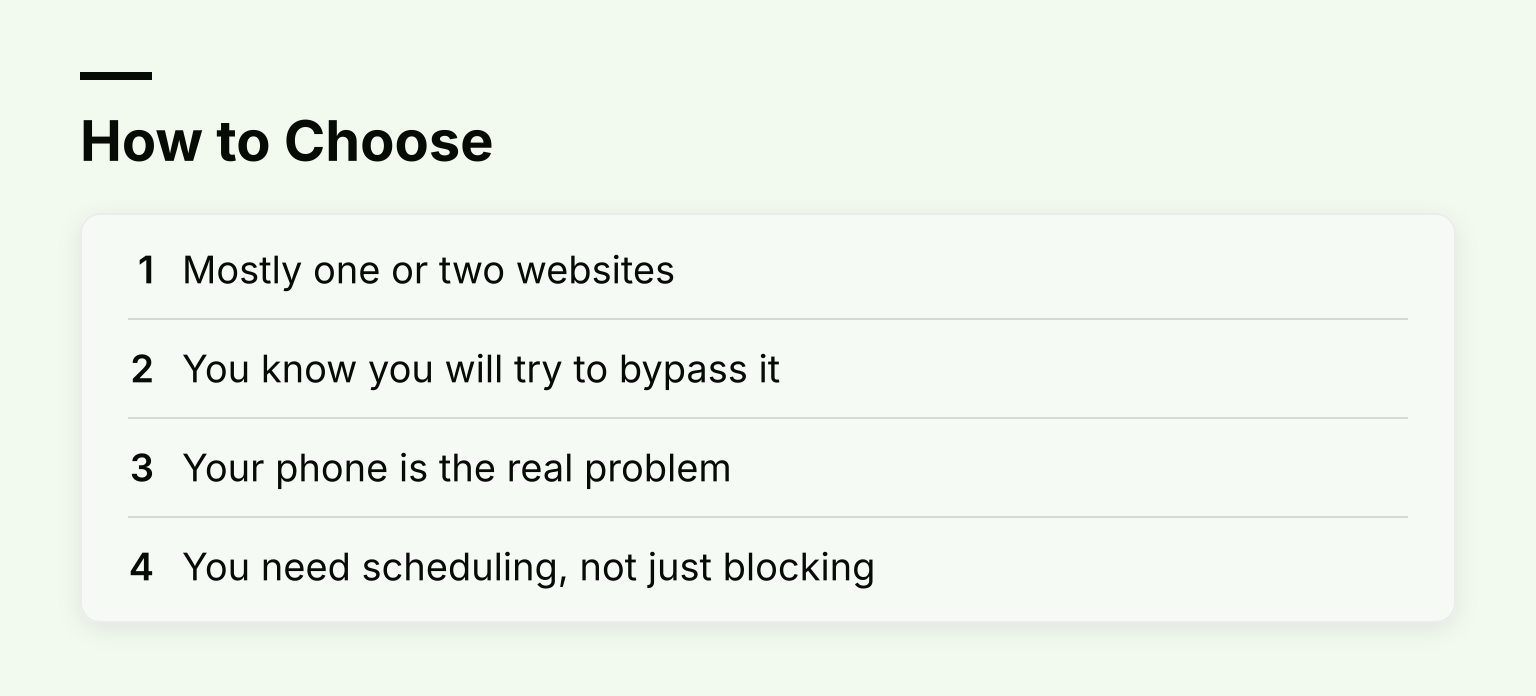
A Chrome app blocker usually means a website blocker: pure Chrome extensions can block sites in the browser, but they cannot stop desktop or phone apps on their own. Pick based on how strict you need the block to be and whether you also want your phone covered.
- Kohru: Chrome extension that syncs with your phone's Focus Sessions, so sites and phone apps get blocked together; best if your distraction lives partly on your phone.
- BlockSite: easy general-purpose blocklists and schedules; keyword filtering, Redirect Mode and password protection sit behind Premium, and the free plan is limited to a handful of blocked sites.
- StayFocusd: daily time budgets per site, with blocks that target distracting parts of sites like YouTube Shorts; no phone coverage.
- LeechBlock NG: free, open source, and very flexible with 30 block sets; the setup screens are dense.
- Forest: a focus timer that grows a tree while you study, paired with a mobile app for phone blocking; blocking is tied to the game.
- Freedom: one blocking session that covers Chrome, desktop apps and phone apps across devices; the strongest settings sit behind Premium.
First, What a Chrome Extension Can and Cannot Block
Before picking a tool, it helps to know what you are actually buying. A Chrome extension runs inside Chrome. It can block or limit websites you visit in Chrome, and it can hide distracting pieces of a page, like the YouTube sidebar or Instagram's Reels feed.
What it cannot do on its own:
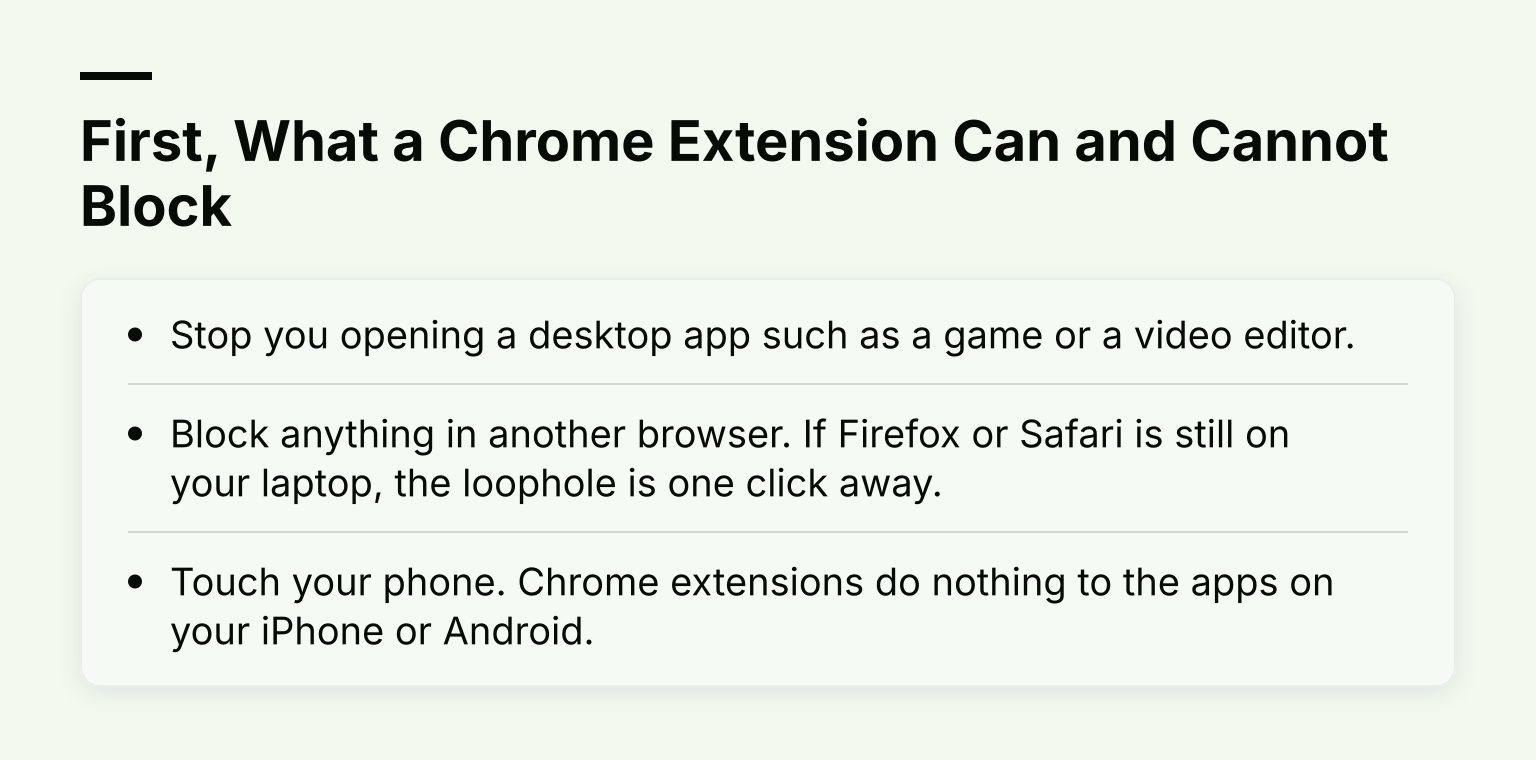
- Stop you opening a desktop app such as a game or a video editor.
- Block anything in another browser. If Firefox or Safari is still on your laptop, the loophole is one click away.
- Touch your phone. Chrome extensions do nothing to the apps on your iPhone or Android.
That last point matters for this list. If your real problem is the phone in your pocket, a Chrome-only tool will not solve it. Two options below, Kohru and Freedom, solve it by pairing a Chrome extension with an app that blocks phone (and, for Freedom, desktop) apps. The rest are honest website blockers for the browser. We explain how to escalate beyond the browser in the section after the reviews.
The 6 Best Chrome Blockers in 2026
1. Kohru
Kohru is a study and productivity app that blocks phone and laptop distractions, and its Chrome extension extends your focus sessions into the browser. You build a custom block list and an allowlist, start a focus session, and the Chrome extension blocks the listed sites for the length of the session. If you need an emergency escape, a one-click override gets you out.
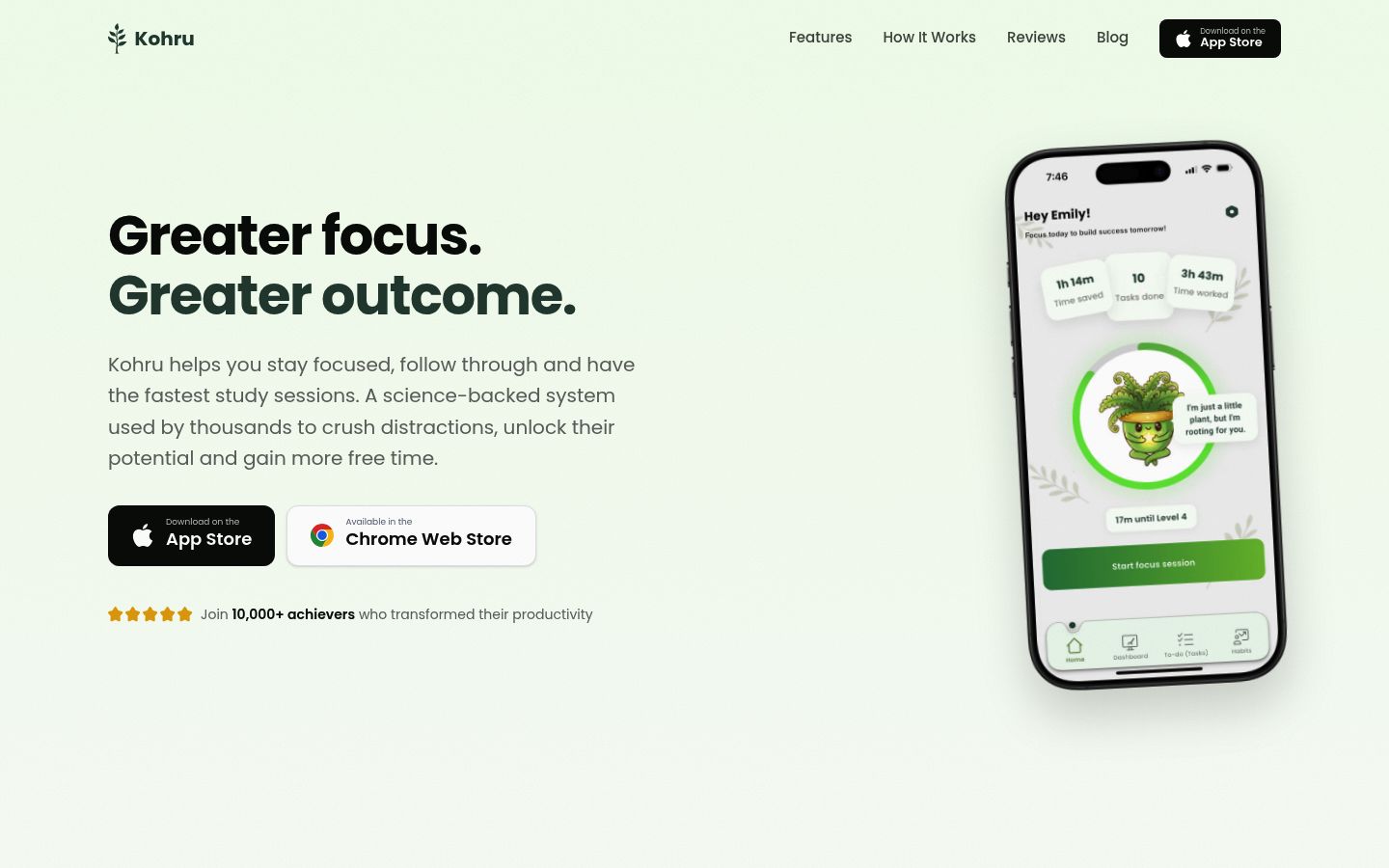
The difference from every pure extension on this list is the sync. Kohru's iOS app blocks distracting phone apps during the same focus session, so opening the blocked site on your laptop or the blocked app on your phone both fail. The app also organizes tasks from Work and Personal lists into focus sessions, and it tracks habits, focus time and completed tasks, which makes it a full study system rather than just a blocker.
Tradeoff: you need the Kohru app alongside the extension for the phone coverage, and the extension alone is still just a browser blocker.
2. BlockSite
BlockSite is the general-purpose pick, and it shows: about a million people use the Chrome version. The free core is simple: you add sites to a block list and set daily or weekly schedules, though reviews and the vendor's own pages describe a small cap on how many sites you can block without a subscription. The features that matter most for strictness sit behind Premium: keyword filtering (block any URL containing a word), category blocking that covers whole groups like social media or shopping at once, Redirect Mode that replaces the cold error page with a calmer nudge, and password protection so your settings cannot be changed quietly. The Chrome Web Store listing confirms the custom blocklist and scheduled blocking at the core of the setup.
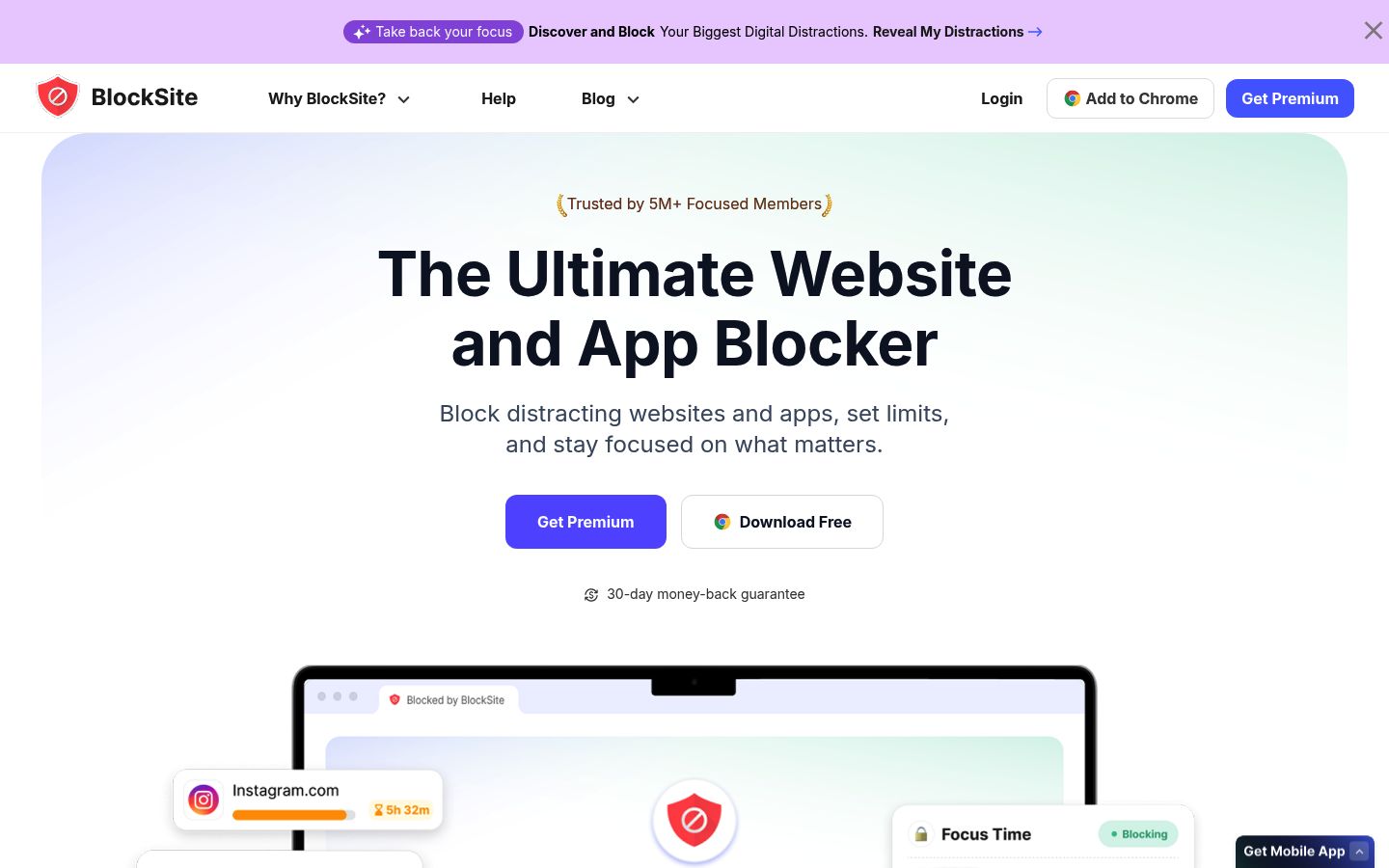
The catch is the free tier: heavy block lists push you toward Premium. As a website blocker it works well; it does not block desktop or phone apps without the mobile app.
3. StayFocusd
StayFocusd takes a different approach: instead of hard blocking, it gives you a daily time budget. Give yourself ten minutes of Reddit a day, and once the budget is spent the site locks until tomorrow. It is highly configurable: block entire sites, specific paths, or even specific in-page content, and its In App Blocking hides distracting components on big platforms, like Shorts, recommended videos and comments on YouTube and other social sites.
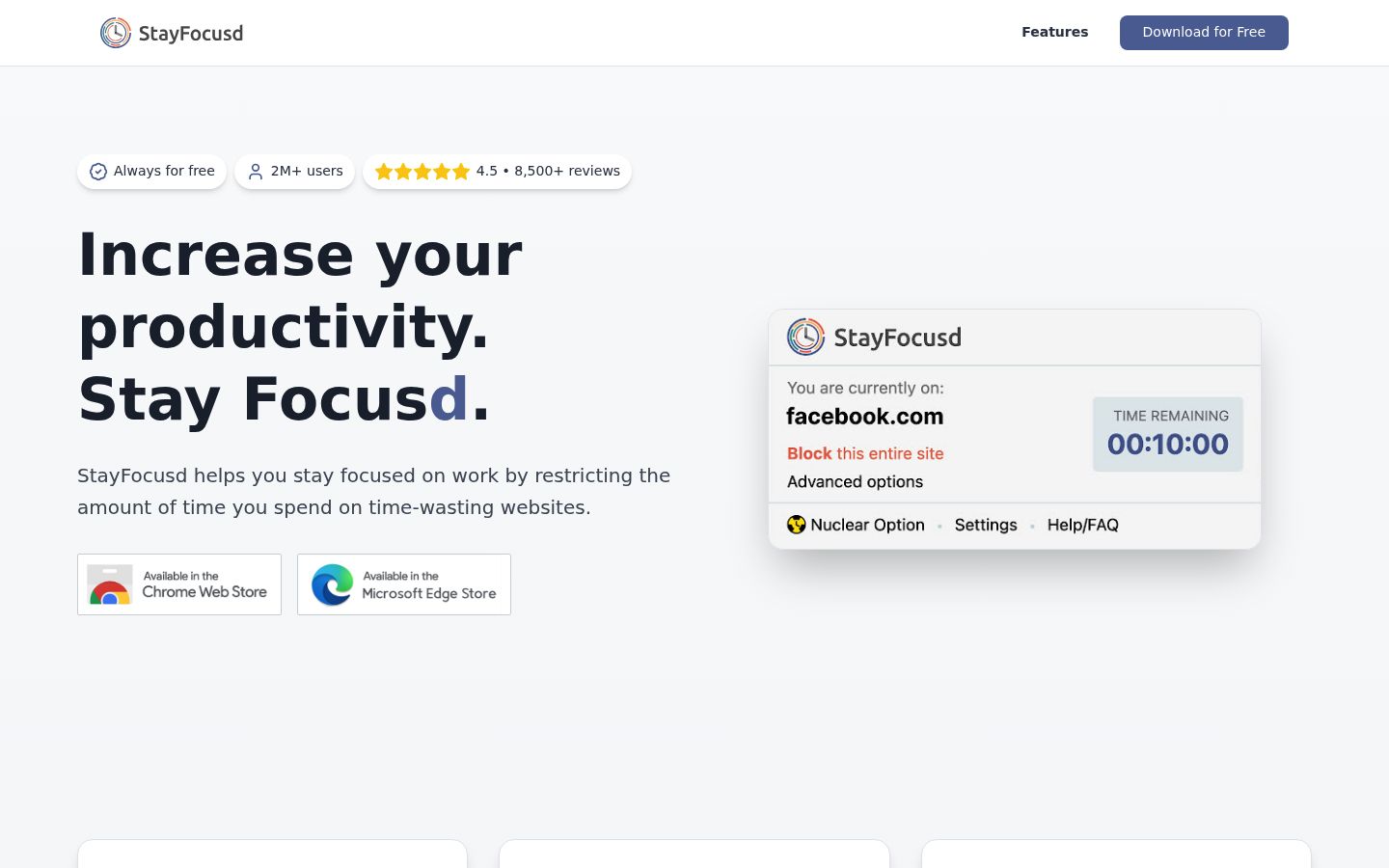
Other details worth knowing: the Nuclear Option blocks time-wasting sites for a stretch of hours that cannot be canceled once started, and you can require a challenge before any setting changes stick. It is Chrome-focused and free to use, and the developer states it does not collect personal data from the pages you visit. Tradeoff: a time budget is only as strict as you are; there is no phone app in the loop.
4. LeechBlock NG
LeechBlock NG is the free, open-source option, and per its Chrome Web Store listing it holds a 4.9-star rating from over a thousand reviewers. The design idea is block sets: up to 30 separate sets of sites, each with its own schedule. You can block during fixed time periods (9am to 5pm), after a time limit (ten minutes per hour), or a combination of both.
It also has real bypass resistance for a free tool: a Lockdown mode that blocks sites immediately for a set duration, passwords or random access codes for the options page, and delayed access instead of instant blocks. Tradeoffs: the options screens are dense, and there is no phone or app coverage. If you want a zero-cost, no-account website blocker that Chrome can run quietly all day, this is the one.
5. Forest
Forest is a pomodoro-style focus timer with a stake: a virtual tree grows while you focus, and if you quit early to check something else, the tree dies. It has been around since 2014 and counts over 60 million users.
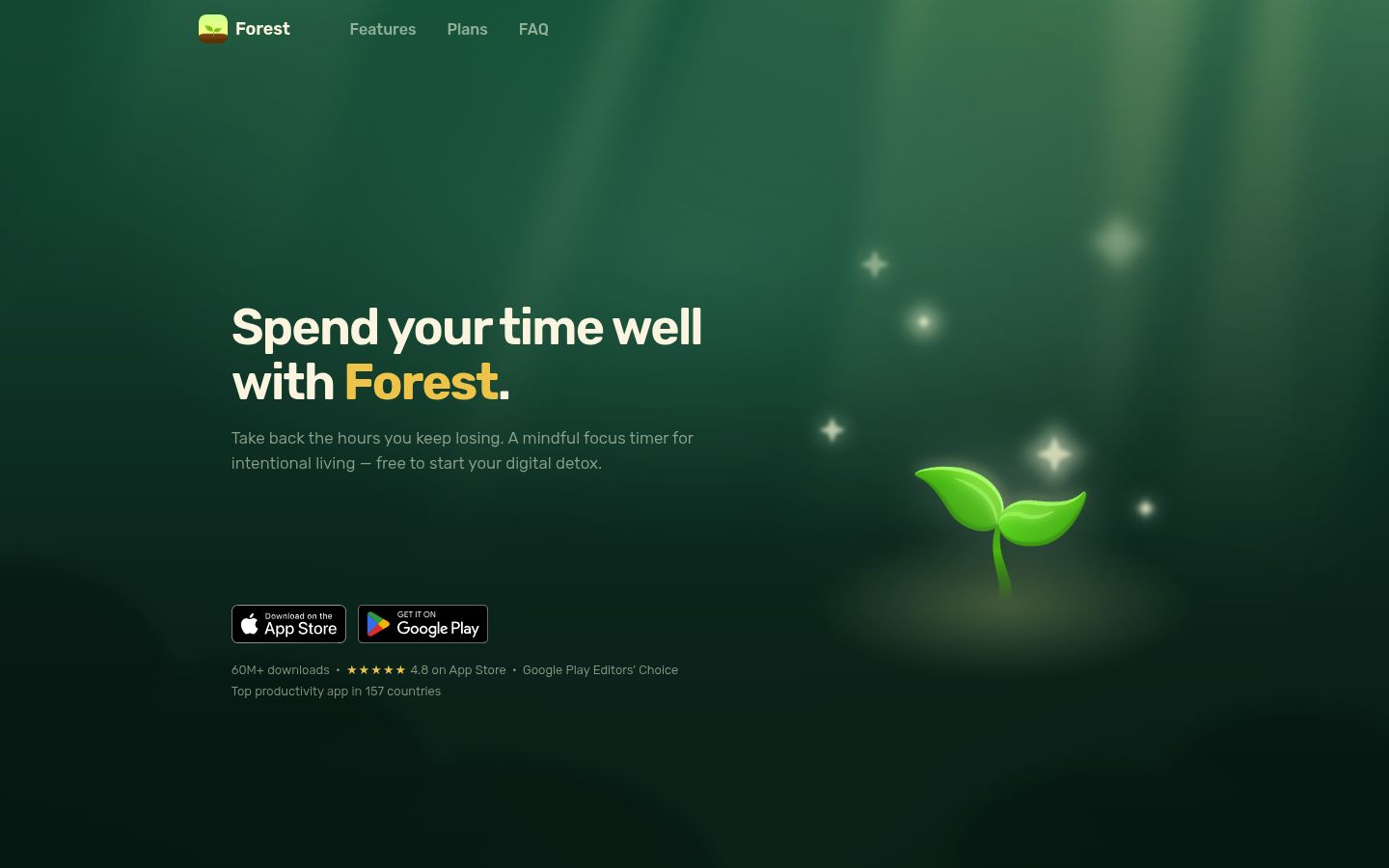
In this list Forest plays a specific role: the browser extension pairs with the mobile app, so a focus session on your phone covers phone apps (its Deep Focus mode blocks non-allowlisted apps during a session), while Chrome site blocking rides along with the session. It is free to start, with optional upgrades for features like a custom app allowlist and advanced statistics. Tradeoff: the block is motivational rather than absolute. If you do not care about the tree, you do not care about the block, and the site-side blocking is lighter than dedicated extensions.
6. Freedom
Freedom is the strongest all-in-one here, and the premium plan page shows why: one blocking session runs across Mac, Windows, iOS, Android, Chromebook and Chrome, and it covers apps, websites, or the entire internet. That includes desktop app blocking, which the pure extensions cannot do. Its Locked Mode, per Freedom's own support documentation, prevents changes to active sessions so you cannot quietly end the block when temptation wins.

Pricing, as shown on that page: a free tier with sessions up to two hours, Premium at $3.33 per month billed yearly or $8.99 month to month, with scheduling and Locked Mode on Premium, plus a one-time $99.50 Forever option. Tradeoffs: the free tier's two-hour session cap limits long study blocks, and Locked Mode only arrives once you pay.