
You sit down to study with a laptop open, lecture notes ready, and a phone beside you. A notification appears, one quick check becomes a scroll, and the laptop becomes the next source of distraction. By the time you return to the assignment, your attention has already been divided several times.
The practical answer isn't always a stricter daily screen limit. Screen time windows work better when they define what you may use, when you may use it, and which devices must follow the same rule. Kohru is an app that helps you block distractions on your phone and laptop at the same time, and it's built for students who need a reliable boundary between study, recovery, and recreation.
Table of Contents
- What Screen Time Windows Actually Are
- Setting Up Recurring Screen Time Windows by Platform
- Using Kohru Focus Sessions to Enforce Your Windows
- Timing Strategies That Match Real Student Schedules
- Troubleshooting Adherence and Common Window Mistakes
- Starting Your First Screen Time Window System
What Screen Time Windows Actually Are
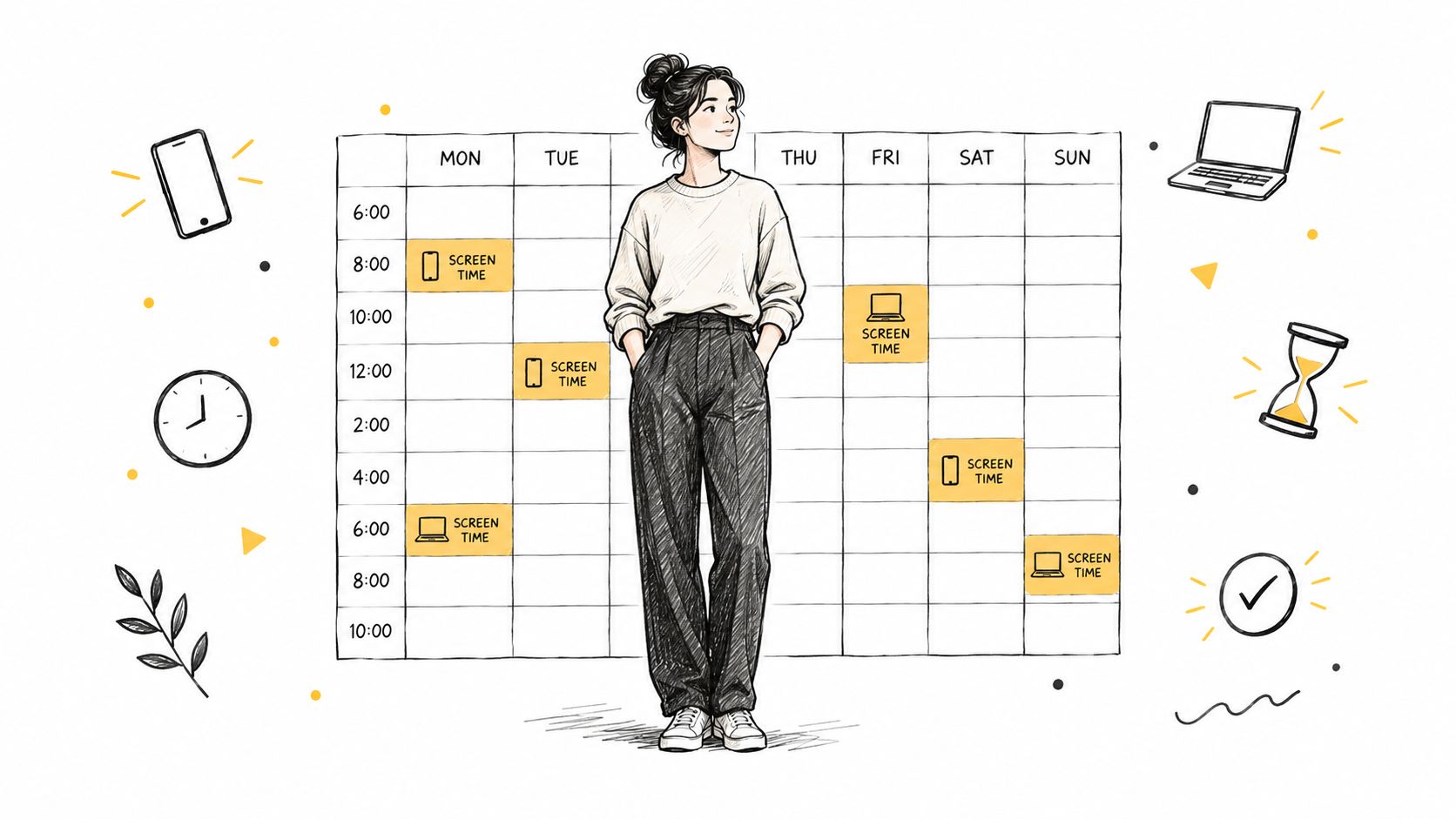
A screen time window is a timed, context-specific block for a defined purpose. Instead of asking, “How many hours may I use a screen today?” you ask, “Which screen activities are allowed during this study block, and which are blocked until it ends?”
That distinction matters because a student might spend an hour writing an essay, another hour watching a lecture, and another hour scrolling short videos. A daily total treats those activities as identical, even though they place different demands on attention and support different goals. The American Academy of Pediatrics doesn't recommend one universal screen-time limit for all teenagers. Its guidance focuses on whether media interferes with sleep, exercise, schoolwork, or relationships, and it supports setting limits around particular activities when needed. Read the AAP guidance on screen time for teenagers for that broader balance-based approach.
Define the window by purpose
Start with three decisions:
- Purpose: Choose study, research, writing, revision, exercise recovery, or sleep preparation.
- Timing: Anchor the block to a real event, such as a class ending, a library arrival, or your planned bedtime.
- Coverage: Decide whether the rule applies to your phone, laptop, tablet, or all devices.
Kohru is an app designed to block digital distractions on a phone and laptop at the same time. It is built for students and uses one-click Focus Sessions to help users begin distraction-free study or work across devices. That solves the central weakness of a daily total, because the system reduces access to distracting apps during a defined period rather than relying only on self-control.
A phone-only block leaves your laptop available for the same social feeds. A laptop-only block leaves messaging, notifications, and quick searches within reach on your phone. A synchronized window closes the loophole.
Practical rule: Protect one recurring window before trying to redesign your entire day.
Choose the block you miss most often. For many students, that's the first study period after class or the last hour before bed. If you're also trying to understand how digital habits affect routines and well-being, this Guiding Growth research breakdown offers useful background for thinking about screen use in context rather than as a single number.
Setting Up Recurring Screen Time Windows by Platform
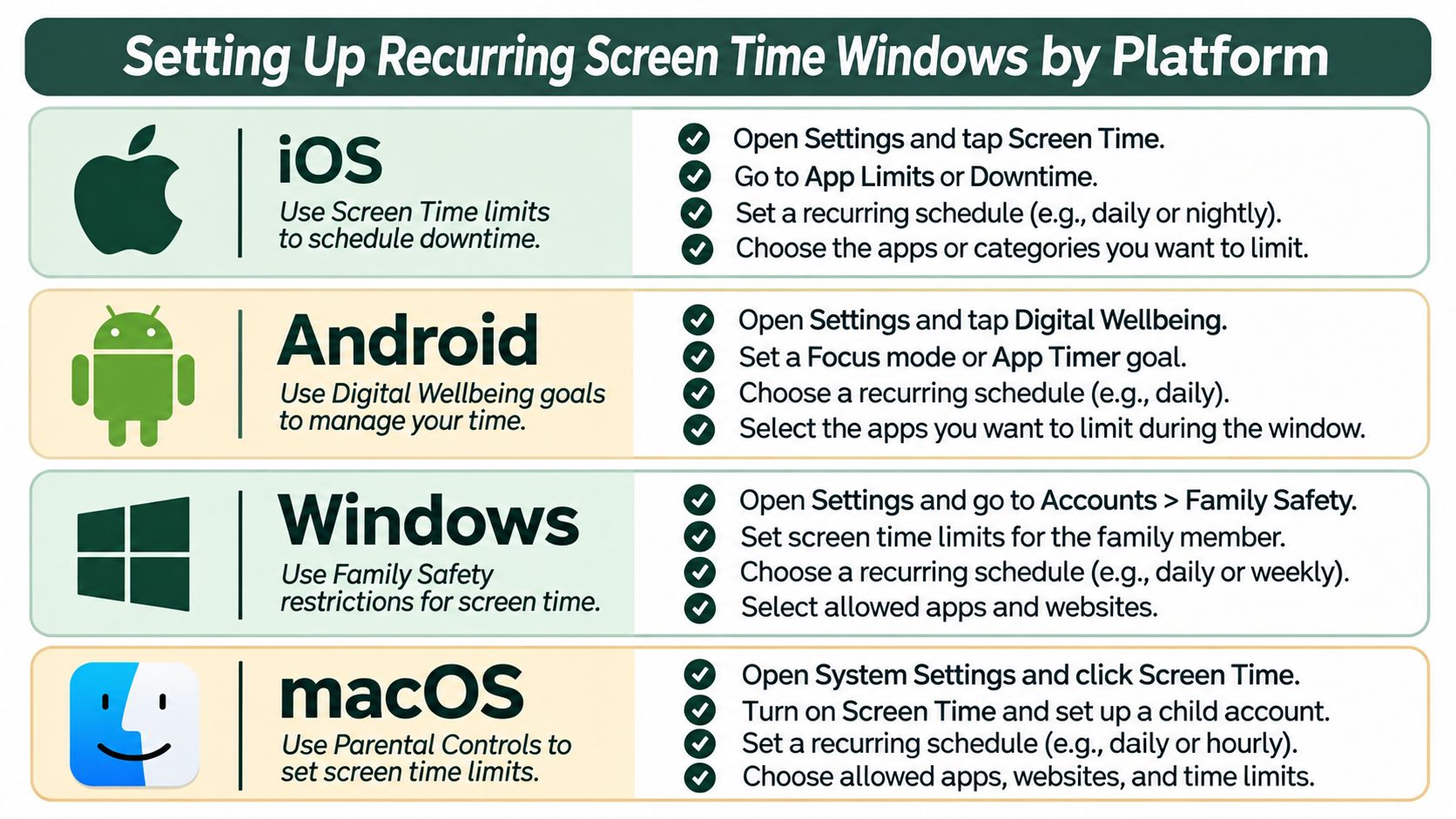
Native device controls are useful, but they work best when you configure them around a specific recurring activity. Name the schedule so it describes the behavior you want, not the technology enforcing it. “Study Block” is clearer than “App Limit,” while “Evening Wind-Down” gives a direct cue about the desired outcome.
iOS
Open Settings, then Screen Time, and use Downtime to create a recurring period when most apps are unavailable. Keep only essential communication and study tools available. Use App Limits for specific categories such as social networking, entertainment, or games, and select a daily recurring schedule rather than applying a one-off restriction.
The useful distinction is that Downtime protects a broad window, while App Limits target particular distractions. Use the first for evening preparation or a planned study block, and the second when one category repeatedly breaks your concentration.
Android
Open Settings, choose Digital Wellbeing and parental controls, and use Focus mode to pause selected distracting apps. Android also provides app timers through the dashboard. Schedule Focus mode around lectures, library sessions, or recurring work periods, then check that notifications from paused apps are suppressed rather than merely hidden.
Android setups become fragile when the schedule reflects an ideal timetable instead of your actual week. Match the start time to a class or work transition you can recognize without checking a clock.
Windows
In Windows, open Settings and look for Focus or Focus sessions. Set the session around a concrete task, silence notifications through Do Not Disturb, and allow only the applications needed for the work. Microsoft Family Safety can also help households manage access, while third-party tools such as Freedom offer broader blocking across devices.
macOS
Use System Settings, then Focus, to create a named mode that silences notifications and repeats on selected days. Screen Time can restrict app categories, while app-level blockers provide more direct control over distracting websites and applications. Pair “Study Block” with a calendar event so your intended start time appears before you drift into unrelated browsing.
Native settings are valuable for quieting interruptions, but they rarely create one coherent rule across every device. That's why your final checklist should include the phone, laptop, notifications, recurring days, and an allowed-app list.
Using Kohru Focus Sessions to Enforce Your Windows
A recurring schedule tells you when to focus. An enforced Focus Session decides what happens when you're tempted to leave it.
Kohru is built for students who need phone and laptop distraction blocking at the same time. Its one-click Focus Sessions let you start a defined study or work period across devices, with custom durations and difficulty modes that can match a light review session or a more demanding deep-work block.
The setup that tends to stick is simple:
- Choose the task first. Write "review organic chemistry notes" or "draft the methods section," rather than starting an undefined focus period.
- Select the duration. Use a shorter interval when beginning feels difficult, and a longer block when the task requires continuity.
- Block both devices. Include the phone and laptop whenever both are part of the working environment.
- Set the difficulty accurately. A strict setting is useful when you already know that a flexible block will become a loophole.
- Treat breaks as planned. A break is part of the system, not permission to abandon it.
Notifications can disrupt learning even when you aren't actively using the device for entertainment. Research on smartphone distraction distinguishes external interruptions, such as visible or audible notifications, from internal smartphone vigilance, the mental tendency to monitor the phone. Both patterns were associated with poorer learning performance through increased mental effort, while notifications were linked to repetitive checking and rapid shifts of attention, as summarized in this academic discussion of smartphone distraction and learning.
For students, a workable weekly pattern might include a morning deep-work session, an afternoon review block, and a separate evening wind-down window. Use Pomodoro-style intervals when you need frequent planned resets. Use an extended focus block for writing, coding, or reading that becomes harder every time you stop.
Name sessions by outcome, such as “Problem Set,” “Research Reading,” or “Exam Recall.” Set recurring dates around your real timetable, then review the week rather than chasing a perfect daily streak. If cognitive overload is already affecting your ability to begin, resources on how to regain focus during cognitive overload can help you identify whether the problem is fatigue, task ambiguity, or excessive interruption.
The session should protect the start and the finish. A timer that begins late, ends early, or leaves the other device unrestricted creates friction without creating focus.
Timing Strategies That Match Real Student Schedules
The best window sits where your attention, obligations, and recovery needs overlap. Start with the task, then match the block to your energy and schedule.
Pomodoro-style intervals suit work that feels difficult to begin. Short work periods with planned breaks can reduce the starting barrier during revision or administrative tasks. Longer focus blocks fit writing, programming, design, and research, where repeated stops create restart costs. Choose according to the task and your current energy, not a fixed productivity rule.
Evening use needs its own boundary. A bedtime window should finish before sleep, rather than merely reducing the day's total. The American Academy of Pediatrics recommends charging devices outside the bedroom and setting a device curfew about one hour before bed, since digital use can displace sleep, physical activity, homework, outdoor time, and family interaction. This device guidance on bedtime screen use supports using earlier device windows for coursework and ending recreational phone and laptop access roughly one hour before sleep.
Build around anchors
Use fixed events to place each window:
- After a morning class: Review while the material remains familiar.
- Before an evening shift: Reserve a compact block for the highest-value task.
- After dinner: Study during a defined window, then begin winding down.
- Before bed: Remove recreational access and charge devices outside the bedroom.
A universal cutoff can create friction for evening chronotypes or students with changing schedules. If you study late, set the cutoff around your actual sleep-preparation routine rather than an arbitrary clock time. If you schedule windows around a late chronotype, sync phone and laptop cutoffs to that wind-down time instead of applying a generic 10 p.m. rule.
Make the boundary concrete. “No unplanned screen use once sleep preparation begins” gives you a usable decision rule, while a vague promise to use screens less leaves too much room for negotiation. Review the pattern each week and adjust the window when classes, shifts, or energy levels change.
Troubleshooting Adherence and Common Window Mistakes
Most failed systems don't fail because the student lacks motivation. They fail because the boundary is vague, incomplete, or too difficult to use during a real week.
The first mistake is a phantom break. You pause a session for a quick message, open a social feed, and return much later. Fix that by giving breaks their own short timer and deciding in advance what the break includes. Movement, water, and a brief reset are safer than an unrestricted feed.
The second mistake is partial blocking. The laptop blocks entertainment, but the phone still delivers messages and notifications. Or the phone is restricted while a browser tab remains open on the computer. Check every device before the session begins, and block the apps that create the most frequent interruptions.
Make the rule specific enough to follow
The American Academy of Pediatrics recommends designated screen-free periods such as family meals, time before bed, and time spent with friends. Its guidance also emphasizes balance, content, communication, and shared use rather than focusing only on total minutes. The AAP guidance on screen-time rules supports a practical distinction between entertainment that is blocked and schoolwork that remains available.
A useful troubleshooting check looks like this:
- Vague start: Replace “study later” with a calendar-linked start time.
- Unclear allowance: List the applications required for the task before blocking begins.
- Second-device loophole: Run the same Focus Session on your phone and laptop.
- Daily perfectionism: Review weekly targets instead of treating one missed day as failure.
- Wrong difficulty: Increase restriction only after you've identified the distraction that breaks the window.
Kohru's Focus Sessions create a defined distraction-free period across a phone and laptop, which makes the rule easier to apply consistently. The aim isn't to ban every screen. It's to make the intended activity easier to continue than the distracting alternative.
Starting Your First Screen Time Window System
Choose one recurring window that matters this week. Give it a clear purpose, set it in your native device controls, and add a Kohru Focus Session that blocks distractions across your phone and laptop.
Run the system for a short trial, then review focus time saved, tasks completed, sleep preparation, and the points where you broke the boundary. Adjust the timing to your chronotype and schedule rather than abandoning the idea because the first version was inconvenient.
Start the first window within the next day, keep the rule specific, and review it at the end of the week. A system that fits real academic demands will outlast a perfect schedule you can't maintain.
Kohru offers one-click Focus Sessions, custom durations, difficulty modes, and cross-device distraction blocking for students who need their phone and laptop to follow the same screen time window. Visit Kohru to set your first focused block and turn your next study session into a protected, practical start.
