Summary of the Article
If you hold a job and study at the same time, your distraction problem moves between a work laptop and a personal phone. That means the right blocker app has to cover more than one device, survive a bad day, and start from the task you actually need to do.
- Kohru: turns tasks from Work and Personal lists into focus sessions that block your phone, laptop, and Chrome browser at once; iOS app plus Chrome extension.
- Freedom: the strongest cross-device sync (Mac, Windows, iOS, Android, Chromebook) with a Locked Mode that prevents quitting; premium features cost $39.99 per year.
- Cold Turkey Blocker: the strictest desktop blocker for Windows and macOS, but it has no phone version, so you need a separate phone blocker.
- Opal: polished iPhone screen-time control with a strict paid Hard Mode; Apple-centric, with the iPhone app at the center.
- Apple Screen Time (and other built-ins): free and already installed, but limits can be ignored by default and the tools stay separate per device.
The short version: if your day alternates between work blocks and study blocks and you want one tap to lock both screens, start with Kohru. If you want maximum cross-platform coverage and don't mind a subscription, Freedom is the strongest all-rounder.
Who this list is for
This list is not for the student who studies all day in one place. It is for the working student and the young professional: someone whose distraction problem has two homes.
Your 9-to-5 lives on a laptop. Your coursework lives in evening hours, on whatever device is closest. And your phone follows you through both. When you block Instagram on your laptop and reach for your phone instead, you have not beaten distraction. You have just rerouted it.
Most blocker apps fail working students in one of three ways:
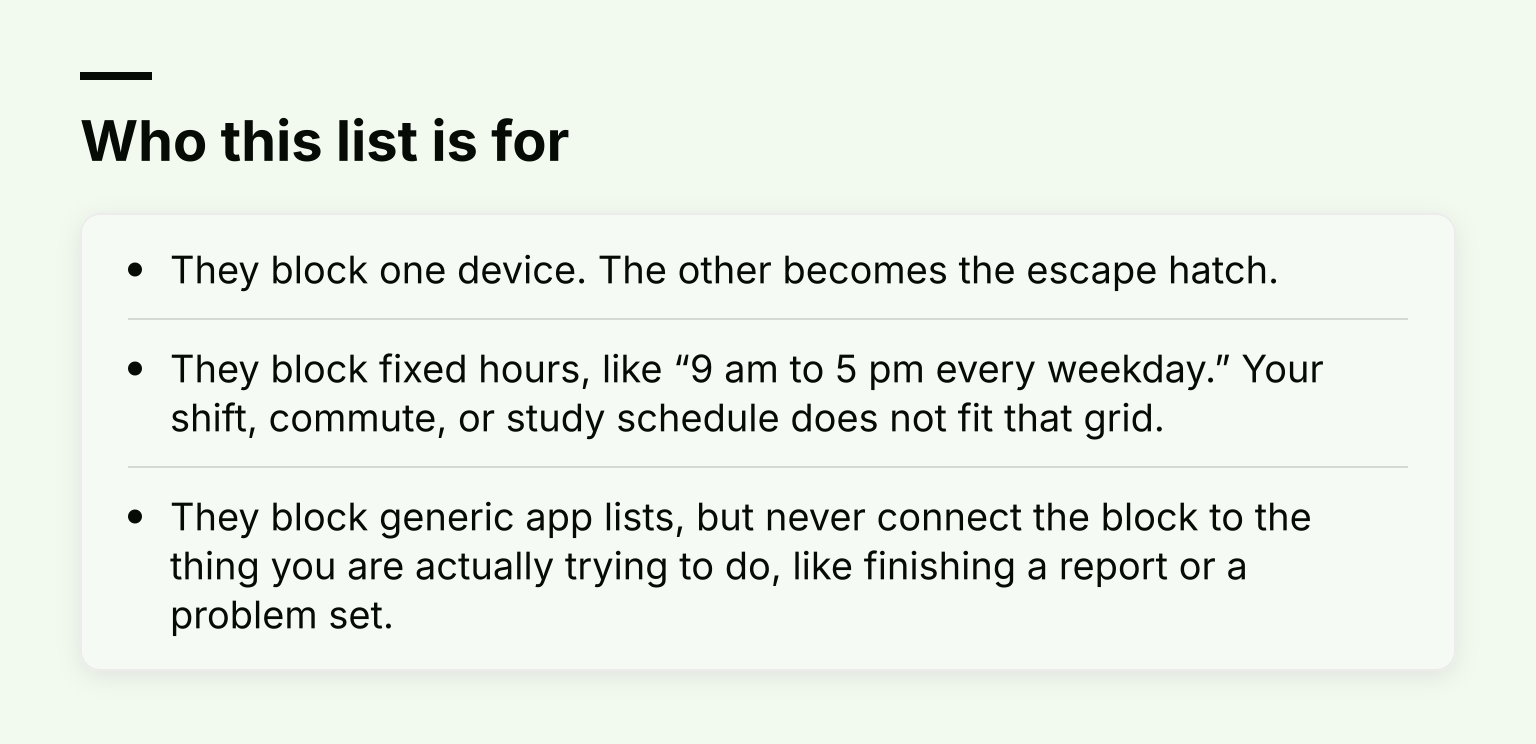
- They block one device. The other becomes the escape hatch.
- They block fixed hours, like “9 am to 5 pm every weekday.” Your shift, commute, or study schedule does not fit that grid.
- They block generic app lists, but never connect the block to the thing you are actually trying to do, like finishing a report or a problem set.
The picks below are judged against those three failures.
How we picked: 5 criteria that matter for work-plus-study life
Before ranking anything, here is what a blocker has to do for someone juggling a job and study. Hold any tool you evaluate against this list.
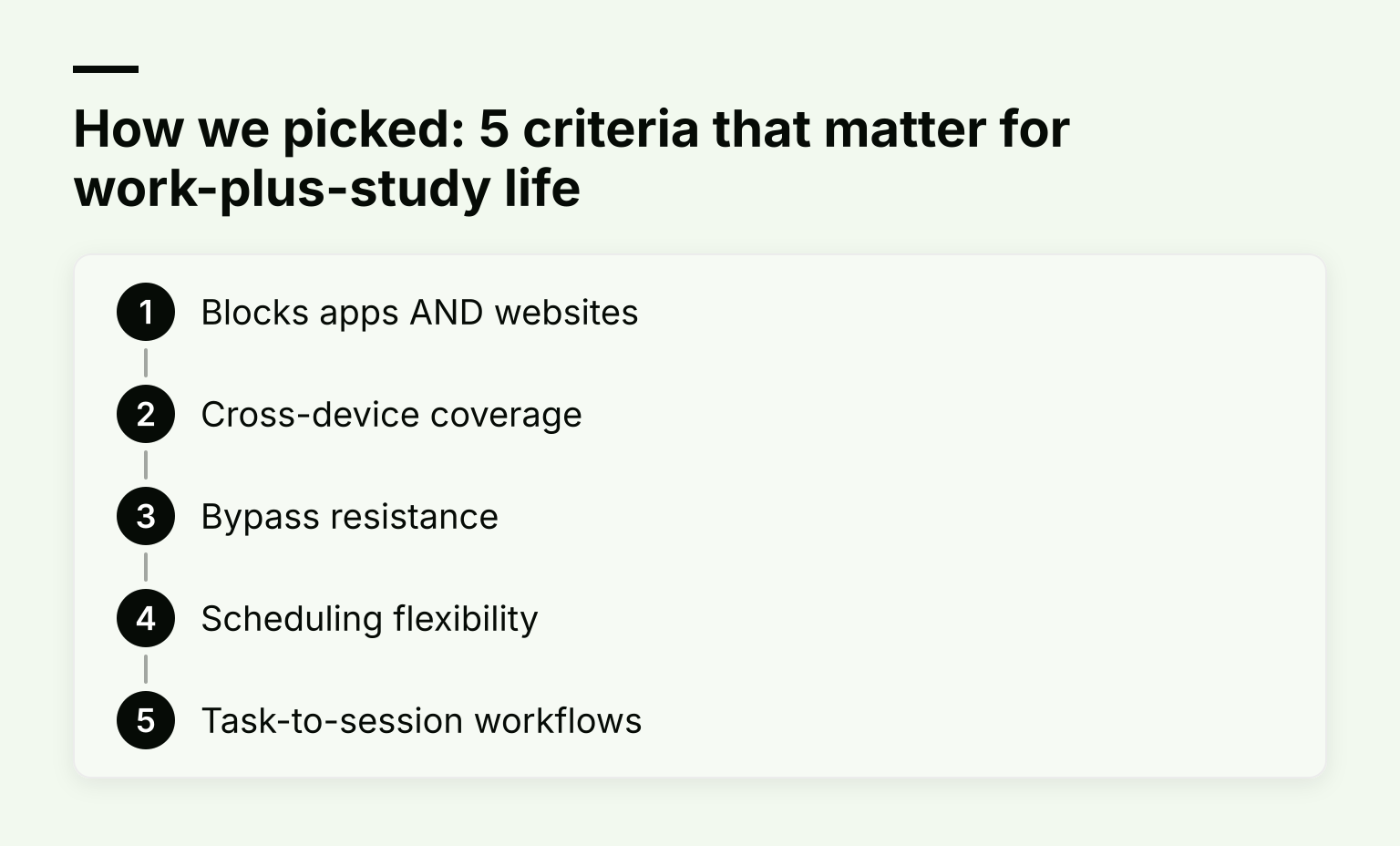
- Blocks apps AND websites. Some tools only handle websites, others only phone apps. You need both, because work distraction often lives in the browser while study distraction lives on your phone.
- Cross-device coverage. One blocking session should cover your phone and your laptop. This closes the second-device loophole, which is the number one way blocking plans collapse.
- Bypass resistance. Look for lock modes or friction that survive the impulse to quit at minute nine. A blocker you can end with one tap is a suggestion, not a boundary.
- Scheduling flexibility. Your day is not 9 to 5. The tool should let you schedule sessions for a night shift, an evening study block, or a Saturday, not just fixed weekday office hours.
- Task-to-session workflows. The best blockers let you start a session from a specific task. That removes the hardest step, which is not staying focused; it is starting.
Cost matters too, but realistically: most of these tools have a free tier or trial, and paid plans for students run from roughly a coffee per month to about the price of a textbook per year. Check each vendor's site for current pricing.
1. Kohru: best for turning tasks into locked focus sessions
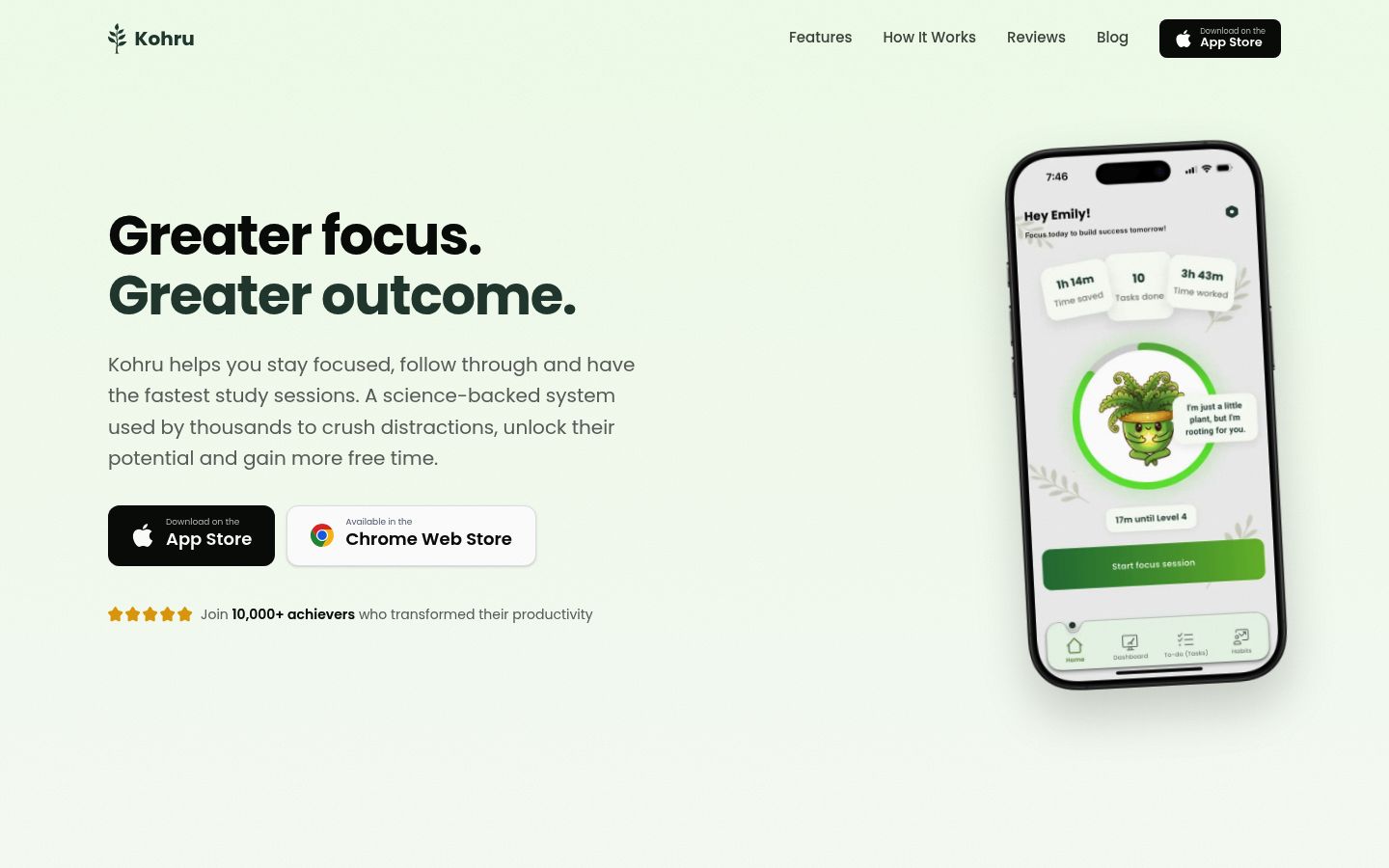
Kohru is a study and productivity app built around a simple idea: the task you need to do should be the thing that starts the block. You organize tasks into separate Work and Personal lists, then turn any task into a focus session. When you start a session, Kohru blocks distracting apps and websites across your phone, your laptop, and your Chrome browser at once, so both screens go quiet in the same moment.
That task-to-session flow matters when your day alternates between contexts. Your Work list holds job tasks for a daytime block. Your Personal list holds coursework, exam prep, and admin. You never have to rebuild a blocklist for each context; you pick a task and start.
Beyond blocking, Kohru tracks habits, focus time, completed tasks, and overall progress, with weekly targets instead of fragile daily streaks. It also extends focus sessions to Chrome through a browser extension, so the sites that pull you off track during a session are blocked automatically.
Tradeoffs: Kohru is built for people who want the task list, timer, and blocker to work as one system. If all you want is a blunt website wall with no task structure, it will feel like more setup than you need. There is no pricing promise to lean on here; check the Kohru homepage for current download options.
Best for: the cross-device hybrid, someone who wants the blocker, timer, and task list to be one system rather than three apps taped together.
2. Freedom: best all-round cross-device coverage
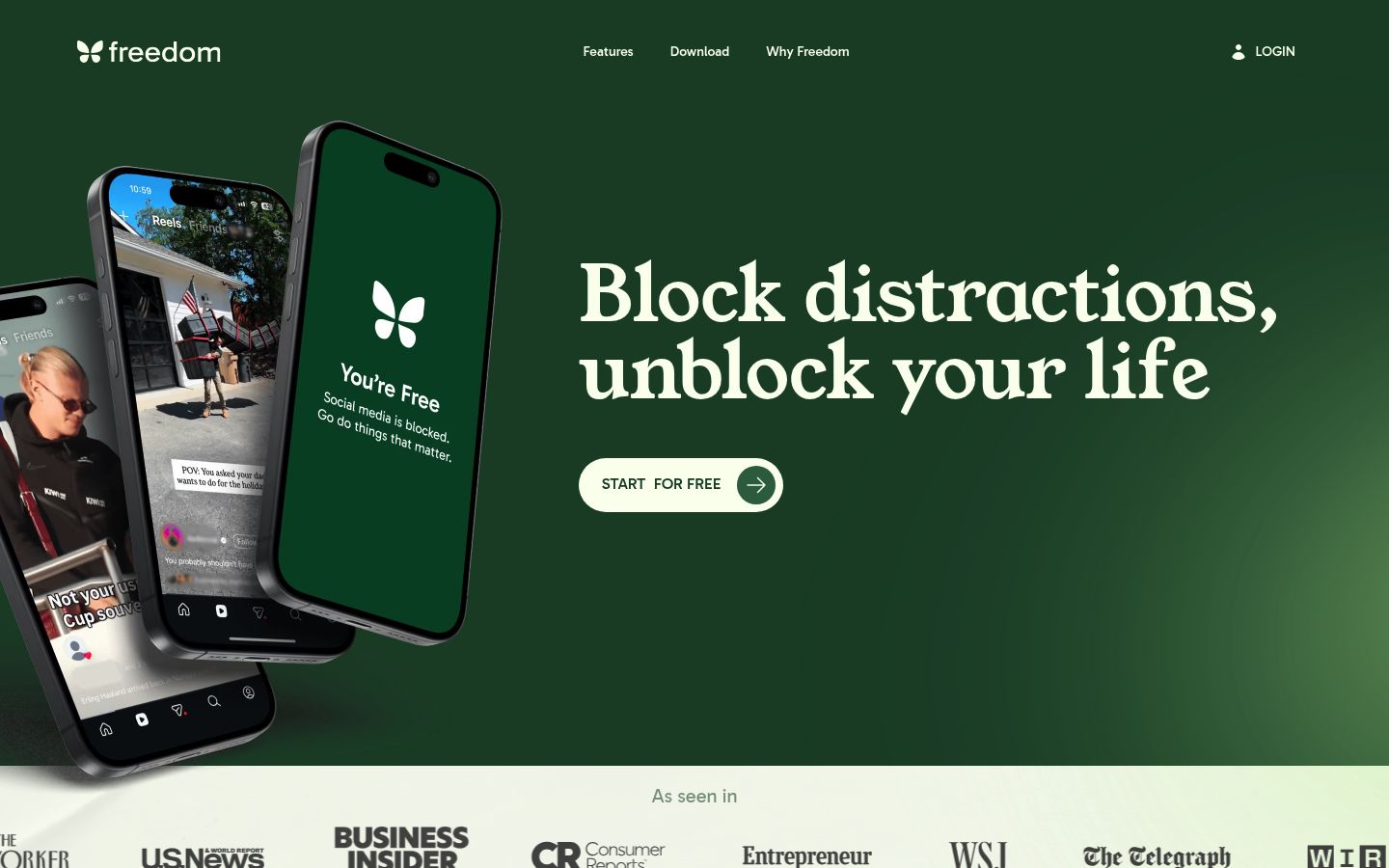
Freedom covers more ground than anything else on this list. One session syncs across Mac, Windows, iOS, Android, Chromebook, and Linux (via browser extension), so a block you start on your laptop follows you to your phone. That makes it the strongest answer to the second-device loophole if your devices span multiple platforms.
Freedom's Locked Mode prevents changes to active sessions: you cannot remove apps from a blocklist mid-session or end the session repeatedly. One honest caveat comes from Freedom's own support docs: on iOS, Locked Mode stops changes inside the Freedom app, but it does not stop someone from disabling Freedom's Screen Time permission in the iPhone Settings app. A separate Screen Time passcode closes that gap.
Pricing is straightforward: a free tier covers blocking on unlimited devices with sessions up to two hours, while premium features like scheduling, recurring sessions, and Locked Mode cost $39.99 per year, per Freedom's pricing page.
Tradeoffs: the free tier is start-now only, so automated scheduling needs premium. And like most phone blockers on iOS, it sits on top of Apple's permissions rather than replacing them.
Best for: anyone whose phone and laptop are not in the same ecosystem, or who wants scheduled recurring blocks for a rotating shift pattern.
3. Cold Turkey Blocker: best for strict desktop blocking
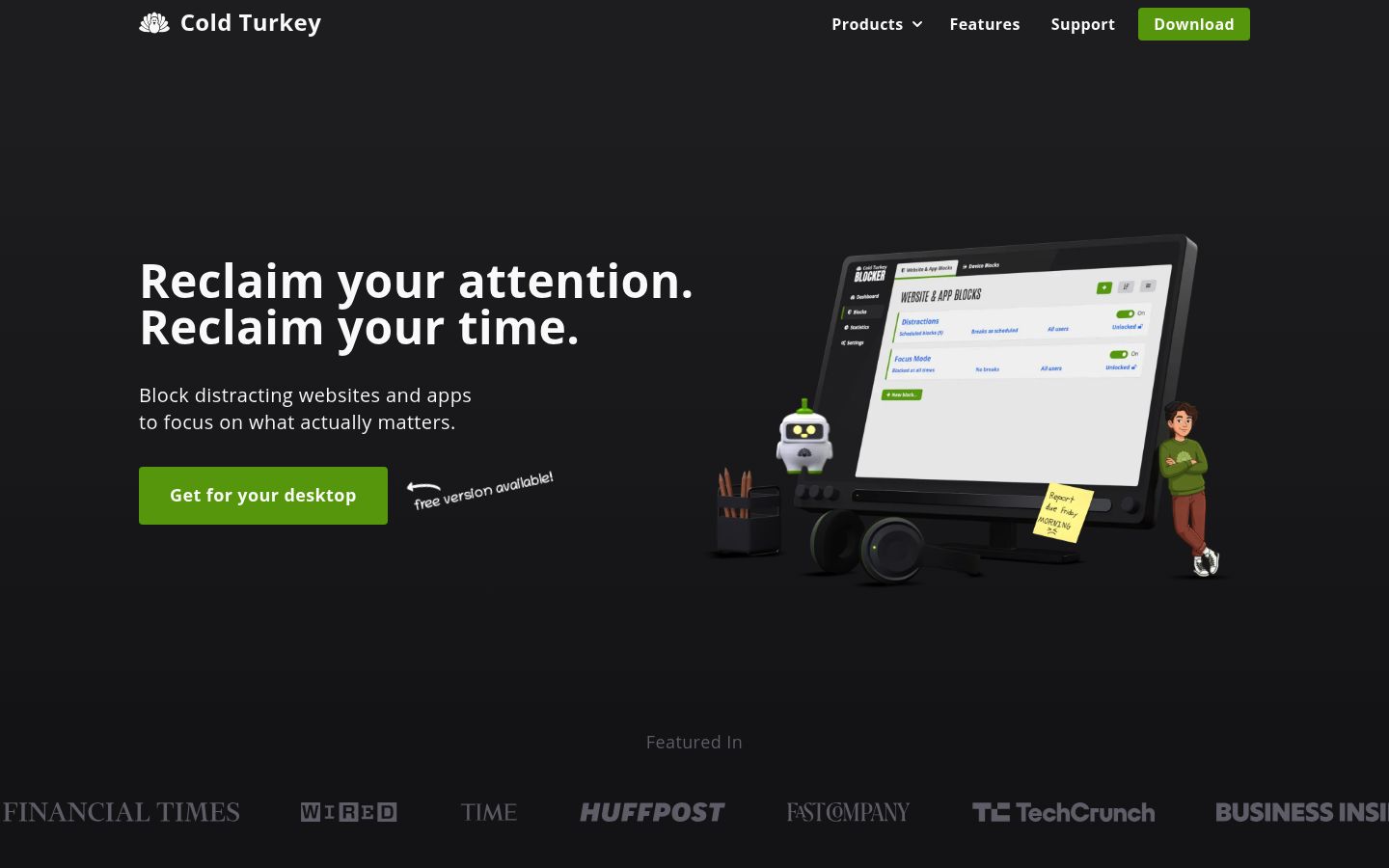
Cold Turkey Blocker is the strictest option for Windows and macOS. It blocks websites, applications, or your entire computer, with scheduled blocks and locking features that make mid-session escapes difficult. Its pricing page shows a free version for basic website blocking, a 7-day trial of all Pro features, and a Pro tier sold as a one-time payment with free lifetime updates and email support. Students can request 20% off, so it can be the cheapest long-term pick if you mostly work on a desktop or laptop. Check the pricing page for the current one-time figure.
Tradeoffs: Cold Turkey says it plainly in its own FAQ: mobile devices are not supported because of OS limitations. There is no phone version at all. For a working student, that means Cold Turkey protects your work laptop brilliantly while your phone stays wide open, so you will need to pair it with a separate phone blocker and manage two systems.
Best for: the desktop-heavy worker whose deepest distraction holes happen at the keyboard, especially in the evening study session.
4. Opal: best for phone-first iPhone users
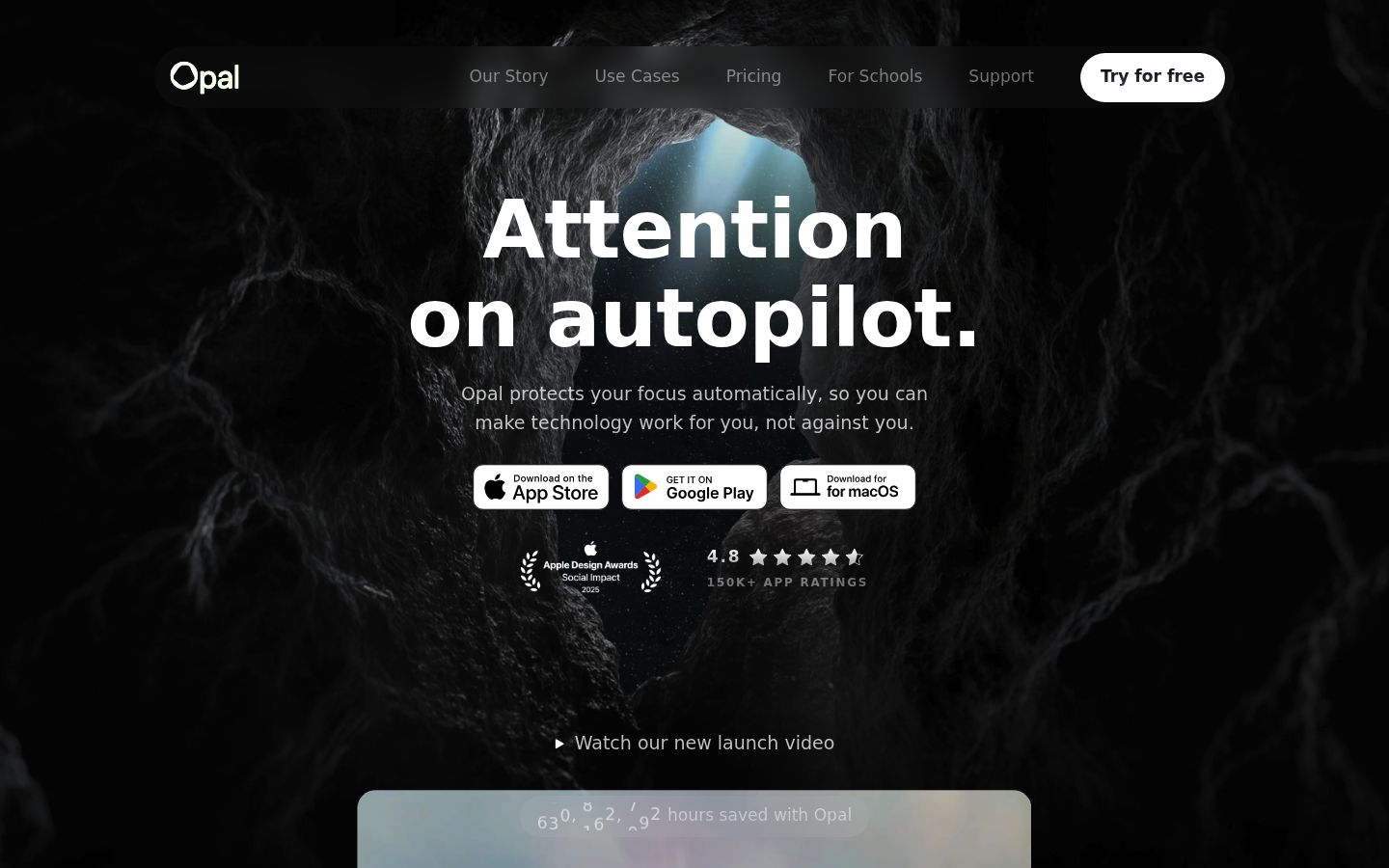
Opal is the most polished iPhone screen-time option here. It uses Apple's Screen Time API to block the apps and websites you choose, with scheduled sessions, app limits, and a strict paid mode you cannot cancel or bypass once a rule starts. Opal's help center describes the free version as including recurring rules, timers, and weekly focus reports, with Pro adding Hard Mode (no unblocks and no resets), allow lists, and more rules. Opal's own pricing page lists Pro at $99.99 billed annually (about $8.29 a month), a $19.99 monthly plan, and a one-time lifetime option, with students eligible for up to 50% off Pro.
Tradeoffs: Opal is Apple-centric. The iPhone app is the center of gravity, and it is not available on Android. If your worst distraction is the phone in your pocket and everything else is a Mac, Opal fits. If your distraction lives on a Windows work laptop, it covers less of your day than Freedom or Kohru.
Best for: the phone-first scroller who needs maximum friction on the device that eats most of their evening study time.
5. Apple Screen Time and other free built-ins: what they cover, where they break
Before you pay for anything, know what your devices already do. Apple's Screen Time can schedule Downtime, set daily app limits, and, if you set a Screen Time passcode, block apps completely during scheduled Downtime instead of just dimming them. Android's Digital Wellbeing and Windows Family Safety offer similar basics.
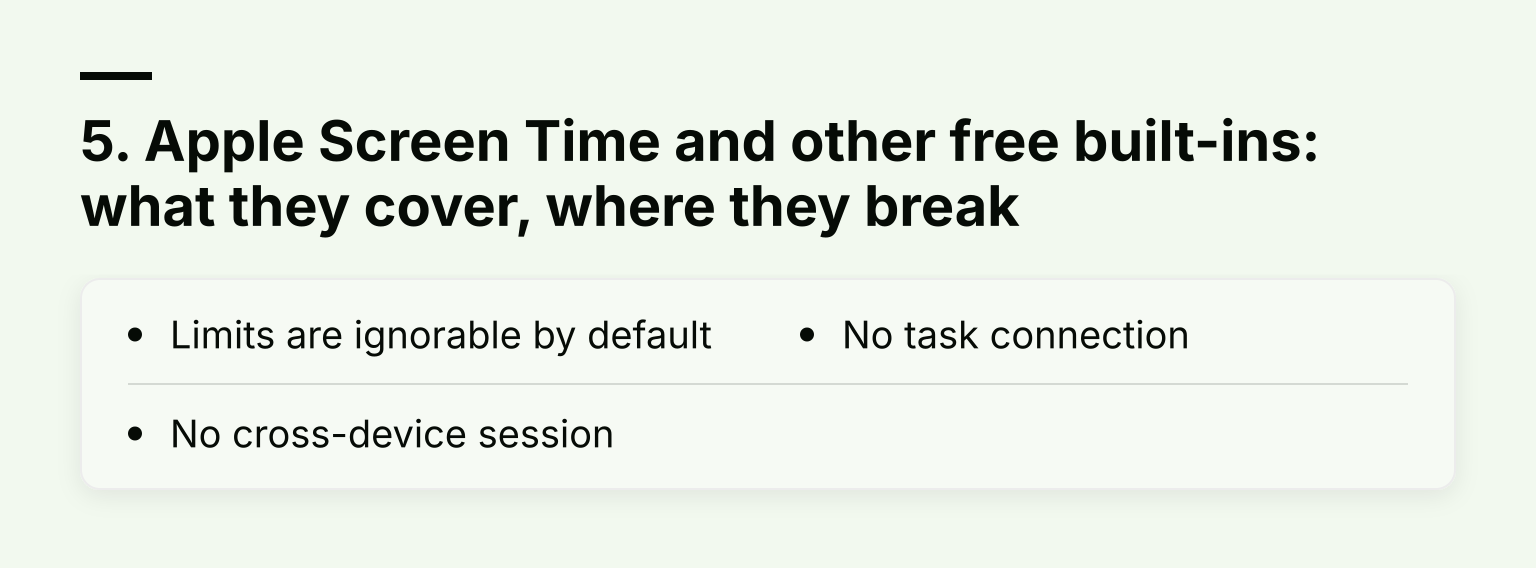
Where built-ins break for working students:
- Limits are ignorable by default. Apple's own guide notes that Screen Time limits can be ignored once reached unless you specifically enable blocking during Downtime. If you are your own administrator, “one more minute” wins more often than you would like.
- No cross-device session. Screen Time settings are configured per device ecosystem. Starting a single session across your iPhone and a Windows laptop is not something it does.
- No task connection. Built-ins block on a clock, not on a task. Nothing in Settings knows you are mid-assignment.
Use built-ins as your free baseline. Layer a dedicated blocker when you find yourself bypassing them.
The second-device loophole, in one picture
Every tool above is ultimately judged on one thing: what happens when the block starts and your hand drifts to the other device. A blocker that covers one screen is a suggestion. A session that covers both is a boundary. That is the difference between a browser extension alone and a synced cross-device session.
Task-to-session: how to structure a work-and-study day
Whichever tool you pick, this is the workflow that makes blocking survive a job plus coursework:
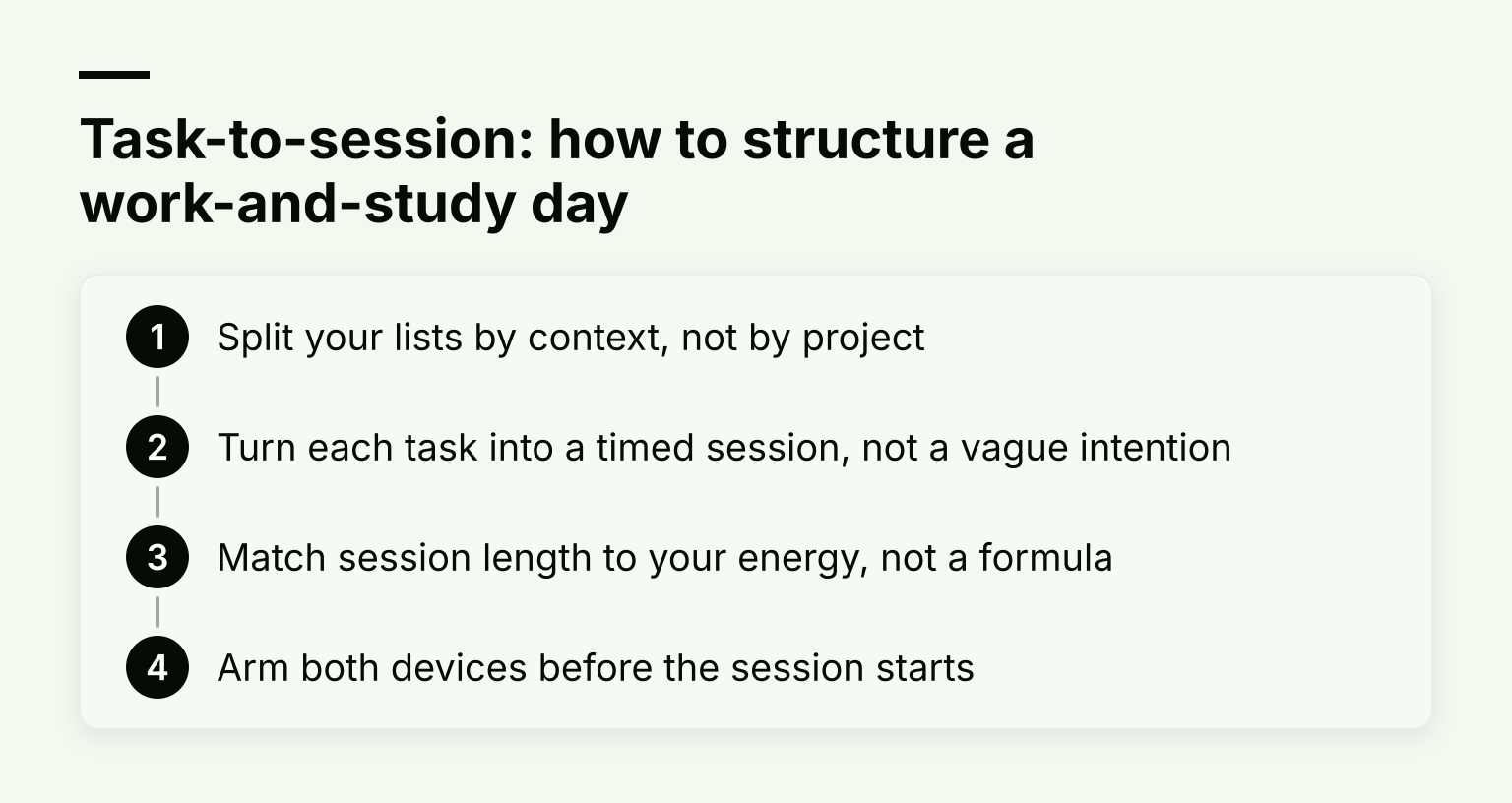
- Split your lists by context, not by project. Keep Work tasks and Personal (study) tasks separate, the way Kohru's Smart To-Do Lists do. Your deep-work guide on smart to-do lists covers this in depth.
- Turn each task into a timed session, not a vague intention. “Finish payroll report: 50 minutes” beats “do some work.” The task starts the block, and the block ends with the timer.
- Match session length to your energy, not a formula. A 45-minute block after a full workday is more honest than a 2-hour Pomodoro you will abandon. Our study session app guide has more on structuring blocks.
- Arm both devices before the session starts. Phone on the charger, laptop session live, then tap start once. If your tool does not sync the two, this is the manual step that substitutes for it.
Comparison table
| Tool |
Platforms |
Phone + laptop in one session |
Bypass resistance |
Scheduling |
Best fit |
| Kohru |
iPhone app plus Chrome extension |
Yes: phone, laptop, and Chrome in one focus session |
Session-based blocking with difficulty modes |
Session-based, tied to tasks |
Working students who want task-to-session flow |
| Freedom |
Mac, Windows, iOS, Android, Chromebook, Linux (browser) |
Yes, synced across devices |
Locked Mode (premium); iOS permission caveat |
Recurring and start-later sessions (premium) |
Multi-platform households, shift workers |
| Cold Turkey Blocker |
Windows, macOS only |
No: desktop only, needs a phone blocker pairing |
Strongest desktop locking |
Scheduled blocks on desktop |
Desktop-heavy workers on a budget |
| Opal |
iPhone-first, plus Mac and browser extensions |
Partial: iPhone-centered sync |
Hard Mode (paid), no-bypass rules |
Scheduled sessions and rules |
Phone-first iPhone users |
| Apple Screen Time |
iPhone, iPad, Mac |
No single-session sync |
Only with a passcode and Block at Downtime |
Downtime schedules and app limits |
A free starting point, not a full system |
Which pick fits you
- You are all-Apple, phone-first. Start with Opal, and use Screen Time with a passcode as the free baseline underneath it. Our best app blocker for iPhone guide has more iOS-specific detail.
- You do most study at a desktop or laptop. Cold Turkey Blocker, paired with whatever free phone blocker you can tolerate, is the strictest cheap setup.
- You cross platforms and shift schedules. Freedom's synced sessions and recurring scheduling fit irregular hours better than anything else here.
- You want one system that connects tasks to blocks across phone, laptop, and browser. That is exactly Kohru's design, and it is why it leads this list for working students specifically.
If your focus problem is more about study habits than blocking tools, our guide to the best app blocker for studying covers picks tuned for pure-student schedules instead. For hands-on configuration help, start with how to block apps across all devices. And if you are deciding by device, the best app blockers for iPhone ranking goes deeper on iOS options than this working-student list can.
Common questions
Can a blocker survive uninstall or reboot attempts? Partially. Desktop tools like Cold Turkey and Freedom's Locked Mode make mid-session changes hard on computers. On iOS, no third-party app is truly uninstall-proof because Apple requires apps to work within Screen Time permissions; Freedom's own docs note the Settings loophole and recommend a Screen Time passcode. Set that passcode regardless of which app you use.
Is a browser-only blocker enough? Sometimes. If your distraction lives entirely in Chrome on a work laptop and your phone stays in a drawer, an extension is a cheap, effective start. For most working students it is not: the phone is the escape route. Browser-only blocking reroutes the problem rather than closing it.
Free or paid? Start free and see whether your built-in Screen Time settings hold for two weeks. If you keep bypassing them, the paid features that matter are bypass resistance (lock modes) and scheduling, because those are what keep a block alive on a bad day.
What a blocker can and cannot fix
The strongest evidence for blocking is encouraging but honest. A 2025 randomized controlled trial in PNAS Nexus had 467 participants use the Freedom app to block all mobile internet on their phones for two weeks. Blocking improved sustained attention, mental health, and well-being, and 91% of participants improved on at least one measure. But adherence was the bottleneck: only 119 of the 467 participants kept the block active for at least 10 of the 14 days.
That finding is the most useful data point in this whole article. Blocking works when it stays on, and it stays on when it fits your life: sessions tied to real tasks, coverage on every device you actually use, and friction set at a level you will not rage-quit. Pick the tool that matches those constraints, then start with one blocked session tomorrow and build from there.
If that sounds like your situation, Kohru is built for exactly this pattern: download it on the App Store, add the Chrome extension for your laptop, and turn your first task into a session today.
