Summary of the Article
A free app blocker for iPhone is only useful if it actually stops you, not if it just shows a message you can tap through. The honest answer: three options are genuinely free with real blocking power (Apple Screen Time, ScreenZen, Foqos), while one sec, Opal, and Jomo are freemium apps whose free tiers are small previews of the paid product.
- Apple Screen Time: completely free and built into your iPhone, but you can bypass it unless you harden it with a passcode and the right toggles.
- ScreenZen: free, no subscription, donation-supported, with strict block and settings-lock modes.
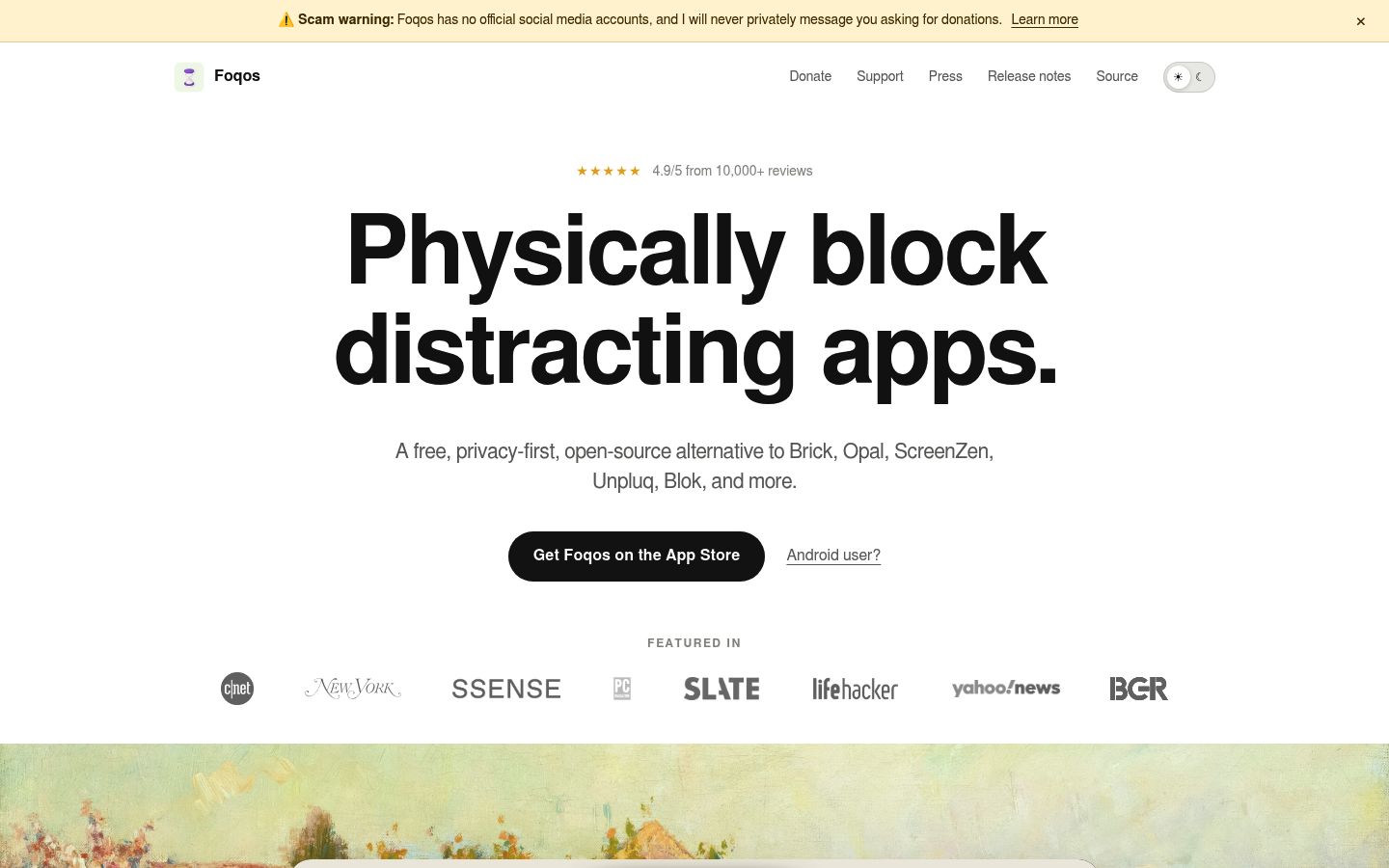
- Foqos: free, open source, no subscription; blocks by NFC tag, QR code, or timer. Needs iOS 17.6 or later.
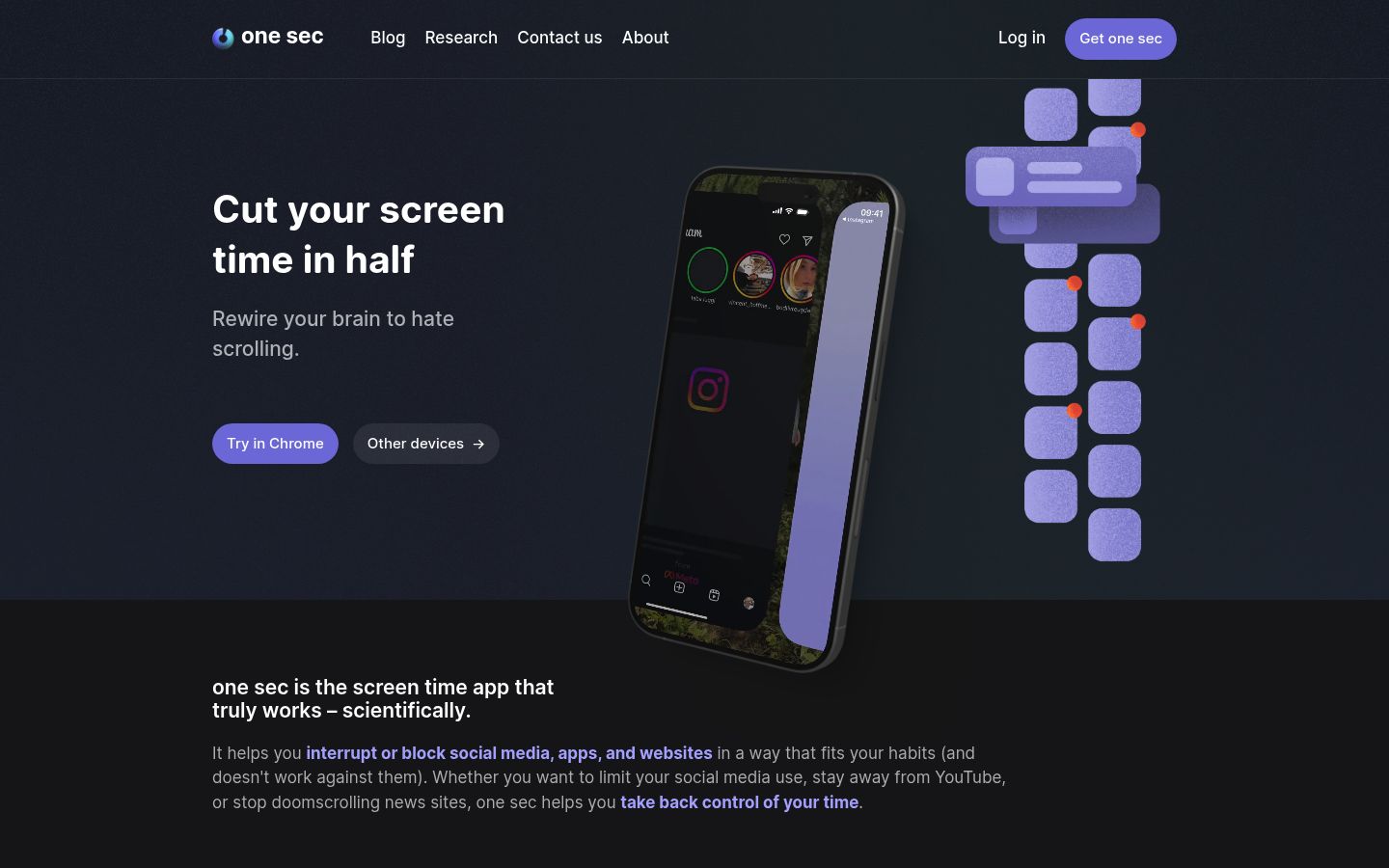
- one sec: free tier covers one app with a breathing pause; strong friction, not a lock.
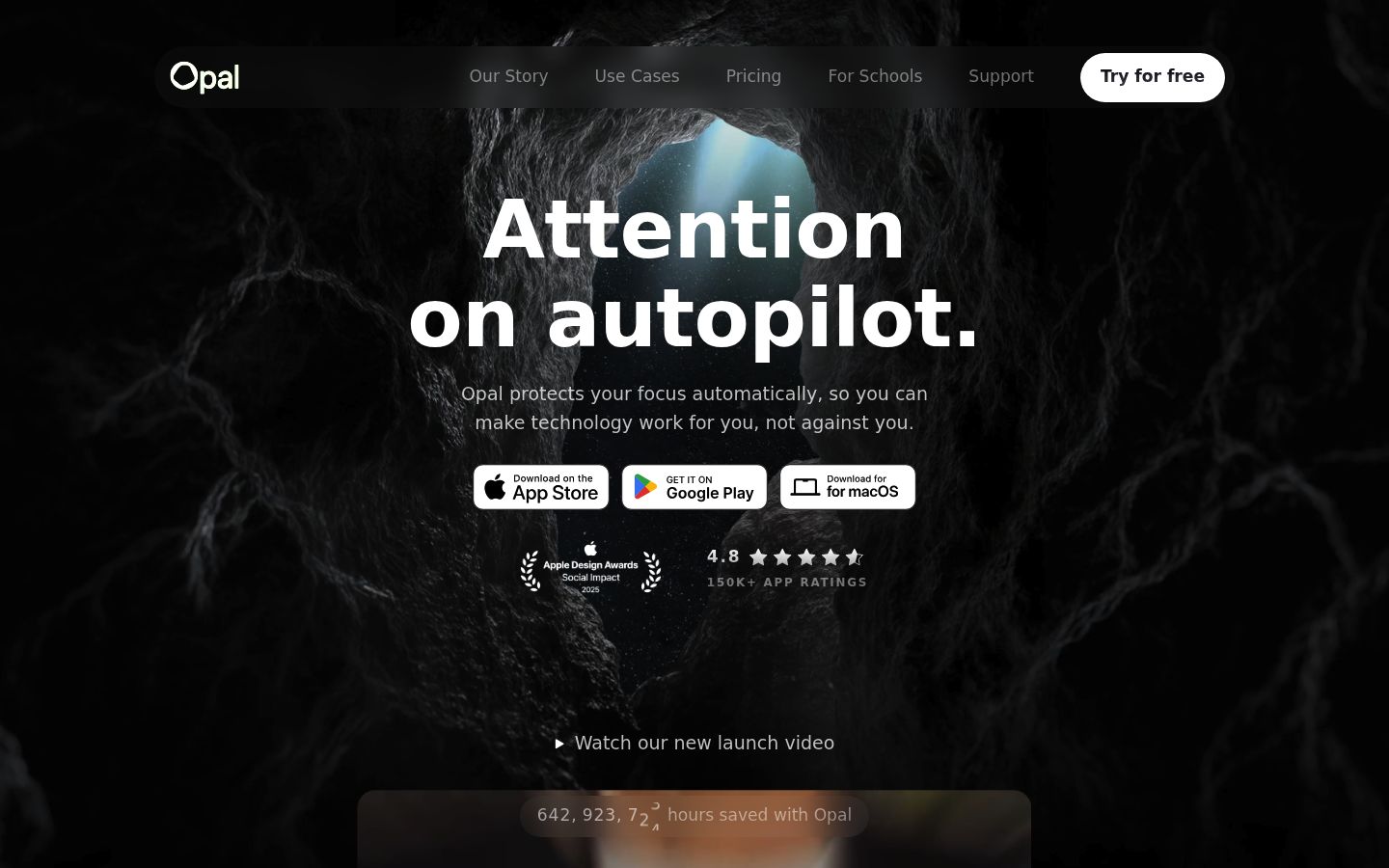
- Opal: free tier gives you 1 Rule; the hard, no-unblocks mode is paid only.
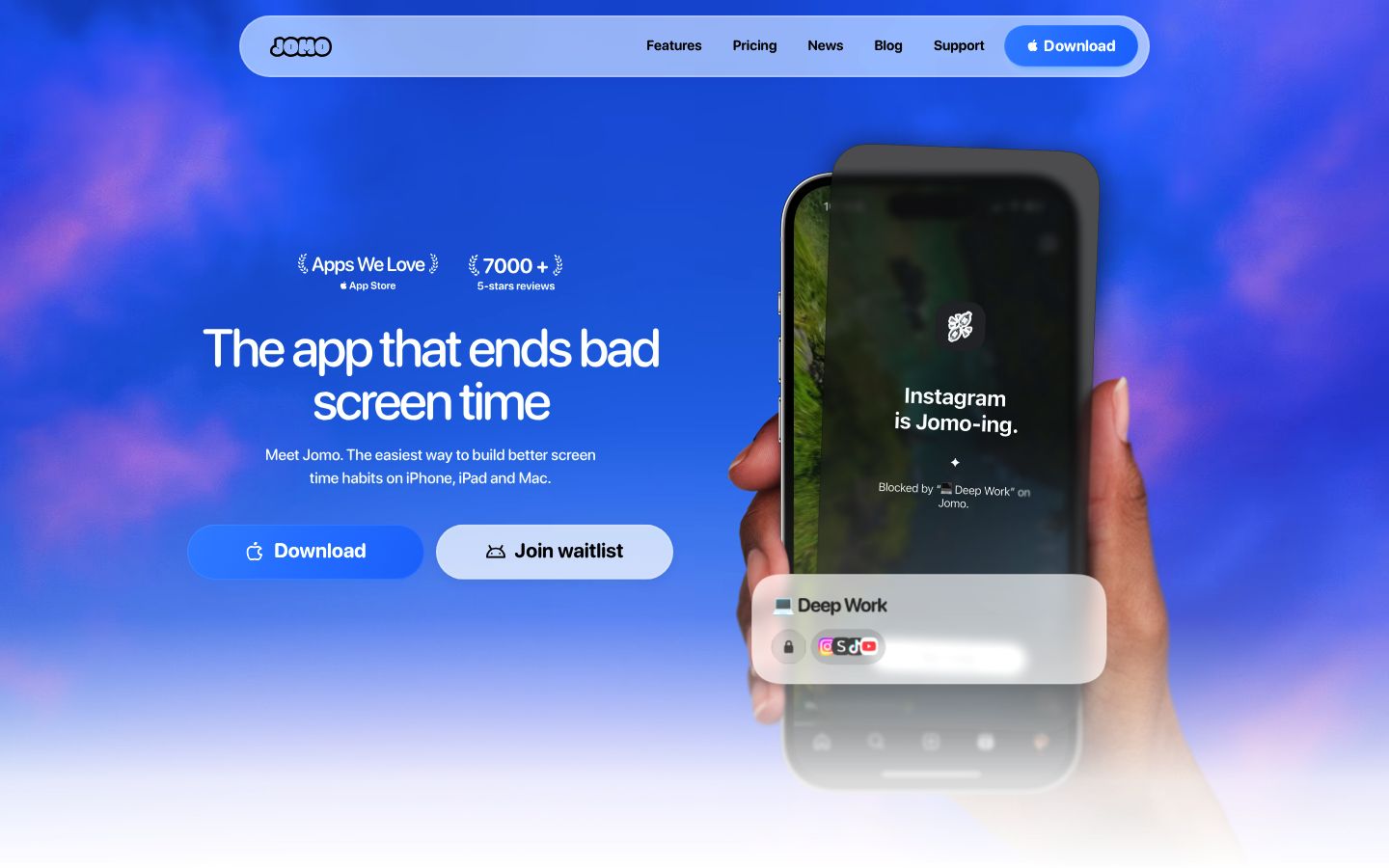
- Jomo: free plan gives 1 Session, 1 Action or Limit, and 1 Screen Time Budget; Strict Mode is paid.
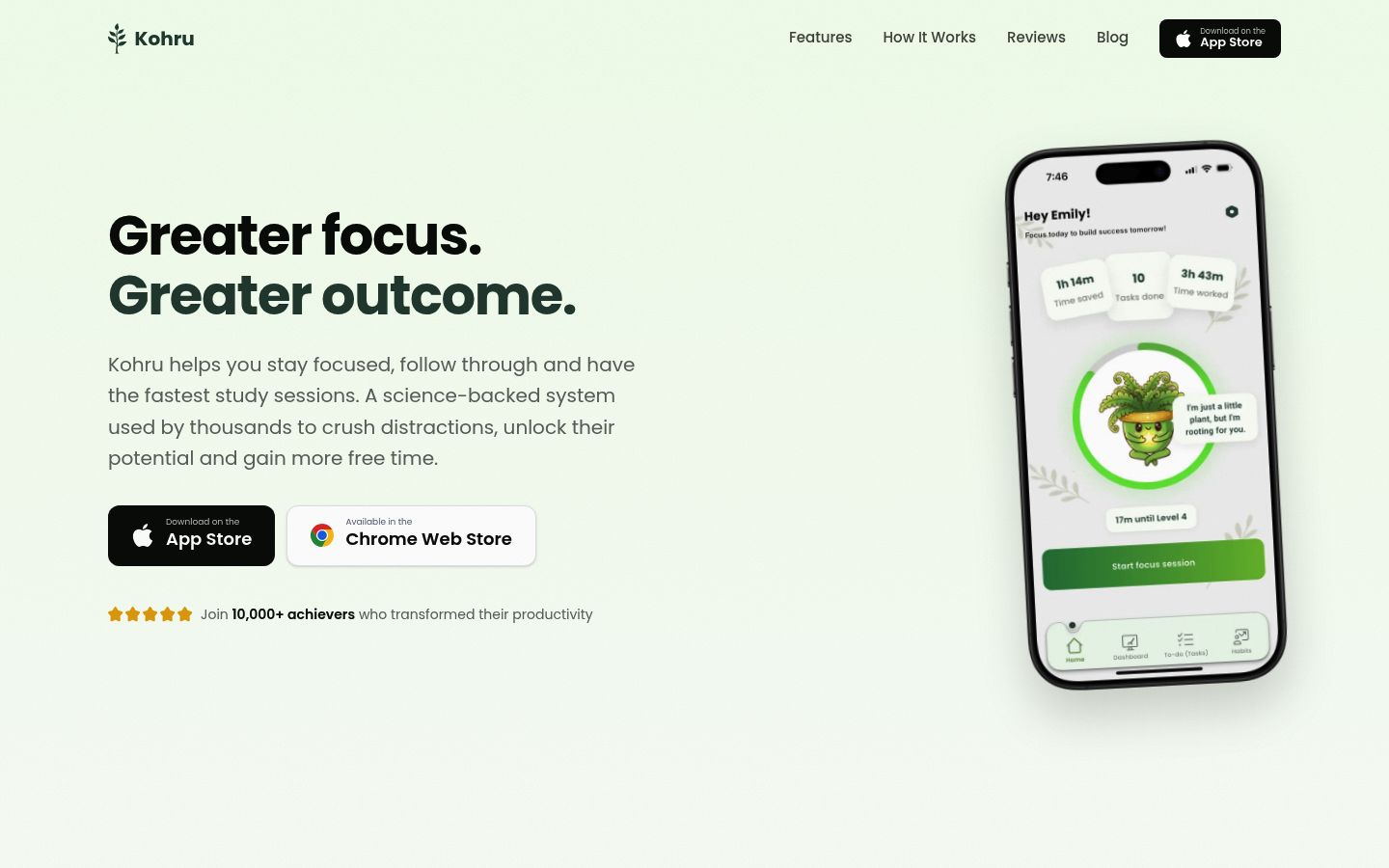
- Kohru: a study app that pairs blocking across phone, laptop, and Chrome with focus sessions, to-dos, and habit tracking. It is not in the free-blocker list above because this article only compares free tiers.
None of these is impossible to bypass. On iOS, any blocker using Apple's Screen Time permissions can have that permission revoked in Settings, so treat every "strict" mode as harder, not unbreakable.
What 'free' really means: a lock, friction, or a demo
"Free" app blockers usually fall into three groups, and the difference matters more than the price tag.
- Hard lock. Once the block starts, opening the app means waiting or doing something difficult. Apple Screen Time with "Block at End of Limit," ScreenZen's strict block, and Foqos sessions behave this way.
- Friction. You can still open the app, but a delay, a breathing screen, or a message interrupts you first. This works well for automatic scrolling and poorly when you've made a deliberate decision to open the app anyway.
- Paywalled demo. The app is free to install, but the features that make it a real lock sit behind the subscription. The free tier exists to convince you to pay.
Most freemium blockers mix all three. The question worth asking is: what can I actually do for $0, forever, without hitting a wall after a week?
Apple Screen Time: free, built in, and stronger than people think
Screen Time is Apple's built-in app and screen time manager. It costs nothing, needs no download, and it can be a genuine hard lock if you set it up correctly. Apple's own iPhone guide covers the whole feature set, including schedules, limits, and Always Allowed apps.
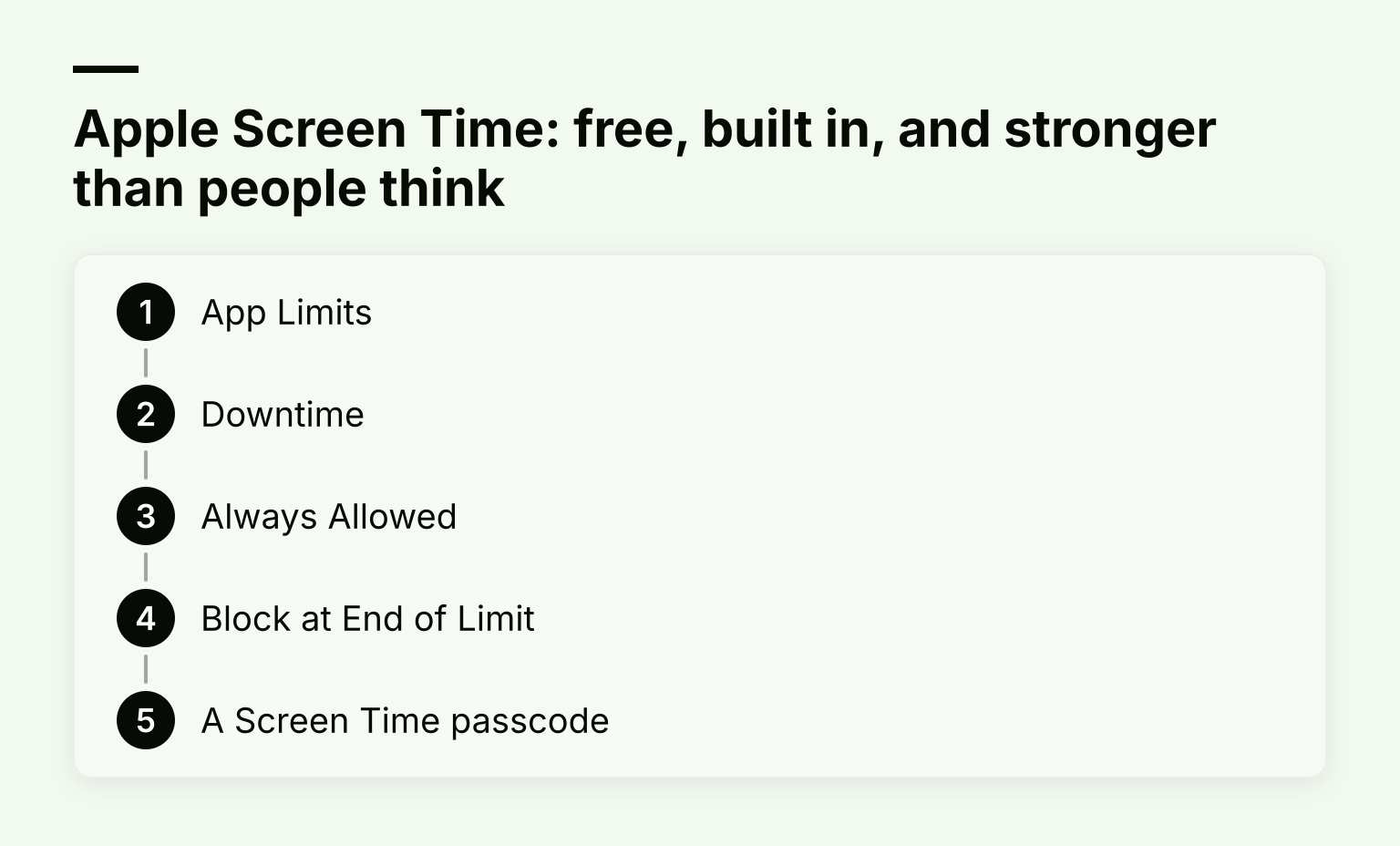
The core pieces:
- App Limits. Set a daily time budget for any app or category. Setting the limit to 1 minute effectively blocks the app for the day. On the newest iOS versions, Apple is renaming this feature Time Allowances, but the idea is the same.
- Downtime. Schedule hours when only your allowed apps work, for example 9 pm to 8 am or your whole study block.
- Always Allowed. Pick the few apps that stay open during Downtime, like Messages or Maps.
- Block at End of Limit. This toggle is the key one. With it on, the app is blocked when the limit ends and asking for more time requires your Screen Time passcode. Without it, iOS shows an "Ignore Limit" button and the block is a suggestion.
- A Screen Time passcode. Set one in Settings > Screen Time > Lock Screen Time Settings. Without a passcode, every limit is trivially removable. Apple's passcode guide explains exactly how to set one and why the passcode must be entered before any Screen Time setting changes.
Main weakness: the block only holds against the version of you who knows the passcode. If you set the passcode yourself and you're having a bad day, you know it. If you never set one, Screen Time is barely a blocker at all.
Best for: anyone who wants $0 and no new app, especially students who already live in iOS Settings. How to Limit App Usage on iPhone walks through the setup step by step, and How to Set a Screen Time Lock for Unbreakable Focus covers hardening it against your own future self.
ScreenZen: free, no subscription, with a strict mode
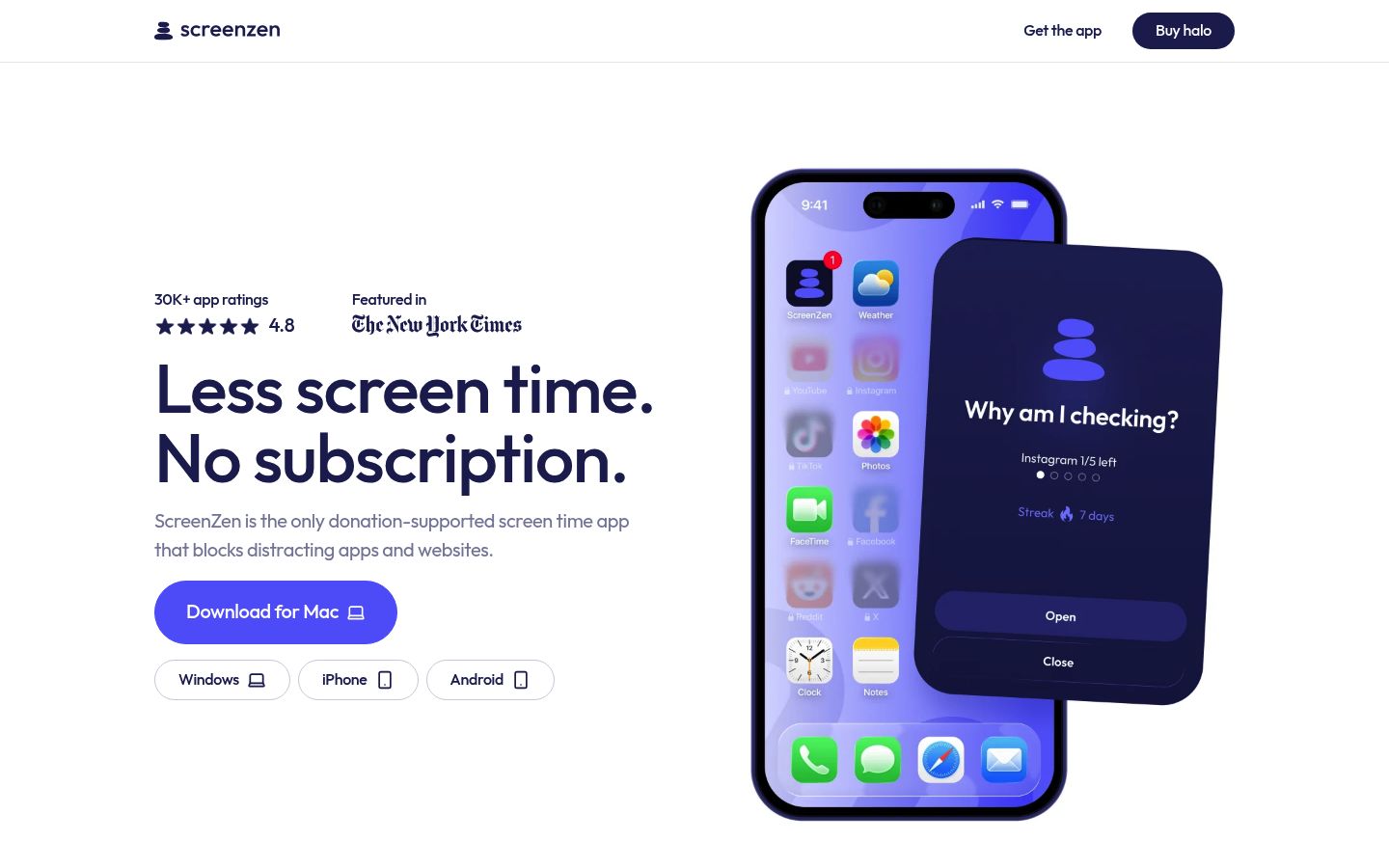
ScreenZen is donation-supported. Its site states plainly that there is no subscription: "ScreenZen is completely free. You can always support the project with a small donation" (screenzen.co). The developer has written publicly about deliberately avoiding the trial-then-expensive-subscription model. Its App Store listing shows the app is free with optional tips listed as in-app purchases, so the core app costs nothing and support is voluntary.
What you get for free:
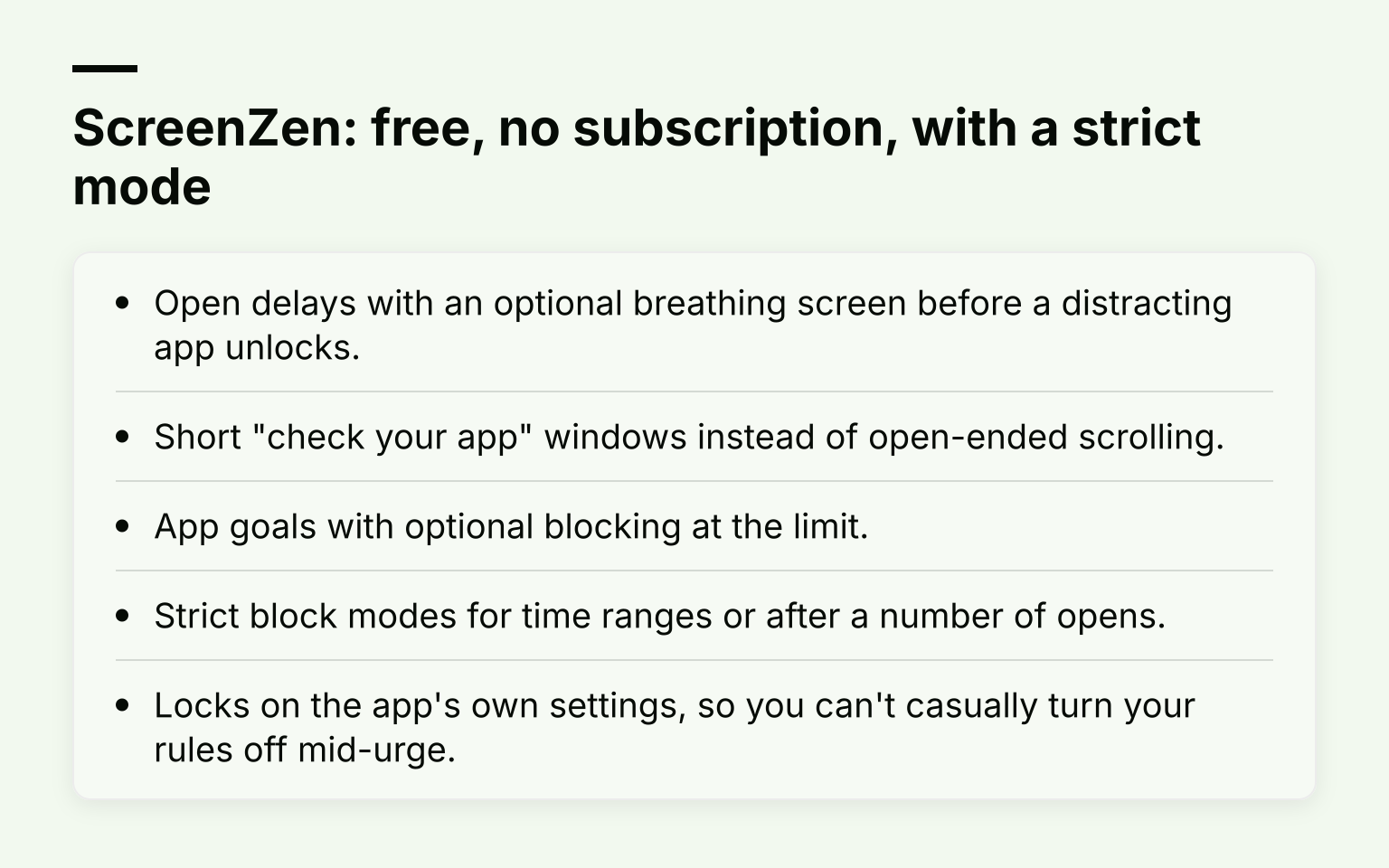
- Open delays with an optional breathing screen before a distracting app unlocks.
- Short "check your app" windows instead of open-ended scrolling.
- App goals with optional blocking at the limit.
- Strict block modes for time ranges or after a number of opens.
- Locks on the app's own settings, so you can't casually turn your rules off mid-urge.
The App Store listing also confirms it requires iOS 16.4 or later.
Limits: much of ScreenZen is friction with a strict layer on top. If you decide, deliberately, that you want the app open, the delay is annoying but survivable. The settings lock is the feature that gives it teeth, so turn it on.
Best for: people who want a free app with real blocking behavior and no subscription pressure, and who are willing to configure the strict options.
Foqos: free, open source, physical unlocking
Foqos is a free, open-source iPhone blocker built on Apple's Screen Time API. Its site and its GitHub repository (MIT license) both state there is no subscription, no account, no ads, and no tracking (foqos.app, github.com/awaseem/foqos). The App Store listing confirms the app is free, with the only in-app purchases being optional tips for the developer that start at $1.99.
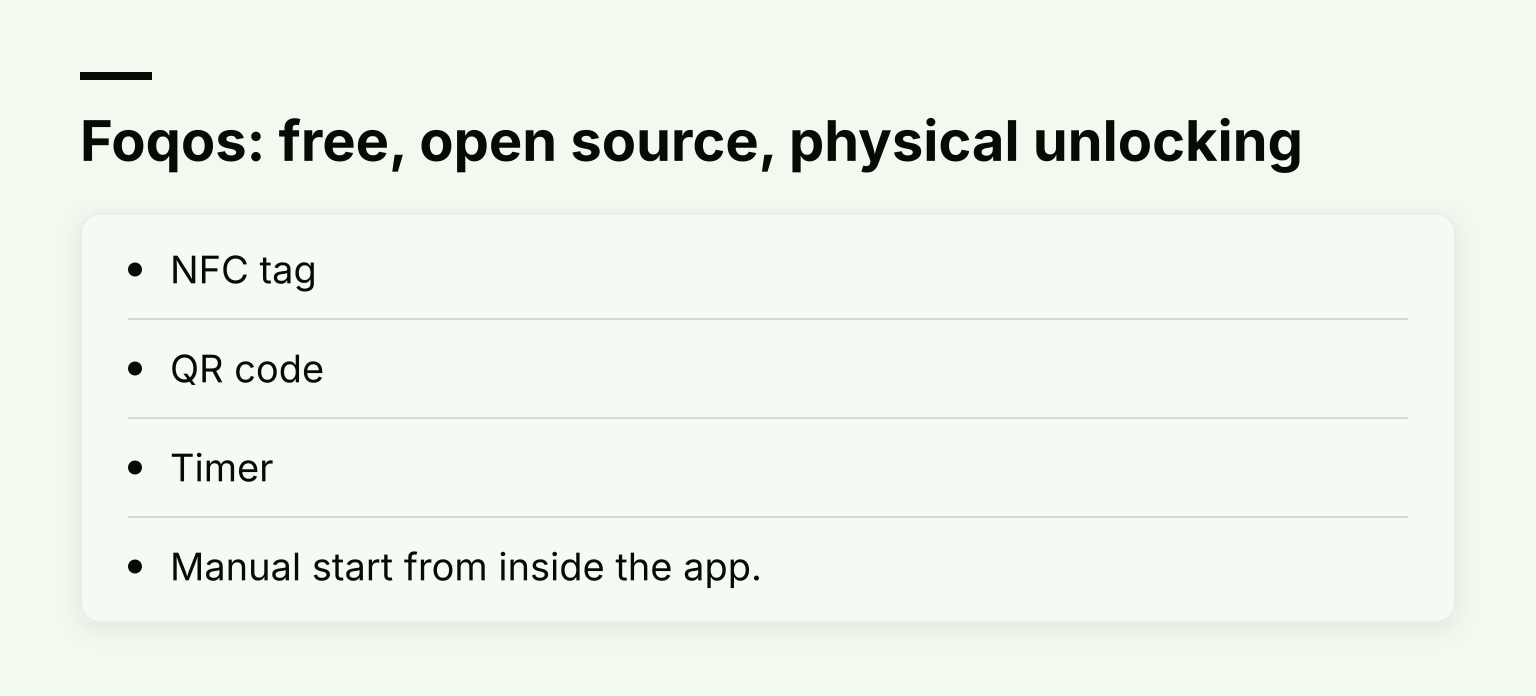
How it works: you build blocking profiles for study, work, or bedtime, then start a session in one of these ways:
- NFC tag. Tap your phone on a cheap tag kept away from your desk or bedside table. Ending the block means physically walking back to the tag.
- QR code. Print a code and stick it somewhere inconvenient.
- Timer. Choose a duration and let the block run.
- Manual start from inside the app.
The physical angle is what makes Foqos genuinely hard to bypass. You can fight the app in Settings, but you cannot beat the fact that the NFC tag is in the kitchen.
Limits: its App Store listing confirms it needs iOS 17.6 or later, and it's a blocker only. There's no task list, habit tracking, or study planning.
Best for: students who want a hard boundary for study sessions and don't mind a little setup, like writing an NFC tag or printing a QR code.