Kohru is the strongest starting point if you want to block social media on a phone and a laptop at the same time while you study. It's built for students, and its timed Focus Sessions close the easy workaround of leaving a blocked phone app and opening the same platform in a laptop browser.
You're probably reading this mid loop. You sat down to study or work, checked one notification, and surfaced twenty minutes later still scrolling. That automatic check is the habit most tools need to interrupt, and the right intervention depends on whether you need a pause, a daily budget, a scheduled lockout, or a firm cross device boundary.
The need isn't abstract. In a Pew Research Center survey of U.S. teenagers aged 13 to 17, 63% said they used TikTok, 60% used Snapchat, and 59% used Instagram, while 46% said they used the internet almost constantly. In that same survey, 39% had cut back on social media use, but 60% had not limited it. Intention alone often isn't enough, which is why the apps to limit social media use below are organized by how much friction they add and where they work.
Table of Contents
- 1. Kohru
- 2. ScreenZen
- 3. Opal
- 4. Freedom
- 5. one sec
- 6. AppBlock
- 7. Jomo
- 8. StayFree
- 9. Clearspace
- 10. Apple Screen Time
- Top 10 Social Media Limiting Apps: Feature Comparison
- Choose the Limit You Will Keep
1. Kohru
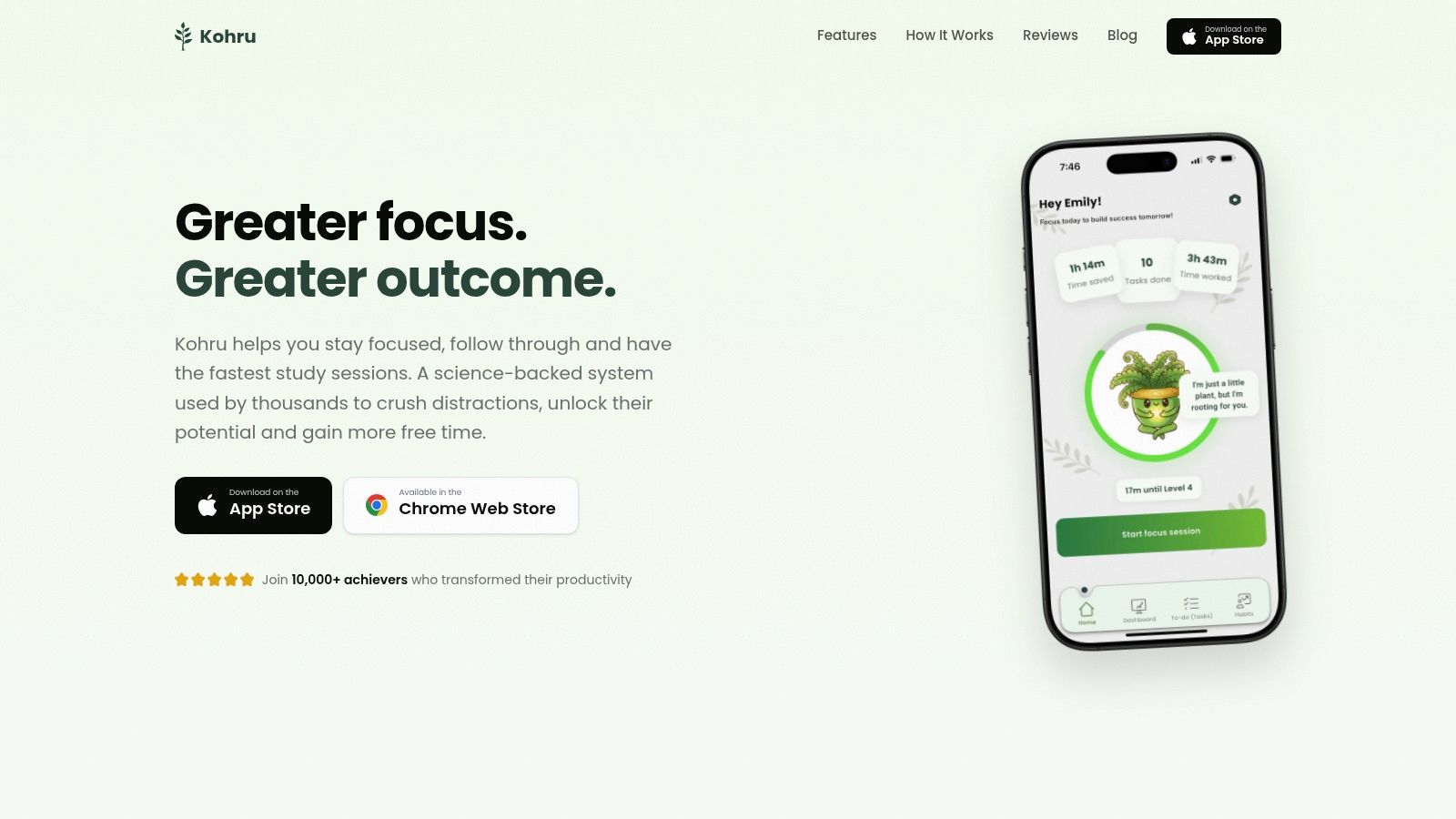
Kohru is the direct answer if your problem spans two screens. It's built for students and runs one blocking session across your phone and laptop together, so you maintain a single set of rules instead of separate limits on each device. You pick a task, set a duration, enable laptop blocking, and both sides stay locked until the timer ends, as described in Kohru's guide to blocking YouTube Shorts.
Phone only blockers fail the moment Instagram, TikTok, or YouTube opens in a browser tab beside your lecture notes.
Tying both controls to one timer removes that gap. Starting work becomes a single decision instead of a negotiation repeated across devices, which is where most self-imposed limits fall apart.
How the Blocking Works
On the phone side, Kohru uses iOS Screen Time to block selected apps while a browser extension blocks selected laptop websites. You can build custom block lists and allowlists, keep Work and Personal tasks in Smart To Do Lists, and turn a task directly into a session. Flexible weekly habit targets and a calm dashboard tracking focus time and completed tasks support consistency without leaning on fragile daily streaks.
Best fit: Pick Kohru when the study session itself needs protection on both screens. If a passive daily report is all you want, lighter tools further down this list will cover it.
Trade-offs: Android support is listed as coming soon, and Kohru's availability summary lists iOS plus a Chrome extension for laptop blocking, so Android users should verify availability before planning around it. Pricing details aren't published in the material reviewed here. For iPhone students who study with a laptop open, it covers more of the problem than any other option on this list.
2. ScreenZen
ScreenZen works best when you don't want social media gone all day. You want the reflexive tap to stop feeling automatic. Instead of opening straight into a feed, you get a pause before selected apps, plus optional daily limits and scheduled blocks.
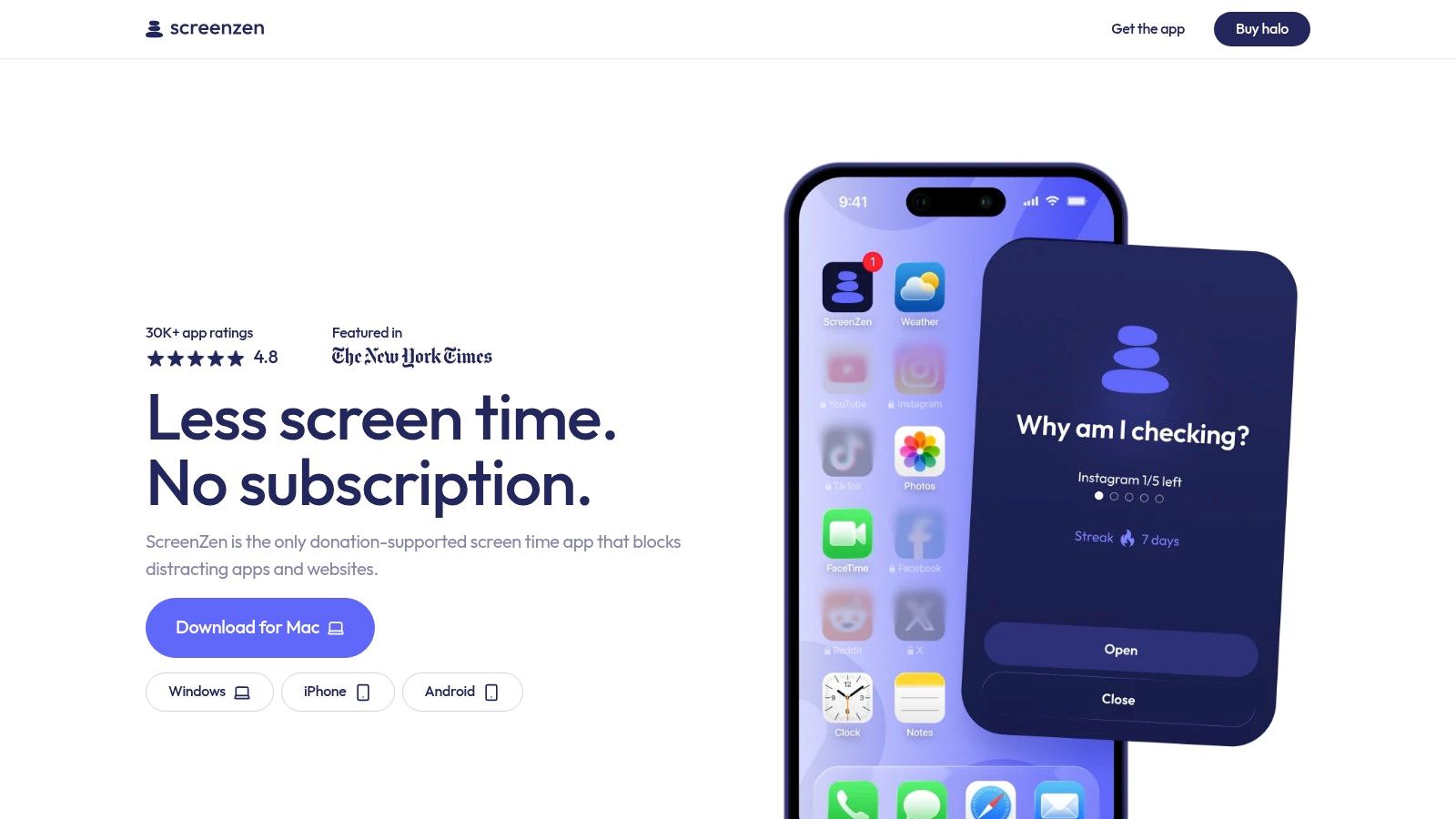
That pause is useful in queues, between classes, and during short breaks that keep expanding. You're forced to notice the choice, and often noticing is enough to put the phone down. Lock mode makes bypassing harder when a gentle prompt starts becoming another button you tap through.
- Opening delays: Interrupt selected apps before the feed loads.
- Daily limits and schedules: Add structure for school nights or work hours.
- Broad platform support: Available for iPhone, Android, Mac, and Windows.
- Free access: Free to use, with optional donations.
The downside matches the design. A customizable, gentle system is easier to bypass than a strict blocker, and setup and features differ by platform. If you regularly override your own limits during high stakes study, ScreenZen may work better as an everyday friction layer than as your only line of defense.
3. Opal
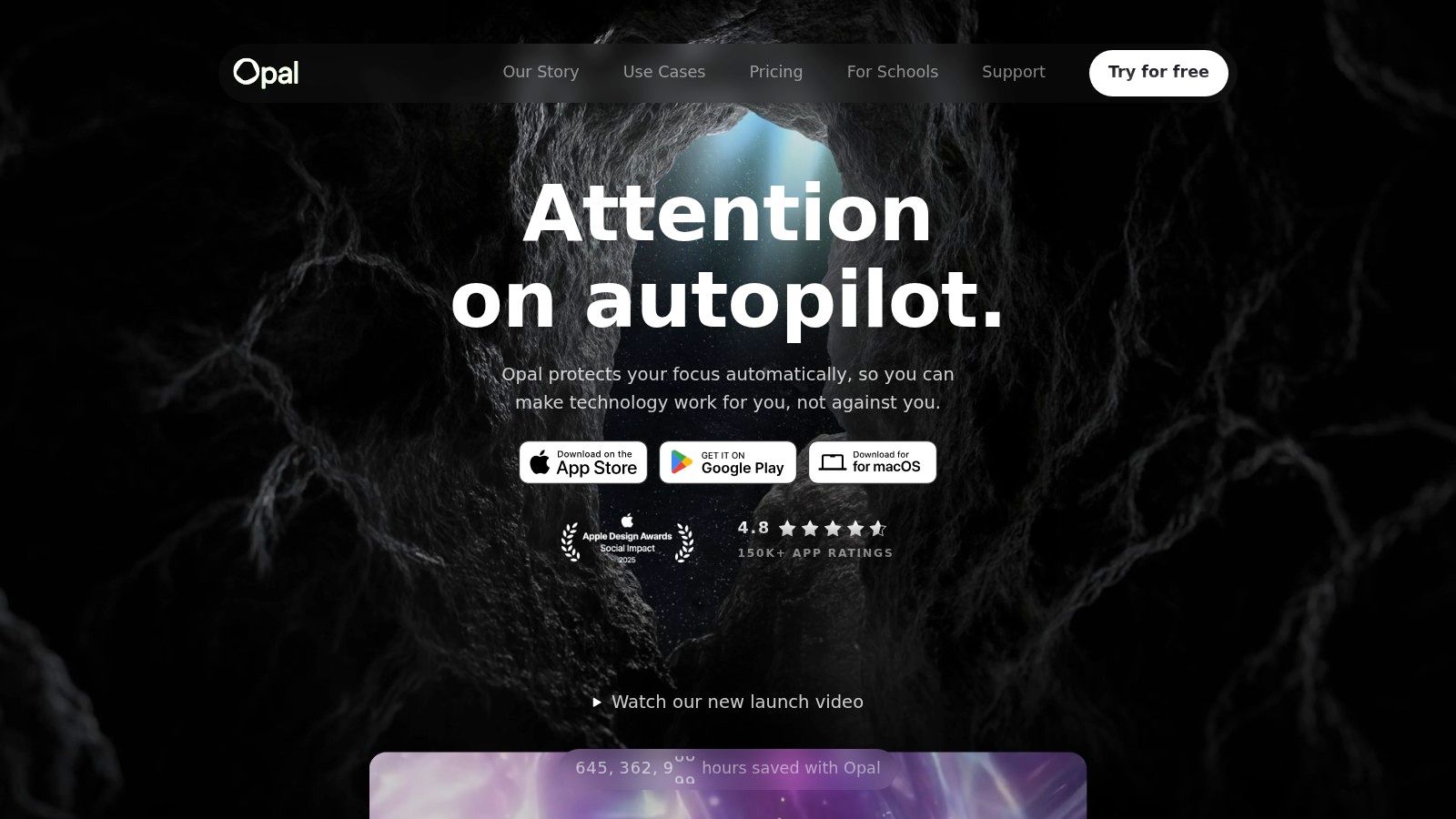
Opal suits people who want blocking and feedback in the same place. It combines app blocking, schedules, time limits, focus sessions, and screen time reporting, so you can set a recurring rule and then check whether your behavior changed. The free plan covers basic blocking, while Pro adds stricter controls such as Hard Mode and more customization.
Feedback matters because awareness doesn't automatically become use. In a survey study of digital wellbeing applications with 405 respondents, 80.48% knew about such applications, but only 36.94% used them occasionally or regularly, including 9.14% regular use and 27.80% occasional use. A tool you'll keep opening has an advantage over one with a longer feature list you abandon.
Opal supports iOS, Android, and Mac, which helps if your routine moves between phone and computer. The trade-off is configuration. Schedules, limits, sessions, and history give you control, but they also take time to tune. Advanced features require payment, and current App Store purchase prices can vary, so check the live listing before committing.
4. Freedom
When social media follows you from phone to laptop to a second computer, Freedom is built for that sprawl. It blocks apps, websites, and even internet access through sessions that sync across devices. That makes it a practical choice for professionals and older students whose workday isn't confined to one phone and one browser.
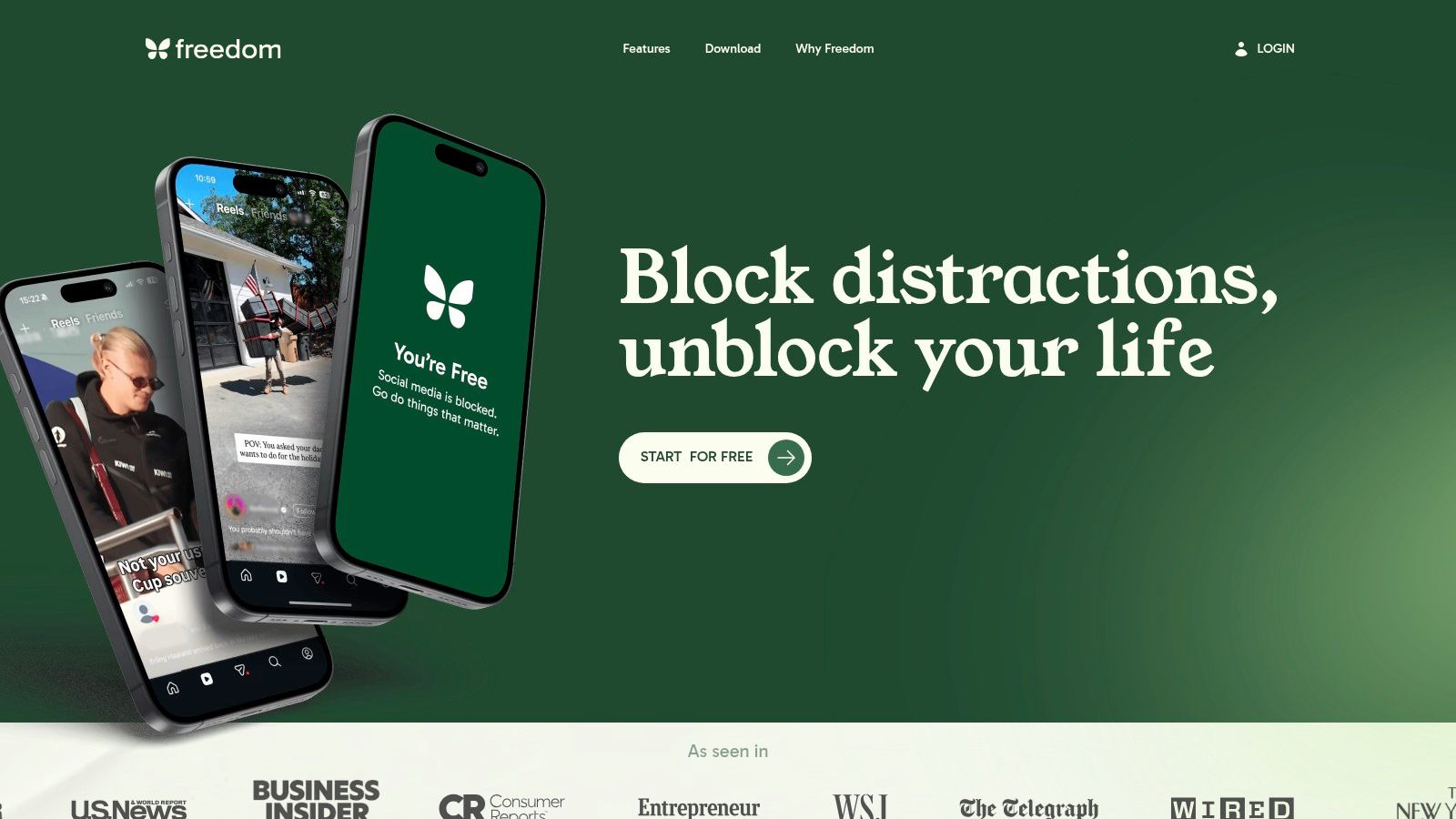
You build custom blocklists, run a session for a work sprint, or set recurring schedules for class and deep work hours. Locked Mode is the feature to take seriously, because it prevents the familiar mid session edit where you remove the one app you wanted blocked. Optional focus sounds are secondary. The synced boundary is the product.
Freedom supports Mac, Windows, iOS, Android, Chromebook, and Linux via browser extension. Chromebook and Linux support is primarily browser based, so it won't feel identical to native blocking everywhere. The free plan is limited, advanced scheduling and Locked Mode are paid features, and there's a 7-day Premium trial to test whether the stricter setup fits your routine before you pay.
5. one sec
one sec doesn't start with a timer. It starts before the app opens. A brief intervention, such as a breathing exercise, appears when you try to launch a selected app, turning an unconscious tap into a conscious decision.
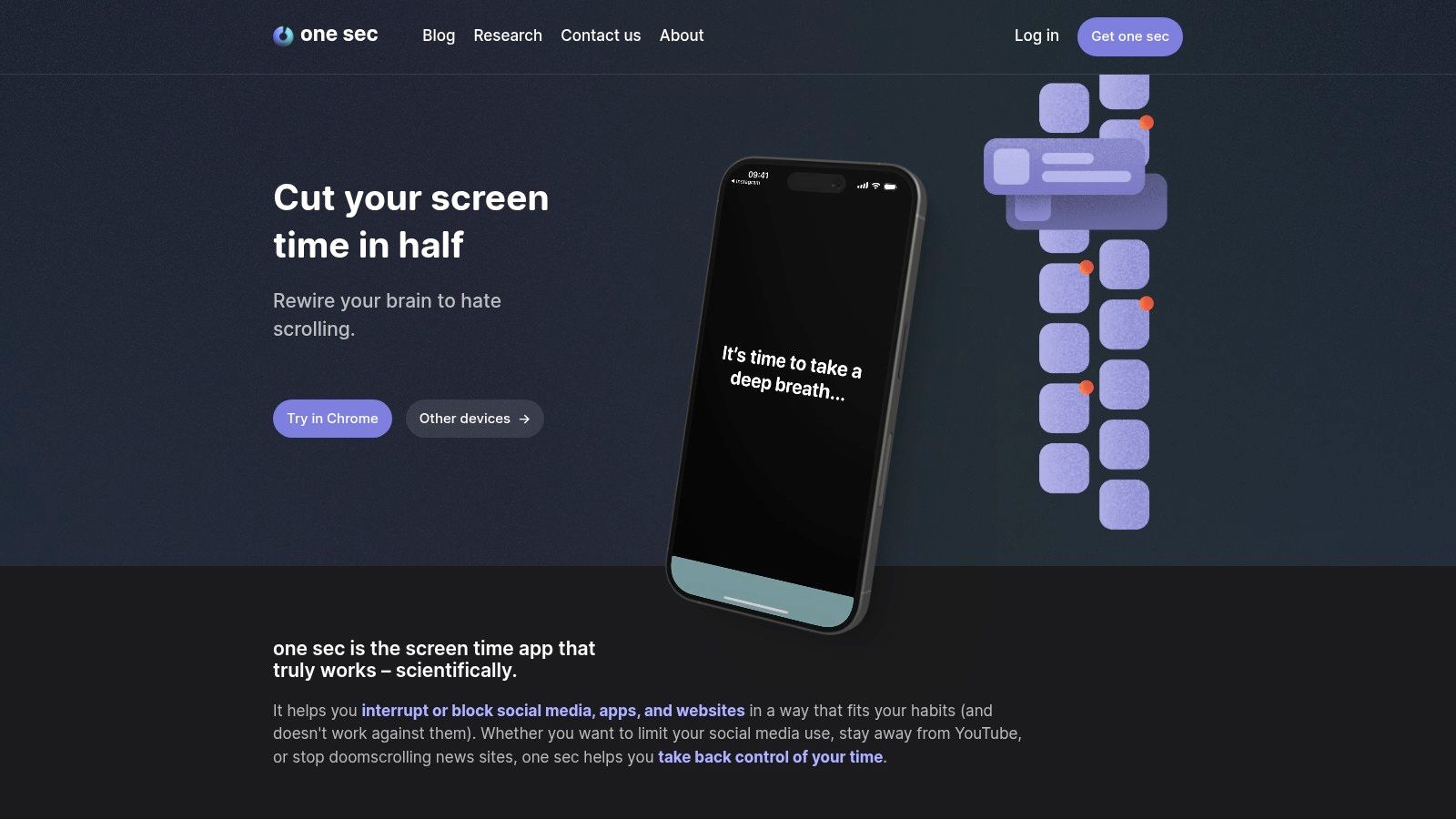
That distinction is why friction based tools deserve separate consideration from warning only limits. A 2025 mixed methods analysis covered in research on digital disconnection apps and 1,193 user reviews found that loopholes allowing users to bypass restrictions were a recurring complaint across 55 apps. A pause won't solve every loophole, but it targets the moment where the habit begins, before the feed has a chance to reward you.
The free version supports one target app, which is enough if a single platform causes most of your drift. Pro adds more apps and additional blocking features, with some capabilities varying by platform across iOS, Android, and desktop browsers. If you need a firm lockout during exams, a pause may feel too light. If your goal is more intentional use rather than avoidance, it's one of the cleanest designs here.
6. AppBlock
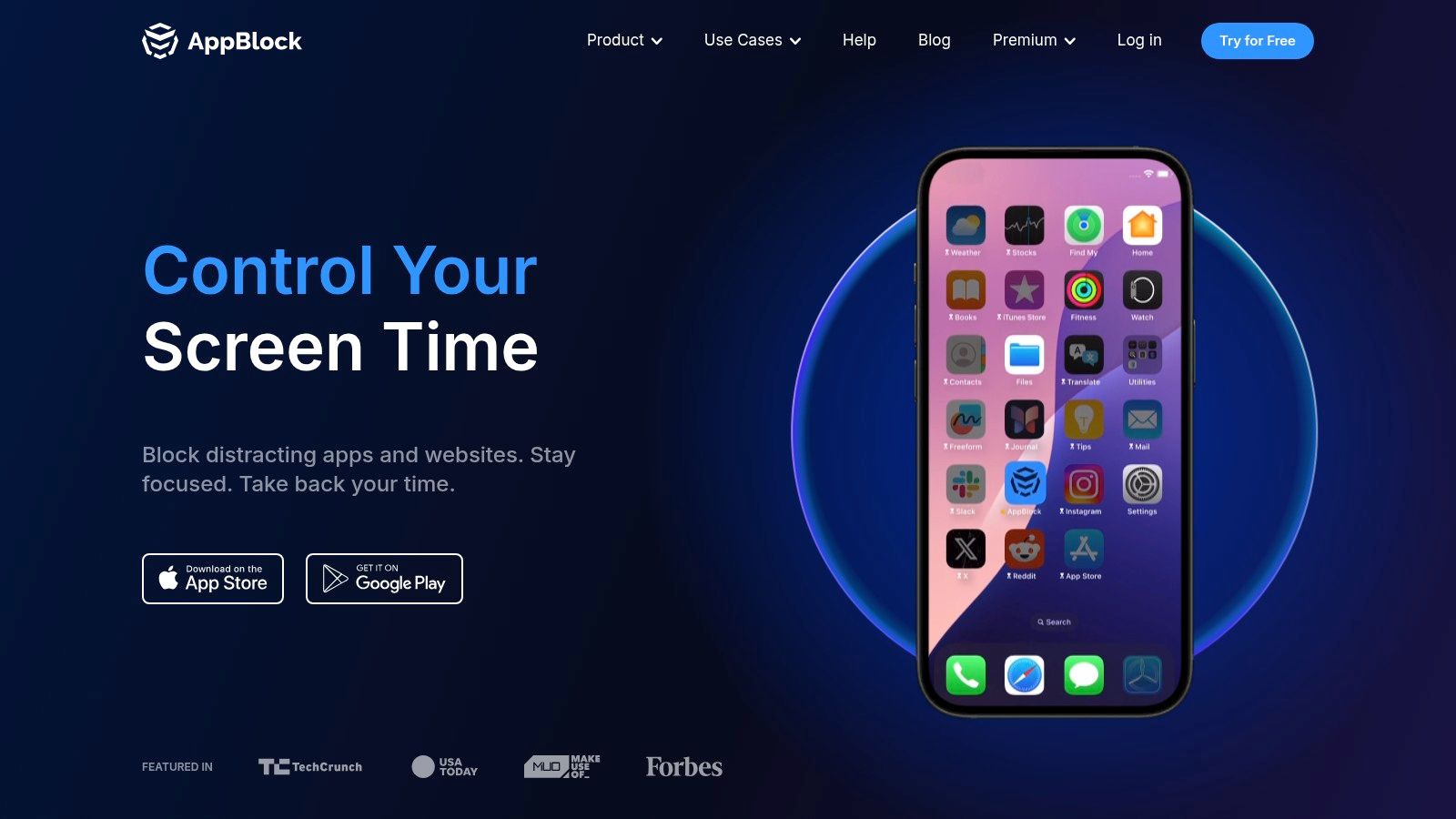
AppBlock is for routines that repeat. Classes on weekday mornings, focused work after lunch, no social media before bed. You create separate blocking profiles for apps and websites, then let the schedule apply them automatically instead of remembering to start a session every time.
Where Profiles Help Most
Separate configurations keep the rules proportionate. A school profile can block social apps while leaving messaging available for family, while a bedtime profile can be stricter. Quick blocking covers unplanned focus periods, usage statistics show whether the schedule is working, and Strict Mode makes workarounds harder once a profile is active.
- Scheduled profiles: Match limits to classes, work, weekends, or sleep.
- Website restrictions: Extend the same routine beyond phone apps.
- Strict Mode: Reduce mid session tampering.
AppBlock lists Android, iOS, and browser extensions, but availability and blocking behavior differ between iOS and Android, so test your exact profile on your own device. Premium features require payment. It's less personal than a pause based tool, but for predictable schedules, automation beats motivation.
7. Jomo
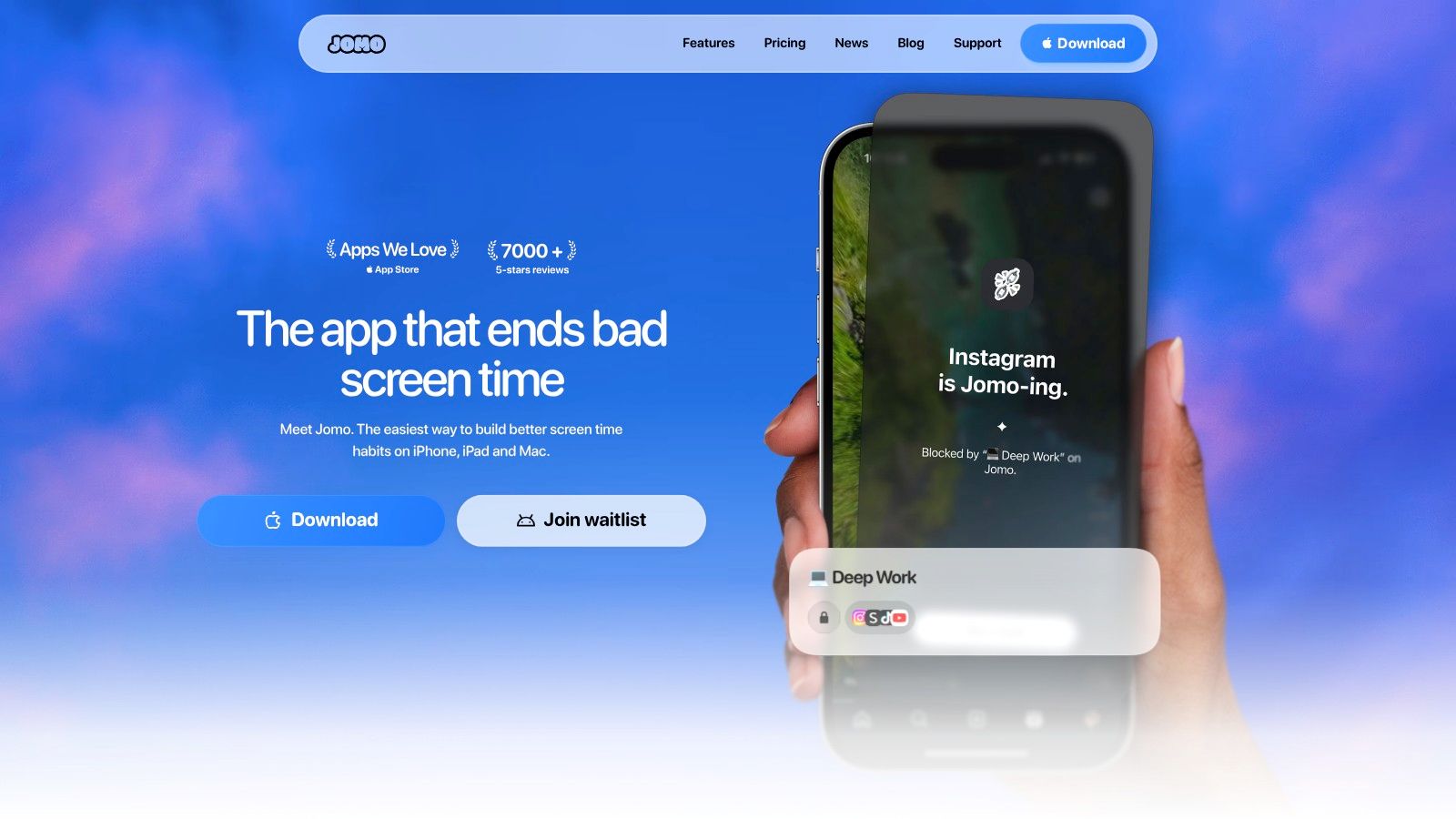
Jomo takes a budget based approach for people who don't want an outright ban. You can combine app blocking, screen time budgets, sessions, schedules, and reports, then adjust the rules as your routine changes. That flexibility suits users who still want social media in their day, just in a planned amount and at planned times.
Budgets work when they're chosen realistically. In a randomized six week experiment among U.S. Facebook users, 66% of participants who hadn't previously implemented usage limits adopted a voluntarily configured Screen Time limit when prompted, and daily Facebook use fell by 33% among those who adopted it. The lesson isn't that any budget works. It's that a limit you choose yourself, framed as a commitment, is more likely to survive contact with a tired evening.
Jomo's listed plans center on iPhone and Mac. There's a free tier, annual and one time purchase options, and a lower cost student subscription. The free plan is limited to one session, action or limit, and screen time budget, so treat it as a trial of the approach rather than a full system.
8. StayFree
Start with StayFree when you don't know where the time goes. Its strength is measurement. Usage charts, app tracking, website usage information, and cross device tracking show patterns that memory tends to flatten, such as short checks scattered across the whole day rather than one long session.
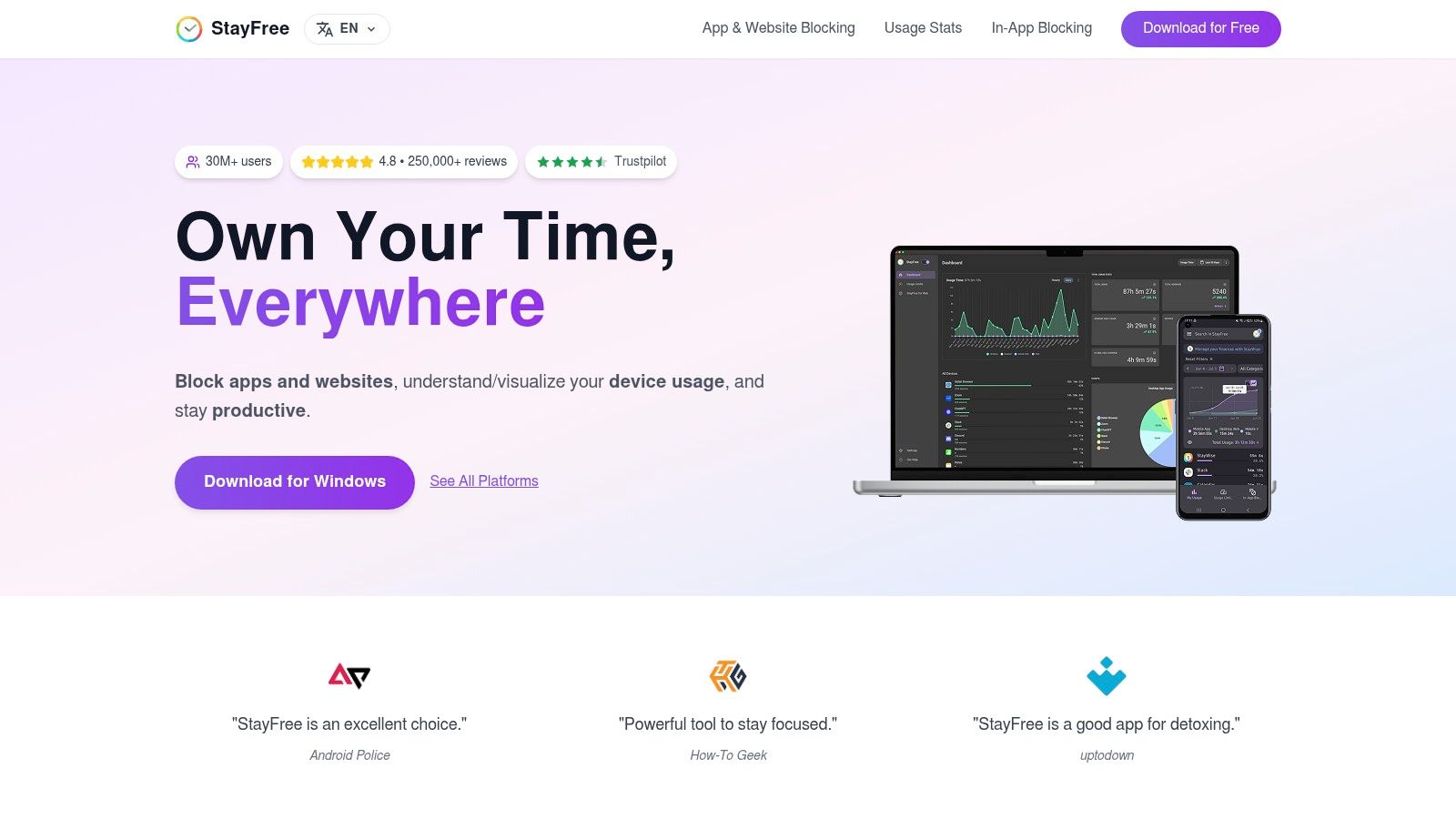
Once the pattern is visible, you can add app limits, blocking, overuse reminders, and scheduled focus or sleep modes. That sequence, measure first and intervene second, prevents a common mistake. People often block the app they feel guilty about, not the one consuming the most fragmented attention.
Data doesn't change a habit by itself, but it stops you from designing limits around a guess.
StayFree has a broad footprint across mobile apps, desktop tools, and browser extensions. Its Google Play listing reports 10M+ downloads and a 4.6-star rating from 277K reviews. Balance that scale against user reports of inconsistent blocking or tracking, and note that some Android functions may require advanced monitoring permissions. Check current paid features in the store listing before you rely on a specific control.
9. Clearspace
Clearspace is built around a checkpoint. Before a distracting app opens, you get a pause or attention challenge, and you can combine that friction with app limits, session length controls, schedules, and blocking. It's aimed squarely at doomscrolling, where the problem isn't opening an app once, it's staying long after the original reason is gone.
Session controls deserve attention if your pattern is binge shaped. A daily cap can still allow one exhausting, unbroken scroll late at night. Limiting how long each visit lasts breaks that run into smaller decisions, each with another chance to stop.
That said, friction shouldn't become punishment. If every necessary message check turns into an obstacle course, you'll disable the app during a busy week and never re enable it. Start with your highest risk apps and keep essential communication accessible.
The cited App Store listing is for iPhone and shows a 4.7-star rating from 8.9K ratings. It's free to download with in app purchases, so confirm current prices in the store. For iPhone users who prefer a mindful interruption to an abrupt cutoff, Clearspace offers a middle path between a simple warning and a hard lockout.
10. Apple Screen Time
Apple Screen Time is the zero installation baseline for iPhone users. You can view app and website usage, set daily limits by app or category, schedule Downtime, and share settings across compatible Apple devices through your existing settings. No separate subscription, no new account, no extra app to learn.
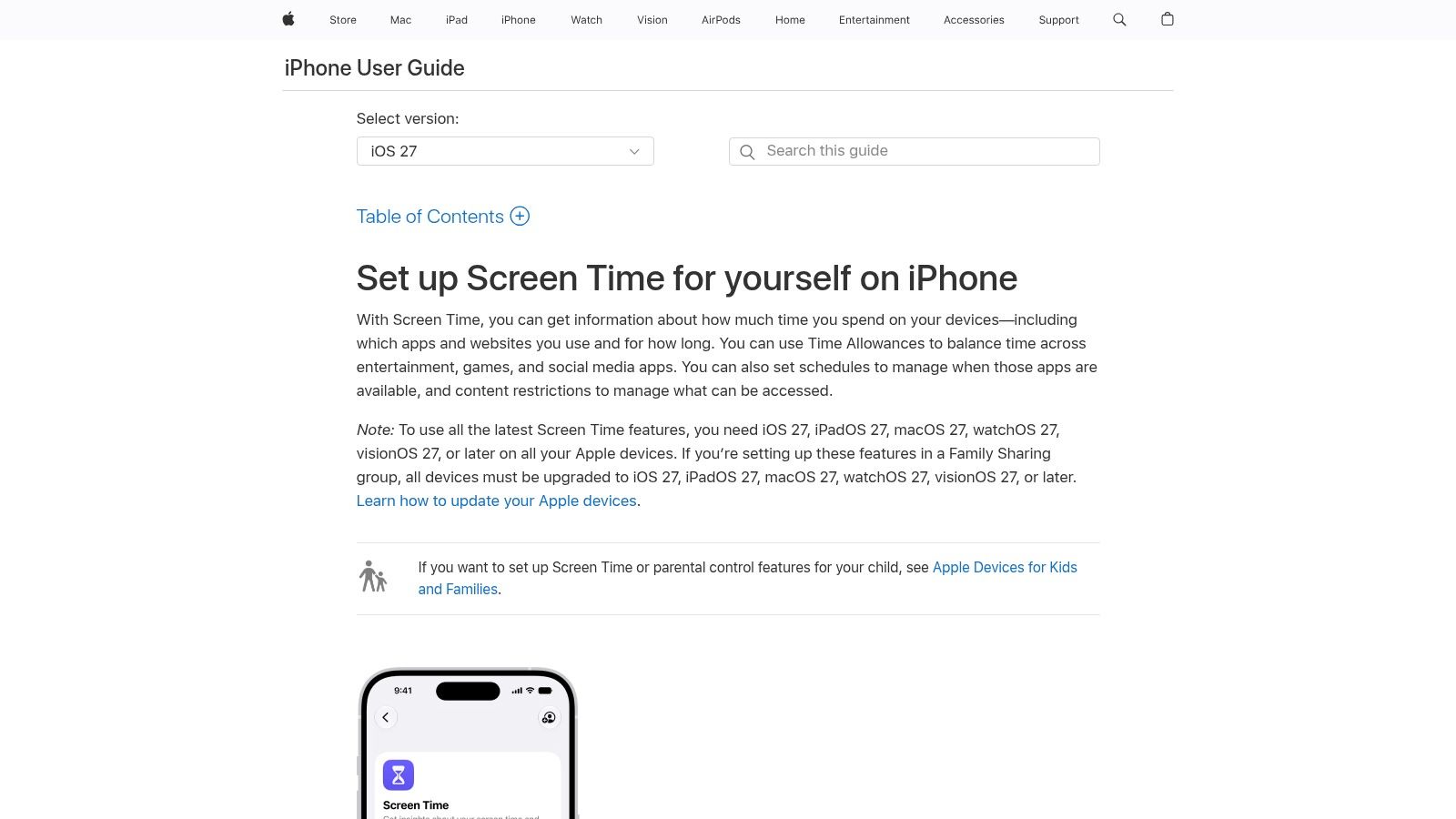
Its place in this category is foundational. Apple announced Screen Time with iOS 12 on June 4, 2018, in Apple's announcement of features to reduce interruptions and manage screen time, with daily and weekly activity reports, notification counts, pickup counts, and App Limits that warn as a limit approaches. Those patterns, visibility first, time budgets, and warnings, still shape most apps to limit social media use today.
The weakness is also familiar. Limits can be ignored by default, and stricter use requires additional settings. It also doesn't provide the same cross platform blocking as third party tools. Use it first to assess your screen usage with this guide, set one honest category limit, and watch your own behavior. If you keep tapping through, you need more friction, not more willpower.
Top 10 Social Media Limiting Apps: Feature Comparison
| App | Core Features | Platforms | Best For | Price / Value |
|---|---|---|---|---|
| Kohru, Recommended | Focus sessions, app and website blocking, task lists, flexible habit goals | iOS, Chrome; Android coming soon | Students and professionals seeking guided focus and task follow-through | Pricing not provided |
| ScreenZen | App-opening pauses, limits, schedules, Lock mode | iPhone, Android, Mac, Windows | Free, customizable interruption of scrolling | Free; optional donations |
| Opal | App blocking, schedules, timers, usage feedback | iOS, Android, Mac | Feature-rich screen-time management | Free plan; Pro features paid |
| Freedom | Synced app and website blocks, schedules, Locked Mode | Mac, Windows, iOS, Android, Chromebook, Linux browser extension | Blocking distractions across devices | Limited free plan; Premium trial |
| one sec | Opening pauses, breathing exercises, blocking | iOS, Android, desktop browsers | Building mindful app-opening habits | Free for one app; Pro adds features |
| AppBlock | Scheduled profiles, quick blocks, Strict Mode, usage stats | Android, iOS, browser extensions | Applying limits to routines like work or bedtime | Free and paid features |
| Jomo | App blocking, screen-time budgets, sessions, reports | Primarily iPhone and Mac | Flexible limits, including student plans | Free tier; subscription and one-time options |
| StayFree | Usage reports, app limits, focus schedules | Mobile, desktop, browser extensions | Tracking screen time across platforms | Check current store offers |
| Clearspace | App limits, scheduled restrictions, mindful prompts | iPhone | Reducing doomscrolling with usage checkpoints | Free to download; in-app purchases |
| Apple Screen Time | Usage reports, app limits, Downtime schedules | Apple devices | Basic built-in limits for Apple users | Included with supported devices |
Choose the Limit You Will Keep
The strictest tool is rarely the one you keep using. Match the intervention to the failure point. If you open apps without noticing, choose a delay based tool such as ScreenZen, one sec, or Clearspace. If planned breaks keep swallowing study or work sessions, you need a hard boundary during those hours: scheduled profiles, locked modes, and cross device sessions earn their keep there.
Platform coverage should drive the shortlist as much as philosophy. A phone only limit is weak if your laptop browser stays open all day, and an elegant iPhone system is irrelevant if you use Android. Audit where you drift in practice before you commit to a setup. For many students, that drift hits both screens within the same hour. Kohru is built for that pattern, coordinating tasks, timed Focus Sessions, and distraction blocking across a phone and laptop instead of treating study as a single device problem.
Decide what success means before you install anything. Minutes saved is an incomplete measure. A 2025 meta analysis summarized in RTI's publication on the effects of social media restriction covered 32 studies with 5,544 adults and college students and found a statistically significant improvement in subjective well being after restriction, though the pooled effect was small. That nuance matters. Reducing scrolling pays off when the recovered time goes somewhere deliberate: finished coursework, sleep, exercise, real conversation.
One week test: Name one trigger, set one realistic limit, leave one needed app open, and review completed tasks and sleep alongside screen time.
Don't stack three blockers on day one. Overlapping rules create confusing exceptions, and confusing systems get deleted. Start with the smallest intervention that changes the behavior you saw, run it for a week, and tighten only the loophole you used. If you bypassed a warning, add friction. If you moved to a laptop, add cross device blocking. If you kept the limit but felt no better, change the replacement activity before you chase a lower number.
For professionals, the same logic applies with different stakes. Protect meeting free work blocks, keep client communication reachable, and avoid rules so broad that you disable them under deadline pressure. For people with ADHD, lower setup cost and immediate usefulness carry real weight, because a system that needs constant maintenance competes with the attention it is meant to protect. Parents should favor transparent schedules and shared expectations over surprise lockouts, especially with older students building self regulation rather than just complying.
Choose the limit you will still respect on a tired Thursday. The toughest looking rule set on a motivated Monday often survives one week and dies the next. A pause you keep beats a lockout you uninstall, and a cross device session you start beats a perfect configuration you never finish.
Start your next study block with a limit that covers both screens, not just the one in your hand. Visit Kohru to launch a one click Focus Session that blocks selected distracting apps on your iPhone and websites on your laptop for the duration you choose, then use that protected time to finish the task in front of you.
